(Optional) Extensible Stylesheet Language and XSL Transformations
Extensible Stylesheet Language (XSL) documents specify how programs are to render XML document data. XSL is a group of three technologiesXSL-FO (XSL Formatting Objects), XPath (XML Path Language) and XSLT (XSL Transformations). XSL-FO is a vocabulary for specifying formatting, and XPath is a string-based language of expressions used by XML and many of its related technologies for effectively and efficiently locating structures and data (such as specific elements and attributes) in XML documents.
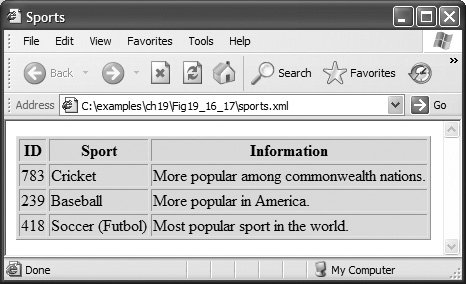
The third portion of XSLXSL Transformations (XSLT)is a technology for transforming XML documents into other documentsi.e., transforming the structure of the XML document data to another structure. XSLT provides elements that define rules for transforming one XML document to produce a different XML document. This is useful when you want to use data in multiple applications or on multiple platforms, each of which may be designed to work with documents written in a particular vocabulary. For example, XSLT allows you to convert a simple XML document to an XHTML (Extensible HyperText Markup Language) document that presents the XML document's data (or a subset of the data) formatted for display in a Web browser. (See Fig. 19.16 for a sample "before" and "after" view of such a transformation.) XHTML is the W3C technical recommendation that replaces HTML for marking up Web content. For more information on XHTML, see Appendix F, Introduction to XHTML: Part 1, and Appendix G, Introduction to XHTML: Part 2, and visit www.w3.org.
Figure 19.16. XML document that describes various sports.
 1  "1.0"?>
 2  "text/xsl" href = "sports.xsl"?>
 3
 4
 5
 6
 7
 8  "783">
 9 Cricket
10
11
12 More popular among commonwealth nations.
13
14
15
16  "239">
17 Baseball
18
19
20 More popular in America.
21
22
23
24  "418">
25 Soccer (Futbol)
26
27
28 Most popular sport in the world.
29
30
31
|
Transforming an XML document using XSLT involves two tree structuresthe source tree (i.e., the XML document to be transformed) and the result tree (i.e., the XML document to be created). XPath is used to locate parts of the source tree document that match templates defined in an XSL style sheet. When a match occurs (i.e., a node matches a template), the matching template executes and adds its result to the result tree. When there are no more matches, XSLT has transformed the source tree into the result tree. The XSLT does not analyze every node of the source tree; it selectively navigates the source tree using XPath's select and match attributes. For XSLT to function, the source tree must be properly structured. Schemas, DTDs and validating parsers can validate document structure before using XPath and XSLTs.
A Simple XSL Example
Figure 19.16 lists an XML document that describes various sports. The output shows the result of the transformation (specified in the XSLT template of Fig. 19.17) rendered by Internet Explorer 6.
Figure 19.17. XSLT that creates elements and attributes in an XHTML document.
(This item is displayed on page 957 in the print version)
1 "1.0"?> 2 3 4 5 6 "1.0" 7 xmlns:xsl = "http://www.w3.org/1999/XSL/Transform"> 8 9 "xml" omit-xml-declaration = "no" 10 doctype-system = 11 "http://www.w3c.org/TR/xhtml1/DTD/xhtml1-strict.dtd" 12 doctype-public = "-//W3C//DTD XHTML 1.0 Strict//EN"/> 13 14 "/"> 15 16 |
"http://www.w3.org/1999/xhtml"> 17 | 18 | Sports 19 20 21 | 22 "1"bgcolor ="wheat">2324252627282930313233 "/sports/game"> 34 353637383940
|
To perform transformations, an XSLT processor is required. Popular XSLT processors include Microsoft's MSXML and the Apache Software Foundation's Xalan 2 (xml.apache.org). The XML document shown in Fig. 19.16 is transformed into an XHTML document by MSXML when the document is loaded in Internet Explorer. MSXML is both an XML parser and an XSLT processor.
Line 2 (Fig. 19.16) is a processing instruction (PI) that references the XSL style sheet sports.xsl (Fig. 19.17). A processing instruction is embedded in an XML document and provides application-specific information to whichever XML processor the application uses. In this particular case, the processing instruction specifies the location of an XSLT document with which to transform the XML document. The characters and ?> (line 2, Fig. 19.16) delimit a processing instruction, which consists of a PI target (e.g., xml:stylesheet) and a PI value (e.g., type = "text/xsl" href = "sports.xsl"). The PI value's type attribute specifies that sports.xsl is a text/xsl file (i.e., a text file containing XSL content). The href attribute specifies the name and location of the style sheet to applyin this case, sports.xsl in the current directory.
|

Figure 19.17 shows the XSL document for transforming the structured data of the XML document of Fig. 19.16 into an XHTML document for presentation. By convention, XSL documents have the filename extension .xsl.
Lines 67 begin the XSL style sheet with the stylesheet start tag. Attribute version specifies the XSLT version to which this document conforms. Line 7 binds namespace prefix xsl to the W3C's XSLT URI (i.e., http://www.w3.org/1999/XSL/Transform).
Lines 912 use element xsl:output to write an XHTML document type declaration (DOCTYPE) to the result tree (i.e., the XML document to be created). The DOCTYPE identifies XHTML as the type of the resulting document. Attribute method is assigned "xml", which indicates that XML is being output to the result tree. (Recall that XHTML is a type of XML.) Attribute omit-xml-declaration specifies whether the transformation should write the XML declaration to the result tree. In this case, we do not want to omit the XML declaration, so we assign to this attribute the value "no". Attributes doctype-system and doctype-public write the DOCTYPE DTD information to the result tree.
XSLT uses templates (i.e., xsl:template elements) to describe how to transform particular nodes from the source tree to the result tree. A template is applied to nodes that are specified in the required match attribute. Line 14 uses the match attribute to select the document root (i.e., the conceptual part of the document that contains the root element and everything below it) of the XML source document (i.e., sports.xml). The XPath character / (a forward slash) always selects the document root. Recall that XPath is a string-based language used to locate parts of an XML document easily. In XPath, a leading forward slash specifies that we are using absolute addressing (i.e., we are starting from the root and defining paths down the source tree). In the XML document of Fig. 19.16, the child nodes of the document root are the two processing instruction nodes (lines 12), the two comment nodes (lines 45) and the sports element node (lines 731). The template in Fig. 19.17, line 14, matches a node (i.e., the root node), so the contents of the template are now added to the result tree.
The MSXML processor writes the XHTML in lines 1629 (Fig. 19.17) to the result tree exactly as it appears in the XSL document. Now the result tree consists of the DOCTYPE definition and the XHTML code from lines 1629. Lines 3339 use element xsl:foreach to iterate through the source XML document, searching for game elements. The xsl:for-each element is similar to C#'s foreach statement. Attribute select is an XPath expression that specifies the nodes (called the node set) on which the xsl:for-each operates. Again, the first forward slash means that we are using absolute addressing. The forward slash between sports and game indicates that game is a child node of sports. Thus, the xsl:for-each finds game nodes that are children of the sports node. The XML document sports.xml contains only one sports node, which is also the document root node. After finding the elements that match the selection criteria, the xsl:for-each processes each element with the code in lines 3438 (these lines produce one row in a table each time they execute) and places the result of lines 3438 in the result tree.
Line 35 uses element value-of to retrieve attribute id's value and place it in a td element in the result tree. The XPath symbol @ specifies that id is an attribute node of the context node game. Lines 3637 place the name and paragraph element values in TD elements and insert them in the result tree. When an XPath expression has no beginning forward slash, the expression uses relative addressing. Omitting the beginning forward slash tells the xsl:value-of select statements to search for name and paragraph elements that are children of the context node, not the root node. Due to the last XPath expression selection, the current context node is game, which indeed has an id attribute, a name child element and a paragraph child element.
Using XSLT to Sort and Format Data
Figure 19.18 presents an XML document (sorting.xml) that marks up information about a book. Note that several elements of the markup describing the book appear out of order (e.g., the element describing Chapter 3 appears before the element describing Chapter 2). We arranged them this way purposely to demonstrate that the XSL style sheet referenced in line 5 (sorting.xsl) can sort the XML file's data for presentation purposes.
Figure 19.18. XML document containing book information.
1 "1.0"?> 2 3 4 5 "text/xsl" href = "sorting.xsl"?> 6 7 "999-99999-9-X"> 8 |
Deitel's XML Primer 9 10 11 Jane 12 Blue 13 14 15 16 17 "2" /> 18 "5" /> 19 "4" /> 20 21 22 "3" pages = "44">Advanced XML 23 "2" pages = "35">Intermediate XML 24 "B" pages = "26">Parsers and Tools 25 "A" pages = "7">Entities 26 "1" pages = "28">XML Fundamentals 27 28 29 "CD" /> 30 |
Figure 19.19 presents an XSL document (sorting.xsl) for transforming sorting.xml (Fig. 19.18) to XHTML. Recall that an XSL document navigates a source tree and builds a result tree. In this example, the source tree is XML, and the output tree is XHTML. Line 14 of Fig. 19.19 matches the root element of the document in Fig. 19.18. Line 15 outputs an html start tag to the result tree. The element (line 16) specifies that the XSLT processor is to apply the xsl:templates defined in this XSL document to the current node's (i.e., the document root's) children. The content from the applied templates is output in the html element that ends at line 17. Lines 2184 specify a template that matches element book. The template indicates how to format the information contained in book elements of sorting.xml (Fig. 19.18) as XHTML.
Figure 19.19. XSL document that transforms sorting.xml into XHTML.
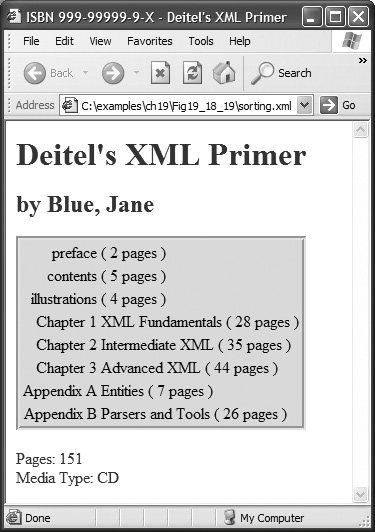
Lines 2324 create the title for the XHTML document. We use the book's ISBN (from attribute isbn) and the contents of element title to create the string that appears in the browser window's title bar (ISBN 999-99999-9-X - Deitel's XML Primer).
Line 28 creates a header element that contains the book's title. Lines 2931 create a header element that contains the book's author. Because the context node (i.e., the current node being processed) is book, the XPath expression author/lastName selects the author's last name, and the expression author/firstName selects the author's first name.
Line 35 selects each element (indicated by an asterisk) that is a child of element frontMatter. Line 38 calls node-set function name to retrieve the current node's element name (e.g., preface). The current node is the context node specified in the xsl:for-each (line 35). Line 42 retrieves the value of the pages attribute of the current node.
Line 47 selects each chapter element. Lines 4849 use element xsl:sort to sort chapters by number in ascending order. Attribute select selects the value of attribute number in context node chapter. Attribute data-type, with value "number", specifies a numeric sort, and attribute order, with value "ascending", specifies ascending order. Attribute data-type also accepts the value "text" (line 63), and attribute order also accepts the value "descending". Line 56 uses node-set function text to obtain the text between the chapter start and end tags (i.e., the name of the chapter). Line 57 retrieves the value of the pages attribute of the current node. Lines 6275 perform similar tasks for each appendix.
Lines 7980 use an XSL variable to store the value of the book's total page count and output the page count to the result tree. Attribute name specifies the variable's name (i.e., pagecount), and attribute select assigns a value to the variable. Function sum (line 80) totals the values for all page attribute values. The two slashes between chapters and * indicate a recursive descentthe MSXML processor will search for elements that contain an attribute named pages in all descendant nodes of chapters. The XPath expression
//*
selects all the nodes in an XML document. Line 81 retrieves the value of the newly created XSL variable pagecount by placing a dollar sign in front of its name.
Summary of XSL Style Sheet Elements
This section's examples used several predefined XSL elements to perform various operations. Figure 19.20 lists these elements and several other commonly used XSL elements. For more information on these elements and XSL in general, see www.w3.org/Style/XSL.
|
Element |
Description |
|---|---|
|
Applies the templates of the XSL document to the children of the current node. |
|
|
|
Applies the templates of the XSL document to the children of expression. The value of the attribute match (i.e., expression) must be an XPath expression that specifies elements. |
|
Contains rules to apply when a specified node is matched. |
|
|
|
Selects the value of an XML element and adds it to the output tree of the transformation. The required select attribute contains an XPath expression. |
|
|
Applies a template to every node selected by the XPath specified by the select attribute. |
|
|
Used as a child element of an <xsl:apply-templates> or element. Sorts the nodes selected by the or element so that the nodes are processed in sorted order. |
|
Has various attributes to define the format (e.g., XML, XHTML), version (e.g., 1.0, 2.0), document type and media type of the output document. This tag is a top-level elementit can be used only as a child element of an xml:stylesheet. |
|
|
Adds the current node to the output tree. |
This section introduced Extensible Stylesheet Language (XSL) and showed how to create XSL transformations to convert XML documents from one format to another. We showed how to transform XML documents to XHTML documents for display in a Web browser. Recall that these transformations are performed by MSXML, Internet Explorer's built-in XML parser and XSLT processor. In most business applications, XML documents are transferred between business partners and are transformed to other XML vocabularies programmatically. In Section 19.10, we demonstrate how to perform XSL transformations using the XslCompiledTransform class provided by the .NET Framework.
Preface
Index
Introduction to Computers, the Internet and Visual C#
- Introduction
- What Is a Computer?
- Computer Organization
- Early Operating Systems
- Personal Computing, Distributed Computing and Client/Server Computing
- Hardware Trends
- Microsofts Windows® Operating System
- Machine Languages, Assembly Languages and High-Level Languages
- C#
- C, C++, Java and Visual Basic
- Other High-Level Languages
- The Internet and the World Wide Web
- Extensible Markup Language (XML)
- Microsofts .NET
- The .NET Framework and the Common Language Runtime
- Test-Driving a C# Application
- Software Engineering Case Study: Introduction to Object Technology and the UML
- Wrap-Up
- Web Resources
- Summary
- Terminology
- Self-Review Exercises
- Exercises
Introduction to the Visual C# 2005 Express Edition IDE
- Introduction
- Overview of the Visual Studio 2005 IDE
- Menu Bar and Toolbar
- Navigating the Visual Studio 2005 IDE
- Using Help
- Using Visual Programming to Create a Simple Program Displaying Text and an Image
- Wrap-Up
- Web Resources
- Summary
- Terminology
- Self-Review Exercises
- Exercises
Introduction to C# Applications
- Introduction
- A Simple C# Application: Displaying a Line of Text
- Creating Your Simple Application in Visual C# Express
- Modifying Your Simple C# Application
- Formatting Text with Console.Write and Console.WriteLine
- Another C# Application: Adding Integers
- Memory Concepts
- Arithmetic
- Decision Making: Equality and Relational Operators
- (Optional) Software Engineering Case Study: Examining the ATM Requirements Document
- Wrap-Up
- Summary
- Terminology
- Self-Review Exercises
- Exercises
Introduction to Classes and Objects
- Introduction
- Classes, Objects, Methods, Properties and Instance Variables
- Declaring a Class with a Method and Instantiating an Object of a Class
- Declaring a Method with a Parameter
- Instance Variables and Properties
- UML Class Diagram with a Property
- Software Engineering with Properties and set and get Accessors
- Value Types vs. Reference Types
- Initializing Objects with Constructors
- Floating-Point Numbers and Type decimal
- (Optional) Software Engineering Case Study: Identifying the Classes in the ATM Requirements Document
- Wrap-Up
- Summary
- Terminology
- Self-Review Exercises
- Exercises
Control Statements: Part 1
- Introduction
- Algorithms
- Pseudocode
- Control Structures
- if Single-Selection Statement
- if...else Double-Selection Statement
- while Repetition Statement
- Formulating Algorithms: Counter-Controlled Repetition
- Formulating Algorithms: Sentinel-Controlled Repetition
- Formulating Algorithms: Nested Control Statements
- Compound Assignment Operators
- Increment and Decrement Operators
- Simple Types
- (Optional) Software Engineering Case Study: Identifying Class Attributes in the ATM System
- Wrap-Up
- Summary
- Terminology
- Self-Review Exercises
- Exercises
Control Statements: Part 2
- Introduction
- Essentials of Counter-Controlled Repetition
- for Repetition Statement
- Examples Using the for Statement
- do...while Repetition Statement
- switch Multiple-Selection Statement
- break and continue Statements
- Logical Operators
- Structured Programming Summary
- (Optional) Software Engineering Case Study: Identifying Objects States and Activities in the ATM System
- Wrap-Up
- Summary
- Terminology
- Self-Review Exercises
- Exercises
Methods: A Deeper Look
- Introduction
- Packaging Code in C#
- static Methods, static Variables and Class Math
- Declaring Methods with Multiple Parameters
- Notes on Declaring and Using Methods
- Method Call Stack and Activation Records
- Argument Promotion and Casting
- The Framework Class Library
- Case Study: Random-Number Generation
- Case Study: A Game of Chance (Introducing Enumerations)
- Scope of Declarations
- Method Overloading
- Recursion
- Passing Arguments: Pass-by-Value vs. Pass-by-Reference
- (Optional) Software Engineering Case Study: Identifying Class Operations in the ATM System
- Wrap-Up
- Summary
- Terminology
- Self-Review Exercises
- Exercises
Arrays
- Introduction
- Arrays
- Declaring and Creating Arrays
- Examples Using Arrays
- Case Study: Card Shuffling and Dealing Simulation
- foreach Statement
- Passing Arrays and Array Elements to Methods
- Passing Arrays by Value and by Reference
- Case Study: Class GradeBook Using an Array to Store Grades
- Multidimensional Arrays
- Case Study: Class GradeBook Using a Rectangular Array
- Variable-Length Argument Lists
- Using Command-Line Arguments
- (Optional) Software Engineering Case Study: Collaboration Among Objects in the ATM System
- Wrap-Up
- Summary
- Terminology
- Self-Review Exercises
- Exercises
- Special Section: Building Your Own Computer
Classes and Objects: A Deeper Look
- Introduction
- Time Class Case Study
- Controlling Access to Members
- Referring to the Current Objects Members with the this Reference
- Indexers
- Time Class Case Study: Overloaded Constructors
- Default and Parameterless Constructors
- Composition
- Garbage Collection and Destructors
- static Class Members
- readonly Instance Variables
- Software Reusability
- Data Abstraction and Encapsulation
- Time Class Case Study: Creating Class Libraries
- internal Access
- Class View and Object Browser
- (Optional) Software Engineering Case Study: Starting to Program the Classes of the ATM System
- Wrap-Up
- Summary
- Terminology
- Self-Review Exercises
- Exercises
Object-Oriented Programming: Inheritance
- Introduction
- Base Classes and Derived Classes
- protected Members
- Relationship between Base Classes and Derived Classes
- Constructors in Derived Classes
- Software Engineering with Inheritance
- Class object
- Wrap-Up
- Summary
- Terminology
- Self-Review Exercises
- Exercises
Polymorphism, Interfaces & Operator Overloading
- Introduction
- Polymorphism Examples
- Demonstrating Polymorphic Behavior
- Abstract Classes and Methods
- Case Study: Payroll System Using Polymorphism
- sealed Methods and Classes
- Case Study: Creating and Using Interfaces
- Operator Overloading
- (Optional) Software Engineering Case Study: Incorporating Inheritance and Polymorphism into the ATM System
- Wrap-Up
- Summary
- Terminology
- Self-Review Exercises
- Exercises
Exception Handling
- Introduction
- Exception Handling Overview
- Example: Divide by Zero Without Exception Handling
- Example: Handling DivideByZeroExceptions and FormatExceptions
- .NET Exception Hierarchy
- finally Block
- Exception Properties
- User-Defined Exception Classes
- Wrap-Up
- Summary
- Terminology
- Self-Review Exercises
- Exercises
Graphical User Interface Concepts: Part 1
- Introduction
- Windows Forms
- Event Handling
- Control Properties and Layout
- Labels, TextBoxes and Buttons
- GroupBoxes and Panels
- CheckBoxes and RadioButtons
- PictureBoxes
- ToolTips
- NumericUpDown Control
- Mouse-Event Handling
- Keyboard-Event Handling
- Wrap-Up
- Summary
- Terminology
- Self-Review Exercises
- Answers To Self-Review Exercises
- Exercises
Graphical User Interface Concepts: Part 2
- Introduction
- Menus
- MonthCalendar Control
- DateTimePicker Control
- LinkLabel Control
- ListBox Control
- CheckedListBox Control
- ComboBox Control
- TreeView Control
- ListView Control
- TabControl Control
- Multiple Document Interface (MDI) Windows
- Visual Inheritance
- User-Defined Controls
- Wrap-Up
- Summary
- Terminology
- Self-Review Exercises
- Exercises
Multithreading
- Introduction
- Thread States: Life Cycle of a Thread
- Thread Priorities and Thread Scheduling
- Creating and Executing Threads
- Thread Synchronization and Class Monitor
- Producer/Consumer Relationship without Thread Synchronization
- Producer/Consumer Relationship with Thread Synchronization
- Producer/Consumer Relationship: Circular Buffer
- Multithreading with GUIs
- Wrap-Up
- Summary
- Terminology
- Self-Review Exercises
- Exercises
Strings, Characters and Regular Expressions
- Introduction
- Fundamentals of Characters and Strings
- string Constructors
- string Indexer, Length Property and CopyTo Method
- Comparing strings
- Locating Characters and Substrings in strings
- Extracting Substrings from strings
- Concatenating strings
- Miscellaneous string Methods
- Class StringBuilder
- Length and Capacity Properties, EnsureCapacity Method and Indexer of Class StringBuilder
- Append and AppendFormat Methods of Class StringBuilder
- Insert, Remove and Replace Methods of Class StringBuilder
- Char Methods
- Card Shuffling and Dealing Simulation
- Regular Expressions and Class Regex
- Wrap-Up
- Summary
- Terminology
- Self-Review Exercises
- Exercises
Graphics and Multimedia
- Introduction
- Drawing Classes and the Coordinate System
- Graphics Contexts and Graphics Objects
- Color Control
- Font Control
- Drawing Lines, Rectangles and Ovals
- Drawing Arcs
- Drawing Polygons and Polylines
- Advanced Graphics Capabilities
- Introduction to Multimedia
- Loading, Displaying and Scaling Images
- Animating a Series of Images
- Windows Media Player
- Microsoft Agent
- Wrap-Up
- Summary
- Terminology
- Self-Review Exercises
- Exercises
Files and Streams
- Introduction
- Data Hierarchy
- Files and Streams
- Classes File and Directory
- Creating a Sequential-Access Text File
- Reading Data from a Sequential-Access Text File
- Serialization
- Creating a Sequential-Access File Using Object Serialization
- Reading and Deserializing Data from a Sequential-Access Text File
- Wrap-Up
- Summary
- Terminology
- Self-Review Exercises
- Exercises
Extensible Markup Language (XML)
- Introduction
- XML Basics
- Structuring Data
- XML Namespaces
- Document Type Definitions (DTDs)
- W3C XML Schema Documents
- (Optional) Extensible Stylesheet Language and XSL Transformations
- (Optional) Document Object Model (DOM)
- (Optional) Schema Validation with Class XmlReader
- (Optional) XSLT with Class XslCompiledTransform
- Wrap-Up
- Web Resources
- Summary
- Terminology
- Self-Review Exercises
- Exercises
Database, SQL and ADO.NET
- Introduction
- Relational Databases
- Relational Database Overview: Books Database
- SQL
- ADO.NET Object Model
- Programming with ADO.NET: Extracting Information from a Database
- Querying the Books Database
- Programming with ADO.NET: Address Book Case Study
- Using a DataSet to Read and Write XML
- Wrap-Up
- Web Resources
- Summary
- Terminology
- Self-Review Exercises
- Exercises
ASP.NET 2.0, Web Forms and Web Controls
- Introduction
- Simple HTTP Transactions
- Multitier Application Architecture
- Creating and Running a Simple Web-Form Example
- Web Controls
- Session Tracking
- Case Study: Connecting to a Database in ASP.NET
- Case Study: Secure Books Database Application
- Wrap-Up
- Web Resources
- Summary
- Terminology
- Self-Review Exercises
- Exercises
Web Services
- Introduction
- .NET Web Services Basics
- Simple Object Access Protocol (SOAP)
- Publishing and Consuming Web Services
- Session Tracking in Web Services
- Using Web Forms and Web Services
- User-Defined Types in Web Services
- Wrap-Up
- Web Resources
- Summary
- Terminology
- Self-Review Exercises
- Exercises
Networking: Streams-Based Sockets and Datagrams
- Introduction
- Connection-Oriented vs. Connectionless Communication
- Protocols for Transporting Data
- Establishing a Simple TCP Server (Using Stream Sockets)
- Establishing a Simple TCP Client (Using Stream Sockets)
- Client/Server Interaction with Stream-Socket Connections
- Connectionless Client/Server Interaction with Datagrams
- Client/Server Tic-Tac-Toe Using a Multithreaded Server
- WebBrowser Control
- .NET Remoting
- Wrap-Up
- Summary
- Terminology
- Self-Review Exercises
- Exercises
Searching and Sorting
- Introduction
- Searching Algorithms
- Sorting Algorithms
- Wrap-Up
- Summary
- Terminology
- Self-Review Exercises
- Exercises
Data Structures
- Introduction
- Simple-Type structs, Boxing and Unboxing
- Self-Referential Classes
- Linked Lists
- Stacks
- Queues
- Trees
- Wrap-Up
- Summary
- Terminology
- Self-Review Exercises
- Exercises
Generics
- Introduction
- Motivation for Generic Methods
- Generic Method Implementation
- Type Constraints
- Overloading Generic Methods
- Generic Classes
- Notes on Generics and Inheritance
- Wrap-Up
- Summary
- Terminology
- Self-Review Exercises
- Exercises
Collections
- Introduction
- Collections Overview
- Class Array and Enumerators
- Non-Generic Collections
- Generic Collections
- Synchronized Collections
- Wrap-Up
- Summary
- Terminology
- Self-Review Exercises
- Exercises
Appendix A. Operator Precedence Chart
Appendix B. Number Systems
- B.1. Introduction
- B.2. Abbreviating Binary Numbers as Octal and Hexadecimal Numbers
- B.3. Converting Octal and Hexadecimal Numbers to Binary Numbers
- B.4. Converting from Binary, Octal or Hexadecimal to Decimal
- B.5. Converting from Decimal to Binary, Octal or Hexadecimal
- B.6. Negative Binary Numbers: Twos Complement Notation
- Summary
- Terminology
- Self-Review Exercises
- Exercises
Appendix C. Using the Visual Studio 2005 Debugger
- C.1. Introduction
- C.2. Breakpoints and the Continue Command
- C.3. The Locals and Watch Windows
- C.4. Controlling Execution Using the Step Into, Step Over, Step Out and Continue Commands
- C.5. Other Features
- C.6. Wrap-Up
- Summary
- Terminology
- Self-Review Exercises
Appendix D. ASCII Character Set
Appendix E. Unicode®
- E.1. Introduction
- E.2. Unicode Transformation Formats
- E.3. Characters and Glyphs
- E.4. Advantages/Disadvantages of Unicode
- E.5. Using Unicode
- E.6. Character Ranges
- Summary
- Terminology
- Self-Review Exercises
- Answers to Self-Review exercises
- Exercises
Appendix F. Introduction to XHTML: Part 1
- F.1. Introduction
- F.2. Editing XHTML
- F.3. First XHTML Example
- F.4. W3C XHTML Validation Service
- F.5. Headers
- F.6. Linking
- F.7. Images
- F.8. Special Characters and More Line Breaks
- F.9. Unordered Lists
- F.10. Nested and Ordered Lists
- F.11. Web Resources
Appendix G. Introduction to XHTML: Part 2
- G.1. Introduction
- G.2. Basic XHTML Tables
- G.3. Intermediate XHTML Tables and Formatting
- G.4. Basic XHTML Forms
- G.5. More Complex XHTML Forms
- G.6. Internal Linking
- G.7. Creating and Using Image Maps
- G.8. meta Elements
- G.9. frameset Element
- G.10. Nested framesets
- G.11. Web Resources
Appendix H. HTML/XHTML Special Characters
Appendix I. HTML/XHTML Colors
Appendix J. ATM Case Study Code
- Appendix J. ATM Case Study Code
- J.1. ATM Case Study Implementation
- J.2. Class ATM
- J.3. Class Screen
- J.4. Class Keypad
- J.5. Class CashDispenser
- J.6. Class DepositSlot
- J.7. Class Account
- J.8. Class BankDatabase
- J.9. Class Transaction
- J.10. Class BalanceInquiry
- J.11. Class Withdrawal
- J.12. Class Deposit
- J.13. Class ATMCaseStudy
- J.14. Wrap-Up
Appendix K. UML 2: Additional Diagram Types
Appendix L. Simple Types
Index

EAN: 2147483647
Pages: 600
