Typical Java Development Environment
We now explain the commonly used steps in creating and executing a Java application using a Java development environment (illustrated in Fig. 1.1).
Figure 1.1. Typical Java development environment.
(This item is displayed on page 13 in the print version)
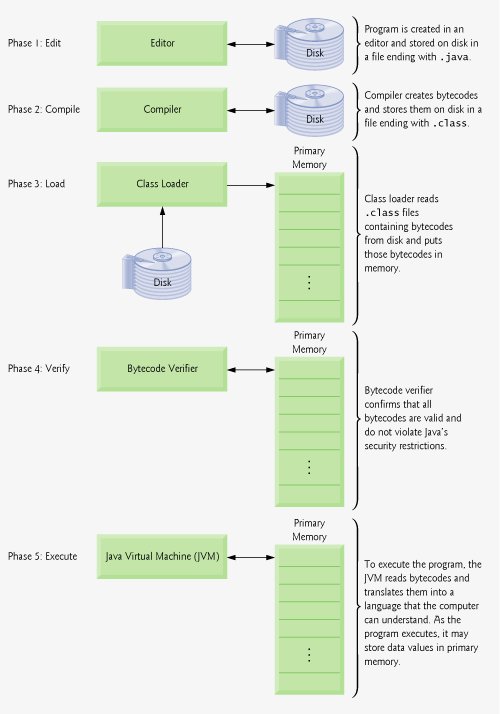
Java programs normally go through five phasesedit, compile, load, verify and execute. We discuss these phases in the context of the J2SE Development Kit (JDK) version 5.0 from Sun Microsystems, Inc., which will be wrapped with the book as an accompanying CD once Sun releases the final version of the JDK 5.0. If the CD for your book does not have the JDK on it, you can download both the JDK and its documentation now from java.sun.com/j2se/5.0/download.jsp. For help with the download, visit servlet.java.sun.com/help/download. Carefully follow the installation instructions for the JDK provided on the CD (or at java.sun.com/j2se/5.0/install.html) to ensure that you set up your computer properly to compile and execute Java programs. Complete installation instructions can also be found on Sun's Java Web site at
java.sun.com/learning/new2java/index.html
[Note: This Web site provides installation instructions for Windows, UNIX/Linux and Mac OS X. If you are not using one of these operating systems, refer to the manuals for your system's Java environment or ask your instructor how to accomplish these tasks based on your computer's operating system. In addition, please keep in mind that Web links occasionally break as companies evolve their Web sites. If you encounter a problem with this link or any other links referenced in this book, please check our Web site (www.deitel.com) for errata and please notify us by e-mail at deitel@deitel.com. We will respond promptly.]
Phase 1: Creating a Program
Phase 1 consists of editing a file with an editor program (normally known simply as an editor). You type a Java program (typically referred to as source code) using the editor, make any necessary corrections and save the program on a secondary storage device, such as your hard drive. Java source-code file names end with the .java extension, which indicates that a file contains Java source code. We assume that the reader knows how to edit a file.
Two editors widely used on UNIX/Linux systems are vi and emacs. On Windows, a simple editing program like Windows Notepad will suffice. Many freeware and shareware editors are also available for download from the Internet on sites like www.download.com.
For organizations that develop substantial information systems, integrated development environments (IDEs) are available from many major software suppliers, including Sun Microsystems. IDEs provide many tools that support the software development process, including editors for writing and editing programs and debuggers for locating logic errors in programs.
Several popular IDEs are NetBeans (www.netbeans.org), jEdit (www.jedit.org), Eclipse (www.eclipse.org), JBuilder (www.borland.com), JCreator (www.jcreator.com), BlueJ (www.blueJ.org) and jGRASP (www.jgrasp.org). Sun Microsystems has the Sun Java Studio (wwws.sun.com/software/sundev/jde/), which is an enhanced version of Net-Beans. [Note: NetBeans v. 3.6, jEdit v. 4.1, jGRASP v. 1.7 and BlueJ v. 1.3.5 are included on the CD that accompanies this book. These IDEs are designed to execute on most major platforms. Our example programs should operate properly with any Java integrated development environment that supports the JDK 5.0. We also provide free Dive Into™ guides for various IDEs on our Web site at www.deitel.com/books/jHTP6/index.html.]
Phase 2: Compiling a Java Program into Bytecodes
In Phase 2, the programmer uses the command javac (the Java compiler) to compile a program. For example, to compile a program called Welcome.java, you would type
javac Welcome.java
in the command window of your system (i.e., the MS-DOS prompt in Windows 95/98/ ME, the Command Prompt in Windows NT/2000/XP, the shell prompt in UNIX/Linux or the Terminal application in Mac OS X). If the program compiles, the compiler produces a .class file called Welcome.class that contains the compiled version of the program.
The Java compiler translates the Java source code into bytecodes that represent the tasks to be performed during the execution phase (Phase 5). Bytecodes are executed by the Java Virtual Machine (JVM)a part of the JDK and the foundation of the Java platform. A virtual machine(VM) is a software application that simulates a computer, but hides the underlying operating system and hardware from the programs that interact with the VM. If the same VM is implemented on many computer platforms, applications that it executes can be used on all those platforms. The JVM is one of the most widely used virtual machines.
Unlike machine language, which is dependent on specific computer hardware, byte-codes are platform-independent instructionsthey are not dependent on a particular hardware platform. So Java's bytecodes are portablethat is, the same bytecodes can execute on any platform containing a JVM that understands the version of Java in which the bytecodes were compiled. The JVM is invoked by the java command. For example, to execute a Java application called Welcome, you would type the command
java Welcome
in a command window to invoke the JVM, which would then initiate the steps necessary to execute the application. This begins Phase 3.
Phase 3: Loading a Program into Memory
In Phase 3, the program must be placed in memory before it can executea process known as loading. The class loader takes the .class files containing the program's bytecodes and transfers them to primary memory. The class loader also loads any of the .class files provided by Java that your program uses. The .class files can be loaded from a disk on your system or over a network (e.g., your local college or company network, or the Internet).
Phase 4: Bytecode Verification
In Phase 4, as the classes are loaded, the bytecode verifier examines their bytecodes to ensure that they are valid and do not violate Java's security restrictions. Java enforces strong security, to make sure that Java programs arriving over the network do not damage your files or your system (as computer viruses and worms might).
Phase 5: Execution
In Phase 5, the JVM executes the program's bytecodes, thus performing the actions specified by the program. In early Java versions, the JVM was simply an interpreter for Java bytecodes. This caused most Java programs to execute slowly because the JVM would interpret and execute one bytecode at a time. Today's JVMs typically execute bytecodes using a combination of interpretation and so-called just-in-time (JIT) compilation. In this process, The JVM analyzes the bytecodes as they are interpreted, searching for hot spotsparts of the bytecodes that execute frequently. For these parts, a just-in-time (JIT) compilerknown as the Java HotSpot compilertranslates the bytecodes into the underlying computer's machine language. When the JVM encounters these compiled parts again, the faster machine-language code executes. Thus Java programs actually go through two compilation phasesone in which source code is translated into bytecodes (for portability across JVMs on different computer platforms) and a second in which, during execution, the bytecodes are translated into machine language for the actual computer on which the program executes.
Problems That May Occur at Execution Time
Programs might not work on the first try. Each of the preceding phases can fail because of various errors that we will discuss throughout this book. For example, an executing program might attempt to divide by zero (an illegal operation for whole-number arithmetic in Java). This would cause the Java program to display an error message. If this occurs, you would have to return to the edit phase, make the necessary corrections and proceed through the remaining phases again to determine that the corrections fix the problem(s). [Note: Most programs in Java input or output data. When we say that a program displays a message, we normally mean that it displays that message on your computer's screen. Messages and other data may be output to other devices, such as disks and hardcopy printers, or even to a network for transmission to other computers.]
Common Programming Error 1.1
 |
Errors like division by zero occur as a program runs, so they are called runtime errors or execution-time errors. Fatal runtime errors cause programs to terminate immediately without having successfully performed their jobs. Nonfatal runtime errors allow programs to run to completion, often producing incorrect results. |
Introduction to Computers, the Internet and the World Wide Web
- Introduction
- What Is a Computer?
- Computer Organization
- Early Operating Systems
- Personal, Distributed and Client/Server Computing
- The Internet and the World Wide Web
- Machine Languages, Assembly Languages and High-Level Languages
- History of C and C++
- History of Java
- Java Class Libraries
- FORTRAN, COBOL, Pascal and Ada
- BASIC, Visual Basic, Visual C++, C# and .NET
- Typical Java Development Environment
- Notes about Java and Java How to Program, Sixth Edition
- Test-Driving a Java Application
- Software Engineering Case Study: Introduction to Object Technology and the UML (Required)
- Wrap-Up
- Web Resources
- Summary
- Terminology
- Self-Review Exercises
- Exercises
Introduction to Java Applications
- Introduction
- First Program in Java: Printing a Line of Text
- Modifying Our First Java Program
- Displaying Text with printf
- Another Java Application: Adding Integers
- Memory Concepts
- Arithmetic
- Decision Making: Equality and Relational Operators
- (Optional) Software Engineering Case Study: Examining the Requirements Document
- Wrap-Up
- Summary
- Terminology
- Self-Review Exercises
- Exercises
Introduction to Classes and Objects
- Introduction
- Classes, Objects, Methods and Instance Variables
- Declaring a Class with a Method and Instantiating an Object of a Class
- Declaring a Method with a Parameter
- Instance Variables, set Methods and get Methods
- Primitive Types vs. Reference Types
- Initializing Objects with Constructors
- Floating-Point Numbers and Type double
- (Optional) GUI and Graphics Case Study: Using Dialog Boxes
- (Optional) Software Engineering Case Study: Identifying the Classes in a Requirements Document
- Wrap-Up
- Summary
- Terminology
- Self-Review Exercises
- Exercises
Control Statements: Part I
- Introduction
- Algorithms
- Pseudocode
- Control Structures
- if Single-Selection Statement
- if...else Double-Selection Statement
- while Repetition Statement
- Formulating Algorithms: Counter-Controlled Repetition
- Formulating Algorithms: Sentinel-Controlled Repetition
- Formulating Algorithms: Nested Control Statements
- Compound Assignment Operators
- Increment and Decrement Operators
- Primitive Types
- (Optional) GUI and Graphics Case Study: Creating Simple Drawings
- (Optional) Software Engineering Case Study: Identifying Class Attributes
- Wrap-Up
- Summary
- Terminology
- Self-Review Exercises
- Exercises
Control Statements: Part 2
- Introduction
- Essentials of Counter-Controlled Repetition
- for Repetition Statement
- Examples Using the for Statement
- do...while Repetition Statement
- switch Multiple-Selection Statement
- break and continue Statements
- Logical Operators
- Structured Programming Summary
- (Optional) GUI and Graphics Case Study: Drawing Rectangles and Ovals
- (Optional) Software Engineering Case Study: Identifying Objects States and Activities
- Wrap-Up
- Summary
- Terminology
- Self-Review Exercises
- Exercises
Methods: A Deeper Look
- Introduction
- Program Modules in Java
- static Methods, static Fields and Class Math
- Declaring Methods with Multiple Parameters
- Notes on Declaring and Using Methods
- Method Call Stack and Activation Records
- Argument Promotion and Casting
- Java API Packages
- Case Study: Random-Number Generation
- Case Study: A Game of Chance (Introducing Enumerations)
- Scope of Declarations
- Method Overloading
- (Optional) GUI and Graphics Case Study: Colors and Filled Shapes
- (Optional) Software Engineering Case Study: Identifying Class Operations
- Wrap-Up
- Summary
- Terminology
- Self-Review Exercises
- Exercises
Arrays
- Introduction
- Arrays
- Declaring and Creating Arrays
- Examples Using Arrays
- Case Study: Card Shuffling and Dealing Simulation
- Enhanced for Statement
- Passing Arrays to Methods
- Case Study: Class GradeBook Using an Array to Store Grades
- Multidimensional Arrays
- Case Study: Class GradeBook Using a Two-Dimensional Array
- Variable-Length Argument Lists
- Using Command-Line Arguments
- (Optional) GUI and Graphics Case Study: Drawing Arcs
- (Optional) Software Engineering Case Study: Collaboration Among Objects
- Wrap-Up
- Summary
- Terminology
- Self-Review Exercises
- Exercises
- Special Section: Building Your Own Computer
Classes and Objects: A Deeper Look
- Introduction
- Time Class Case Study
- Controlling Access to Members
- Referring to the Current Objects Members with the this Reference
- Time Class Case Study: Overloaded Constructors
- Default and No-Argument Constructors
- Notes on Set and Get Methods
- Composition
- Enumerations
- Garbage Collection and Method finalize
- static Class Members
- static Import
- final Instance Variables
- Software Reusability
- Data Abstraction and Encapsulation
- Time Class Case Study: Creating Packages
- Package Access
- (Optional) GUI and Graphics Case Study: Using Objects with Graphics
- (Optional) Software Engineering Case Study: Starting to Program the Classes of the ATM System
- Wrap-Up
- Summary
- Terminology
- Self-Review Exercises
- Exercises
Object-Oriented Programming: Inheritance
- Introduction
- Superclasses and Subclasses
- protected Members
- Relationship between Superclasses and Subclasses
- Constructors in Subclasses
- Software Engineering with Inheritance
- Object Class
- (Optional) GUI and Graphics Case Study: Displaying Text and Images Using Labels
- Wrap-Up
- Summary
- Terminology
- Self-Review Exercises
- Exercises
Object-Oriented Programming: Polymorphism
- Introduction
- Polymorphism Examples
- Demonstrating Polymorphic Behavior
- Abstract Classes and Methods
- Case Study: Payroll System Using Polymorphism
- final Methods and Classes
- Case Study: Creating and Using Interfaces
- (Optional) GUI and Graphics Case Study: Drawing with Polymorphism
- (Optional) Software Engineering Case Study: Incorporating Inheritance into the ATM System
- Wrap-Up
- Summary
- Terminology
- Self-Review Exercises
- Exercises
GUI Components: Part 1
- Introduction
- Simple GUI-Based Input/Output with JOptionPane
- Overview of Swing Components
- Displaying Text and Images in a Window
- Text Fields and an Introduction to Event Handling with Nested Classes
- Common GUI Event Types and Listener Interfaces
- How Event Handling Works
- JButton
- Buttons that Maintain State
- JComboBox and Using an Anonymous Inner Class for Event Handling
- JList
- Multiple-Selection Lists
- Mouse Event Handling
- Adapter Classes
- JPanel Subclass for Drawing with the Mouse
- Key-Event Handling
- Layout Managers
- Using Panels to Manage More Complex Layouts
- JTextArea
- Wrap-Up
- Summary
- Terminology
- Self-Review Exercises
- Exercises
Graphics and Java 2D™
- Introduction
- Graphics Contexts and Graphics Objects
- Color Control
- Font Control
- Drawing Lines, Rectangles and Ovals
- Drawing Arcs
- Drawing Polygons and Polylines
- Java 2D API
- Wrap-Up
- Summary
- Terminology
- Self-Review Exercises
- Exercises
Exception Handling
- Introduction
- Exception-Handling Overview
- Example: Divide By Zero Without Exception Handling
- Example: Handling ArithmeticExceptions and InputMismatchExceptions
- When to Use Exception Handling
- Java Exception Hierarchy
- finally block
- Stack Unwinding
- printStackTrace, getStackTrace and getMessage
- Chained Exceptions
- Declaring New Exception Types
- Preconditions and Postconditions
- Assertions
- Wrap-Up
- Summary
- Terminology
- Self-Review Exercises
- Exercises
Files and Streams
- Introduction
- Data Hierarchy
- Files and Streams
- Class File
- Sequential-Access Text Files
- Object Serialization
- Random-Access Files
- Additional java.io Classes
- Opening Files with JFileChooser
- Wrap-Up
- Summary
- Terminology
- Self-Review Exercises
- Exercises
Recursion
- Introduction
- Recursion Concepts
- Example Using Recursion: Factorials
- Example Using Recursion: Fibonacci Series
- Recursion and the Method Call Stack
- Recursion vs. Iteration
- String Permutations
- Towers of Hanoi
- Fractals
- Recursive Backtracking
- Wrap-Up
- Internet and Web Resources
- Summary
- Terminology
- Self-Review Exercises
- Exercises
Searching and Sorting
- Introduction
- Searching Algorithms
- Sorting Algorithms
- Invariants
- Wrap-up
- Summary
- Terminology
- Self-Review Exercises
- Exercises
Data Structures
- Introduction
- Type-Wrapper Classes for Primitive Types
- Autoboxing and Auto-Unboxing
- Self-Referential Classes
- Dynamic Memory Allocation
- Linked Lists
- Stacks
- Queues
- Trees
- Wrap-Up
- Summary
- Terminology
- Self-Review Exercises
- Exercises
- Special Section: Building Your Own Compiler
Generics
- Introduction
- Motivation for Generic Methods
- Generic Methods: Implementation and Compile-Time Translation
- Additional Compile-Time Translation Issues: Methods That Use a Type Parameter as the Return Type
- Overloading Generic Methods
- Generic Classes
- Raw Types
- Wildcards in Methods That Accept Type Parameters
- Generics and Inheritance: Notes
- Wrap-Up
- Internet and Web Resources
- Summary
- Terminology
- Self-Review Exercises
- Exercises
Collections
- Introduction
- Collections Overview
- Class Arrays
- Interface Collection and Class Collections
- Lists
- Collections Algorithms
- Stack Class of Package java.util
- Class PriorityQueue and Interface Queue
- Sets
- Maps
- Properties Class
- Synchronized Collections
- Unmodifiable Collections
- Abstract Implementations
- Wrap-Up
- Summary
- Terminology
- Self-Review Exercises
- Exercises
Introduction to Java Applets
- Introduction
- Sample Applets Provided with the JDK
- Simple Java Applet: Drawing a String
- Applet Life-Cycle Methods
- Initializing an Instance Variable with Method init
- Sandbox Security Model
- Internet and Web Resources
- Wrap-Up
- Summary
- Terminology
- Self-Review Exercises
- Exercises
Multimedia: Applets and Applications
- Introduction
- Loading, Displaying and Scaling Images
- Animating a Series of Images
- Image Maps
- Loading and Playing Audio Clips
- Playing Video and Other Media with Java Media Framework
- Wrap-Up
- Internet and Web Resources
- Summary
- Terminology
- Self-Review Exercises
- Exercises
- Special Section: Challenging Multimedia Projects
GUI Components: Part 2
- Introduction
- JSlider
- Windows: Additional Notes
- Using Menus with Frames
- JPopupMenu
- Pluggable Look-and-Feel
- JDesktopPane and JInternalFrame
- JTabbedPane
- Layout Managers: BoxLayout and GridBagLayout
- Wrap-Up
- Summary
- Terminology
- Self-Review Exercises
- Exercises
Multithreading
- Introduction
- Thread States: Life Cycle of a Thread
- Thread Priorities and Thread Scheduling
- Creating and Executing Threads
- Thread Synchronization
- Producer/Consumer Relationship without Synchronization
- Producer/Consumer Relationship with Synchronization
- Producer/Consumer Relationship: Circular Buffer
- Producer/Consumer Relationship: ArrayBlockingQueue
- Multithreading with GUI
- Other Classes and Interfaces in java.util.concurrent
- Monitors and Monitor Locks
- Wrap-Up
- Summary
- Terminology
- Self-Review Exercises
- Exercises
Networking
- Introduction
- Manipulating URLs
- Reading a File on a Web Server
- Establishing a Simple Server Using Stream Sockets
- Establishing a Simple Client Using Stream Sockets
- Client/Server Interaction with Stream Socket Connections
- Connectionless Client/Server Interaction with Datagrams
- Client/Server Tic-Tac-Toe Using a Multithreaded Server
- Security and the Network
- Case Study: DeitelMessenger Server and Client
- Wrap-Up
- Summary
- Terminology
- Self-Review Exercises
- Exercises
Accessing Databases with JDBC
- Introduction
- Relational Databases
- Relational Database Overview: The books Database
- SQL
- Instructions to install MySQL and MySQL Connector/J
- Instructions on Setting MySQL User Account
- Creating Database books in MySQL
- Manipulating Databases with JDBC
- Stored Procedures
- RowSet Interface
- Wrap-Up
- Internet and Web Resources
- Recommended Readings
- Summary
- Terminology
- Self-Review Exercises
- Exercises
Servlets
- Introduction
- Servlet Overview and Architecture
- Setting Up the Apache Tomcat Server
- Handling HTTP get Requests
- Handling HTTP get Requests Containing Data
- Handling HTTP post Requests
- Redirecting Requests to Other Resources
- Multitier Applications: Using JDBC from a Servlet
- Welcome Files
- Wrap-Up
- Internet and Web Resources
- Summary
- Terminology
- Self-Review Exercises
- Exercises
JavaServer Pages (JSP)
- Introduction
- JavaServer Pages Overview
- First JSP Example
- Implicit Objects
- Scripting
- Standard Actions
- Directives
- Case Study: Guest Book
- Wrap-Up
- Internet and Web Resources
- Summary
- Terminology
- Self-Review Exercises
- Exercises
Formatted Output
- Introduction
- Streams
- Formatting Output with printf
- Printing Integers
- Printing Floating-Point Numbers
- Printing Strings and Characters
- Printing Dates and Times
- Other Conversion Characters
- Printing with Field Widths and Precisions
- Using Flags in the printf Format String
- Printing with Argument Indices
- Printing Literals and Escape Sequences
- Formatting Output with Class Formatter
- Wrap-Up
- Summary
- Terminology
- Self-Review Exercises
- Exercises
Strings, Characters and Regular Expressions
- Introduction
- Fundamentals of Characters and Strings
- Class String
- Class StringBuffer
- Class Character
- Class StringTokenizer
- Regular Expressions, Class Pattern and Class Matcher
- Wrap-Up
- Summary
- Terminology
- Self-Review Exercises
- Exercises
- Special Section: Advanced String-Manipulation Exercises
- Special Section: Challenging String-Manipulation Projects
Appendix A. Operator Precedence Chart
Appendix B. ASCII Character Set
Appendix C. Keywords and Reserved Words
Appendix D. Primitive Types
Appendix E. (On CD) Number Systems
Appendix F. (On CD) Unicode®
Appendix G. Using the Java API Documentation
Appendix H. (On CD) Creating Documentation with javadoc
Appendix I. (On CD) Bit Manipulation
Appendix J. (On CD) ATM Case Study Code
Appendix K. (On CD) Labeled break and continue Statements
Appendix L. (On CD) UML 2: Additional Diagram Types
Appendix M. (On CD) Design Patterns
Appendix N. Using the Debugger
Inside Back Cover

EAN: 2147483647
Pages: 615
