Multiple Documents
We are now ready to code the Spreadsheet application's main() function:
#include

#include "mainwindow.h"

int main(int argc, char *argv[])
{
 QApplication app(argc, argv);
 MainWindow mainWin;
 app.setMainWidget(&mainWin);
 mainWin.show();
 return app.exec();
}
This main() function is a little bit different from those we have written so far: We have created the MainWindow instance as a variable on the stack instead of using new. The MainWindow instance is then automatically destroyed when the function terminates.
With the main() function shown above, the Spreadsheet application provides a single main window and can only handle one document at a time. If we want to edit multiple documents at the same time, we could start multiple instances of the Spreadsheet application. But this isn't as convenient for users as having a single instance of the application providing multiple main windows, just as one instance of a web browser can provide multiple browser windows simultaneously.
We will modify the Spreadsheet application so that it can handle multiple documents. First, we need a slightly different File menu:
- File|New creates a new main window with an empty document, instead of recycling the current main window.
- File|Close closes the current main window.
- File|Exit closes all windows.
Figure 3.16. The new File menu
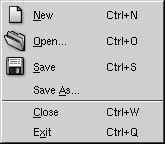
In the original version of the File menu, there was no Close option because that would have been the same as Exit.
This is the new main() function:
#include

#include "mainwindow.h"

int main(int argc, char *argv[])
{
 QApplication app(argc, argv);
 MainWindow *mainWin = new MainWindow;
 mainWin->show();
 QObject::connect(&app, SIGNAL(lastWindowClosed()),
 &app, SLOT(quit()));
 return app.exec();
}
We connect QApplication's lastWindowClosed() slot to QApplication's quit() slot, which will terminate the application.
With multiple windows, it now makes sense to create MainWindow with new, because then we can use delete on a main window when we have finished with it to save memory. This issue doesn't arise if the application uses just one main window.
This is the new MainWindow::newFile() slot:
void MainWindow::newFile()
{
 MainWindow *mainWin = new MainWindow;
 mainWin->show();
}
We simply create a new MainWindow instance. It may seem odd that we don't keep any pointer to the new window, but that isn't a problem since Qt keeps track of all the windows for us.
These are the actions for Close and Exit:
closeAct = new QAction(tr("&Close"), tr("Ctrl+W"), this);
connect(closeAct, SIGNAL(activated()), this, SLOT(close()));

exitAct = new QAction(tr("E&xit"), tr("Ctrl+Q"), this);
connect(exitAct, SIGNAL(activated()),
 qApp, SLOT(closeAllWindows()));
QApplication's closeAllWindows() slot closes all of the application's windows, unless one of them rejects the close event. This is exactly the behavior we need here. We don't have to worry about unsaved changes because that's handled in MainWindow::closeEvent() whenever a window is closed.
It looks as if we have finished making the application capable of handling multiple windows. Unfortunately, there is a hidden problem lurking: If the user keeps creating and closing main windows, the machine might run out of memory! This is because we keep creating MainWindow widgets in newFile() but we never delete them. When the user closes a main window, the default behavior is to hide it, so it still remains in memory. With many main windows, this can be a problem.
The solution is to add the WDestructiveClose flag to the constructor:
MainWindow::MainWindow(QWidget *parent, const char *name)
 : QMainWindow(parent, name, WDestructiveClose)
{
 ...
}
This tells Qt to delete the window when it is closed. The WDestructiveClose flag is one of many flags that can be passed to the QWidget constructor to influence a widget's behavior. Most of the other flags are rarely needed in Qt applications.
Memory leaking isn't the only problem that we must deal with. Our original application design included an implied assumption that we would only have one main window. With multiple windows, each main window has its own recently opened files list and its own options. Clearly, the recently opened files list should be global to the whole application. We can achieve this quite easily by declaring the recentFiles variable static, so that only one instance of it exists for the whole application. But then we must ensure that wherever we called updateRecentFileItems() to update the File menu, we must call it on all main windows. Here's the code to achieve this:
QWidgetList *list = QApplication::topLevelWidgets();
QWidgetListIt it(*list);
QWidget *widget;
while ((widget = it.current())) {
 if (widget->inherits("MainWindow"))
 ((MainWindow *)widget)->updateRecentFileItems();
 ++it;
}
delete list;
The code iterates over all the application's top-level widgets and calls updateRecentFileItems() on all widgets of type MainWindow. Similar code can be used for synchronizing the Show Grid and Auto-recalculate options, or to make sure that the same file isn't loaded twice. The QWidgetList type is a typedef for QPtrList, which is presented in Chapter 11 (Container Classes).
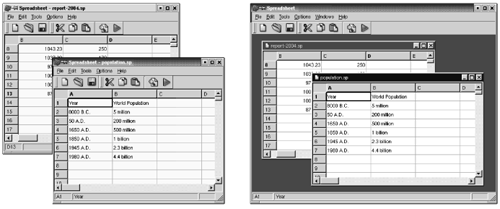
Applications that provide one document per main window are said to be SDI (single document interface) applications. A popular alternative is MDI (multiple document interface), where the application has a single main window that manages multiple document windows within its central area. Qt can be used to create both SDI and MDI applications on all its supported platforms. Figure 3.17 shows the Spreadsheet application using both approaches. MDI is explained in Chapter 6 (Layout Management).
Figure 3.17. SDI vs. MDI
Part I: Basic Qt
Getting Started
Creating Dialogs
- Creating Dialogs
- Subclassing QDialog
- Signals and Slots in Depth
- Rapid Dialog Design
- Shape-Changing Dialogs
- Dynamic Dialogs
- Built-in Widget and Dialog Classes
Creating Main Windows
- Creating Main Windows
- Subclassing QMainWindow
- Creating Menus and Toolbars
- Implementing the File Menu
- Setting Up the Status Bar
- Using Dialogs
- Storing Settings
- Multiple Documents
- Splash Screens
Implementing Application Functionality
- Implementing Application Functionality
- The Central Widget
- Subclassing QTable
- Loading and Saving
- Implementing the Edit Menu
- Implementing the Other Menus
- Subclassing QTableItem
Creating Custom Widgets
- Creating Custom Widgets
- Customizing Qt Widgets
- Subclassing QWidget
- Integrating Custom Widgets with Qt Designer
- Double Buffering
Part II: Intermediate Qt
Layout Management
- Layout Management
- Basic Layouts
- Splitters
- Widget Stacks
- Scroll Views
- Dock Windows
- Multiple Document Interface
Event Processing
- Event Processing
- Reimplementing Event Handlers
- Installing Event Filters
- Staying Responsive During Intensive Processing
2D and 3D Graphics
Drag and Drop
Input/Output
- Input/Output
- Reading and Writing Binary Data
- Reading and Writing Text
- Handling Files and Directories
- Inter-Process Communication
Container Classes
Databases
Networking
XML
Internationalization
- Internationalization
- Working with Unicode
- Making Applications Translation-Aware
- Dynamic Language Switching
- Translating Applications
Providing Online Help
- Providing Online Help
- Tooltips, Status Tips, and Whats This? Help
- Using QTextBrowser as a Simple Help Engine
- Using Qt Assistant for Powerful Online Help
Multithreading
- Multithreading
- Working with Threads
- Communicating with the GUI Thread
- Using Qts Classes in Non-GUI Threads
Platform-Specific Features

EAN: 2147483647
Pages: 140
- Chapter Six Defining Pain or Critical Business Issue
- Chapter Twelve Controlling the Buying Process
- Chapter Fifteen Sales Management System: Managers Managing Pipelines and Salespeople
- Chapter Sixteen Creating and Sustaining High-Performance Sales Cultures
- Appendix B Solution Selling: A Scalable Approach
