MicrosoftR Office AccessT 2007 Step by Step
Authors: Lambert S.
Published year: 2004
Pages: 48-49/127
Buy this book on amazon.com >>


Exporting Information to an HTML File

Many organizations that store accounting, manufacturing, marketing, sales, and other information on their computers have discovered the advantages of sharing this information within the company through an intranet , or with the rest of the world through the Internet. With Access, you can speed up this process by exporting the information stored in a database as Hypertext Markup Language (HTML) pages.

You can export tables, queries, forms, and reports to an HTML file. Access converts a table, query, or form to an HTML table when you export it, and converts a report to a series of linked HTML files (one for each page of the report).

Tip

If you export to an HTML file, you can view the table in a browser, such as Internet Explorer. To see the tags that define the structure of the table, either view the source in the browser or open the file in a text editor.


In this exercise, you will export a report from a database to an HTML file.

USE the 07_ExportHtml database. This practice file is located in the Chapter04 subfolder under SBS_Access2007 .

OPEN the 07_ExportHtml database.


1.

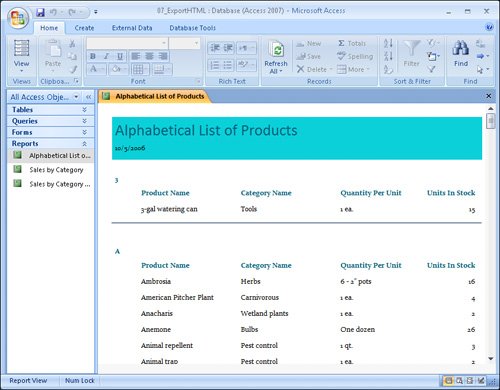
In the Navigation Pane , under Reports , double-click Alphabetical List of Products .

The Alphabetical List of Products report opens in Report view.

2.

On the External Data tab, in the Export group , click the More button, and then in the list, click HTML Document .

3.

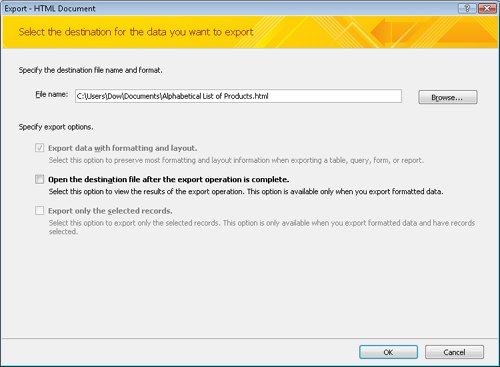
In the Export HTML File wizard, click Browse . In the File Save dialog box, navigate to the Documents\MSP\SBS_Access2007\Chapter04 folder, and then click Save .

4.

Select the Open the destination file after the export operation is complete check box, and then click OK .

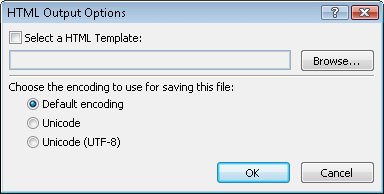
The HTML Output Options dialog box opens. You can select the encoding you want to use for saving the file from this dialog box.

5.

With the Default encoding option selected, click OK .

For each page of the report, Access creates an HTML file with navigation links at the bottom. The report opens in your default Web browser.

6.

Browse the HTML files, comparing them to the report in Access.

CLOSE your Web browser, the Export HTML Document wizard, and the 07_ExportHtml database.


Copying Information to Other Office Programs

All the methods of exporting data described in this chapter work well, but they aren't the only ways to share information with other programs.

Sometimes the quickest and easiest way to get information into or out of a database is to just copy it and paste it where you want it. This technique works particularly well for getting data out of an Access table and into Word or Excel. Information that you paste into a Word document becomes a Word table, complete with a header row containing the field captions as column headings. Information that you paste into an Excel worksheet appears in the normal row-and-column format.

Getting data into an Access table by using this technique is a little more complicated. The data you are pasting must meet all the criteria for entering it by hand (input mask, validation rules, field size , and so on), and you must have the correct cells selected when you use the Paste command. If Access encounters a problem when you attempt to paste a group of records, it displays an error message and pastes the problem records into a Paste Errors table. You can then troubleshoot the problem in that table, fix whatever is wrong, and try copying and pasting again.

Tip

To paste an entire table from one Access database to another, open both databases, copy the table from the source database to the Clipboard, and then paste it in the destination database. You can paste the table data and/or table structure as a new table or append the data to an existing table.


In this exercise, you will copy and paste records between an Access database table, an Excel worksheet, and a Word document.

USE the 08_CopyOffice database. This practice file is located in the Chapter04 subfolder under SBS_Access2007 .

OPEN the 08_CopyOffice database, then open the Customers table in Datasheet view.


1.

Select about six records by pointing to the row selector of the first record you want to select (the pointer changes to a right arrow), holding down the primary mouse button, and dragging to the last record you want to select.

2.

On the Home tab, in the Clipboard group, click the Copy button.

Copy

3.

Start Excel , open a blank worksheet, and then click cell A1 .

4.

On the Home tab, in the Clipboard group, click the Paste button.

Excel pastes the records into the worksheet, complete with the same column headings. (You will have to widen the columns to see all the data.)

5.

Press to switch back to Access.

6.

Select a block of cells in the middle of the table by pointing to the left edge of the first cell you want to select (the pointer changes to a thick cross) and then dragging until you have selected all the desired cells. Then in the Clipboard group, click the Copy button.

7.

Press to switch back to Excel, click a cell below the records you inserted in Step 4, and then click the Paste button.

Excel pastes in the new selection, again with column headings. The copied data remains on the Office Clipboard

8.

Start Word and open a blank document.

9.

On the Home tab, in the Clipboard group, click the Paste button.

Word pastes the selection as a nicely formatted table with the title Customers , reflecting the name of the table from which this data came.

10.

Quit Word and Excel without saving your changes.

CLOSE the Customers table and the 08_CopyOffice database. If you are not continuing directly on to the next chapter, quit Access.


MicrosoftR Office AccessT 2007 Step by Step
Authors: Lambert S.
Published year: 2004
Pages: 48-49/127
Buy this book on amazon.com >>