Flylib.com

Books Software


STRAIGHTENING SCANS IN 10 SECONDS (OR LESS)

 < Day Day Up > 

STRAIGHTENING SCANS IN 10 SECONDS (OR LESS)

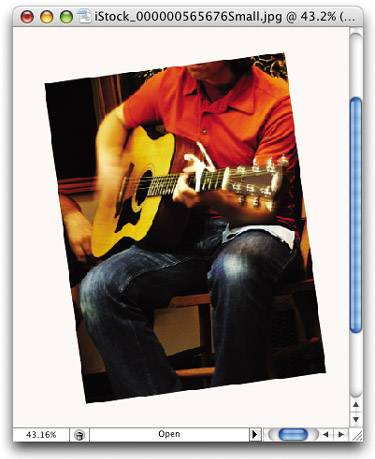
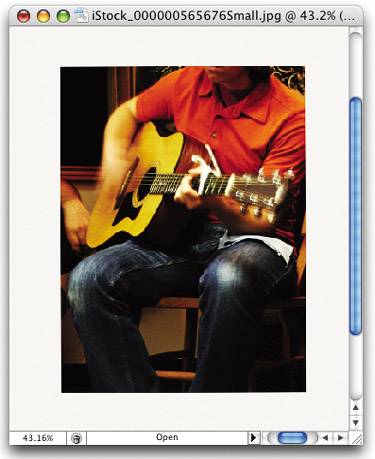
If you've scanned an image and it's crooked when you bring it into Photoshop, you can fix it in about 10 seconds flat. Just switch to the Measure tool (it lives behind the Eyedropper tool in the Toolbox) and drag it along the top edge of the image you want to straighten. That's the hard part (and that should give you an idea of how easy this technique is). Next, go under the Image menu, under Rotate Canvas, and choose Arbitrary. Photoshop automatically enters the amount of rotation ( courtesy of your earlier measurement), so all you have to do is click OK and bam!—the image is perfectly straightened.

ISTOCKPHOTO/NATHAN WATKINS

 < Day Day Up > 
 < Day Day Up > 

SCANNERS AREN'T JUST FOR FLAT OBJECTS

Even though your flatbed scanner is normally used for scanning (you guessed it) flat images, it doesn't mean you can't scan images that have more dimension (such as a watch, a ring, a yo-yo, you name it). The only problem is, scanning an image that lifts the lid adds lots of ambient light into your scan, introducing so many outside colors and reflections that it makes the scan all but unusable. The tip for getting around this is deceivingly simple: Just put a black sweater (or black felt cloth) around the object you're going to scan, and you'll get great-looking scans , even with the lid open . The black sweater soaks up that ambient light and you'll be amazed at how natural and balanced your scanned objects will look.

 < Day Day Up > 
 < Day Day Up > 

ARE YOUR COLORS PRESS READY?

If you're working on an image that will be printed on a printing press and you select a color that's outside the range of what a CMYK press can reproduce, you'll get what's called a Gamut Warning right within Photoshop's Color Picker. This is just to let you know that the color you've chosen is outside the CMYK gamut. Just below the warning is a tiny color swatch showing you what the color you picked will really look like when printed in CMYK mode. To find out where that color resides within the Color Picker, click once directly on that tiny swatch and Photoshop will pick that color for you.

 < Day Day Up > 
 < Day Day Up > 

NEVER SWAP COLORS AGAIN WHEN CLEANING LINE ART

When cleaning up line art images with the Pencil tool, you can spend a lot of time going back and forth to the Toolbox to switch your Foreground color to black (to fill in missing pixels) and then to white (to erase pixels that shouldn't be there in the first place). It does help if you use the keyboard shortcut D to set your Foreground to black, and then X to make white your Foreground color , but there's actually a faster way. Once you select the Pencil tool, go in the Options Bar and turn on Auto Erase. What the Auto Erase option does is pretty neat—when you click the Pencil in a black area of pixels, it paints white; when you click it on a white pixel, it automatically paints black. It happens automatically—so you never have to switch colors again—saving you a ton of time, travel, and keystrokes.

 < Day Day Up > 
 < Day Day Up > 

LET PHOTOSHOP DO YOUR RESOLUTION MATH

You don't need a calculator to determine how much resolution you need for printing to a particular line screen—Photoshop will do all the math for you, right inside the Image Size dialog. Here's how: Open the image you want to print. Go under the Image menu and choose Image Size. When the dialog appears, click on the Auto button (it's right under the Cancel button). When the Auto Resolution dialog appears, all you have to do is type in the line screen of the device you're printing to and then choose a Quality setting. Here's how Photoshop does its resolution math:

Draft: This just lowers your resolution to 72 ppi (ideal for onscreen use, the Web, etc.).

Good: This takes the line screen and multiplies it by 1.5.

Best: This doubles the line screen (multiplies it by 2).

When you click OK, Photoshop enters the math it just did into the Resolution field of the Image Size dialog.

 < Day Day Up >