Outputting Using the Digital Cut Tool
| [ LiB ] |
Outputting Using the Digital Cut Tool
The proper method for outputting your sequence back to tape is using the Digital Cut option. Although it's certainly true you can just play your sequence back to VTR using Record mode, it isn't the optimum method, due to the fact you're not recording your sequence to a specific timecode. In other words, your sequence will start at a random timecode number. If this isn't of concern to you, perhaps "crash recording" your sequence this way is the best method of outputting.
If you're going to send your finished project to a duplication facility or broadcast facility, you'll need to output your sequence to a specific starting timecode. For example, many broadcast facilities prefer that the program start at 01:00:00:00 on a tape, not at some random timecode like 04:02:19:12.
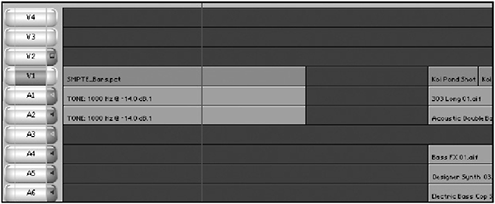
The example in this chapter starts the sequence at 01:00:00:00 on the tape. It uses 60 seconds of color bars with tone and 30 seconds of black between the color bars and the beginning of the program. Take a look at how the Timeline would look if you had 60 seconds of bars and tone and 30 seconds of black before the beginning of your sequence (see Figure 15.12).
Figure 15.12. This is how the Timeline looks with bars and tone added and 30 seconds of black or filler in between the bars and the beginning of the show.
Setting Your Sequence Start Timecode
Again, this example outputs a non-drop frame sequence starting at 01:00:00:00 on a tape. Because the sequence will start at 01:00:00:00 on tape, let's change the start timecode of the sequence to reflect the same start timecode on the tape.
Because the actual start time of the sequence is one minute and 30 seconds into the Timeline, you need to change the starting timecode.
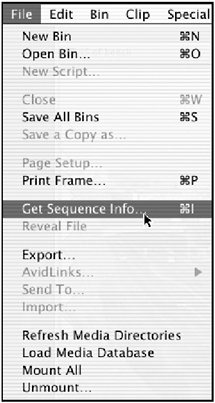
Because timecode reflects actual time, you'll want the starting timecode to be 00:58:30:00 or 58 minutes, 30 seconds and 0 frames . This will allow you to add the one minute and 30 seconds you need before the program starts. Click on the record monitor and choose Get Sequence Info from the File menu (see Figure 15.13).
Figure 15.13. Choose Get Sequence Info from the File menu to change a sequence's start timecode.
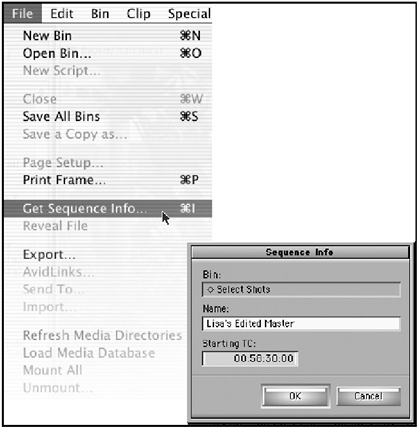
A dialog box will open allowing you to adjust the starting timecode of the sequence currently loaded in the Timeline. For this example, adjust this to 00:58:30:00 (see Figure 15.14).
Figure 15.14. From this dialog box, you're allowed to change the starting timecode.
In the Timeline, the sequence starts at 58:30:00 and the actual program starts at 01:00:00:00. Because the timecode on the tape and the timecode in the Timeline will match, you can easily make any adjustments according to callouts from the tape. For example if someone watches the tape and informs you that a name is spelled wrong, the timecode number in which the name appears on the tape is the same number in your sequence. This might seem trivial now, but when a client requests changes, such consistency makes it easy to make these changes.
Working with the Digital Cut Tool
Now that your sequence has bars and tone and has a correct starting timecode, it's time to output your sequence to tape. First and foremost, you'll need to use a striped tape. A striped tape is a tape that has timecode on it. Basically it's a tape that has been recorded with black. This can be achieved by parking your Position Indicator on a piece of black or filler, setting the timecode preset on a VTR, and pressing Record on the VTR. If you want it to match your sequence timecode, which I would recommend, strip the tape starting at any timecode before 58:30:00. Because you'll need preroll, which is the extra time needed to cue up your deck, start striping a tape at 58:20:00. This provides 10 seconds of preroll.
NOTE
 NOTE
NOTE
You can use the Digital Cut tool even if you are working without a striped tape; however, the only way to output with the Digital Cut tool is to switch the tool into Local mode. The Local mode is needed to record your sequence to a DV device such as a camera or deck. This is basically the same as pressing Play and Record on your VTR and then playing your sequence. The real power of the Digital Cut tool is when you want to control the deck and output to a certain timecode on a tape. Also keep in mind that Avid Xpress Pro does not generate the timecode. The timecode must come from a camera, a deck, or some kind of timecode generator.
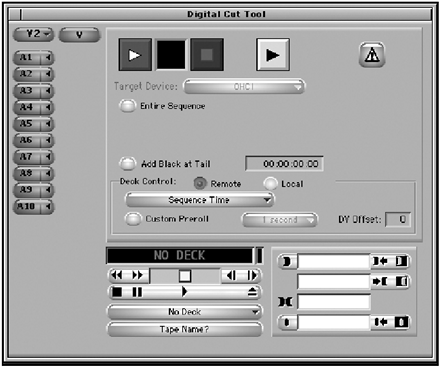
Assuming your deck is hooked up correctly, choose the Digital Cut command from the Clip menu (see Figure 15.15). This option will not be available if you do not have your sequence loaded into the Timeline.
Figure 15.15. This is the Digital Cut tool.
NOTE
 CAUTION
If you are outputting to a DV camera or a deck controlled only through a 1394 connection (Apple's FireWire), Frame-accurate recording can be tricky. To see how your deck or camera will perform, visit http://www.avid.com/products/xpressdv/ specs .shtml and click on the DV Cameras, Decks, and Transcoders tested by Avid (.PDF). You'll download a list of devices Avid has tested ; identified problems are listed. It is much better to output to a deck hooked up through the RS-422 connection. If your deck has this connection, the results of a digital cut will be much better because this cable controls the deck better than FireWire can. The RS-422 cable hooks up to the deck's controller and a serial port on your computer. Because some Macs don't have a serial port, Avid has endorsed a serial adapter by Keyspan. Visit keyspan.com for more information.
To output your sequence to tape using the Digital Cut tool, follow these steps:
-
Load the sequence you want to output into the Timeline.
-
Make sure there are no IN and OUT points marked in the sequence. Avid Xpress can perform edits using IN and OUT points. I'll explain how to use this feature later in this chapter. Select Digital Cut from the Clip menu.
-
Click on the Target Device pull-down menu and choose which device you're going to output to. If you're not using Avid's Mojo, the only option you have is OHCI (Open Host Controller Interface), which means Avid Xpress Pro is hooked up to a digital video device via Apple's FireWire. If this option is grayed out, you need to make sure your deck or camera is hooked up correctly.
-
Make sure the check box next to Entire Sequence is checked. This ensures that the entire sequence is output to tape. If this option is not active, Avid Xpress will output beginning from the IN point. If there is no IN point, Avid Xpress Pro will start wherever the Position Indicator is parked. If there is an OUT point, recording will end at that point.
-
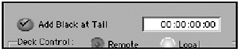
Now is your chance to add filler to the end of your sequence. In the Digital Cut tool, click on the Add Black at Tail check box (see Figure 15.16) and enter a value.
Figure 15.16. The Digital Cut tool allows you to add filler to the end of your sequence.
-
The next group of settings determines where the sequence will be output according to the tape that's in your deck. Your first set of options is Remote or Local. These terms relate to how you're using your VTR, deck, or camera. If you simply want to crash-record your sequence, you can use the Local option. Press Play and Record on the deck and then press the large red play button at the top of the Digital Cut tool (see Figure 15.17).
Figure 15.17. Click on the large play button to start a digital cut while a deck is in Local mode.
-
If you're going to have control over your deck, select the Remote option.
-
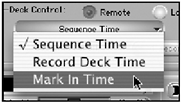
The Digital Cut tool also needs to know where to start recording on a tape. Your options are Sequence Time, Record Deck Time, and Mark In Time. Sequence Time means the timecode on the tape matches the timecode number at the beginning of you sequence. This is a great option to ensure that the timecode from the tape matches the timecode in your sequence. The second option, Record Deck Time, uses only the timecode from wherever the tape is cued up. The last option is Mark In Time. This option allows you to enter the tape's timecode number as to where you want the sequence to start recording (see Figure 15.18). For this example, use Mark In Time. You can then use some of the deck controls.
Figure 15.18. From this pull-down menu, you can select which timecode you want the sequence to start.
-
Another option available in the Digital Cut tool is how much preroll you want the deck to have before it begins recording. If you adjust this setting, it will override the default setting in the deck configuration settings. I suggest you simply leave this button unselected .
-
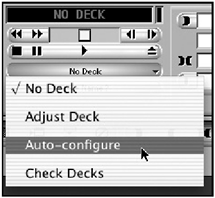
Prior to outputting, the system must know what tape is in which deck. This is very similar to when you capture material. If the system doesn't recognize your deck, choose Auto-Configure from the pull-down menu below the deck controls (see Figure 15.19).
Figure 15.19. If the system doesn't recognize deck or camera, choose Auto-Configure. The system will try to recognize the deck on its own.
-
In the IN point box, either type in the timecode number you want the sequence to start outputting at or cue up your deck using the deck controls and click on the IN point button to log a starting timecode number.
-
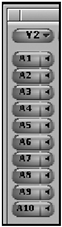
After the deck is cued and ready, select which tracks you want to output to tape (see Figure 15.20).
Figure 15.20. Avid Xpress Pro allows you to choose which tracks will go to tape.
NOTE
 TIP
TIP Selecting tracks to output gives you several advantages. For example, let's say you are working on a job and the client wants to see how far you've progressed but your graphics are in no condition to be viewed . Simply turn on the video track below your graphic tracks to output. Avid Xpress will only output the track you selected and any tracks beneath it. So if your titles are all on track V2, select V1 to output only. Occasionally, your audio tracks might not be mixed, but a track of narration is complete. Simply output the narration track and not the other audio tracks.
-
When all your settings are selected, it's time to output to tape. Click on the large red record button to start the process.
-
Your deck will cue up the tape, start recording, and play the sequence that's in the Timeline. The box next to large red record button will begin to blink during the outputting process.
-
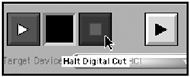
If anything goes wrong during the output, click on the large blue stop button to stop the Digital Cut process (see Figure 15.21).
Figure 15.21. This button stops the Digital Cut process.
This might seem like a lot of information to perform a simple task. Quite frankly it is. Outputting is a pretty straightforward process but the first time you perform it, it can seem daunting. Because every system can be set up and configured differently, it's very difficult to say exactly how outputting is performed every time. Variables such as what kind of video card you have in your computer, if you have Avid Mojo, or if your outputting to a deck or camera all play as factors when outputting.
NOTE
NOTE
Avid Xpress Pro users who also have Avid Mojo have another option in the Digital Cut tool. If you choose the Stop on Dropped Frames option, the system will stop when it detects any dropped frames, thus allowing the editor to render an effect and continue with the digital cut.
Insert Edit versus Assemble Edit
If your deck is hooked up to the Avid via an RS-422 cable, the Digital Cut tool can also be used to perform edits to tapeboth insert edits and assemble edits. And you thought you'd never have to hear insert edit and assemble edit ever again. Both terms, insert edit and assemble edit, derive from linear-type editing. I guess this would be a good time to travel down memory lane and review these concepts.
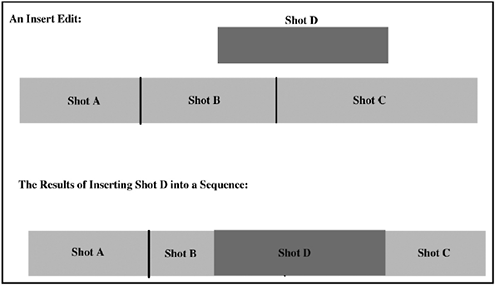
An insert edit allows you to edit a single track or element to tape. For example, say you had a finished audio bed on tape and wanted to edit pictures or images on top of the track. If you performed an insert edit with only video selected, the audio track on the tape would not be edited. An insert edit is similar to an overwrite edit, but with only a few tracks selected (see Figure 15.22).
Figure 15.22. Shot D is inserted into the sequence as a video only edit.
An assemble edit, on the other hand, edits all the possible tracks it can to tape, including the control track . The control track is used as a reference track. Think of an insert edit as selective tracks being edited and an assemble edit as everything being edited. Take a look at an example of when you use one over the other. Say you finished a project and it went to another facility for audio mixing. The client loves the audio mix but realizes that one of the images in the project is incorrect (it's true, producers can make mistakes). When the client comes back to you for changes, all they really need is "new" video laid over top of the mixed audio. This is where an insert edit comes in very handy.
An assemble edit is a great edit to use if you're short on time and need to lay off a sequence using a specific timecode. Instead of having to strip an entire tape, you can simply strip the first few minutes of the tape and perform an assemble edit. Because an assemble edit edits everything, including the control track, the tape will continue to record even though it doesn't have black. This, too, is similar to an overwrite edit (imagine, though, overwriting all the tracks, including the control track, to tape).
By default, the Digital Cut tool will not give you the option to perform an assemble edit. Avid Xpress Pro assumes you're going to perform an insert edit to a tape that already has black or filler on it. If you want a choice to appear in the Digital Cut tool, choose the Deck Preferences setting from the Settings tab in the Project window (see Figure 15.23).
Figure 15.23. In the Deck Preferences dialog box, you can allow for assemble edits.
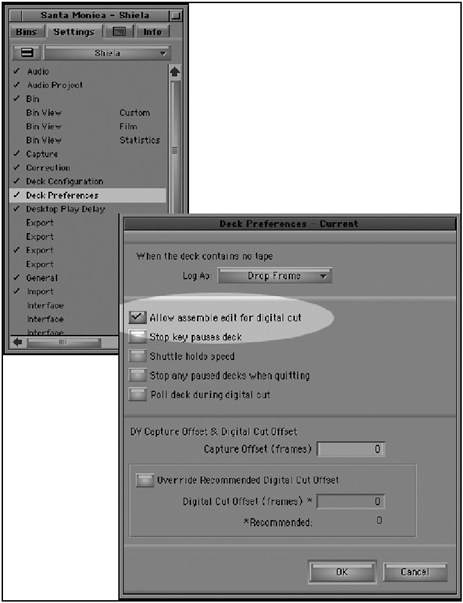
In the Deck Preferences dialog box, turn on the Allow Assemble Edit for Digital Cut option. When you open the Digital Cut tool, you'll have the option to perform either an insert edit or an assemble edit. Ah, the more things change, the more they stay the same.
| [ LiB ] |
