Flylib.com

Books Software


Customizing the Desktop Icons


Customizing the Desktop Icons

You can display all the standard Desktop icons, hide them, or show only the ones you want. You can also change the image for each icon and adjust its size , and then arrange the icons however you want to see them on your Desktop.

Select and Modify the Icons
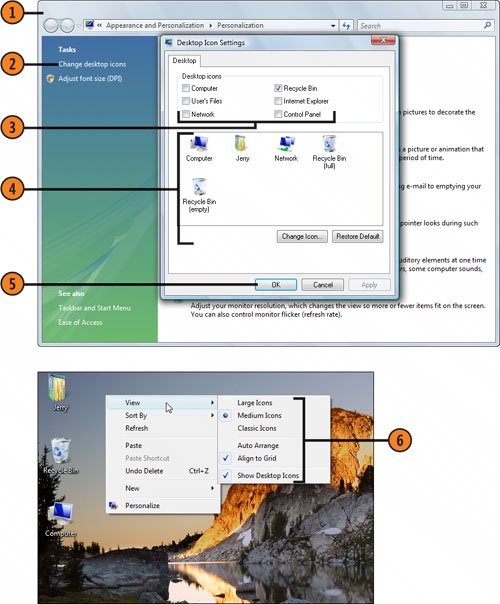
Click the Start button, type pers in the Search box of the Start menu, and click Personalization to display the Personalization window.

Click Change Desktop Icons to display the Desktop Icon Settings dialog box.

Select the icons you want to be shown on the Desktop.

To change the appearance of an icon, select it, click Change Icon, and, in the Change Icon dialog box that appears, click the image you want to replace that of the selected icon. Click OK.

Click OK.

Right-click a blank spot on the Desktop, point to View, and specify

  • The size you want for the icons.

  • The alignment you want.

  • Whether you want the icons to be shown on the Desktop or hidden.

Tip

You can also open the Personalization dialog box by right-clicking anywhere on the Desktop and choosing Personalize from the shortcut menu.


Customizing the Start Menu

The Start menu is your main resource for organizing your programs and files and getting your work done in Windows Vista. You can customize the Start menu in several ways: You can change its new Windows Vista look so that it looks like the Start menu in an earlier version of Windows, you can modify the way items are displayed on the Start menu, and you can add items to or delete items from the main part of the Start menu and from the All Programs folder or its subfolders .

Choose and Customize the Style

Click the Start button, type start in the Search box of the Start menu, and click Taskbar And Start Menu to display the Taskbar And Start Menu Properties dialog box.

On the Start Menu tab, click an option to specify the style you want for the Start menu.

Click Customize to display the Customize Start Menu dialog box. (The contents of the dialog box that appears might differ from the one shown here, depending on the style you selected for the Start menu.)

Specify the items to be displayed and how you want them displayed.

Specify how many recently used programs you want to be listed.

Select these check boxes if you want links to your Internet browser and e-mail program to appear on the Start menu, and, if so, specify the programs.

Click if you want to remove all custom settings.

Click OK.

Click OK to close the Taskbar And Start Menu Properties dialog box.

Add or Remove a Start Menu Program

Click the Start button, and choose All Programs from the Start menu.

Open any folder you need to locate the program you want to add to the main part of the Start menu, and right-click the program.

Choose Pin To Start Menu from the shortcut menu.

Right-click a program that has been "pinned" to the Start menu, and choose Unpin From Start Menu from the shortcut menu to remove the program.

Add a Link to an Item

Locate the item, and drag it onto the Start button.

Click the Start button, and verify that the item is now on the Start menu.


Customizing Your Folders

Working in Windows Vista means that you work with folders. To adapt the folders to your working style, you can customize them so that they look and work in exactly the way you want. Some of the changes you make will apply to all your folders, and other changes will apply to the single folder that's open . In some cases, you can first apply the changes to a single folder, and then, if you want, you can apply the changes to all your folders.

Change the Way All the Folders Work

In a folder that you want to modify, click Organize, and choose Folder And Search Options from the drop-down menu to display the Folder Options dialog box.

Specify whether you want to use the Windows Vista style or an earlier Windows style.

Specify whether you want all your folders to open in the same window (that is, to replace the window's current content), or to use a separate window for each folder that you open.

Click the first option if you want to click only once to open an item in a folder. Click the second option if you want to double-click to open an item. If you chose the first option, specify how you want the icon text to be underlined .

Click the View tab.

Select the check boxes for the options you want and clear the check boxes for the options you don't want.

Click if you want to apply the current view setting to all folders of this type.

Click OK.

Change the Content That's Shown

Right-click the descriptive label, or detail, of one of the columns in the folder window ( Name , for example), and, on the shortcut menu that appears, click an unchecked item to display that label if it isn't shown, or click a checked item to hide that label. If you don't see the item you want, click More.

In the Choose Details dialog box, select the check boxes for the labels, or details, that you want to be shown in the folder window, and clear the check boxes for the details that don't need to be shown.

Use the appropriate buttons to change the order of the labels or to show or hide them.

Specify the width in pixels of the column for the selected label.

Click OK when you've finished.

Try This!

To apply the same view to all folders of the same type, select a view from the Views button, choose Folder Options from the Tools menu, and, on the View tab, click the Apply To Folders button. Click OK.


Tip

Windows Vista looks at the content of a folder and applies a template for that type of content. For example, it uses one template for a folder of pictures and another template for a folder of music. If you want to change the template, press the Alt key to show the menu bar, and choose Customize This Folder from the View menu.