Section 2.4. Retaining an Existing Shadow in a New Background
Sometimes your client has an image in which he would like to have the object cropped out of the background but retain the shadow. If the object is on a light background, as in Figure 2-35, this is generally a simple matter of dropping out the background.
Figure 2-35. The background here has subtle coloring that the client wants removed

Figure 2-36. Drop out a white background with a curve or selective tool adjustment

Figure 2-37. Copy a four- color image and create a grayscale

I will usually make a selection of the object or the background (whichever is easier) and invert the selection (if necessary so only the background is selected. Then I use a curve adjustment or a selective color adjustment to drop out the background, as shown in Figure 2-36.
Figure 2-38. Using the same selection, copy the image to the four-color image's black channel
Note: If the object to be cropped is onsay, a tartan background, for exampleyou obviously cannot simply drop out the background. In a case like this, you would probably have to recreate the shadow from scratch.
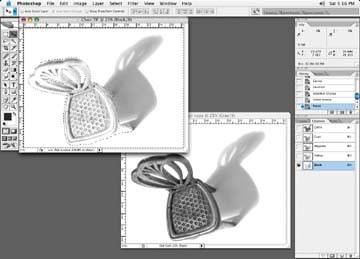
If you have an image in which you want to retain the shadow, but have the shadow in black only, try this technique. First, make a path or selection of your background, and then make a copy of the image and change that copy to grayscale, as shown in Figure 2-37.
Figure 2-39. Delete the cyan, magenta , and yellow shadow channel information
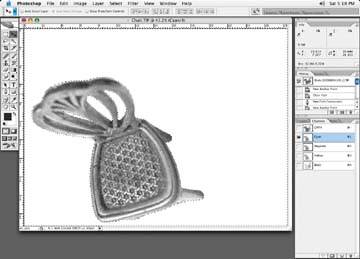
Figure 2-40. Final result shows the chair and shadow successfully extracted from the background

Use the same selection of the background method used above, only this time use your new black and white image. Then copy and paste it into the black channel of the original four-color image (Figure 2-38).
Make sure you delete any color in the shadow in the cyan, magenta, and yellow of the image you are retouching, as shown in Figure 2-39.
The final results of your new black-only shadow are shown in Figure 2-40.

EAN: N/A
Pages: 83
- Chapter II Information Search on the Internet: A Causal Model
- Chapter VI Web Site Quality and Usability in E-Commerce
- Chapter VII Objective and Perceived Complexity and Their Impacts on Internet Communication
- Chapter X Converting Browsers to Buyers: Key Considerations in Designing Business-to-Consumer Web Sites
- Chapter XIII Shopping Agent Web Sites: A Comparative Shopping Environment