| Another handy SWT control is the slider, which lets the user select a value from a continuous numeric range. Sliders are easy to use; this next example will recover a slider's new position when the user moves the slider's thumb (also called the slider's scrollbox). Here are the styles you can use when creating sliders: -
- SWT.BORDER
-
Adds a border -
- SWT.HORIZONTAL
-
Creates a horizontal slider -
- SWT.VERTICAL
-
Creates a vertical slider We'll add a prompt to the user in a label ("Move the slider"), a horizontal slider using the style SWT.HORIZONTAL (use SWT.VERTICAL to create a vertical slider instead), and a text control to display the new position of the slider: final Label label = new Label(shell, SWT.NONE); label.setText("Move the slider"); label.setBounds(0, 20, 150, 15); final Slider slider = new Slider(shell, SWT.HORIZONTAL); slider.setBounds(0, 40, 200, 20); final Text text = new Text(shell, SWT.BORDER); text.setBounds(0, 100, 200, 25); That adds the slider; the next step is to handle user actions. Sliders support a number of events, each of which is given by an SWT constant: -
- SWT.ARROW_DOWN
-
The down/right arrow button was clicked. -
- SWT.ARROW_UP
-
The up/left arrow button was clicked. -
- SWT.DRAG
-
The thumb was dragged. -
- SWT.END
-
The slider reached the end of its range. -
- SWT.HOME
-
The slider reached the beginning of its range. -
- SWT.PAGE_DOWN
-
The down/right scrollbar was clicked. -
- SWT.PAGE_UP
-
The up/left scrollbar was clicked. You use the event object's detail member to determine which of these events occurred, as here in a switch statement, where we're displaying what event occurred in the application's text control: slider.addListener(SWT.Selection, new Listener( ) { public void handleEvent(Event event) { String outString = "Event: SWT.NONE"; switch(event.detail) { case SWT.ARROW_DOWN: outString = "Event: SWT.ARROW_DOWN"; break; case SWT.ARROW_UP: outString = "Event: SWT.ARROW_UP"; break; case SWT.DRAG: outString = "Event: SWT.DRAG"; break; case SWT.END: outString = "Event: SWT.END"; break; case SWT.HOME: outString = "Event: SWT.HOME"; break; case SWT.PAGE_DOWN: outString = "Event: SWT.PAGE_DOWN"; break; case SWT.PAGE_UP: outString = "Event: SWT.PAGE_UP"; break; } . . . } }); To determine the slider's current position, you use the getSelection method, as you see in the listing for Example 8-3. Example 8-3. Using SWT sliders package org.eclipsebook.ch08; import org.eclipse.swt.*; import org.eclipse.swt.widgets.*; public class Ch08_03 { public static void main(String [] args) { Display display = new Display( ); Shell shell = new Shell(display); shell.setText("Sliders"); shell.setSize(300, 200); final Label label = new Label(shell, SWT.NONE); label.setText("Move the slider"); label.setBounds(0, 20, 150, 15); final Slider slider = new Slider(shell, SWT.HORIZONTAL); slider.setBounds(0, 40, 200, 20); final Text text = new Text(shell, SWT.BORDER); text.setBounds(0, 100, 200, 25); slider.addListener(SWT.Selection, new Listener( ) { public void handleEvent(Event event) { String outString = "Event: SWT.NONE"; switch(event.detail) { case SWT.ARROW_DOWN: outString = "Event: SWT.ARROW_DOWN"; break; case SWT.ARROW_UP: outString = "Event: SWT.ARROW_UP"; break; case SWT.DRAG: outString = "Event: SWT.DRAG"; break; case SWT.END: outString = "Event: SWT.END"; break; case SWT.HOME: outString = "Event: SWT.HOME"; break; case SWT.PAGE_DOWN: outString = "Event: SWT.PAGE_DOWN"; break; case SWT.PAGE_UP: outString = "Event: SWT.PAGE_UP"; break; } outString += " Position: " + slider.getSelection( ); text.setText(outString); } }); shell.open( ); while(!shell.isDisposed( )) { if(!display.readAndDispatch( )) display.sleep( ); } display.dispose( ); } } You can see the results in Figure 8-5, where the user is dragging the thumb in the slider and the code is indicating that a drag event has occurred and the new location of the slider thumb. Figure 8-5. Dragging the thumb in a slider 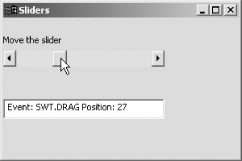 When the user clicks the scrollbar, a page up or page down event occurs, as shown in Figure 8-6, and the thumb moves to a new position (the thumb's page increment is set to 10 by default). Figure 8-6. Creating a page down event 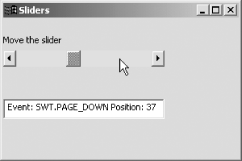 Besides using getSelection as we've done here, you can also use the setSelection method to set the current location of the slider. For example, if the user selects a page they want to jump to in a document, you can move the slider's position to match with the setSelection method.  | By default, the slider range extends from 0 to 100 minus the thumb's width (which is 10 pixels by default). You can set the maximum and minimum values for the slider range with the slider's setMinimum and setMaximum methods , the increment for the slider's position when the arrow buttons are clicked with the setIncrement method, and the page increment when the scrollbar is clicked with the setPageIncrement method. You can also set the current position in the slider with the setPosition method. | |
|
