Flylib.com

Books Software


7.6 Using V4ALL with SWT


7.6 Using V4ALL with SWT

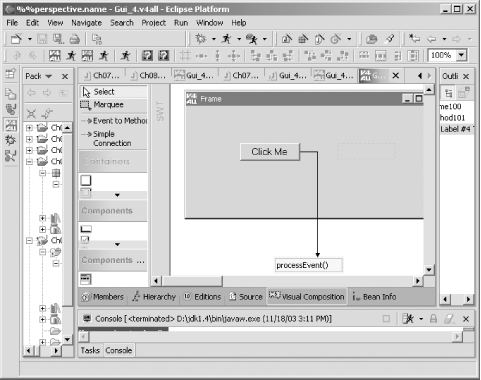
You can also use plug-ins like V4ALL to create SWT code, which can make things a little easier because you can drag controls where you want them. In Figure 7-5, you can see an example that works much as our Swing example worked in the previous chapter. In this case, we've created a new V4ALL editor in a project named Ch07_05 , just as we did in Chapter 6but here, we're going to generate code for SWT, not Swing.

Figure 7-5. Designing an SWT application with V4ALL
figs/ecps_0705.gif

After creating the new V4ALL editor, add a button and a label to the new window, change the caption of the button to Click Me, and clear the caption of the label. Next , drag a method to the whiteboard, and name that method processEvent as you see in Figure 7-5. Connect that method to the button and, using the properties view as we did in Chapter 6, connect the processEvent method to the button's Action Performed event.

To generate the code for an SWT application, start by adding swt.jar to the build path , and select the Code Generation Generate Code for SWT menu item, creating Gui_1.java . In that file, Eclipse may have marked two imports as never used, so remove those two imports:

import org.eclipse.swt.*;

import org.eclipse.swt.graphics.*;

import org.eclipse.swt.widgets.*;

import org.eclipse.swt.custom.*;


import org.eclipse.swt.layout.*;

Then add the code to the processEvent method to set the text in the label to "No worries." when the user clicks the button:

public void processEvent( ){

// user code begin {1} Swing

// user code end

// user code begin {1} SWT

ivjLabel100.setText("No worries.");

// user code end

// user code begin {1} HTML

// user code end

// user code begin {1} Eclipse

// user code end

// user code begin {1} C#

// user code end

}

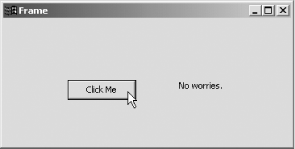
Finally, create a launch configuration for the Gui_1 class in Gui_1.java , setting the VM arguments to -Djava.library.path="d:\eclipse211\eclipse\plugins\org.eclipse.swt.win32_2.1.1\os\win32\x86 " as we've done throughout this chapter. And that's itwhen you run this new SWT application, you should see the results in Figure 7-6, where you can click the button and the text message will appear in the label.

Figure 7-6. Running the V4ALL SWT application
figs/ecps_0706.gif

That completes our first chapter on SWT; we got our start with SWT and several important controls. There's a lot more to SWT, however, and we're going to continue our exploration in the next chapter with new controls, such as menus and sliders.


Chapter 8. SWT: Menus , Toolbars , Sliders, Trees, and Dialogs

SWT supports many more widgets than we had a chance to work with in the previous chapter, and we'll get the details on a number of the most central SWT controls here: menus, toolbars, sliders, trees, and custom dialogs.


8.1 Working with Menus

As you'd expect, SWT supports menus, as any GUI builder should. The process of creating and supporting menus in your SWT applications is not necessarily easy, but it's not unduly difficult. To make this work in an example, we're going to create a menu system with a File menu and a Help menu and react to various menu selections, displaying text in a label to match the selected items.

To create a menu system in SWT, you create a Menu object, corresponding to the top level of the menu system. As with all the SWT controls, you can see the allowed styles back in Table 7-1; here are the possible styles for menus:


SWT.BAR

Sets menu bar behavior


SWT.DROP_DOWN

Creates a drop-down menu


SWT.POP_UP

Creates a pop-up menu


SWT.NO_RADIO_GROUP

Prevents the use of radio groups


SWT.LEFT_TO_RIGHT

Sets left-to-right orientation


SWT.RIGHT_TO_LEFT

Sets right-to-left orientation

The File and Help menus are MenuItem objects associated with the Menu object, and here are the possible styles for menu items:


SWT.CHECK

Creates a checkbox


SWT.CASCADE

Creates a cascading submenu


SWT.PUSH

Creates a push button


SWT.RADIO

Creates a radio button


SWT.SEPARATOR

Creates a menu separator

Note, in particular, how easy it is to add a menu separator to a menujust create a new menu item using the SWT . SEPARATOR style.


We begin by creating the File menu and setting its text this wayas in other GUI support packages, the "&" before the "F" in File sets the shortcut for this menu (allowing you, for example, to open the menu by pressing Alt+F in Windows, or Apple+F in Mac OS X):

menuBar = new Menu(shell, SWT.BAR);

fileMenuHeader = new MenuItem(menuBar, SWT.CASCADE);

fileMenuHeader.setText("&File");

That adds the File menu item to the menu bar. The next step is to create a drop-down menu that will display the File menu's items, which works like this:

menuBar = new Menu(shell, SWT.BAR);

fileMenuHeader = new MenuItem(menuBar, SWT.CASCADE);

fileMenuHeader.setText("&File");

fileMenu = new Menu(shell, SWT.DROP_DOWN);


fileMenuHeader.setMenu(fileMenu);

In this example, we're going to give the File menu two items, Save and Exit, and we only have to create two new MenuItem objects to do that:

menuBar = new Menu(shell, SWT.BAR);

fileMenuHeader = new MenuItem(menuBar, SWT.CASCADE);

fileMenuHeader.setText("&File");


fileMenu = new Menu(shell, SWT.DROP_DOWN);

fileMenuHeader.setMenu(fileMenu);

fileSaveItem = new MenuItem(fileMenu, SWT.PUSH);


fileSaveItem.setText("&Save");


fileExitItem = new MenuItem(fileMenu, SWT.PUSH);


fileExitItem.setText("E&xit");

The File Save and File Exit items are handled with listeners. Here's how you connect those items to the SelectionListener objects fileSaveItemListener and fileExitItemListener :

fileSaveItem.addSelectionListener(new fileSaveItemListener( ));

fileExitItem.addSelectionListener(new fileExitItemListener( ));

When the File Save item is selected, were going to display the message "Saved" in a label:

class fileSaveItemListener implements SelectionListener

{

   public void widgetSelected(SelectionEvent event)

   {

    label.setText("Saved");

   }


   public void widgetDefaultSelected(SelectionEvent event)

   {

    label.setText("Saved");

   }

}

On the other hand, when the user selects the File Exit item, we want to exit the application. You do that by closing the shell and disposing of the display object:

class fileExitItemListener implements SelectionListener

{

   public void widgetSelected(SelectionEvent event)

   {

shell.close( );


display.dispose( );

}


   public void widgetDefaultSelected(SelectionEvent event)

   {

shell.close( );


display.dispose( );

}

}

When you've got the menu system configured as you want it, you add the menuBar object to the current shell with the setMenuBar method, and display the shell as usual:

shell.setMenuBar(menuBar);


shell.open( );

while(!shell.isDisposed( )) {

    if(!display.readAndDispatch( )) display.sleep( );

}

display.dispose( );

That's all it takes for the File menu. In this example, we also want to add the Help Get Help menu item; the additional code for the listing appears in Example 8-1.

Example 8-1. Using SWT menus
package org.eclipsebook.ch08;


import org.eclipse.swt.widgets.*;

import org.eclipse.swt.SWT;

import org.eclipse.swt.events.*;


public class Ch08_01 {


    Display display;

    Shell shell;

    Menu menuBar, fileMenu, helpMenu;

    MenuItem fileMenuHeader, helpMenuHeader;

    MenuItem fileExitItem, fileSaveItem, helpGetHelpItem;

    Label label;


    public Ch08_01( ){


        display = new Display( );

        shell = new Shell(display);

        shell.setText("Menu Example");

        shell.setSize(300, 200);


        label = new Label(shell, SWT.CENTER);

        label.setBounds(shell.getClientArea( ));


        menuBar = new Menu(shell, SWT.BAR);

        fileMenuHeader = new MenuItem(menuBar, SWT.CASCADE);

        fileMenuHeader.setText("&File");


        fileMenu = new Menu(shell, SWT.DROP_DOWN);

        fileMenuHeader.setMenu(fileMenu);


        fileSaveItem = new MenuItem(fileMenu, SWT.PUSH);

        fileSaveItem.setText("&Save");


        fileExitItem = new MenuItem(fileMenu, SWT.PUSH);

        fileExitItem.setText("E&xit");

helpMenuHeader = new MenuItem(menuBar, SWT.CASCADE);

        helpMenuHeader.setText("&Help");


        helpMenu = new Menu(shell, SWT.DROP_DOWN);

        helpMenuHeader.setMenu(helpMenu);


        helpGetHelpItem = new MenuItem(helpMenu, SWT.PUSH);

        helpGetHelpItem.setText("&Get Help");

fileExitItem.addSelectionListener(new fileExitItemListener( ));

        fileSaveItem.addSelectionListener(new fileSaveItemListener( ));

helpGetHelpItem.addSelectionListener(new helpGetHelpItemListener( ));

shell.setMenuBar(menuBar);

        shell.open( );

        while(!shell.isDisposed( )) {

            if(!display.readAndDispatch( )) display.sleep( );

        }

        display.dispose( );

    }


    class fileExitItemListener implements SelectionListener

    {

       public void widgetSelected(SelectionEvent event)

       {

          shell.close( );

          display.dispose( );

       }


       public void widgetDefaultSelected(SelectionEvent event)

       {

          shell.close( );

          display.dispose( );

       }

    }


    class fileSaveItemListener implements SelectionListener

    {

       public void widgetSelected(SelectionEvent event)

       {

        label.setText("Saved");

       }


       public void widgetDefaultSelected(SelectionEvent event)

       {

        label.setText("Saved");

       }

    }

class helpGetHelpItemListener implements SelectionListener

    {

       public void widgetSelected(SelectionEvent event)

       {

          label.setText("No worries!");

       }


       public void widgetDefaultSelected(SelectionEvent event)

       {

        label.setText("No worries!");

       }

    }

public static void main(String [] args) {

        Ch08_01 menuExample = new Ch08_01( );

    }

}

You can see the results in Figure 8-1 and Figure 8-2; when the user selects the File Save item, the application catches the menu selection and displays the result in the label that's been added to the shell.

Figure 8-1. Selecting an SWT menu item
figs/ecps_0801.gif
Figure 8-2. The results of selecting a menu item
figs/ecps_0802.gif

One of the most common items to support with menu systems is an About dialog for the application, selected with Help About. To support a Help About item in your application, take a look at the work we do with dialog boxes later in this chapter. All you've got to do is launch a dialog box when this menu item is selected; the dialog can contain all the controls you need to display application info .