Flylib.com

Books Software


Getting Help


Getting Help

At the beginning, you won't understand many of the QSYSOPR messages. If you see a message you don't understand, do not ignore it or enter an option. Get help by moving the cursor to the message in question and pressing the Help key or the F1 key.

When you press Help or F1, the system displays another panel with a more detailed explanation of the message, what caused it (there may be more than one possible explanation), and what you can do to solve the problem.

See Figure 3.2 for an example.
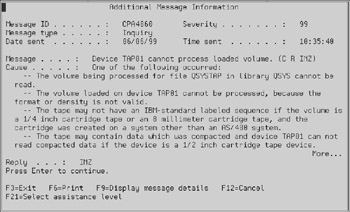
image from book
Figure 3.2: Additional help on messages in QSYSOPR message queue.

The help panel also explains what replies you can give and what the system will do in each case. It will even let you enter your reply directly from the help panel.


Checking System Activity

When users want the i5 to perform a task, they start jobs. Often, you will need to find out what jobs are running in the system, how far they have progressed, or what printed output they are producing. The i5 gives you a wealth of information about jobs.

Commands to Work with Jobs

You can look up jobs using several different commands:

  • Work with Active Jobs (WRKACTJOB). This command shows all jobs that are active, or the jobs that are still running. WRKACTJOB also presents complicated statistics about CPU usage for each job. These statistics require system overhead. You should avoid running the WRKACTJOB command whenever possible. Fortunately, i5/OS has other methods that work just as well. Figure 3.3 shows what the WRKACTJOB screen looks like.

    image from book
    Figure 3.3: Example of the Work with Active Jobs (WRKACTJOB) command.

    Tip 

    The default sequence is in job name within subsystem. You candisplay the jobs in any order by positioning the cursor on any column and pressing F16. The jobs will be resequenced in the order of the column. If you use the CPU% column, the jobs will be presented in descending sequence, starting with the job that is using the most CPU.

  • Work with Subsystem Jobs (WRKSBSJOB). Using this command, you can display the jobs running in a particular subsystem. You can display the interactive jobs in QINTER or the batch jobs in QBATCH, for example. WRKSBSJOB is a good substitute for WRKACTJOB because, in most cases, you are concerned with either batch or interactive jobs, but rarely both at once. Figure 3.4 shows an example of the WRKSBSJOB command.

    image from book
    Figure 3.4: Example of the Work with Subsystem Jobs (WRKSBSJOB) command.

  • Work with User Jobs (WRKUSRJOB). The WRKUSRJOB command lists all jobs from a single user or all users. You also can indicate that you want to see only jobs that are in job queues, jobs that are active, or complete jobs. WRKUSRJOB is versatile and convenient . Use this command whenever you know the name of the user whose job you want to examine. Figure 3.5 shows an example of the WRKUSRJOB command.

    image from book
    Figure 3.5: Example of the Work with User Jobs (WRKUSRJOB) command.

All three commands provide typical "work with" panels from which you can key in option numbers to perform certain job-controlling tasks. For example, you can enter an option 5 to display a job, option 2 to change a job, or option 4 to end (cancel) a job. You must have enough authority to perform these tasks . If the Security Administrator has given you *JOBCTL special authority, you can work with someone elses jobs.


Display Jobs

An option 5 entered at any of the WRKXXXJOB commands displays the job information. Option 5 runs the Display Job (DSPJOB) command. You can either press Enter or F4. If you press Enter, the system presents a menu with several options for you to choose from, as shown in Figure 3.6.

image from book
Figure 3.6: Example of the Display Job (DSPJOB) command.

If you press F4 , you can select the option directly by entering a code in the option parameter.

The first few options in the menu are for "static" information, such as when the job began , the job's priority, and time slice. Other options display valuable information about the job you are working with. For example, you can examine the jobs program stack (what programs it is running), object locks (what objects it is using), open files (what files it is reading or updating), and the all-important job log. The job log is described in detail later.

The DSPJOB command shows a lot of information, and no danger of harming the job exists because you only are displaying data. The system will not let you change anything, no matter how much authority you have.