Hack 73 Convert Numbers with the Negative Sign on the Right to Excel Numbers   Have you ever had to work with imported negative numbers that have the negative sign on the right? SAP is one such program that does this with negative numberse.g., 200- instead of -200. Changing these by hand so that Excel understands them can be a hassle, but it doesn't need to be . Say you have a long list of numbers you just imported and some of them are those so-called negative numbers. Your job is to convert these to valid negatives that Excel will recognize. For the purposes of this exercise, you will use the range A1:A100. In cell B1, enter this formula: =SUBSTITUTE(IF(RIGHT(TRIM(A1))="-",RIGHT(TRIM(A1))&A1,A1),"-","",2)+0 Enter this as many cells down the column as needed and then copy them and select cell A1. Select Edit  Paste Special... Values to remove the formula and retain the values only. Figure 6-16 shows a before-and-after example (A1:A7 represents before). Paste Special... Values to remove the formula and retain the values only. Figure 6-16 shows a before-and-after example (A1:A7 represents before). Figure 6-16. Before and after moving the negative sign 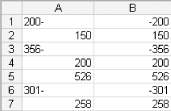 To give you an idea of how the formula works, enter the following formula in any cell where A1 has the text 200-: =RIGHT(TRIM(A1),1)&A1 You will end up with -200-. The TRIM function simply ensures that there are no space characters in the cell. As you end up with -200-, you need to remove the second occurrence of the negative sign. This is what the SUBSTITUTE function is doing. You told it to substitute the second occurrence of - with "" (empty text). The result returned is actually text (as that is what the SUBSTITUTE function returns), so you simply use +0 , and Excel will convert it to a number. If you need to do this frequently, you should consider a macro to make the job easier. Here is one that will do the task at hand. It has been optimized for speed. Sub ConvertMirrorNegatives( ) Dim rCell As Range Dim rRange As Range Dim lCount As Long Dim lLoop As Long 'Ensure they have the data selected and display a message if they _ don't, then exit the macro. If Selection.Cells.Count = 1 Then MsgBox "Please select the range to convert", vbInformation Exit Sub End If 'Set a variable to ONLY text cells, e.g., 200- On Error Resume Next Set rRange = Selection.SpecialCells(xlCellTypeConstants, xlTextValues) 'If our variable returns Nothing, there are no incorrect negatives _ so display a message, then exit the macro If rRange Is Nothing Then MsgBox "No mirror negatives found", vbInformation On Error GoTo 0 Exit Sub End If 'Count just how many cells are like 200- and pass this number _ to a variable to control how many loops are needed. lCount = WorksheetFunction.CountIf(Selection, "*-") 'Set a variable to the first cell in the selection Set rCell = Selection.Cells(1, 1) 'Loop only as many times as there are incorrect negatives For lLoop = 1 To lCount 'At each loop set a variable to the cell housing *- 'The asterisk is a wildcard character Set rCell = rRange.Find(What:="*-", After:=rCell, _ LookIn:=xlValues, LookAt:=xlPart, _ SearchOrder:=xlByRows, SearchDirection:= _ xlNext, MatchCase:=False) 'Use the standard Replace feature to replace the negative sign _ with nothing. In other words, we remove it. rCell.Replace What:="-", Replacement:="" 'Multiply the cell by -1 to convert it to a negative number rCell = rCell * -1 Next lLoop On Error GoTo 0 End Sub To use this macro, select Tools Macro Visual Basic Editor (or Alt/Option-F11). Now select Insert Module and paste in the preceding code. Close the window to return to Excel and select Tools Macro Macros, and then select Convert Mirror Negatives. Click Options and assign a shortcut key. Now when you have to convert those imported negatives to true negatives that Excel will recognize, simply select the figures and use your shortcut key. |
