Hack 3 Speed Up Boot and Shutdown Times
| Shorten the time it takes for your desktop to appear when you turn on your PC, and make XP shut down faster as well . No matter how fast your PC boots, it's not fast enough. Here's a hack to help you get to your desktop more quickly after startup, and to let you walk away faster after shutdown. The quickest way to speed up boot times is to use the free Microsoft utility BootVis.exe . Although it's intended primarily for developers, anyone can use it to analyze their boot times and see where there are slowdowns. More important, the tool will also automatically make system changes to speed up your boot time, so you don't need to go into a lengthy analysis of where your slowdowns are and how to solve them. Depending on your system and how it's set up, you may see only a moderately faster startup time, or you may speed up boot time dramatically. I've seen reports of improvements ranging from a little over 3 seconds to more than 35 seconds. The improvements I found on my systems were moderate7 seconds faster on one, and 10 seconds faster on another. Think of all the things you could accomplish with another 10 seconds in the day! The BootVis utility traces boot time metrics and then displays the results in a variety of graphs showing total boot time, CPU usage, disk I/O, driver delays, and disk utilization. Download it from http://www.microsoft.com/hwdev/platform/performance/fastboot/BootVis.asp and extract it into its own folder. Go to the folder and double-click on BootVis.exe . To analyze how your system boots, choose Trace Please WAIT for Bootvis to launch! Don't do anything yet; the program is working, even though it doesn't appear to be doing anything. After a while, you will see the screen shown in Figure 1-3. Soon after that the results appear, as shown in Figure 1-4. Figure 1-3. BootVis alerts you that it is working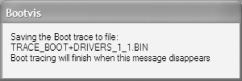 Figure 1-4. BootVis activity graphs display how much time each bootup activity takes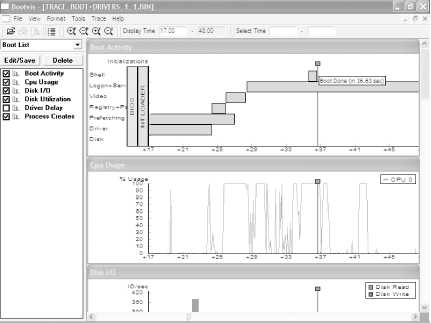 A series of graphs outline boot activity and loading time. The Boot Activity graph, shown in Figure 1-4, is the most important and details all aspects of the boot, including how much time each boot activity takes. Hover your mouse over an activity, such as Driver, and a balloon tip will appear, telling how much time that activity takes to load. To see the total boot time, hover your mouse over the rectangle at the top of a solid black line, and your total boot time will be displayed in a balloon tip, as shown in Figure 1-4. The pictures and graphs are pretty, but the truth is, you don't really need them, because the utility will automatically make changes to speed up your boot time. To have the utility speed up your boot time, choose Trace 1.4.1 Enable Quicker Startups with a Boot DefragmentThere's another way to speed up XP startup: make your system do a boot defragment, which will put all the boot files next to one another on your hard disk. When boot files are in close proximity to one another, your system will start faster. On most systems, boot defragment should be enabled by default, but it may not be on yours, or it may have been changed inadvertently. To make sure that boot defragment is enabled on your system, run the Registry Editor [Hack #68], and go to: HKEY_LOCAL_MACHINE\SOFTWARE\Microsoft\Dfrg\BootOptimizeFunction Edit the Enable string value to Y if it is not already set to Y . Exit the Registry and reboot. The next time you reboot, you'll do a boot defragment.
1.4.2 Speed Up Shutdown TimesIt's not only startup times that you'd like to speed up; you can also make sure that your system shuts down faster. If shutting down XP takes what seems to be an inordinate amount of time, here are a couple of steps you can take to speed up the shutdown process:
|


 Next Boot. (Choose Trace

EAN: 2147483647
Pages: 166