How to Find Information
| So far, you've dealt with only comparatively small amounts of information in your database. When you're looking over a list of five seed companies, you can easily find the one you want. But what happens when you have thousands of rows of data in one of your tables and need to find something? Fortunately, Access offers several ways to find data. We'll introduce a few of these ways in this chapter, and you'll see more later in the book:
(Chapter 8, "Creating and Using Data Entry Forms," shows you how to search for data in a form.) Sorting in a DatasheetSometimes, you can find information just by scanning down a list, provided that the list is sorted in the correct order. Access enables you to sort a datasheet according to the data in any column. Follow these steps to see how datasheet sorting works in Access:
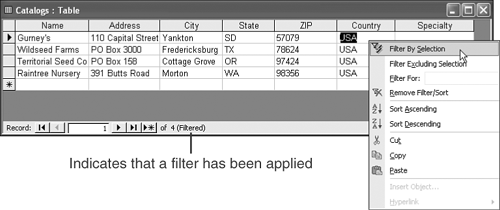
As you can see, this is another area where Access offers you multiple ways to perform the same task. Using Filter by SelectionSometimes, the easiest way to find what you're looking for is to narrow the search. Access provides a feature called Filter by Selection for those times. Here's how it works:
You can also invoke Filter by Selection from the Records, Filter menu or from buttons on the table datasheet toolbar. Tip
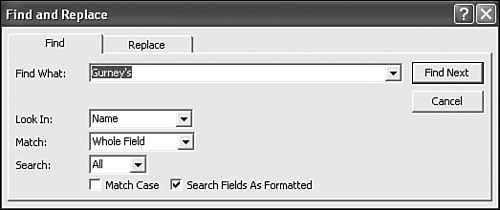
Using the Find Dialog BoxFor maximum flexibility in locating data, Access also supports a standard Find and Replace dialog box. To invoke this dialog box, shown in Figure 5.16, press Ctrl+F with a datasheet open. Figure 5.16. The Find and Replace dialog box. Type the data you want to find in the Find What combo box. If you've recently searched for something, you can repeat the search by selecting the data from the drop-down list in this combo box. The Look In box gives you the choice between searching the field in which the cursor is positioned (in this case, Name ) or the entire table. The Match box lets you choose whether the data you've entered needs to match the whole field, any part of the field, or characters at the start of the field to be considered a match. The Search box lets you choose whether to search up from the current cursor position, down from the current cursor position, or through the entire table. Tip
You can also use the check boxes to make the search case sensitive or to search the data as it's presented rather than as it's stored. Access has the capability to format data onscreen differently from how it stores it in the table (see Chapter 11 for more details). When you've entered all your options, click the Find Next button. Access finds the next matching data in the table and either highlights it onscreen for you or displays an error message if it was unable to find any matching data. |


EAN: N/A
Pages: 133