Using the GNOME Desktop
GNOME (pronounced guh-nome ) provides the desktop environment that you get by default when you install Fedora or RHEL. This desktop environment provides the software that is between your X Window System framework and the look-and-feel provided by the window manager. GNOME is a stable and reliable desktop environment, with a few cool features in it.
The GNOME 2.16 desktop comes with the most recent version of Fedora. For GNOME 2.16, enhancements include advancements in eye candy (3D accelerated wobble, shrink, explode, vanish , and other effects), new icon themes, and some new applications. I describe desktop features as I step through the GNOME desktop. New GNOME applications covered in this book include Disk Usage Analyzer (Chapter 10) and Tomboy Notes application (described in this chapter).
If you have used an earlier version of GNOME, here are some additions you will find as you use existing GNOME features:
-
XSPF playlists in Totem - The Totem video/audio player now includes support for open standard XSPF playlists ( www.xspf.org ). Other improvements to Totem allow it to interact with content from Web sites.
-
Screensaver previews - Previewing screensavers in full-screen mode is now supported.
-
Direct DVD burning - Use the Nautilus CD burner feature to burn DVDs directly, without needing first to create an ISO image.
-
Drag from taskbar - Drag an application from the taskbar to workspaces represented in the panel Workspace Switcher to move the application to a new workspace.
-
Nautilus text or button browsing - When saving or opening files or folders in Nautilus, a new toggle button lets you choose between browsing by clicking on buttons or by typing full pathnames.
To use your GNOME desktop, you should become familiar with the following components :
-
Metacity (window manager) - The default window manager for GNOME in Fedora and RHEL is Metacity. The window manager provides such things as themes, window borders, and window controls.
-
Nautilus (file manager/graphical shell) - When you open a folder (for example, by double-clicking the Home icon on your desktop), the Nautilus window opens and displays the contents of the selected folder. Nautilus can also display other types of content, such as shared folders from Windows computers on the network (using SMB).
-
GNOME panels (application/task launcher) - These panels, which line the top and bottom of your screen, are designed to make it convenient for you to launch the applications you use, manage running applications, and work with multiple virtual desktops. By default, the top panel contains menu buttons (Applications, Places, and Desktop), desktop application launchers (Firefox, Evolution Email and a set of OpenOffice.org applications), a clock, and a volume control icon. The bottom panel has a "hide desktop" icon, a tray of active applications, a workspace switcher (for managing four virtual desktops) and a trash can icon (to drop files for deletion or view deleted files).
-
Desktop area- The windows and icons you use are arranged on the desktop area. The desktop area supports such things as drag-and-drop actions between applications, a desktop menu (right-click to see it), and icons for launching applications.
Besides the components just described, GNOME includes a set of Preferences windows (select System Preferences) that let you configure different aspects of your desktop. You can change backgrounds, colors, fonts, keyboard shortcuts, and other features relating to the look and behavior of the desktop. Figure 3-7 shows how the GNOME desktop environment appears the first time you log in, with a few windows added to the screen.
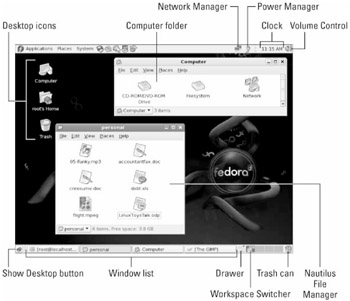
Figure 3-7: In the GNOME desktop environment, you can manage applications from the panels.
The following sections provide details on using the GNOME desktop.
Using the Metacity Window Manager
The Metacity window manager seems to have been chosen as the default window manager for GNOME because of its simplicity. The creator of Metacity refers to it as a "boring window manager for the adult in you" - then goes on to compare other window managers to colorful , sugary cereal while Metacity is characterized as Cheerios.
There really isn't much you can do with Metacity (except get your work done efficiently ). Assigning new themes to Metacity and changing colors and window decorations is done through the GNOME preferences (and is described later). A few Metacity themes exist, but expect the number to grow. Signs that Metacity is willing to inch toward more sparkle for the desktop is its support for GLX extensions that allow 3D screen effects (see the "Running 3D Accelerated Desktop Effects" section later in this chapter).
Basic Metacity functions that might interest you are keyboard shortcuts and the workspace switcher. Table 3-1 shows keyboard shortcuts to get around the Metacity window manager.
| Actions | Keystrokes |
|---|---|
| Window focus
| Alt+Tab |
| Alt+Shift+Tab |
| Alt+Esc |
| Alt+Shift+Esc |
| Panel focus
| Alt+Ctrl+Tab |
| Alt+Ctrl+Shift+Tab |
| Workspace focus
| Ctrl+Alt+right arrow |
| Ctrl+Alt+left arrow |
| Ctrl+Alt+up arrow |
| Ctrl+Alt+down arrow |
| Minimize/unminimize all windows | Ctrl+Alt+D |
| Show window menu | Alt+Spacebar |
| Close menu | Esc |
 Open table as spreadsheet
 Another Metacity feature that may interest you is the workspace switcher. Four virtual workspaces appear in the workspace switcher on the GNOME panel. Here are some things to do with the Workspace Switcher:
-
Choose current workspace - Four virtual workspaces appear in the Workspace Switcher. Click any of the four virtual workspaces to make it your current workspace.
-
Move windows to other workspaces - Click any window, each represented by a tiny rectangle in the Workspace Switcher, to drag and drop it to another workspace. Likewise, you can drag an application from the Window List to move that application to another workspace.
-
Add more workspaces - Right-click the workspace switcher, and select Preferences. You can add workspaces (up to 32).
-
Name workspaces - Right-click the workspace switcher and select Preferences. Click in the Workspaces pane to change names of workspaces to any names you choose.
You can view and change information about Metacity controls and settings using the gconf-editor window (type gconf-editor from a Terminal window). As the window says, it is not the recommended way of changing preferences. So, when possible, you should change the desktop through GNOME preferences. However, gconf-editor is a good way to see descriptions of each Metacity feature.
From the gconf-editor window, select apps metacity. Then choose from general, global_keybindings, keybindings_commands, window_keybindings and workspace_names. Click each key to see its value, along with short and long descriptions of the key. (Type yum install gconf-editor if it's not yet installed on your system.)
Using the GNOME Panels
Fedora includes panels on the top and bottom of the GNOME desktop. From those panels you can start applications (from buttons or menus ), see what programs are active, manage network interfaces, monitor power issues, adjust your audio volume, and switch workspaces. There are also many ways to change the top or bottom panel - by adding applications or monitors , or by changing the placement or behavior of the panel, for example.
Click any open space on either panel to see the Panel menu. The Panel menu appears as shown in Figure 3-8.
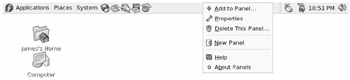
Figure 3-8: Left-click any open spot on the GNOME Panel to see the Panel menu.
From the GNOME Panel menu, you can perform a variety of functions, including:
-
Use the Applications menu - Displayed on the Applications menu are most of the applications and system tools you will use from the desktop.
-
Add to panel - You can add an applet, menu, launcher, drawer , or button.
-
Delete This panel - You can delete the current panel.
-
Properties - Change position, size , and background of the panel.
-
New panel - You can add panels to your desktop in different styles and locations.
You can also work with items on a panel; for example you can:
-
Move items - To move items on a panel, simply drag-and-drop them to a new position.
-
Set Preferences or Properties - Right-click on an icon on the panel and select Preferences or Properties, depending on which is available. From the pop-up that appears, you can usually set properties of what is launched when the application is selected.
The following sections describe some things you can do with the GNOME panel.
Use the Applications and System Menus
Click Applications on the panel and you see categories of applications, programming tools, and system tools that you can select. Click the application you want to launch. To add an item to launch from the panel - and to view its properties - right-click it. There is currently no way to add or remove applications to or from this menu from the GUI in GNOME. However, you can manually add items to your GNOME menus.
To add to the Applications menu, create a .desktop file in the /usr/share/applications directory. The easiest way to do that is copy an existing .desktop file that is on the menu you want and modify it. For example, to add a video player to the Sound & Video menu, you could do the following (as root user ):
# cd /usr/share/applications # cp gnome-cd.desktop vidplay.desktop
Next use any text editor to change the contents of the vidplay.desktop file you created by modifying the following values to this file for each supported language:
-
Name - A name to appear on the menu
-
Comment - A comment for when you hover over the menu item with your mouse
-
Exec - The command that is executed when you select the menu item
-
Icon - An icon to appear appear with the menu item.
-
StartupNotify - Have an animation and window list item appear ( true ) or not ( false ) as the application starts up
Check the file for other settings you might want to change as well. In particular, you might notice that .desktop files often include multiple Comment and Name lines, so those two items can appear in languages other than English. After you save the changes, the new item will immediately appear on the menu (no need to restart anything).
| Cross-Reference | There is a graphical way of modifying your Applications menu if you are using the KDE desktop. See the Menus bullet in the "Changing panel attributes" section later in this chapter for details. |
Adding an Applet
There are dozens of small GNOME applications called applets that you can run directly on the GNOME panel. These applets can show information you may want to see on an ongoing basis or may just provide some amusement . To see what applets are available and to add applets that you want to your panel, perform the following steps:
-
Right-click an open space in the panel so that the panel menu appears.
-
Select Add to Panel. An Add to Panel window appears.
-
Select from among several dozen applets, including: a clock, dictionary lookup, stock ticker, weather report, lock screen, log out, run application, take screen shot, fortunetelling fish, eyes that follow your mouse, e-mail Inbox monitor, modem lights monitor and many others. The applet appears on the panel, ready for you to use.
Figure 3-9 shows, from left to right, geyes, system monitor, weather report, network monitor, and wanda the fish.

Figure 3-9: Applets let you monitor activities, play CDs, watch your mail, or check the weather.
After an applet is installed, right-click it to see what options are available. For example, select Preferences for the stock ticker, and you can add or delete stocks whose prices you want to monitor. If you don't like the applet's location, right-click it, click Move, slide the mouse until the applet is where you want it (even to another panel), and click to set its location.
If you no longer want an applet to appear on the panel, right-click it, and then click Remove From Panel. The icon representing the applet will disappear. If you find that you have run out of room on your panel, you can add a new panel to another part of the screen, as described in the next section.
Adding Another Panel
You can have several panels on your GNOME desktop. You can add panels that run along the sides of the screen, to go with the ones that already go along the top and bottom. To add a panel, do the following:
-
Right-click an open space in the panel so that the Panel menu appears.
-
Select New Panel. A new panel appears at the right side of the screen.
-
Right-click an open space in the new panel and select Properties.
-
From the Panel Properties, select where you want the panel from the Orientation box (Top, Bottom, Left or Right).
After you've added a panel, you can add applets or application launchers to it as you did to the default panel. To remove a panel, right-click it and select Delete This Panel.
Adding an Application Launcher
Icons on your panel represent a Web browser and several office productivity applications. You can add your own icons to launch applications from the panel as well. To add a new application launcher to the panel, do the following:
-
Right-click in an open space on the panel.
-
Select Add to Panel Application Launcher Forward from the menu. All application categories from your Applications menu appear.
-
Select the arrow next to the category of application you want, select the application, and select Add. (As an alternative, you can simply drag-and-drop the applet item on to the panel.) An icon representing the application appears.
To launch the application you just added, single-click it.
If the application you want to launch is not on your Applications menu, you can build one yourself as follows :
-
Right-click in an open space on the panel.
-
Select Add to Panel Custom Application Launcher Add. The Create Launcher window appears.
-
Provide the following information for the application that you want to add:
-
Type - Select Application (to launch an application) or Application in Terminal (to launch and application within a Terminal window). Another selection is Link, to open a Web address in a browser.
-
Name - A name to identify the application (this appears in the tool tip when your mouse is over the icon).
-
Command - The command line that is run when the application is launched. You should use the full path name, plus any required options.
-
Comment - A comment describing the application. As with Name, this information appears when you later move your mouse over the launcher.
-
-
Click the Icon box (it might say No Icon). Select one of the icons shown and click OK. Alternatively, you can browse the file system to choose an icon.
Note Icons available to represent your application are contained in the /usr/share/pixmaps directory. These icons are either in png or xpm formats. If there isn't an icon in the directory you want to use, create your own and assign it to the application.
-
Click OK.
The application should now appear in the panel. Click it to start the application.
Adding a Drawer
By adding a drawer to your GNOME panel, you can add several applets and launchers and have them take up only one slot on your panel. You can use the drawer to show the applets and launchers as though they were being pulled out of a drawer icon on the panel.
To add a drawer to your panel, right-click the panel and then select Add to Panel Drawer. The drawer should appear on the panel. The drawer behaves just like a panel. Right-click the drawer area, and add applets or launchers to it as you would to a panel. Click the drawer icon to retract the drawer.
Figure 3-10 shows a portion of a side panel that includes an open drawer. This example includes an icon for launching a Terminal window, a custom folder icon, a volume monitor, and a weather applet. .
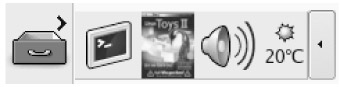
Figure 3-10: Add launchers or applets to a drawer on your GNOME panel.
Changing Panel Properties
Properties you can change that relate to a panel are limited to the orientation, size, hiding policy, and background. To open the Panel properties window that applies to a specific panel, right-click on an open space on the panel, then choose Properties. The Panel Properties window that appears includes following values:
-
Orientation - You can move the panel to different locations on the screen by clicking on a new position.
-
Size - You can select the size of your panel by choosing its height in pixels (24 pixels by default).
-
Expand - Click this check box to have the panel expand to fill the entire side or unselect the check box to make the panel only as wide as the applets it contains.
-
Autohide - You can select whether or not a panel is automatically hidden (appearing only when the mouse pointer is in the area).
-
Show hide buttons - You can choose whether or not the Hide/Unhide buttons (with pixmap arrows on them) appear on the edges of the panel.
-
Arrows on hide buttons - If you select Show hide buttons you can select to either have arrows on those buttons or not.
-
Background - From the Background tab, you can assign a color to the background of the panel, assign a background image, assign a Style (using a slider to go from Transparent to Opaque) or just leave it as None (which causes the panel to get its background from the current system theme). Click the Background Image radio button if you want to select an Image for the background, then select an image, such as a tile from /usr/share/backgrounds/tiles or other directory.
| Tip | I usually turn on the AutoHide feature and turn off the Hide buttons. Using AutoHide gives you more space to work with on your desktop. When you move your mouse to the edge where the panel is, it pops up - so you don't need Hide buttons. |
Using the Nautilus File Manager
At one time, file managers did little more than let you run applications, create data files, and open folders. These days, file managers are expected to also offer different browsing choices, preview file content, select different applications to use on data files, and access files on other computers. The Nautilus file manager, which is the default GNOME file manager, is an example of just such a file manager.
When you open the Nautilus file manager window (from a GNOME menu or by opening the Home icon or other folder on your desktop), you see the name of the location you are viewing (such as the folder name) and what that location contains (files, folders, and applications). Figure 3-11 is an example of the file manager window displaying the home directory of a user named mike ( /home/mike ).
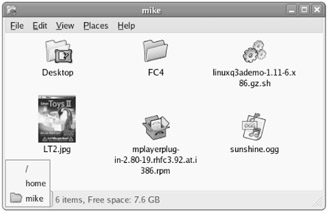
Figure 3-11: Move around the file system, open directories, launch applications, and open Samba folders.
The default Nautilus window has been greatly simplified in recent releases to show fewer controls and provide more space for file and directory icons. Double-click a folder to open that folder in a new window. Select your folder name in the lower left corner of the window to see the file system hierarchy above the current folder (as shown in Figure 3-11). Whatever size, location, and other setting you had for the folder the last time you opened it, GNOME will remember and return it to that state the next time you open it.
To see more controls, as Nautilus showed by default in previous versions, right-click a folder and select Browse Folder to open it. Or select Applications System Tools File Browser to open Nautilus in Browser mode directly.
Icons on the toolbar of the Nautilus window let you move forward and back among the directories and Web sites you visit. To move up the directory structure, click the up arrow. To refresh the view of the folder or Web page, click the Reload button. The Home button takes you to your home page and the Computer button lets you see the same type of information you would see from a My Computer icon on a Windows system (CD drive, floppy drive, hard disk file systems, and network folders).
Icons in Nautilus often indicate the type of data that a particular file contains. The contents or file extension of each file can determine which application is used to work with the file. Or, you can right-click an icon to open the file it represents with a particular application or viewer.
Some of the more interesting features of Nautilus are described below:
-
Sidebar - From the Browse Folder view described previously, click on View Side Pane to have a sidebar appear in the left column of the screen. From the sidebar, you can click tabs that represent different types of information you can select. The Tree tab shows a tree view of the directory structure, so you can easily traverse your directories.
The Notes tab lets you add notes that become associated with the current Directory or Web page. The History tab displays a history of directories and Web sites you have visited, allowing you to click those items to return to the sites they represent. Right-click in the sidebar to choose which of the sidebar tabs are displayed.
-
Windows file and printer sharing - If your computer is connected to a LAN on which Windows computers are sharing files and printers, you can view those resources from Nautilus. Click File Open Location from a Nautilus window, and then type smb: to see available workgroups. Click a workgroup to see computers from that workgroup that are sharing files and printers. Figure 3-12 shows an example of Nautilus displaying an icon representing a folder on a Windows computer called bluestreak ( smb://bluestreak ).
-
MIME types and file types - To handle different types of content that may be encountered in the Nautilus window, you can set applications to respond based on MIME type and file type. With a folder being displayed, right-click a file for which you want to assign an application. Click Open With Other Application. If no application has been assigned for the file type, click Associate Application to be able to select an application. From the Add File Types window, you can add an application based on the file extension and MIME type representing the file.
Cross-Reference For more information on MIME types, see the description of MIME types in the "Changing GNOME preferences" section later in this chapter.
-
Drag and drop - You can drag and drop files and folders within the Nautilus window, between the Nautilus and the desktop, or between multiple Nautilus windows. Many GNOME-compliant applications also support the GNOME drag-and-drop feature. So, for example, you could drag an image file from Nautilus and drop it on a gThumb image viewer to work with that image.

Figure 3-12: Display shared Windows file and printer servers (SMB) in Nautilus.
If you need more information on the Nautilus file manager, visit the GNOME Web site ( www.gnome.org/nautilus ).
Changing GNOME Preferences
There are many ways to change the behavior, look, and feel of your GNOME desktop. Most GNOME preferences can be modified from windows you can launch from the System menu (click Preferences to see features to change).
Unlike earlier versions of GNOME for Fedora and Red Hat Linux, boundaries between preferences relating to the window manager (Metacity), file manager (Nautilus), and the GNOME desktop itself have been blurred. Preferences for all of these features are available from the Preferences menu.
The following items highlight some of the preferences you might want to change:
-
Accessibility - If you have difficulty operating a mouse or keyboard, the Keyboard Accessibility Preferences (AccessX) window lets you adapt mouse and keyboard settings to make those devices more accessible. From the Preferences window, open Accessibility. Figure 3-13 shows the Keyboard Accessibility Preferences window.
-
Desktop Background - From Desktop Background Preferences, you can choose a solid color or an image to use as wallpaper. If you choose to use a solid color (by selecting No Wallpaper), click the Color box, choose a color from the palette, and select OK.
To use wallpaper for your background, open a folder containing the image you want to use. Then drag the image into the Desktop Wallpaper pane on the Desktop Preferences window. You can choose from a variety of images in the /usr/share/nautilus/patterns and /usr/share/backgrounds/tiles directories. Then, choose to have the image as wallpaper that is tiled (repeated pattern), centered, scaled (in proportion), or stretched (using any proportion to fill the screen).
-
Screensaver - You can choose from dozens of screensavers from the Screensaver window. Select Random Screensaver to have your screensaver chosen randomly from those you mark with a check, or select one that you like from the list to use all the time. Next, choose how long your screen must be idle before the screensaver starts (default is 10 minutes). (If you only see a few screensavers, you might want to install the xscreensaver-extras and xscreensaver-gl-extras packages.)
Note The gnome-screensaver replaced xscreensaver as the default screensaver application as of Fedora Core 5. While gnome-screensaver seems more stable, xscreensaver includes more flexibility in configuring your screensavers. To use xscreensaver, disable gnome-screensaver, install xscreensaver-base package, and type xscreensaver-demo (to configure your screensaver).
-
Theme - You can choose to have an entire theme of elements be used on your desktop. A desktop theme affects not only the background, but also the way that many buttons and menu selections appear. There are only a few themes available for the window manager (Metacity) in the Fedora and RHEL distributions. You can get a bunch of other Metacity themes from themes. freshmeat .net (click Metacity).
Click Install theme; then click the Window Border tab to select from different themes that change the title bar and other borders of your windows. Click the Icons tab to choose different icons to represent items on your desktop. Themes change immediately as you click or when you drag a theme name on the desktop.
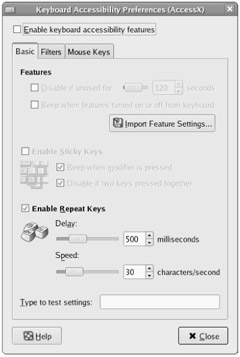
Figure 3-13: Set keyboard responses from the Keyboard Accessibility Preferences window.
Managing Removable Media (CDs, DVD, and Cameras )
The GNOME Volume Manager is a recent feature in GNOME for managing the removable media for your Fedora or RHEL system. Using the Drives and Media Preferences window, you can define how audio CDs, blank CDs, DVD videos digital cameras and other digital media are handled when they are inserted into local drives or hot-plugged to USB ports.
To open the GNOME Volume Manager from the System menu, select Preferences Removable Drives and Media. The Removable Drives and Media Preferences window appears, as shown in Figure 3-14.
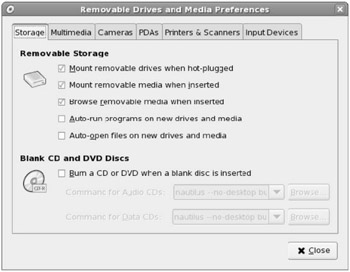
Figure 3-14: Choose which removable drives and media are mounted and played .
Besides CDs and DVDs, this window can be used to configure a variety of storage and input devices. Basically, the window can help you define what happens when you connect a variety of removable devices to your Fedora system. Here is a list of settings that are available from the Removable Drives and Media Preferences window:
-
Removable Storage - Settings in this section let you define whether or not to mount a removable storage device (such as a USB hard drive or pen drive) when it is connected to your computer. Likewise, it lets you choose whether or not to mount data CDs or DVDs when they are inserted. You can select the Browse removable media when inserted check box to have a file manager window open when CDs or DVDs are inserted. You can also choose to have auto-run programs start automatically if they are found on newly inserted medium or auto-open files from that medium.
-
Blank CD and DVD - When a blank CD is inserted, a Nautilus window opens with burn: as the location. That window is ready for you to drag and drop files into it, then burn those files to CD or DVD (click the Write to Disc button to actually write the files to your blank CD or DVD).
-
Audio CD - By default, when a music CD is inserted, the Volume Manager opens the totem media player and starts to play the first track of the CD. You can turn off this behavior or change the player by browsing for a different player to run.
-
Video DVD Discs - By default, no action is taken when you insert a DVD movie into your computer with the GNOME desktop. If you do enable this feature, the Totem video player is set to play the video, by default. However, this will not play commercial DVD movies as it is delivered with Fedora and RHEL, although it can play other types of video, such as Theora. (To learn more about adding support for playing DVD video in Fedora and RHEL, see Chapter 8.)
-
Portable Music Players - You can select your own application to launch when a portable music player is connected to your computer (nothing is configured by default). If it is an MP3 player, refer to Chapter 8 for information on getting MP3 support.
-
Digital Camera - When a digital camera is connected to a USB port on your computer, the camera's storage device is mounted automatically and the gThumb image viewer is launched. You can use that viewer to download images from the camera and manipulate those images. (The gThumb application is described in Chapter 8.)
-
Digital Video Camera - Use this selection to add a video editing command to launch when a digital video camera is connected. (None come with Fedora Core, but digital video editors such as kino are available from rpm.livna.org. )
-
PDAs - Under the PDA tab, you can select to have the contents of your Palm or PocketPC device synced to the contents on your computer. By default, the gpilotd-control-applet and multisync commands are used, respectively.
-
Printers and Scanners - Define which program to run if a USB printer or scanner is connected to your computer. By default, no action is taken.
-
Input Devices - Define which program to run if a USB mouse, keyboard, or tablet is connected to your computer. By default, no action is taken.
Besides mounting removable media, an icon will appear on the desktop for any mounted removable media. You can double-click on the icon, assuming it is a data CD, to perform the default action on that medium (such as open in an audio player for a music CD or open a file manager for a data CD or DVD). To use any of those media with other tools, look for their mount points under the /media directory. Because the storage media or devices are just file systems, you can use any graphical or command-line tool you like to work with the files on those media.
Trying Other GNOME Applications
The GNOME projects stores and tracks bugs for a variety of open source projects that work well with GNOME desktops. Two such applications are the Tomboy desktop note-taking application and the GNOME Network Tools utility.
Taking Notes with Tomboy
Tomboy ( www.beatniksoftware.com/tomboy ) is an excellent tool for keeping track of lots of bits of information. Instead of putting little sticky notes all over your computer, Tomboy lets you put sticky notes inside your computer. Features in Tomboy let you link notes together, search your notes, and use fonts and colors to help information within your notes stand out.
Add the Tomboy Notes applet to your desktop panel as you would any GNOME applet (select Tomboy Notes from the Add to Panel window). Then click on the sticky notepad icon and select Create New Note to open a small window that's ready for you to start typing your note.
After you have created a stick note with Tomboy, double-click on the title bar to be able to add a title, font, font color, and note color. You can add links to new notes (select some text and click the Link button). You can go back and search for text in existing notes (click the Search button). You can even see a table of contents of your notes (select the Tomboy applet icon, and then select Table of Contents).
If Tomboy is not available on your system, type yum install tomboy to install it.
Checking Your Network from GNOME
The GNOME Network Tools window (recently added to GNOME) brings together several tools you would normally run from the command line to monitor network resources from a graphical window on your GNOME desktop. To open the Network Tools window, select Applications System Tools Network Tools. Eight tabs on that window let you perform different operations on your network.
| Note | If GNOME Network Tools window is not available, you can install it (as root user) by typing yum install gnome-nettool from a Terminal window. |
The Devices tab displays information about each of your network interfaces. It makes it easy to find the names and addresses associated with each of your network interfaces (IP addresses, broadcast, netmask ) as well as information on data transmissions and collisions.
On other tabs, you can run graphical version of the ping command (to see if another computer can be reached on your network), netstat command (to see information about routes and network services), and traceroute command (to watch the network hops from your site to a remote host). You can do a portscan with nmap (to check for open ports on a network interface), DNS lookup (to get information about a domain name system server), finger (to see who's logged into a local or remote host computer), and whois (to get information about domain name registration).
Exiting GNOME
When you are done with your work, you can either log out from your current session or shut down your computer completely. To exit from GNOME, do the following:
-
Click the System button from the panel.
-
Select Log Out from the menu. A pop-up window appears, asking if you want to Log out.
-
Select OK from the pop-up menu. This will log you out and return you to either the graphical login screen or to your shell login prompt.
-
Select OK to finish exiting from GNOME.
If you are unable to get to the Log out button (if, for example, your Panel crashed), there are two other exit methods . Try one of these two ways, depending on how you started the desktop:
-
If you started the desktop by typing startx from your login shell, press Ctrl+Alt+Backspace to kill X and return to your login shell. Or you could type Ctrl+Alt+F1 to return to where you first ran startx , then type Ctrl+C to kill the desktop.
-
If you started the desktop from a graphical login screen, first open a Terminal window (right-click the desktop and then select New Terminal). In the Terminal window, type ps x more to see a list of running processes. Look for a command named gnomesession and determine its number under the PID column. Then type kill -9 PID , where PID is replaced by the PID number. You should see the graphical login screen.
Although these are not the most graceful ways to exit the desktop, they work. You should be able to log in again and restart the desktop.

EAN: 2147483647
Pages: 279