Flylib.com

Books Software


Adding Slides

 < Day Day Up > 

Adding Slides

Once you have created a presentation and applied a theme, you'll want to add additional slides. You need to first add the slide, then choose the master slide you want for that slide.

To add slides

1.

Click the New button on the toolbar ( Figure 2.2 ).

Figure 2.2. Create a new slide with the New button on the toolbar.


or

Choose Slide > New Slide.

or

Press .

The slide appears below the currently selected slide in the Slide Navigator.

2.

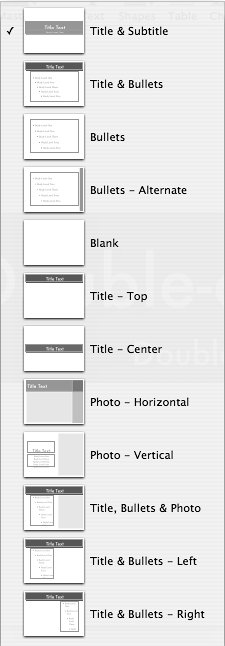
Choose the master slide for the new slide from the Masters pop-up menu in the toolbar ( Figure 2.3 ).

Figure 2.3. The Masters pop-up menu shows you all of the available master slides for the theme that you've selected.


Subsequent slides that you create will continue to use the same master slide, until you change it.

3.

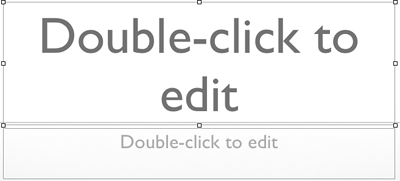
Double-click in a text box placeholder to add text to the slide ( Figure 2.4 ), or add graphics.

Figure 2.4. Enter text in the selected text box; the instructional text will disappear once you begin typing.


See Chapter 4 for more about working with text on slides, and see Chapter 5 for details on working with graphics.

 < Day Day Up > 
 < Day Day Up > 

Deleting Slides

Deleting unwanted slides is easy; just select the slide and get rid of it.

To delete slides

1.

In the Slide Navigator, click to select the slide you want to delete.

2.

Click the Delete button in the toolbar.

or

Choose Edit > Delete.

or

Press the Delete key.

Tips

  • If you accidentally delete a slide, immediately choose Edit > Undo, or press .

  • Another way to roll back to an earlier version of your Keynote file is to choose File > Revert to Saved, which will restore the last saved version of your file.

  • If you delete the first slide in a group of slides (see "Grouping Slides" later in this chapter), all the slides indented below it will also be deleted. Be careful!


 < Day Day Up > 
 < Day Day Up > 

Changing Slide Navigator Views

The Slide Navigator allows you to view the slides in your presentation in three different views, Navigator View, Outline View, and Slide Only View .

Navigator View

This view shows the slides in your presentation as thumbnails ( Figure 2.5 ). The currently selected slide is highlighted with a white background. Navigator View is good for getting an overall view of your presentation, and you can use it to move slides to different spots in your presentation, and also to group them (you'll find more about moving and grouping slides later in this chapter).

Figure 2.5. The Slide Navigator View shows the slides in your presentation as thumbnails.


Outline View

The Outline View displays your presentation as text, with each slide displaying its bullet points as indented text ( Figure 2.6 ). Any graphics on your slide do not appear in Outline View. Outline View is useful when you want to concentrate on the words in your presentation, without the distractions of the slide layout or graphics. In fact, I recommend that you create the main structure of your presentations in Outline View. You'll find more about that subject in the "Writing in the Outline" section later in this chapter.

Figure 2.6. Outline View shows your slides as text, with indented bullet points.


Slide Only View

This view hides the Slide Navigator, displaying only the slide area (and the Notes field, if that is turned on). Use this view when you want to concentrate on tweaking the appearance of a slide.

To change views

  • Select your choice of views from the View pop-up menu in the toolbar ( Figure 2.7 ).

    Figure 2.7. The View pop-up menu in the toolbar allows you to change views.


    or

    Choose View > Navigator, View > Outline, or View > Slide Only.

Tip

  • You can move from one slide to the next in the Navigator and Outline Views by using the up arrow and down arrow keys. If you hold down the Shift key while using the arrow keys, you will select multiple slides.


 < Day Day Up >