Flylib.com

Books Software


Using the Lower Interface Bar Controls


Using the Lower Interface Bar Controls

The last major interface element isn't really an interface element but just a collection of several sets of controls located along the bottom edge of the interface window. These controls cannot be pulled away from the interface like the main toolbar, but you can hide them using Expert Mode (Ctrl+X). These controls, shown in Figure 1.9, include the following from left to right:

  • Time Slider: The Time Slider, located under the viewports, enables you to quickly locate a specific frame. It spans the number of frames included in the current animation. Dragging the Time Slider can move you quickly between frames . Clicking the arrow buttons on either side of the Time Slider moves to the previous or next frame (or key).

  • Track Bar: The Track Bar displays animation keys as color -coded rectangles with red for positional keys, green for rotational keys, and blue for scale keys. Parameter change keys are denoted by gray rectangles. Using the Track Bar, you can select, move, and delete keys. The button at the left end of the Track Bar is the Open Mini Curve Editor button. It provides access to the animation function curves.

  • Status Bar: The Status Bar is below the Track Bar. It provides valuable information, such as the number and type of objects selected, transformation values, and grid size. It also includes the Selection Lock Toggle, Transform Type-In fields, and the value of the current Grid size .

  • Prompt Line: The Prompt Line is text located at the bottom of the window. If you're stuck as to what to do next, look at the Prompt Line for information on what Max expects. To the right of the Prompt Line is the Communication Center button for setting how often Max looks for updates. The Prompt Line also includes buttons for adding and editing Time Tags, which are used to name specific animation frames.

  • Key Controls: These controls are for creating animation keys and include two different modes-Auto Key (keyboard shortcut, N) and Set Key (keyboard shortcut,'). Auto Key mode sets keys for any changes made to the scene objects. Set Key mode gives you more precise control and sets keys for the selected filters only when you click the Set Keys button (keyboard shortcut, K).

  • Time Controls: Resembling the controls on an audio or video device, the Time Controls offer an easy way to move through the various animation frames and keys. Based on the selected mode (keys or frames), the Time Controls can move among the first, previous, next, and last frames or keys.

  • Viewport Navigation Controls: In the lower-right corner of the interface are the controls for manipulating the viewports. They enable you to zoom, pan, and rotate the active viewport's view.
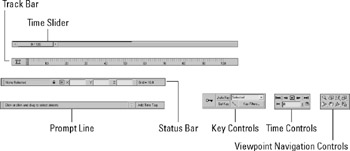
image from book
Figure 1.9: The Lower Interface Bar includes several sets of controls.

NEW FEATURE 

The Communication Center button on the Prompt Line is new to 3ds Max 9. It sets how often Max polls for updates via the Web.


Interacting with the Interface

Knowing where all the interface elements are located is only the start. Max includes several interactive features that make the interface work. Learning these features makes the difference between an interface that works for you and one that doesn't.

Gaining quick access with the right-click quadmenus

Quadmenus are pop-up menus with up to four separate sections that surround the cursor, as shown in Figure 1.10. Right-clicking in the active viewport opens these quadmenus. The contents of the menus depend on the object selected.

image from book
Figure 1.10: Quadmenus contain a host of commands in an easily accessible location.

Tip 

Many of the real pros use quadmenus extensively. One reason is that they can access the commands from the mouse's current location using a couple of clicks without having to go all the way to the Command Panel to click a button.

Clicking with the left mouse button away from the quadmenu closes it. For each menu, the last menu item selected is displayed in blue. To quickly access the blue menu item again, simply click the gray-shaded bar for the quadrant that contains the blue menu item. Using Customize image from book Customize User Interface, you can specify which commands appear on the quadmenus, but the default options have just about everything you need.

If you press and hold the Alt, Ctrl, and Shift keys while right-clicking in the active viewport, you can access specific sets of commands; Shift+right-click opens the Snap options, Alt+right-click opens Animation commands, Ctrl+right-click opens a menu of primitives, Shift+Alt+right-click opens a menu of reactor commands, and Ctrl+Alt+right-click opens a menu of rendering commands.

Understanding the button color cues

Max's interface uses color cues to help remind you of the current mode. When a button is yellow, it warns that it has control of the interface. For example, if one of the select buttons on the main toolbar is selected, it turns yellow and any dragging in the viewport affects the object; however, if one of the Viewport Navigation Control buttons is selected, it turns yellow and dragging the viewport changes the view. Knowing what the current mode is at all times can keep you out of trouble.

Tip 

Right-clicking in the active viewport exits any Viewport Navigation mode that has control and returns control to the most recent transform tool. Right-clicking in one of the inactive view-ports keeps the focus where it is and makes that clicked viewport active.

Another common button color is red. When either the Auto Key or Set Key buttons are depressed, they turn red. The edge of the active viewport being animated along with the Time Slider also turns red. This reminds you that any modifications will be saved as a key.

Toggle buttons are buttons that can be turned on and off. Example toggle buttons include the Snap buttons. When a toggle button is enabled, it also turns yellow. Toggle buttons highlighted in blue are non-exclusive, but they notify you of a mode that is enabled, such as the Key Mode Toggle or the Affect Pivot Only button.

CROSS-REF 

All interface colors can be customized using the Customize User Interface dialog box that is discussed in Chapter 5, "Customizing the Max Interface and Setting Preferences."

Using drag-and-drop features

Dialog boxes that work with files benefit greatly from Max's drag-and-drop features. The Material Editor, Background Image, View File, and Environmental Settings dialog boxes all use drag and drop. These dialog boxes let you select a file or a material and drag it on top of where you want to apply it. For example, with the Maps rollout in the Material Editor open, you can drag a texture image filename from Windows Explorer or the Asset Manager and drop it on the Map button. You can even drag and drop Max files from Windows Explorer into the Max interface to open them.

Controlling spinners

Spinners are those little controls throughout the interface with a value field and two small arrows to its right. As you would expect, clicking the up arrow increases the value and clicking the down arrow decreases the value. The amount of the increase or decrease depends on the setting in the General tab of the Preference Settings dialog box. Right-clicking on the spinner resets the value to its lowest acceptable value. Another way to control the spinner value is to click the arrows and drag with the mouse. Dragging up increases the value, and dragging down decreases it.

The effect of the spinner drag is shown in the viewport if the Update During Spinner Drag menu option is enabled in the Views menu. If the cursor is located within a spinner, you can press Ctrl+N to open the Numeric Expression Evaluator, which lets you set the value using an expression. For example, you can set a spinner value by adding numbers together as you would using a calculator. An expression of 30+40+35 sets the value to 105.

CROSS-REF 

Chapter 32, "Animating with Constraints and Controllers," covers the Numeric Expression Evaluator in more detail.

Understanding modeless and persistent dialog boxes

Many dialog boxes in Max are modeless , which means that the dialog box doesn't need to be closed before you can work with objects in the background viewports. The Material Editor is an example of a modeless dialog box. With the Material Editor open, you can create, select, and transform objects in the background. Other modeless dialog boxes include the Material/Map Browser, the Render Scene dialog box, the Video Post dialog box, the Transform Type-In dialog box, the Display and Selection Floaters, and the various graph editors. Pressing the Ctrl+ keyboard shortcut closes all open dialog boxes. Pressing the same keyboard shortcut again reopens the dialog boxes that were previously closed.

Another feature of many, but not all, dialog boxes is persistence , which means that values added to a dialog box remain set when the dialog box is reopened. This feature applies only within a given Max session. Choosing the File image from book Reset command button or exiting and restarting Max resets all the dialog boxes.