Organizing Your Bookmarks
Anyone who uses a filing cabinet knows the grim reality of organization: It doesn't last long. Sure, that first week you've got your stack of brand new manila folders and pens and you're eager to file. But by the second week, you're starting to stick papers in the wrong folders just to get them out of your sight. By the time a month has passed, the stack of junk on your desk is now a stack of junk in an oversized Miscellaneous folder.
As I discuss earlier, in the "Creating a Bookmark" section, Firefox makes it easy to organize your bookmarks by helping you file them into folders from the start. However, it also offers a sophisticated manager so you can go back and organize your collection at any time. To access this tool, open the Bookmarks menu and choose Manage Bookmarks.
The Bookmarks Manager, shown in Figure 5-10, is divided into two panes. The left pane contains a list of folders, and the right pane contains the items in whichever folder you've selected. By default, the Bookmarks folder — which contains all your bookmarks and folders — is selected.
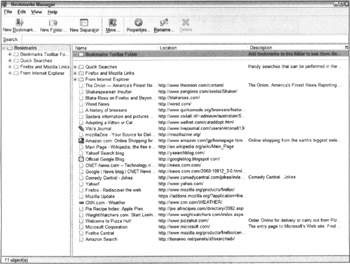
Figure 5-10: The Bookmarks Manager is a simple interface for managing your bookmarks.
The Bookmarks Manager offers one-click access to all the organizational capabilities you need. Note that you can perform many of the actions that I discuss in the following sections, such as deletion and movement, on multiple bookmarks and folders at one time. For example, you can select multiple bookmarks and then drag them all into a folder. To select multiple items, Ctrl+click (Windows) or Click OK to create the new folder. To move existing bookmarks into the new folder, simply drag and drop them onto the new folder, as I discuss in "Moving bookmarks and folders," later in this section.
Renaming bookmarks and folders
To rename a bookmark or folder, follow these steps:
-
Select the bookmark or folder you want to rename.
-
Click the Rename button on the toolbar at the top of the window. Alternatively, you can right-click the bookmark and choose Properties.
The bookmark's Properties window appears.
-
Type the new name you want to use in the Name text box.
-
Click OK.
Deleting bookmarks and folders
When it comes time to clean house, Firefox makes it easy to delete those old and unused bookmarks. Follow these steps:
-
Select the bookmark(s) or folder(s) you want to delete.
Hold down the Ctrl key (Windows) or the

Tip Firefox won't ask you to confirm your decision to delete. However, if you change your mind after doing so, you can undo the action by choosing Edit
 Undo. After you shut down Firefox, you cannot undo your changes.
The Quick Searches folder that comes with Firefox holds your Search Keywords. See the section in Chapter 4 about searching from the Location Bar for information about quick searches using Search Keywords.
Moving bookmarks and folders
Moving bookmarks in the Bookmarks Manager is easy. Simply drag the bookmarks you want to move to the desired location. You can select multiple bookmarks by holding down the Ctrl key (Windows) or the
 +V (Mac).
Sorting bookmarks
By default, Firefox displays your bookmarks in the order you added them. Your most recently added bookmarks are at the bottom of the list, and the bookmarks you created longest ago are at the top. However, you can instruct Firefox to sort your bookmarks alphabetically at any time. Simply right-click a bookmark in the Bookmarks Toolbar, Sidebar, or (in Windows) menu and choose Sort by Name. It doesn't matter which one you right-click because Firefox maintains a single bookmarks list across all three interfaces, and thus your bookmarks will be sorted alphabetically in all of them.
Note that if you sort by right-clicking one of the bookmarks in the main bookmarks list, Firefox sorts only the main bookmarks list. It does not sort bookmarks within folders; those will continue to be in chronological order. To sort the bookmarks within a particular folder, right-click the folder and choose Sort by Name.
Tip This kind of sorting is useful if it's easier for you to find and access bookmarks that are sorted alphabetically. However, if you want to sort your bookmarks temporarily for the purpose of managing and organizing them more easily, the Bookmarks Manager offers a variety of sorting options, such as sorting by last visited date or by location. These options are available from the View menu in the Bookmarks Manager and do not affect the Bookmarks Toolbar, Sidebar, or menu.
Describing bookmarks and folders
You can give bookmarks and folders brief descriptions that can serve as reminders to you later on about why you bookmarked a particular page or what a particular folder contains. Descriptions appear in the Description column of the Bookmarks Manager, and you can also view them in the Properties window (right-click the bookmark or folder and choose Properties).
Follow these steps to enter a description:
-
Select the bookmark or folder you want to describe.
-
Right-click the bookmark or folder and choose Properties, or click Properties in the toolbar at the top of the window.
The bookmark's Properties window appears.
-
Enter the description in the Description text box.
-
Click OK.
Creating separators
Separators are horizontal lines used to divide related bookmarks and folders into groups. For example, if you have a group of sports-related bookmarks and a group of recipe bookmarks, you could use separators to differentiate the groups visually in the Bookmarks menu, Sidebar, and Toolbar.
Here's how you make separators:
-
Select the bookmark or folder above which you want to create a separator.
-
Click the Separator button on the toolbar at the top of the window.
Tip You can give separators names that will appear in the Bookmarks Manager and in the Bookmarks Sidebar (although they don't appear in the Bookmarks menu). Simply select the separator, click the Rename button on the toolbar at the top of the window, then enter the name and click OK.
