Holding the Drives: Drive Bays
There's one more major type of component inside your computer: the mass storage devices that hold your programs and data files. These include hard drives, floppy disks (these are very nearly obsolete), optical storage devices (CDs and DVDs), and drives for magnetic tape and other less common media. Desktop and tower cases have two kinds of supports for their storage devices: external drive bays for drives that use removable media, and internal drive bays for hard disk drives.
Drives and drive bays come in two sizes: big ones and little ones. The smaller drives are mostly used for 3.5-inch floppy disks. Larger drives, about 5.25 inches wide and 1 inch high, include hard drives, optical drives, and ancient 5-inch floppy disk drives. The dimensions and the location of the mounting holes on the top, bottom, and sides are the same on all drives intended for desktop and tower computers, so any drive should fit into any drive bay of the appropriate size.
External drive bays
External drive bays support drives that use removable media and other add-on devices with manual controls or visible displays. Floppy disk drives, CD and DVD drives, and PC Card sockets are common examples of external drives. Figure 4.9 shows a tower computer with a CD drive and a floppy disk drive mounted in external drive bays.
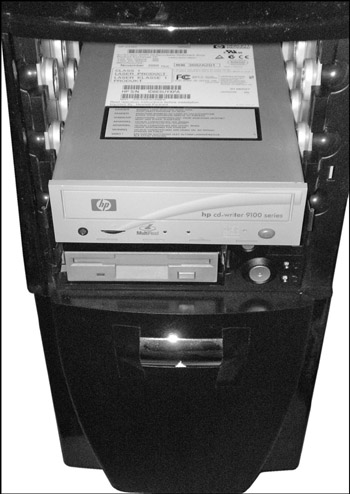
Figure 4.9: The drives are mounted in external drive bays.
The front panel of most desktop computers has spaces for both large and small external drives, with removable cover plates to fill unused holes. The drives that fit in those spaces usually slide into the computer from the front; some cases use metal or plastic rails that attach to the drives, and others use screws to fasten the drive directly to the sides of the drive bay.
| Caution | Don't throw away the blank covers when you install a drive or other device in an external drive bay. You might need it to fill a hole if you ever remove an external drive from the computer. Every manufacturer uses a different system to hold those covers in place, so you can't go to your neighborhood computer parts retailer to buy a generic cover; you have to go back to the company that built your computer or the maker of the case. |
Internal drive bays
Just about every personal computer has at least one hard drive inside the case, and many include two or more. After a hard drive has been installed, there is no reason to remove it unless the drive fails or you replace it with a larger drive. Because it's not necessary to provide physical access to a hard drive during normal operation of the computer, the drive bays may be located deep inside the case.
So the internal drive bays can be just about anywhere: front, back, middle, at the top of the case or near the bottom. As long as the cables can reach the motherboard and the power supply, it doesn't make any difference. One of the challenges of designing a computer case is finding space for at least two or three hard drives without increasing the size of the case any more than absolutely necessary. Like Doctor Who's Tardis or Snoopy's doghouse, a computer case should be bigger on the inside than the outside.
If all the external drive bays aren't filled with drives that use removable media, it's easy enough to convert a vacant external bay to an internal drive bay by mounting a hard drive in the bay and replacing the original blank cover.

EAN: 2147483647
Pages: 372