Flylib.com

Books Software


Chapter 16. Remote Server Attach

 <  Day Day Up  >  

Chapter 16. Remote Server Attach

This chapter provides an overview and a sample scenario to test and debug portlet projects running on a remote WebSphere Portal server. The topics presented in this chapter will allow you to understand the techniques and the configuration required to test and debug portlets remotely.

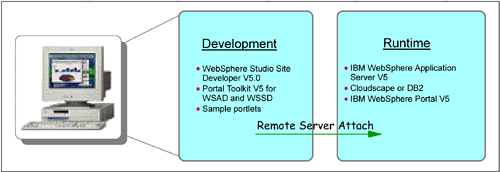
The sample development workstation and the remote Portal server are illustrated in Figure 16-1.

Figure 16-1. Development workstation

graphics/16fig01.gif

 <  Day Day Up  >  
 < Day Day Up > 

16.1 Overview

You can run and optionally debug a portlet application running on a remote WebSphere Portal system accessible through a network connection. The recommended steps to implement this function are as follows :

  1. Prepare Portal server for Remote Server Attach.

    1. Install WebSphere Portal on a remote machine. In this scenario, it has already been installed for you.

    2. Configure JVM in the WebSphere Application Server Administrative Console.

  2. Configure WebSphere Studio for Remote Server Attach.

    1. Select WebSphere Portal 5.0 Remote Server Attach .

    2. Specify the Host (Portal server), JVM debug port, HTTP port.

  3. If needed, install a portlet application in Portal for Remote Server Attach.

    1. Build and export a portlet application project as a WAR file.

    2. Manually install and configure the portlet application (WAR file) using Portal Administration functions.

    3. Add the portlet to a Portal page using Portal Administration functions.

  4. Run and debug the portlet application using Remote Server Attach.

    1. Select the portlet application project.

    2. Select Debug on Server from the context menu.

    3. Debug the portlet running in the remote Portal server.

Figure 16-2. Remote Server Attach sample scenario

graphics/16fig02.gif

 < Day Day Up > 
 < Day Day Up > 

16.2 Preparing Portal for Remote Server Attach

In order to test and debug portlets remotely, some configuration is required.

  1. First, stop any servers running on WebSphere Test Environment inside Studio.

  2. Start the external WebSphere Application Server; click Start -> Programs -> IBM WebSphere -> Application Server v5.0 -> Start the Server .

  3. Once WebSphere Application Server has started, open the Administrative Console. Click Start -> Programs -> IBM WebSphere -> Application Server v5.0 -> Administrative Console .

  4. Log on to the Administrative Console with user ID wsadmin. Click OK .

    Figure 16-3. WebSphere Application Server Administrative Console Login

    graphics/16fig03.gif

  5. Click No if you get the auto complete option message. It is not needed for this scenario.

  6. Expand Servers and select Application Servers -> WebSphere_Portal .

    Figure 16-4. Select WebSphere_Portal

    graphics/16fig04.gif

  7. In Additional Properties (Configuration page), scroll down and select Process Definition .

    Figure 16-5. Select Process Definition

    graphics/16fig05.jpg

  8. Select Java Virtual Machine (Additional Properties).

    Figure 16-6. Java Virtual Machine

    graphics/16fig06.gif

  9. In General Properties:

    1. Select the Debug Mode checkbox.

    2. Verify that the following string is defined as the Debug arguments:

      -Djava.compiler=NONE -Xdebug -Xnoagent
      
      -Xrunjdwp:transport=dt_socket,server=y,suspend=n,address=7777
      

      Note : The address specifies the JVM debug port number; the default value is 7777.

    3. Click Apply .

    Figure 16-7. JVM parameter enabling debug

    graphics/16fig07.gif

  10. In the menu bar, click Save . Also, click Save in Save Master Configuration.

    Figure 16-8. Save the JVM configuration

    graphics/16fig08.gif

  11. Stop the Application Server by clicking Programs -> IBM WebSphere -> Application Server -> Stop the Server .

  12. Close the desktop browser.

 < Day Day Up >