Working with Headings in Outline View
Whether you create an outline from scratch or use the outline created as part of your existing document, you’ll invariably want to change some headings and insert and delete others. Headings are easy to work with in Outline view-with a simple click of a tool, you can change heading levels, move headings in the outline, and even demote the heading to body text, if you like.
Adding a Heading
When you want to insert a heading in an existing outline, in Outline view, find the heading you want the new heading to follow. Then simply place the insertion point after that heading and press Enter. If you want the heading to be at the same level as the heading preceding it, simply type the new heading. If you want to promote or demote the heading level, click the appropriate button before typing your text.
Applying Outline Levels
You can choose the outline level for your heading by using the Outline Level list on the Outlining tab. Simply click in the heading to which you want to apply the outline level and then click the Outline Level arrow to display the list, as shown in Figure 9–8. Click your choice, and the format is applied to the heading.
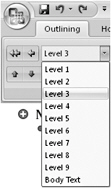
Figure 9–8: If you know which outline level you want to assign to the new heading, choose it directly from the Outline Level list.
Promoting and Demoting Headings
Once you have text in your outline, you can easily change outline levels, moving a heading from level 1 to level 2, for example, or from body text up to level 3. Put simply, promoting a heading takes it one level higher in the outline, and demoting a heading moves it one level down in the outline.
Each time you click the Demote button, Word moves the heading one level down the outline level scheme. Outline view shows the change by indenting the heading and changing the formatting. Conversely, the Promote button raises the heading level of the selected text until you reach Heading 1, which is the highest outline level available.
When you want to demote and promote in larger increments, moving a heading all the way to the topmost level, for example, or changing a heading to body text, use the Promote To Heading 1 or Demote To Body Text buttons.
When might you want to promote or demote text? You could be working on a report, for example, and realize that a topic you’ve placed at a Heading 2 level is really part of another topic. You can first change the heading level to reflect the level the heading should be to fit in the outline where you want it to go, and then you can move the selection to that point. You can also drag and drop the selection where you want it to appear in the outline; you may need to adjust the heading level depending on where you drop the section.

EAN: 2147483647
Pages: 299