The File Structure
|
| < Day Day Up > |
|
Linux organizes files into a hierarchically connected set of directories. Each directory may contain either files or other directories. In this respect, directories perform two important functions. A directory holds files, much like files held in a file drawer, and a directory connects to other directories, much as a branch in a tree is connected to other branches. With respect to files, directories appear to operate like file drawers, with each drawer holding several files. To access files, you open a file drawer. Unlike file drawers, however, directories can contain not only files, but other directories as well. In this way, a directory can connect to another directory.
Because of the similarities to a tree, such a structure is often referred to as a tree structure. This structure could more accurately be thought of as an upside-down bush rather than a tree, however, because no trunk exists. The tree is represented upside down, with the root at the top. Extending down from the root are the branches. Each branch grows out of only one branch, but it can have many lower branches. In this respect, it can be said to have a parent/child structure. In the same way, each directory is itself a subdirectory of one other directory. Each directory may contain many subdirectories but is itself the child of only one parent directory.
The Linux file structure branches into several directories beginning with a root directory, /. Within the root directory several system, directories contain files and programs that are features of the Linux system. The root directory also contains a directory called home that contains the home directories of all the users in the system. Each user's home directory, in turn, contains the directories the user has made for their own use. Each of these could also contain directories. Such nested directories would branch out from the user's home directory, as shown in Figure 10-2.
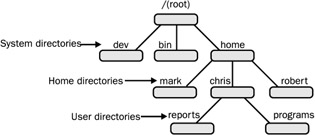
Figure 10-2: The Linux file structure beginning at the root directory
| Note | The user's home directory can be any directory, though it is usually the directory that bears the user's login name. This directory is located in the directory named /home on your Linux system. For example, a user named dylan will have a home directory called dylan located in the system's /home directory. The user's home directory is a subdirectory of the directory called /home on your system. |
Home Directories
When you log in to the system, you are placed within your home directory. The name given to this directory by the system is the same as your login name. Any files you create when you first log in are organized within your home directory. Within your home directory, however, you can create more directories. You can then change to these directories and store files in them. The same is true for other users on the system. Each user has his own home directory, identified by the appropriate login name. Users, in turn, can create their own directories.
You can access a directory either through its name or by making it the default directory. Each directory is given a name when it is created. You can use this name in file operations to access files in that directory. You can also make the directory your default directory. If you do not use any directory names in a file operation, the default directory will be accessed. The default directory is referred to as the working directory. In this sense, the working directory is the one from which you are currently working.
When you log in, the working directory is your home directory, usually having the same name as your login name. You can change the working directory by using the cd command to designate another directory as the working directory. As the working directory is changed, you can move from one directory to another. Another way to think of a directory is as a corridor. In such a corridor, there are doors with names on them. Some doors lead to rooms; others lead to other corridors. The doors that open to rooms are like files in a directory. The doors that lead to other corridors are like other directories. Moving from one corridor to the next corridor is like changing the working directory. Moving through several corridors is like moving through several directories.
Pathnames
The name you give to a directory or file when you create it is not its full name. The full name of a directory is its pathname. The hierarchically nested relationship among directories forms paths, and these paths can be used to identify and reference any directory or file unambiguously. In Figure 10-3, a path exists from the root directory, /, through the home directory to the robert directory. Another path exists from the root directory through the home and chris directories to the reports directory. Although parts of each path may at first be shared, at some point they differ. Both the directories robert and reports share the two directories root and home. Then they differ. In the home directory, robert ends with robert, but the directory chris then leads to reports. In this way, each directory in the file structure can be said to have its own unique path. The actual name by which the system identifies a directory always begins with the root directory and consists of all directories nested above that directory.
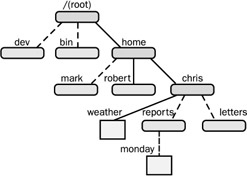
Figure 10-3: Directory pathnames
In Linux, you write a pathname by listing each directory in the path separated by a forward slash. A slash preceding the first directory in the path represents the root. The pathname for the robert directory is /home/robert. The pathname for the reports directory is /home/chris/reports. Pathnames also apply to files. When you create a file within a directory, you give the file a name. The actual name by which the system identifies the file, however, is the filename combined with the path of directories from the root to the file's directory. In Figure 10-3, the path for the weather file consists of the root, home, and chris directories and the filename weather. The pathname for weather is /home/chris/weather (the root directory is represented by the first slash).
Pathnames may be absolute or relative. An absolute pathname is the complete pathname of a file or directory beginning with the root directory. A relative pathname begins from your working directory; it is the path of a file relative to your working directory. The working directory is the one you are currently operating in. Using the directory structure described in Figure 10-3, if chris is your working directory, the relative pathname for the file monday is reports/monday. The absolute pathname for monday is /home/chris/reports/monday.
The absolute pathname from the root to your home directory could be especially complex and, at times, even subject to change by the system administrator. To make it easier to reference, you can use a special character, the tilde ~, which represents the absolute pathname of your home directory. In the next example, from the thankyou directory, the user references the weather file in the home directory by placing a tilde and slash before weather:
$ pwd /home/chris/letters/thankyou $ cat ~/weather raining and warm $
You must specify the rest of the path from your home directory. In the next example, the user references the monday file in the reports directory. The tilde represents the path to the user's home directory, /home/chris, and then the rest of the path to the monday file is specified.
$ cat ~/reports/monday
System Directories
The root directory that begins the Linux file structure contains several system directories. The system directories contain files and programs used to run and maintain the system. Many contain other subdirectories with programs for executing specific features of Linux. For example, the directory /usr/bin contains the various Linux commands that users execute, such as cp and mv. The directory /bin holds interfaces with different system devices, such as the printer or the terminal. Table 10-1 lists the basic system directories.
| Directory | Function |
|---|---|
| / | Begins the file system structure, called the root |
| /home | Contains users' home directories |
| /bin | Holds all the standard commands and utility programs |
| /usr | Holds those files and commands used by the system; this directory breaks down into several subdirectories |
| /usr/bin | Holds user-oriented commands and utility programs |
| /usr/sbin | Holds system administration commands |
| /usr/lib | Holds libraries for programming languages |
| /usr/share/doc | Holds Linux documentation |
| /usr/share/man | Holds the online manual Man files |
| /var/spool | Holds spooled files, such as those generated for printing jobs and network transfers |
| /sbin | Holds system administration commands for booting the system |
| /var | Holds files that vary, such as mailbox files |
| /dev | Holds file interfaces for devices such as the terminals and printers |
| /etc | Holds system configuration files and any other system files |
| Note | The overall organization of the Linux file structure for system directories and other useful directories such as those used for the kernel are discussed in detail in Chapter 33. |
|
| < Day Day Up > |
|

EAN: 2147483647
Pages: 328