7.4. ListBox, CheckedListBox, and ComboBox Classes
| < Day Day Up > |
The ListBox ClassThe ListBox control is used to provide a list of items from which the user may select one or more items. This list is typically text but can also include images and objects. Other features of the ListBox include methods to perform text-based searches, sorting, multi-column display, horizontal and vertical scroll bars, and an easy way to override the default appearance and create owner-drawn ListBox items. constructor: public ListBox() The constructor creates an empty ListBox. The code to populate a ListBox is typically placed in the containing form's constructor or Form.Load event handler. If the ListBox.Sorted property is set to TRue, ListBox items are sorted alphabetically in ascending order. Also, vertical scroll bars are added automatically if the control is not long enough to display all items. Adding Items to a ListBoxA ListBox has an Items collection that contains all elements of the list. Elements can be added by binding the ListBox to a data source (described in Chapter 11, "ADO.NET") or manually by using the Add method. If the Sorted property is false, the items are listed in the order they are entered. There is also an Insert method that places an item at a specified location. lstArtists.Items.Add("Monet"); lstArtists.Items.Add("Rembrandt"); lstArtists.Items.Add("Manet"); lstArtists.Items.Insert(0, "Botticelli"); //Place at top Core Note
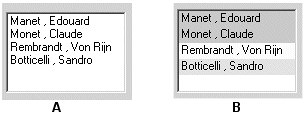
List boxes may also contain objects. Because an object may have many members, this raises the question of what is displayed in the TextBox list. Because by default a ListBox displays the results of an item's ToString method, it is necessary to override this System.Object method to return the string you want displayed. The following class is used to create ListBox items: // Instances of this class will be placed in a ListBox public class Artist { public string BDate, DDate, Country; private string firstname; private string lastname; public Artist(string birth, string death, string fname, string lname, string ctry) { BDate = birth; DDate = death; Country = ctry; firstname = fname; lastname = lname; } public override string ToString() { return (lastname+" , "+firstname); } public string GetLName { get{ return lastname;} } public string GetFName { get{ return firstname;} } } ToString has been overridden to return the artist's last and first names, which are displayed in the ListBox. The ListBox (Figure 7-9) is populated using these statements: lstArtists.Items.Add (new Artist("1832", "1883", "Edouard", "Manet","Fr" )); lstArtists.Items.Add (new Artist("1840", "1926", "Claude", "Monet","Fr")); lstArtists.Items.Add (new Artist("1606", "1669", "Von Rijn", "Rembrandt","Ne")); lstArtists.Items.Add (new Artist("1445", "1510", "Sandre", "Botticelli","It")); Figure 7-9. ListBox items: (A) Default and (B) Custom drawn
Selecting and Searching for Items in a ListBoxThe SelectionMode property determines the number of items a ListBox allows to be selected at one time. It takes four values from the SelectionMode enumeration: None, Single, MultiSingle, and MultiExtended. MultiSingle allows selection by clicking an item or pressing the space bar; MultiExtended permits the use of the Shift and Ctrl keys. The SelectedIndexChanged event provides an easy way to detect when an item in a ListBox is selected. It is fired when the user clicks on an item or uses the arrow keys to traverse a list. A common use is to display further information about the selection in other controls on the form. Here is code that displays an artist's dates of birth and death when the artist's name is selected from the ListBox in Figure 7-9: // Set up event handler in constructor lstArtists.SelectedIndexChanged += new EventHandler(ShowArtist); // private void ShowArtist(object sender, EventArgs e) { // Cast to artist object in order to access properties Artist myArtist = lstArtists.SelectedItem as Artist; if (myArtist != null) { txtBirth.Text = myArtist.Dob; // Place dates in text boxes txtDeath.Text = myArtist.Dod; } } The SelectedItem property returns the item selected in the ListBox. This object is assigned to myArtist using the as operator, which ensures the object is an Artist type. The SelectedIndex property can also be used to reference the selected item: myArtist = lstArtists.Items[lstArtists.SelectedIndex] as Artist; Working with a multi-selection ListBox requires a different approach. You typically do not want to respond to a selection event until all items have been selected. One approach is to have the user click a button to signal that all choices have been made and the next action is required. All selections are exposed as part of the SelectedItems collection, so it is an easy matter to enumerate the items: foreach (Artist a in lstArtists.SelectedItems) MessageBox.Show(a.GetLName); The SetSelected method provides a way to programatically select an item or items in a ListBox. It highlights the item(s) and fires the SelectedIndexChanged event. In this example, SetSelected is used to highlight all artists who were born in France: lstArtists.ClearSelected(); // Clear selected items for (int ndx =0; ndx < lstArtists.Items.Count-1; ndx ++) { Artist a = lstArtists.Items[ndx] as Artist; if (a.country == "Fr") lstArtists.SetSelected(ndx,true); } Customizing the Appearance of a ListBoxThe ListBox, along with the ComboBox, MenuItem, and TabControl controls, is an owner-drawn control. This means that by setting a control property, you can have it fire an event when the control's contents need to be drawn. A custom event handler takes care of the actual drawing. To enable owner drawing of the ListBox, the DrawMode property must be set to one of two DrawMode enumeration values: OwnerDrawFixed or OwnerDrawVariable. The former draws each item a fixed size; the latter permits variable-sized items. Both of these cause the DrawItem event to be fired and rely on its event handler to perform the drawing. Using the ListBox from the previous example, we can use the constructor to set DrawMode and register an event handler for the DrawItem event: lstArtists.DrawMode = DrawMode.OwnerDrawFixed; lstArtists.ItemHeight = 16; // Height (pixels) of item lstArtists.DrawItem += new DrawItemEventHandler(DrawList); The DrawItemEventHandler delegate has two parameters: the familiar sender object and the DrawItemEventArgs object. The latter is of more interest. It contains properties related to the control's appearance and state as well as a couple of useful drawing methods. Table 7-2 summarizes these.
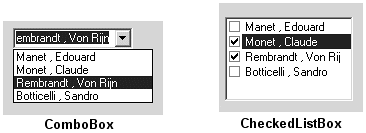
Index is used to locate the item. Font, BackColor, and ForeColor return the current preferences for each. Bounds defines the rectangular area circumscribing the item and is used to indicate where drawing should occur. State is useful for making drawing decisions based on whether the item is selected. This is particularly useful when the ListBox supports multiple selections. We looked at the Graphics object briefly in the last chapter when demonstrating how to draw on a form. Here, it is used to draw in the Bounds area. Finally, the two methods, DrawBackground and DrawFocusRectangle, are used as their name implies. The event handler to draw items in the ListBox is shown in Listing 7-3. Its behavior is determined by the operation being performed: If an item has been selected, a black border is drawn in the background to highlight the selection; if an item is added, the background is filled with a color corresponding to the artist's country, and the first and last names of the artist are displayed. The routine does require knowledge of some GDI+ concepts (see Chapter 8, ".NET Graphics Using GDI+"). However, the purpose of the methods should be clear from their name and context: FillRectangle fills a rectangular area defined by the Rectangle object, and DrawString draws text to the Graphics object using a font color defined by the Brush object. Figure 7-9(B) shows the output. Listing 7-3. Event Handler to Draw Items in a ListBox private void DrawList(object sender, DrawItemEventArgs e) { // Draw ListBox Items string ctry; Rectangle rect = e.Bounds; Artist a = lstArtists.Items[e.Index] as Artist; string artistName = a.ToString(); if ( (e.State & DrawItemState.Selected) == DrawItemState.Selected ) { // Draw Black border around the selected item e.Graphics.DrawRectangle(Pens.Black,rect); } else { ctry = a.Country; Brush b; // Object used to define backcolor // Each country will have a different backcolor b = Brushes.LightYellow; // Netherlands if (ctry == "Fr") b = Brushes.LightGreen; if (ctry == "It") b = Brushes.Yellow; e.Graphics.FillRectangle(b,rect);} e.Graphics.DrawString(artistName,e.Font, Brushes.Black,rect); } } Other List Controls: the ComboBox and the CheckedListBoxThe ComboBox control is a hybrid control combining a ListBox with a TextBox (see Figure 7-10). Like the ListBox, it derives from the ListControl and thus possesses most of the same properties. Figure 7-10. ComboBox and CheckedListBox controls are variations on ListBox
Visually, the ComboBox control consists of a text box whose contents are available through its Text property and a drop-down list from which a selected item is available through the SelectedItem property. When an item is selected, its textual representation is displayed in the text box window. A ComboBox can be useful in constructing questionnaires where the user selects an item from the drop-down list or, optionally, types in his own answer. Its construction is similar to the ListBox: ComboBox cbArtists = new ComboBox(); cbArtists.Size = new System.Drawing.Size(120, 21); cbArtists.MaxDropDownItems= 4; // Max number of items to display cbArtists.DropDownWidth = 140; // Width of drop-down portion cbArtists.Items.Add(new Artist("1832", "1883", "Edouard", "Manet","Fr" )); // Add other items here... The CheckedListBox is a variation on the ListBox control that adds a check box to each item in the list. The default behavior of the control is to select an item on the first click, and check or uncheck it on the second click. To toggle the check on and off with a single click, set the CheckOnClick property to TRue. Although it does not support multiple selections, the CheckedListBox does allow multiple items to be checked and includes them in a CheckedItems collection. The code here loops through a collection of Artist objects that have been checked on the control: // List all items with checked box. foreach (Artist a in clBox.CheckedItems) MessageBox.Show(a.ToString()); // > Monet, Claude You can also iterate through the collection and explicitly determine the checked state: For (int i=0; I< clBox.Items.Count; i++) { if(clBox.GetItemCheckState(i) == CheckState.Checked) { Do something } else {do something if not checked } } |

| < Day Day Up > |
