Working with Formulas That Reference Other Workbooks and Worksheets
| Because a workbook can contain multiple worksheets, you might need to reference a cell in another worksheet or even another workbook file. As long as you follow the proper syntax, you can type a formula that contains a reference to any file. If the cell is contained in another worksheet in the current workbook, you need to include the sheet name followed by an exclamation point ( ! ) and then the actual address of the cell. Blank spaces are not allowed. For example, Sheet4!A75 , points to cell A75 on Sheet 4 of the current workbook. Anytime you reference another worksheet in the workbook, you must include the exclamation point. If you've renamed a worksheet from its default sheet name, use the sheet name and an exclamation point.
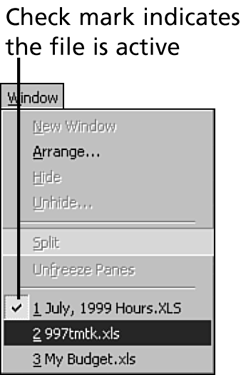
Although you can type a cell reference to another worksheet, it's easier to use the mouse. If you need to reference a cell on another sheet as you're building a formula, click the appropriate sheet tab and then point to the cell you want to use. Excel places the sheet name and cell reference, using perfect syntax, into the formula. You can also reference a cell from another workbook. It's best to point to the cell you want to use, rather than worry about making sure that you've used the correct syntax. Make sure that you open the workbook(s) that contains the cells you want to reference before you begin. Begin the formula by clicking the Edit Formula button so that the formula appears in the Formula palette. As you construct the formula, switch to the open worksheet by clicking the Window menu, as illustrated in Figure 44.11, and navigating to the worksheet and cell. After you click the cell you want, use the Window menu and click the file that contains the formula you're working on. When you're done building the formula, click the OK button on the Formula palette. Figure 44.11. Switch to another open workbook. The next few steps give you some hands-on practice in working with formulas and in entering data. Once again, you're working with the My Budget workbook. If the file isn't open right now, open it before you begin these practice steps.
Working with Simple FunctionsExcel contains a range of functions designed to help you enter formulas easily. Excel functions run the gamut of simple calculations to complex, multitiered equations. You can use an Excel function to total a range of numbers or calculate a car payment. Excel contains more than 100 functions for your use. This section examines a few of Excel's simpler functions. Table 44.2 shows some simple, commonly used functions. Table 44.2. Common Excel Functions
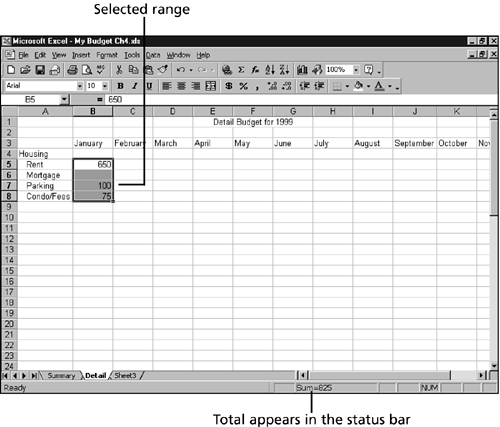
Excel functions are handled like formulas. Each function begins with an = . Next enter the function name, which is usually a one-word description of what the function does. Following the function name is an opening parenthesis. Arguments follow. The function is concluded with a closing parenthesis. The function =SUM(A1:A5) returns the sum of the cells from A1 through A5. (The colon character indicates through .) The function could also be written as =SUM(A1+A2+A3+A4+A5) . Although writing it with all the cells is technically correct, it makes more sense (and conserves space) to use range coordinates. If a function has more than one argument, commas separate the arguments. A few functions don't use arguments. For example, =NOW() enters the serial number for the current date in the cell.  |



EAN: 2147483647
Pages: 474