| When you click on a link or button and a second file opens, then the link is a cross-document link. When designing documents with cross-document links, PDF authors can save open preferencesoptions that control the opening and closing of documents. PDF authors have three choices: Window set by user preference. When the author saves the PDF document with this option, each user's individual preferences determine the window view. New window. When the author saves the PDF document with this option, a link or button that opens a second file opens the target file in the Document pane and the original file remains open in the background. Existing window. When the author saves the PDF file with this option, the original document closes as the new file opens.
Assigning Viewing Preferences You can control viewing preferences only when a PDF author has saved a document with a cross-document link and the open preference options were set to Window set by user preference. If either of the other two options is saved with the PDF file, the saved open preferences override any preference settings you decide to use with Adobe Reader.  | To view PDFs with cross-document links, use the culinaryMaster.pdf and recipeRequest.pdf files from the Peachpit Web site at www.peachpit.com/adobereader7. |
To set preference options for viewing cross-document links: 1. | Press Ctrl/Command+K to open the Preferences dialog. Click General in the left pane.
| 2. | Remove the checkmark for Open cross-document links in same window (Figure 5.15).
Figure 5.15. Open cross-document links in same window controls open preferences for cross-document links when PDF authors save files, enabling window preferences to be set by end users. 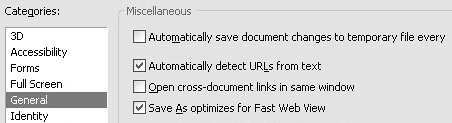
|
This preference choice is a personal decision you make according to how you want to view documents when opened with cross-document links. If you want destination documents to open while the documents containing the links remain open, remove the checkmark in the General preferences. If you want documents to close as new documents are opened via cross-document links, check the box in the preference settings. However, be aware that your preferences apply only to documents that have been saved enabling the end user to set the preferences for opening files with cross-document links. Why are open preferences important? How you work with files in Adobe Reader depends on how the PDFs are designed. Some PDF authors are very sophisticated, and design document collections with links and buttons to help Adobe Reader users easily navigate files. This is particularly helpful when files are viewed in Full Screen mode, where you don't have access to navigation tools. In other cases, some PDF authors design document collections without custom navigation buttons and rely on Adobe Reader users to know how to use the Reader tools for navigating files. If you have a large collection of documents and you click links or buttons to open files but don't find links or buttons to return to previous documents, you may want multiple files to remain open in the Document pane so you can use the Window menu to easily return to previously viewed documents. On the other hand, if you browse a very large collection of documents using cross-document links, the clutter may confuse you, and you might prefer closing files as you open new ones. All of these viewing preferences are set according to your personal choice and how the PDF files are designed by the authors. |
Why do pages open automatically when I close a file? Like bookmarks, links, and buttons, documents can be designed by authors to trigger certain page actions. The same action properties can be assigned to PDF pages when a page opens (a Page Open action) or closes (a Page Close action). You might find a secondary PDF document opening when you close a file. This design is programmed by a PDF author to help you navigate through a collection of files. If Page Actions create a loop where you can't close a document without another document opening, the only way to return to Reader with no document open in the Document pane is to quit the program and relaunch it. |
Working with Dead Links When PDF authors create collections of documents that use navigational links in the form of bookmarks, links, buttons, and page actions, the link to the secondary files captures the directory path as well as the link to the open file. If you copy files from the Web, a CD-ROM, or those sent to you via email, you need to be certain the documents are contained in the same folder or nested folders as when the links were created. Copying files to different folders may produce inoperable links, called dead links, because Reader won't know where to look for the target file. If you click a bookmark, link, or button, or open/close a document and Reader can't find the target file, a dialog will appear (Figure 5.16). Figure 5.16. Dead cross-document links are reported in a dialog when the target file can't be found. 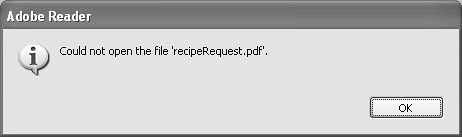
To fix problems with dead cross-document links: 1. | Create and name a new folder on your hard drive. Its name can be any name you want to use because it won't affect document links for files copied to the folder.
| 2. | Copy all PDF documents and subfolders to the newly created folder. Keep in mind that files saved to a root of a CD-ROM or those at the same level on a Web site network server can all be contained within a single folder. However, if you copy files from a CD-ROM or a network server where some files are saved to the root level and other files are contained within subfolders, you need to copy folders or re-create them with the same folder name and be certain all PDF documents within the subfolders remain within the same directory path. In Figure 5.17 a folder named Pamphlets and two files are copied to the newly created folder.
Figure 5.17. Copy files and folders to the new folder you created on your hard drive using the same hierarchy used on the original media you copied from. 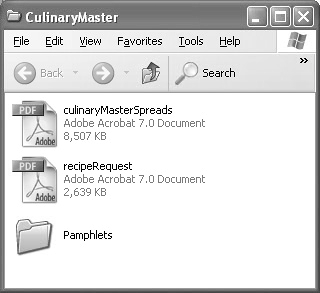
| 3. | Launch Adobe Reader and test the links. If the links are operable on a CD-ROM, they should be equally operable after copying the files and folders to your hard drive. If some links don't work, recheck your folder names and the directory paths.
|
Why don't links work on files copied from a Web site? You may find that cross-document linking works well with files hosted on the Internet, but after copying files to your hard drive, Reader reports dead links in a dialog. The reason for this is that cross-document linking with Web-hosted documents uses a different protocol than files hosted on CD-ROMs, locally on your hard drive, or on a network server. Web-hosted documents rely on URL addresses. When a PDF author designs a collection of files with cross-document links for Web hosting, the link properties use URL locations something like http://www.mycompany.com/file.pdf. When files are designed for CD-ROM or local use, the link properties address a filename without a URL reference. In short, if you copy files from Web sites where alternative links for local hosting have not been created, you have no options for changing link destinations when you open the documents in Adobe Reader. You need to open such files manually using Reader tools for opening and closing files. To test how dead links work, copy the culinaryMaster.pdf file to a folder. Create a new folder inside that folder. Copy the recipeRequest.pdf file to the second folder. Open the recipeRequest.pdf file in Adobe Reader. Because this is a PDF form, you first see a Sending Data Files by Email dialog, which appears when opening PDF forms. Click Close in the dialog. Click the link at the bottom of the page where you see Return to Newsletter. You should see a dialog open indicating that the culinaryMaster.pdf file can't be found. Close the file and return to your desktop. Move the recipeRequest.pdf document to the same root folder as the culinaryMaster.pdf file. Return to the recipeRequest.pdf document and click the link again. You should see the culinaryMaster.pdf document open in the Adobe Reader Document pane. |
Understanding Inoperable Actions Link properties can be assigned to handle many different action types. A PDF author may use actions for executing menu commands, opening Web links, playing sounds and media, reading articles, resetting a form, setting layer visibility, submitting forms, running JavaScripts, and more. Some action types may be operable only in Acrobat Standard or Acrobat Professional. For example, a PDF author might create a link or button to generate a new page in a document. New pages can be created in Acrobat Standard and Acrobat Professional, but not in Adobe Reader. The informed PDF author is likely to create warning dialogs for Adobe Reader users indicating that a certain feature requires one of the commercial Acrobat products and is not available in Adobe Reader. Figure 5.18 shows a custom dialog designed by a PDF author. However, in some cases, PDF authors may design documents without such warnings. Figure 5.18. PDF authors can design documents with dialogs informing you that some features may not be operable in Adobe Reader. 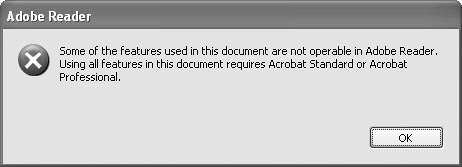
If no warning dialog opens and you click on a link that produces no action, you can assume the link action is either broken or doesn't work in Adobe Reader. Reader does not display a dialog when you click a link with an action type not supported by Adobe Reader. |
