Using Efficient Editing Techniques
In Chapter 1, we covered some basic editing techniques that are common to all the Office programs. You might have already used some of them in this chapter if you typed any words incorrectly. In this topic, we briefly cover additional ways of revising documents. We ll make a few changes to the FAQ page to get a feel for what s involved.
Deleting Text Efficiently
Word provides a few techniques for deleting and replacing text in addition to those covered in Chapter 1. You ll learn these techniques as you add a new paragraph to the FAQ:
-
Click at the right end of the Why should my company join? heading, and press Enter .
-
Type the following, including the AutoCorrect names and the misspellings:
Current members cite two main reasons for joining. Many companies are managed by people who were first attracted to this area by its natural beauty adn who therefore want to be part of teh effort to preserve it. Other companies stress teh potential advantages in today s competitive markets of being perceived as a green comapny by consumers who are increasingly environmently aware.
-
Click to the right of the last e in therefore , and press Ctrl+Backspace.
Word deletes the entire word to the left of the insertion point.
-
Now click to the left of the f in first , and press Ctrl+Delete.
This time, Word deletes the entire word to the right of the insertion point.
Replacing Text Using Overtype Mode
By default, Word is in Insert mode , so that when you click an insertion point and begin typing, the characters you type appear to the left of the insertion point, pushing any existing text to the right. Word can also operate in Overtype mode , so that when you click an insertion point and begin typing, each character you enter replaces an existing one, until you reach the end of a paragraph.
Let s experiment a bit with overtyping. Suppose Redmond BEAT was actually founded in 1989, not 1990. Follow these steps to make this simple correction:
-
Under the When was it started? heading, click to the right of the first 9 of 1990 .
-
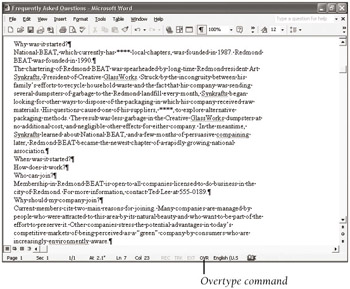
On the status bar, double-click the letters OVR to activate Overtype mode.
The letters OVR change from gray to black to indicate that Overtype mode is turned on, as shown in this graphic:
-
Type 8 .
The 8 overtypes the second 9.
-
Type 9 to overtype the .
The entry now correctly reads 1989.
-
In the status bar, double-click the letters OVR to turn off Overtype mode.
This step is important; you might overtype valuable information if you forget it. (Check the letters OVR in the status bar to see whether this mode is turned on or off.) You can also press the Insert key to toggle the mode on and off.
Using Drag-and-Drop Editing
As you saw in Chapter 1, you can move and copy any amount of text within the same document or to a different document. Move and copy operations can be carried out either using the Cut or Copy and Paste buttons or using a mouse technique called drag-and-drop editing . Generally, you use drag-and-drop editing to move or copy text short distances ”that is, when you can see both the text and its destination at the same time.
Follow these steps to move some text using drag-and-drop editing:
-
Under the When was it started? heading, select the sentence that begins National BEAT , including the space after the period.
-
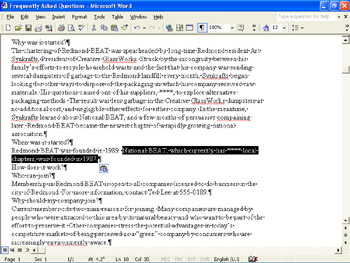
Point to the highlighted text, hold down the left mouse button, drag the shadow insertion point to the right of the period following 1989, and release the mouse button.
When you release the button, the selected text moves to the specified location. You have, in effect, transposed the two sentences in this paragraph, as shown here:
-
Select the When was it started? heading and the paragraph below it. Point to the highlighted text and then drag the shadow insertion point to the left of the Why was it started? heading.
If necessary, scroll the document so that you can see both headings before you drag. The selection now appears above Why was it started?
The procedure for copying text is similar to that for moving text. We ll try it now.
-
Use the vertical scroll bar to position the FAQ on the screen so that both the Who can join? and How can I find out more? sections are visible at the same time.
-
Under the Who can join? heading, click to the left of the sentence that reads For more information .
-
Select the sentence by holding down both the Ctrl and Shift keys and then pressing the Right Arrow key until you have highlighted the entire sentence.
-
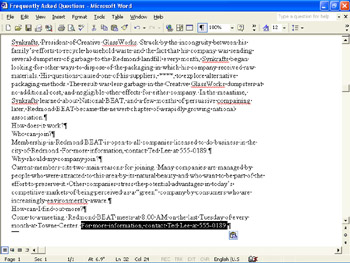
Point to the selected text, hold down the left mouse button, and drag the shadow insertion point to the right of the last period in the document s last paragraph (after Towne Center ). While still holding down the mouse button, hold down the Ctrl key, and then release first the mouse button and then the key.
When you hold down the Ctrl key, a small plus sign appears next to the mouse pointer to indicate that Word will copy the selection, not move it. When you release the button and the key, a copy of the selected sentence appears in the location designated by the shadow insertion point, as shown in this graphic:
-
Select the first instance of the For more information sentence, and press Delete . Then save the FAQ.
 |
If pointing to a text selection and then holding down the mouse button does not move the text but instead deselects the text and creates an insertion point, the Drag-and-drop text editing option is turned off. To turn it on, click Options on the Tools menu, click the Edit tab, select the Drag-and-drop text editing check box, and then click OK.
| |
| |
You can use Extend Selection mode as another way to select text. Click where you want the selection to start, and then press F8 or double-click the letters EXT on the status bar to turn on Extend Selection mode. Then click where you want the selection to end. Word selects all the text between the insertion point and the spot you click. You can click again to adjust the end point. To turn off Extend Selection mode, press the Esc key or double-click EXT on the status bar.
| |
| |
When you cut or copy and paste text, Word guesses where spaces are needed for the text to make sense. For example, it removes spaces before and adds spaces after punctuation marks. You can tell Word to leave these kinds of adjustments to you by clicking Options on the Tools menu, clicking the Edit tab, deselecting the Use smart cut and paste check box, and then clicking OK.
| |

EAN: N/A
Pages: 116