Using Dial-up Connections to the Internet
Many individuals and even some small businesses that need to connect to the Internet still do so using modems and telephone lines. Your modem connects to a serial port (COM1, COM2, and so on) on your computer and then into a telephone wall jack. Then your computer dials a modem at your Internet service provider or business that has a connection to the Internet.
The most common protocol for making dial-up connections to the Internet (or other TCP/IP network) is Point-to-Point Protocol (PPP). This section describes how to use PPP protocol to connect to the Internet.
Getting information
To establish a PPP connection, you need to get some information from the administrator of the network that you are connecting to. This is either your Internet service provider (ISP) when you sign up for Internet service, or the person in your workplace who walks around carrying cables, two or more cellular phones, and a couple of beepers. (When a network goes down, these people are in demand!) Here is the kind of information you need to set up your PPP connection:
-
Telephone number — This telephone number gives you access to the modem (or pool of modems) at the ISP. If it is a national ISP, make sure that you get a local or toll-free telephone number (otherwise, you will rack up long distance fees on top of your ISP fees).
-
Account name and password — This information is used to verify that you have an Internet account with the ISP. This is referred to as an account name when you connect to a Linux or other UNIX system. (When connecting to an NT server, the account name may be referred to as a system name.)
-
An IP number — Most ISPs use Dynamic IP numbers, which means that you are assigned an IP number temporarily when you are connected. Your ISP assigns a permanent IP number if it uses static IP addresses. If your computer or all the computers on your LAN need to have a more permanent presence on the network, you may be given one static IP number or a set of static IP addresses to use.
-
DNS Server IP addresses — Your computer translates Internet host names to IP addresses by querying a Domain Name System (DNS) server. Your ISP should give you at least one IP address for a preferred (and possibly alternate) DNS server.
-
PAP or CHAP secrets — You may need a PAP id or CHAP id and a secret, instead of a login and password when connecting to a Windows NT system. These features are used with authentication on Microsoft operating systems, as well as other systems. Linux and other UNIX servers don’t typically use this type of authentication, although they support PAP and CHAP on the client side.
Besides providing an Internet connection, your ISP typically also provides services for use with your Internet connection. Although you don’t need this information to create your connection, you will need it soon afterward to configure these useful services. Here is some information you should acquire:
-
Mail server — If your ISP is providing you with an e-mail account, you must know the address of the mail server, the type of mail service (such as Post Office Protocol or POP3), and the authentication password for the mail server in order to get your e-mail.
-
News server — To enable you to participate in newsgroups, the ISP may provide the name of a news server. If the server requires you to log on, you will also need a password.
After you have gathered this information, you are ready to set up your connection to the Internet. To configure Fedora to connect to your ISP, follow the PPP procedure described below.
Setting up dial-up PPP
Point-to-Point Protocol (PPP) is used to create Internet Protocol (IP) connections over serial lines. Most often, the serial connection is established over a modem; however, it will also work over serial cables (null modem cables) or digital lines (including ISDN and DSL).
Although one side must dial out while the other side must receive the call to create a PPP connection over a modem, after the connection is established, information can flow in both directions. For the sake of clarity, however, I refer to the computer placing the call as the client and the computer receiving the call as the server.
To simplify the process of configuring PPP (and other network interfaces), Fedora lets you configure dial-up by using either the Internet Configuration Wizard or another tool, such as kppp:
-
Internet Configuration Wizard — From the main desktop menu, choose System Tools ® Internet Configuration Wizard. The Select Device Type window that appears lets you configure and test your dial-up PPP connection.
-
KPPP Window — From the KDE desktop, select Internet ® KPPP, or from a Terminal window run the kppp command. From the KPPP window you can set up a PPP dial-up connection and launch it.
Before you begin either of the two dial-up procedures, physically connect your modem to your computer, plug it in, and connect it to your telephone line. If you have an internal modem, you will probably see a telephone port on the back of your computer that you need to connect. If your modem isn’t detected, you can reboot your computer or run wvdialconf create (as described later in this chapter) to have it detected.
Creating a dial-up connection with the Internet Configuration Wizard
You can use the Internet Configuration Wizard to set up dial-up networking. To start it, choose System Tools ® Internet Configuration Wizard from the main menu. (Type the root password, if prompted.) A Select Device Type window appears to help you select the device for your Internet connection (a dial-up modem, in this case), as shown in Figure 16-1.
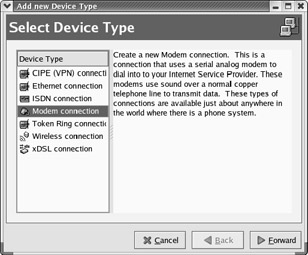
Figure 16-1: The Internet Configuration Wizard helps you set up a PPP Internet connection.
Follow the procedure below from the first Select Device Type window.
-
From the Select Device Type window that appears, select Modem connection and click Forward. The wizard searches for a modem and the Select Modem window appears.
-
Select the following modem properties:
-
Modem Device — If the modem is connected to your first serial port (COM1) you can select /dev/ttyS0; for the second serial port (COM2) choose /dev/ttyS1. (By convention, the device is often linked to /dev/modem. Type ls –l /dev/modem to see if it is linked to a tty device.)
-
Baud Rate — This is the rate at which the computer talks to the modem (which is typically considerably faster than the modem can talk over the phone lines). The default is 115200. For dial-up connections, the value of 57600 is probably fine.
-
Flow Control — Check the modem documentation to see if the modem supports hardware flow control (CRTSCTS). If it doesn’t, select software flow control (XON/XOFF).
-
Modem Volume — This is off by default, because the modem noise can be annoying. However, I usually select medium while I am setting up the modem. Then I turn it off once everything is working. The sound can give you can get a sense of where things are stopping if you can’t get a connection.
-
Use touch tone dialing — Leave this check box on in most cases. If for some reason your phone system doesn’t support touch-tone dialing, you can turn it off.
Click Forward. The Select Provider window appears.
-
-
Enter the following provider information:
-
Internet Provider — If you are using Internet service in any of the countries shown in the Internet Provider window, select the plus sign next to that country name. If your Internet provider appears under the National list, select it. Information is automatically filled in for that provider. Otherwise, you need to fill in the rest of the dialog window. Click Forward.
-
Phone Number — Enter the telephone number of the ISP you want to dial into. (An optional prefix is available in case you need to dial 9 or some other number to get an outside dial tone.)
-
Provider Name — The name of the Internet service provider. You could use ppp0 here as the provider name, to identify the interface. (For multiple dial-up accounts, use ppp1, ppp2, and so on.)
-
Login Name — The login name assigned to you from the ISP. The ISP may have called the login name a login ID or something similar.
-
Password — The password associated with the login name.
Click Forward, and the IP Settings window appears.
-
-
With a dial-up connection, you would typically select Automatically obtain IP address settings. However, if the ISP has assigned a static IP address that you can use, click the Statically set IP addresses check box, and then enter your IP address, Subnet Mask, and Default Gateway Address. Then click Forward to continue.
The Create Dialup Connection window appears, displaying information you just entered.
-
If all the information looks correct, click Apply (otherwise, click the Back button to change any information). The window closes.
-
The Network Configuration window appears, ideally with a new PPP connection of modem type appearing in the window. (If it doesn’t appear, select System Settings ® Network.)
-
Click the new dial-up entry so it is highlighted.
-
Click File ® Save to save the new dial-up configuration you just created.
-
Click the ppp device name and click the Activate button. The Internet dialer starts up and dials your ISP. (If you have sound turned on, you should hear your modem dialing out.)
If everything is working properly, you should see your login and password accepted and the PPP connection completed. Try opening Mozilla or another Web browser and see if you can access a Web site on the Internet. If this doesn’t work the first time, don’t be discouraged. There are many things to check to get your dial-up PPP connection working. If your dial-up connection isn't working yet, skip ahead to the “Checking your PPP connection” section.
Launching your PPP connection
Although your dial-up connection should now be configured (as described in the previous section), it is not set to connect automatically. One way to start the connection is to set it up to launch from the desktop panel. Here’s how:
From the GNOME desktop:
-
Right-click the Panel and then choose Add to Panel ® Launcher from Menu ® System Settings ® Network from the main menu. An icon appears on the panel that you can click to open the Network configuration window.
-
Select the new icon from the panel. A Network Configuration window appears.
-
Select the dial-up interface you added (probably ppp0) and click Activate to connect.
From the KDE desktop:
-
Right-click the panel and then choose Add ® Application Button ® System Settings ® Network from the main menu.
-
Select the new icon from the panel (type the root password, if prompted). A Network Configuration window appears.
-
Select the dial-up interface you added (probably ppp0) and click Activate to connect.
From this point forward, icons will appear on your desktop that you can select to immediately connect to your ISP over the dial-up connection you configured.
Launching your PPP connection on demand
Instead of starting a dial-up PPP connection manually each time you want to contact the Internet, you can set your dial-up connection to start automatically when an application (such as a Web browser or e-mail program) tries to use the connection. On-demand dialing is particularly useful if:
-
The dial-up connection on your Linux system is acting as the gateway for other computers in your home or office. You don’t have to run over to your Linux box to start the connection when another computer needs the dial-up connection.
-
You run programs at off hours that require an Internet connection (like remote backups).
-
You don’t want to be bothered clicking an extra icon when you just want to browse the Web a bit.
The risk of on-demand dialing is that dial-up connections can start up when you don’t want them to, since the connection starts automatically. (Some people get worried when their computer starts dialing by itself in the middle of the night.)
Here is an example of settings you can add to your dial-up configuration file (probably /etc/sysconfig/network-scripts/ifcfg-ppp0) to configure on-demand dialing:
ONBOOT=yes DEMAND=yes IDLETIMEOUT=600 RETRYTIMEOUT=30
The ONBOOT=yes starts the pppd daemon (but doesn’t immediately begin dialing because DEMAND is set to yes). Also, because DEMAND=yes, a dial-up connection attempt is made anytime traffic tries to use your dial-up connection. With IDLETIMEOUT set to 600, the connection is dropped after 600 seconds (10 minutes) with no traffic on the connection. With RETRYTIMEOUT set to 30, a dropped connection is retried after 30 seconds (unless the connection was dropped by an idle timeout, in which case there is no retry). You can change the timeout values as it suits you.
| Note | Because it can take a bit of time for dial-up connections to be established, operations may fail while dialing occurs. In particular, DNS requests can time out in 30 seconds, which may not be long enough to establish a dial-up connection. If you have three DNS servers configured for each client, you have a 90-second timeout period. As a result, the modem connection may be running before the request fails. |
Checking your PPP connection
To debug your PPP connection or simply to better understand how it works, you can run through the steps below. They will help you understand where information is being stored and how tools can be used to track this information.
Checking that your modem was detected
It is possible that your modem is not supported under Linux. If that is the case, your PPP connection might be failing because the modem was not detected at all. To scan your serial ports to see where your modem might be, type the following (as root user):
$ wvdialconf create
The wvdialconf command is really made to build a configuration file (the /etc/wvdial.conf file) that is used by the dialer command (wvdial). Its first action, however, is to scan the serial ports on your computer and report where it finds modems. If it tells you that no modem was detected, it’s likely that either your modem isn’t connected properly or no driver is available to support the modem.
If the modem wasn’t detected, you should determine whether or not it is a modem supported in Linux. You can do this by finding out what type of chip set is used in the modem. This is even more important than finding out the manufacturer of the modem, since the same manufacturer can use chips from different companies. (This applies primarily to internal modems, since most external serial modems and many USB modems are supported in Linux.)
After you have determined the chip set being used, check the Web site linmodems.org. This site contains information on so-called Win-modems, which have only recently begun to be supported in Linux. Search for the chip set on your modem from this site. It will tell you if there is a driver available for your modem.
Checking that your PPP interface is working
One way to check that the PPP interface is working is with the ping command. From the Terminal window, type ping along with any Internet address you know. For example:
$ ping www.handsonhistory.com PING handsonhistory.com (198.60.22.8) from 192.168.0.43 : 56(84) bytes of data. 64 bytes from handsonhistory.com (198.60.22.8): icmp_seq=0 ttl=240 time=120 msec 64 bytes from handsonhistory.com (198.60.22.8): icmp_seq=1 ttl=240 time=116 msec 64 bytes from handsonhistory.com (198.60.22.8): icmp_seq=2 ttl=240 time=120 msec --- www.handsonhistory.com ping statistics --- 4 packets transmitted, 3 packets received, 25% packet loss round-trip min/avg/max/mdev = 116.816/119.277/120.807/1.779 ms
Press Ctrl+C to end the ping command. The previous lines show the responses from www.handsonhistory.com. It sent back packets from the IP address 198.60.22.8 in response to each one it received. You can see the sequence of packets (icmp_seq) and the time it took for each response (in milliseconds). If you receive packets in return, you will know two things: first, that your connection is working, and second, that your name to address translation (from the DNS addresses in /etc/resolv.conf) is working.
Checking the default route
After starting a dial-up connection, check that the default route is set using route -n, as shown in the following example:
# /sbin/route -n Kernel IP routing table Destination Gateway Genmask Flags Metric Ref Use Iface 198.62.1.1 0.0.0.0 255.255.255.255 UH 0 0 0 ppp0 10.0.0.0 0.0.0.0 255.0.0.0 U 0 0 0 eth0 127.0.0.0 0.0.0.0 255.0.0.0 U 0 0 0 lo 0.0.0.0 198.62.1.1 0.0.0.0 UG 0 0 0 ppp0
This shows that the gateway was set to the remote PPP server (198.62.1.1), as well as showing the other interfaces running on my computer. There are two ppp0 entries. The first shows the destination as a host (UH). The second shows the destination as a gateway (UG). All addresses that can’t be resolved on the local LAN are directed to the gateway address.
Checking that the name servers are set
If you are able to ping a remote computer by IP address, but are not able to resolve any addresses, your DNS servers may not be set correctly. As root user from a Terminal window, open the /etc/resolv.conf file and check that there are lines identifying one or more DNS servers in this file. These should be supplied to you by your ISP (unless you run your own DNS server). Here are some examples (the numbers are fictitious):
nameserver 111.11.11.111 nameserver 222.22.22.222
Try using the ping command to make sure that the name servers are live.
Checking the chap-secrets or pap-secrets file
PPP supports two authentication protocols in Fedora: Challenge Handshake Authentication Protocol (CHAP) and Password Authentication Protocol (PAP). Here is what each protocol does to authenticate:
-
CHAP — The server sends the client a challenge packet (which includes the server name). The client sends back a response that includes its name and a value that combines the secret and the challenge. The client name and secret are stored in your /etc/ppp/chap-secrets file.
-
PAP — The client sends its name and a password (clear text) for authentication. The client name and secret are stored in your /etc/ppp/pap-secrets file.
By default, PPP in Fedora will authenticate if the server requests it, unless it has no secrets to share. If it has no secrets, PPP (or, more specifically, the PPP daemon pppd) will refuse authentication. It is likely that you will find the user names and passwords you provided when you set up your PPP connection in both of these files (Fedora assumes that you may be using CHAP or PAP authentication).
The chap-secrets and pap-secrets formats are the same. Each authentication line can contain the client name, the server name, and the secret. The server name can be represented by an * (to allow this secret to be used to authenticate any server). This is useful if you don’t know what the server name will be. Also, remember that case is significant (that is, Myserver is not the same as myserver).
| Tip | For more about PAP and CHAP in PPP for Linux, see the pppd man page (type man pppd). |
In any case, here’s an example of what a chap-secrets file may look like:
# Secrets for authentication using CHAP # client server secret IP addresses ####### redhat-config-network will overwrite this part!!! (begin) ###### "abcusername" "ppp0" "MySecretPassword"
| Caution | The pap-secrets and chap-secrets files should not be accessible by anyone but the root user. Anyone gaining this information could use it to access your Internet account. By default, permissions are closed to all but the root user. (To close permission, type chmod 600 /etc/ppp/*-secrets.) |
Looking at the ifcfg-ppp0 file
The ifcg-ppp0 file (/etc/sysconfig/network-scripts/ifcfg-ppp0) contains options that are passed to the pppd daemon for features that are negotiated with the remote PPP server. Most of the problems that can occur with your PPP connection result from getting some of the options wrong (particularly asking for features the server can’t or won’t provide).
Here is an example of the ifcfg-ppp0 file used to connect to a Windows NT PPP server:
DEVICE=ppp0 NAME=Acme_Internet_Service MODEMPORT=/dev/ttyS0 LINESPEED=115200 PAPNAME=guest ONBOOT=yes DEFROUTE=yes DEMAND=yes IDLETIMEOUT=600
The device name is ppp0 (which is associated with the configuration file ifcfg-ppp0). NAME is the name you assigned to the connection. MODEMPORT is the device name associated with the port the modem is connected to (in this case, COM1). LINESPEED sets the speed, in bps, between the computer and the modem (not the dial-up speed, which is typically slower). PAPNAME is the user name that you log in with, assuming you are using PAP authentication.
ONBOOT is set to yes to start the pppd daemon at boot time (but not dial out yet, since DEMAND=yes is set). DEFROUTE=yes sets the default route to be this PPP connection. DEMAND=yes causes the link to be initiated only when traffic is present. IDLETIMEOUT=600 causes your connection to time out after 600 seconds of being idle.
| Tip | If you want to see the exact options set by each of these parameters, look at the contents of the /etc/sysconfig/network-scripts/ifup-ppp script. For example, if DEFROUTE=yes, then the option defaultroute is sent to the pppd daemon. See the pppd man page for a description of each option (type man pppd). |
You can add a PPPOPTIONS line to set any additional options you want passed to the pppd daemon process. There are some cases where the ISP will require other values that are not included here. Likewise, there are some options that you should not put in this file when connecting to certain types of servers. Here are some suggestions of values that either should not be in this file or should be (in some cases) for some Windows NT servers. For descriptions of these options, see the pppd man page:
-
remotename=remotename — You may need this value for PAP authentication, but it should not be entered for CHAP authentication. (For CHAP, the remote PPP server sends you its name.)
-
require-chap, require-pap, auth, noauth — It’s a nice idea to ask a Windows NT server to authenticate itself (which is what require-chap and require-pap do for their respective protocols). The auth value requires the server to authenticate itself before packets can be sent or received. However, I’m told on good authority that Windows NT will not let you do any of this. Authentication will fail and you will not get a connection. You may need to indicate explicitly that the server is not required to authenticate itself by entering the noauth option.
-
default-asyncmap — PAP can fail to authenticate because of “link transparency problems.” If authentication fails and you are sure you have the authentication information correct, try adding this value.
-
ipcp-accept-local, ipcp-accept remote — Sometimes a server will request your local IP address, even if it wants to assign one itself. The same is true of the remote address. Try adding these lines to the options file:
192.168.0.1:192.168.0.2 ipcp-accept-local ipcp-accept-remote demand
This gives temporary local and remote addresses and tells the remote server that it can replace those values. Instead of using private IP addresses (as shown here), you could use 0.0.0.0 instead.
-
bsdcomp, deflate — Certain kinds of compression are not supported with Windows NT PPP servers. So, you should not request BSD compression (bsdcomp) or Deflate compression (deflate). In some cases, you may want to prohibit those types of compression: nobsdcomp, nodeflate, and noccp (for no compression control protocol).
As noted earlier, the best place for descriptions of pppd options is the pppd man page. For a sample options file, look in /usr/share/doc/ppp*/sample.
Running debugging
If your modem is working, but you are not getting connected at all, the first thing to do is turn on logging for PPP. This will help you track down the problem. If you are still stumped after looking at the logging output, have an expert review the log file. Make sure that debugging is turned on by setting DEBUG=yes in the ifcfg-ppp0 file.
| Tip | I recommend posting your failed PPP output to the comp.protocol.ppp newsgroup, where some very smart PPP experts can help answer your questions. Before you post, however, read a few days’ worth of messages from the group. Chances are that someone has already run into the same problem and has a solution. Also, post only the parts of the log file that are relevant. You can also ask your local Linux user group for help. |
To have debugging directed to a separate log file for PPP, add these lines to the /etc/syslog.conf file:
daemon.* /var/log/pppmsg local2.* /var/log/pppmsg
After this, restart the syslogd daemon process as follows:
# service syslog restart
It’s best to try to do this debugging process from the desktop because it helps to have several Terminal windows open (I would suggest at least three). From the first window, start a command that lists the contents of the log file we just defined above (pppmsg) as debug messages come in:
# tail -f /var/log/pppmsg
In the next window, start the PPP interface. Assuming it is the ppp0 interface, use the following command as root user:
# ifup ppp0
Here is a partial listing of the output:
Sep 6 20:43:51 maple pppd[2077]: pppd 2.4.1 started by root, uid 0 Sep 6 20:43:51 maple ifup-ppp: pppd started for ppp0 on /dev/modem at 115200 Sep 6 20:43:52 maple chat[2079]: abort on (BUSY) Sep 6 20:43:52 maple chat[2079]: abort on (ERROR) Sep 6 20:43:52 maple chat[2079]: abort on (NO CARRIER) Sep 6 20:43:52 maple chat[2079]: abort on (NO DIALTONE) Sep 6 20:43:52 maple chat[2079]: abort on (Invalid Login) Sep 6 20:43:52 maple chat[2079]: abort on (Login incorrect) Sep 6 20:43:52 maple chat[2079]: send (ATZ^M) Sep 6 20:43:52 maple chat[2079]: expect (OK) Sep 6 20:43:53 maple chat[2079]: ATZ^M^M Sep 6 20:43:53 maple chat[2079]: OK Sep 6 20:43:53 maple chat[2079]: -- got it Sep 6 20:43:53 maple chat[2079]: send (ATDT5551212^M) Sep 6 20:43:53 maple chat[2079]: expect (CONNECT) Sep 6 20:43:53 maple chat[2079]: ^M Sep 6 20:44:10 maple chat[2079]: ATDT5551212^M^M Sep 6 20:44:10 maple chat[2079]: CONNECT Sep 6 20:44:10 maple chat[2079]: -- got it Sep 6 20:44:10 maple chat[2079]: send (\d) Sep 6 20:44:14 maple pppd[2077]: Serial connection established. Sep 6 20:44:14 maple pppd[2077]: Using interface ppp0 Sep 6 20:44:14 maple pppd[2077]: Connect: ppp0 <--> /dev/modem . . . Sep 6 20:44:17 maple pppd[2077]: local IP address 222.62.137.121 Sep 6 20:44:17 maple pppd[2077]: remote IP address 222.62.1.105 Sep 6 20:44:17 maple pppd[2077]: primary DNS address 111.222.111.253 Sep 6 20:44:17 maple pppd[2077]: secondary DNS address 111.222.111.254
This output shows starting the PPP connection on /dev/modem. After verifying that the modem is working, the chat script sends the telephone number. The connection is made, and the PPP interface is started. After some parameter negotiations, the server assigns IP addresses to both sides of the communication, and the connection is ready to use.
If you do get connected, but none of your applications (Web browser, FTP, and so on) seem to work, check that your PPP interface is noted as the default route (/sbin/route -n). If it is, check that you have the DNS servers specified correctly in your /etc/resolv.conf file. Use the ping command on those DNS servers’ IP addresses to make sure you can get through.

EAN: 2147483647
Pages: 286