| Digital cameras present more choices as to what format image data is stored in, so color management workflow can be more complicated. Today's digital cameras, particularly the higher-end single-lens reflex (SLR) models, can save files in a standard format such as JPEG or TIFF, as well as in a proprietary RAW format. While each option has its advantages, different formats require different color management workflows. Let's first explore workflows for cameras that support the capture of standard file-format JPEG and TIFF images. Three options are available for importing standard file-format images: Use profiles embedded by the camera. Use custom camera profiles. Import images from digital cameras without color management support.
Using Embedded Profiles Some cameras support the use of working-space profiles. The camera converts the image from the camera's native color space to the working-space profile selected in the camera's preferences and then embeds the profile in the image. The most common in-camera working-space profiles are Adobe RGB (1998) and sRGB. Adobe RGB (1998) provides the best option for a print-production color workflow, both for desktop photo printers and printing presses. sRGB, which is a much smaller color space, is a more suitable workflow for Web graphics. If you deliver your work both in a print format and to the Web, use Adobe RGB (1998) and convert the images to sRGB when you save them for the Web. If you use Adobe RGB (1998) in your camera and as the Photoshop RGB working-space profile, then you can open the image in Photoshop without any conversion. If you have a different working-space profile either in the camera or in Photoshop, you should use the embedded profile upon opening. With most cameras, ff you have set your camera to capture images in the TIFF format, the profile will be embedded directly in the TIFF file. If you have selected the JPEG format, the profile may be embedded, or it may be tagged using Exchange Image File Format (EXIF) information. Note  | EXIF is a standard format for storing information, or metadata, about the photograph. Typical information stored in EXIF includes exposure data, the date and time the photograph was taken, and, of course, the color space of the image. |
When the profile is embedded in the image file, any application, such as Adobe Photoshop, that recognizes embedded profiles will be able to use the profile as the source color space for the image. If the application that is used to view or edit the image does not recognize ICC profiles, the profile will be ignored, and the color data you see on the screen will likely not match what is in the file or what comes out of your printer. If the image file is tagged with the profile using EXIF, an application that supports EXIF will automatically select the correct color space when that application is used to view or edit the image. If the application does not support EXIF metadata, no default color space will be selected. If possible, select the color space manually. Let's open in Photoshop an image that has an embedded working-space profile. 1. | Launch Adobe Photoshop CS2.
| 2. | Choose File > Open and then navigate to and open the file Arboretum.tif in the Chapter 5 folder from the book's project files. Photoshop presents the Embedded Profile Mismatch dialog box.
Figure 5.21. 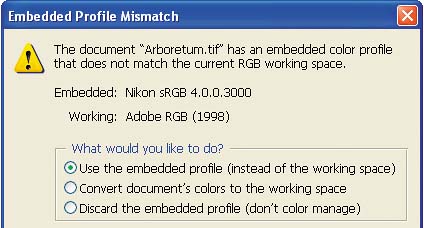
This warning appears because the camera that captured this image embedded an sRGB profile into the file, but Photoshop's RGB working space is set to Adobe RGB (1998). Photoshop offers the following choices for handling the conflict:
Use the Embedded Profile (Instead of the Working Space) keeps the image in sRGB. When an image contains an embedded working-space profile, it is best to use this profile as the working space rather than convert it to a different working space. If you configured Photoshop's color settings according to the exercise earlier in this chapter, this option will be selected by default. Convert Document's Colors to the Working Space converts the image from the source space, in this case sRGB, to the selected working space, which is Adobe RGB (1998). There is no benefit to converting it to a different working space, unless the source space is a digital camera profile. Discard the Embedded Profile (Don't Color Manage) ignores the embedded profile and opens the image in Photoshop in a generic RGB space. The image will be edited in the working space, but will not be tagged with a profile.
| 3. | Make sure the Use the Embedded Profile option is checked and then click OK. Photoshop opens the image using the embedded profile as the working space.
Figure 5.22. 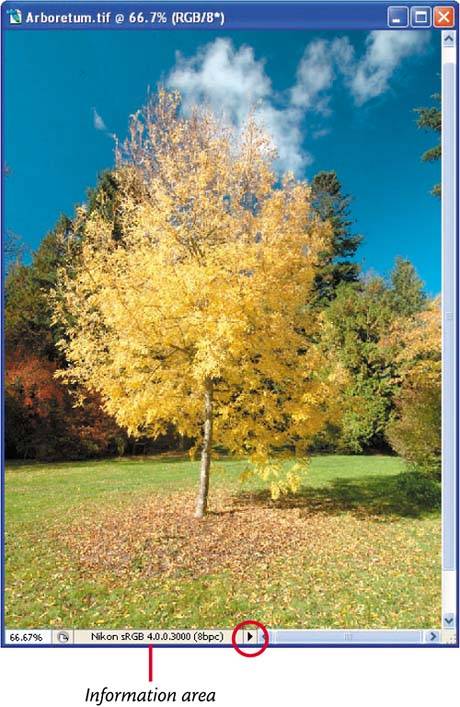
Notice that Photoshop lists the working-space profile in this case, the sRGB profile embedded by my Nikon digital camera in the information area at the bottom of the image window. If the information area reads differently, click the drop-down arrow to the right of the information area, and choose Document Profile from the menu that appears.
If the working-space profile embedded in the image was the same as the working space set in Photoshop, no warning would be displayed.
| 4. | Quit Photoshop without saving your changes.
|
Using Custom Camera Profiles Note | When using a custom profile, it is important to disable any working-space profile in your camera. |
If you have a custom profile for your camera, such as one you created in Chapter 4, you can use it as the source color space when you open an image in Photoshop. 1. | Launch Photoshop and open the sample file Sunset_noprofile.tif, located in the Chapter 5 folder of the book's project files. Photoshop displays the Missing Profile dialog box.
Figure 5.23. 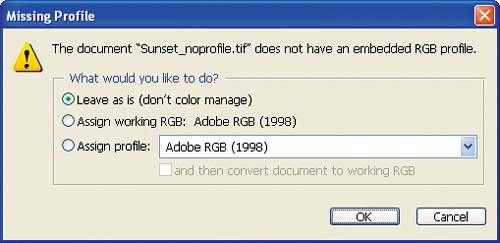
| 2. | From the Assign Profile drop-down menu, select Nikon D100.
Figure 5.24. 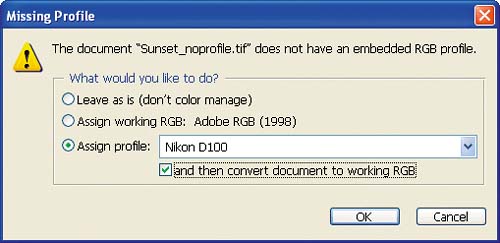
This instructs Photoshop to use the Nikon D100 camera profile as the source space for the image. The profile, similar to the profile built in Chapter 4, was created from an image taken by the same camera that photographed the Sunset_noprofile.tif image.
The use of a custom camera profile results in more accurate colors. However, camera profiles do not make good editing spaces because they often contain a much smaller gamut than working-space profiles and are device dependent, so it's a good idea to convert the image to the working space before editing by selecting the And Then Convert Document to Working RGB check box in the Missing Profile dialog box.
|
Importing Images Without a Profile If your digital camera does not support working-space and embedded profiles and you don't have a custom camera profile, the best workflow option is to convert the captured image to Photoshop's working space. Photoshop won't change the file but will use the working space to interpret the data. 1. | Launch Photoshop and open the sample file Sunset_noprofile.tif, located in the Chapter 5 folder of the book's project files.
Because there is no profile embedded in the image file, Photoshop presents the Missing Profile dialog box.
Figure 5.25. 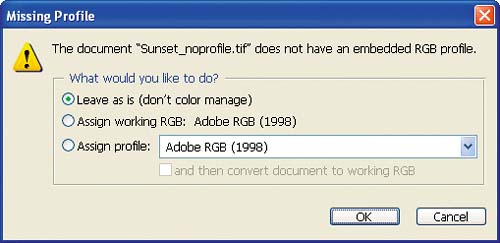
| 2. | Select Assign Working RGB: Adobe RGB (1998) and click OK.
Figure 5.26. 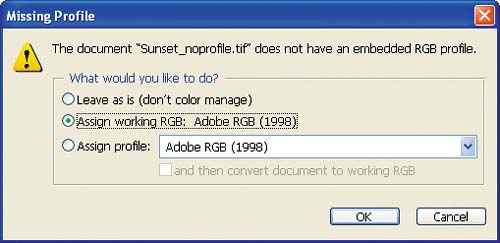
Photoshop doesn't change the image data but does use the specified working-space profile to interpret the data. If the image is later edited in a different working space, Photoshop will use this assigned space, Adobe RGB (1998), to interpret the difference between the two working spaces. When you save the file, the working-space profile will be embedded.
|
|
