Text Functions
Excel has an excellent assortment of worksheet functions that can handle text. For your convenience, the Function Library group on the Formulas tab includes a Text drop-down that provides access to most of these functions. A few other functions that are relevant to text manipulation appear in other function categories. For example, the ISTEXT function is in the Information category (Formulas  Function Library
  Other Functions
  Information).
| Cross Ref | Refer to Appendix A for a listing of the functions in the Text category. |
Most of the text functions are not limited for use with text. In other words, these functions can also operate with cells that contain values. Excel is very accommodating when it comes to treating numbers as text and text as numbers.
The examples discussed in this section demonstrate some common (and useful) things you can do with text. You may need to adapt some of these examples for your own use.
Determining Whether a Cell Contains Text
In some situations, you may need a formula that determines the type of data contained in a particular cell. For example, you may use an IF function to return a result only if a cell contains text. The easiest way to make this determination is to use the ISTEXT function.
The ISTEXT function takes a single argument, returning TRUE if the argument contains text and FALSE if it doesn't contain text. The formula that follows returns TRUE if A1 contains a string:
=ISTEXT(A1)
The TYPE function takes a single argument and returns a value that indicates the type of data in a cell. If cell A1 contains a text string, the formula that follows returns 2 (the code number for text):
=TYPE(A1)
Working with Character Codes
Every character that you see on your screen has an associated code number. For Windows systems, Excel uses the standard ANSI (American National Standards Institute) character set. The ANSI character set consists of 255 characters, numbered from 1 to 255.
Figure 5-1 shows a portion of an Excel worksheet that displays all 255 characters. This example uses the Calibri font. (Other fonts may have different characters.)
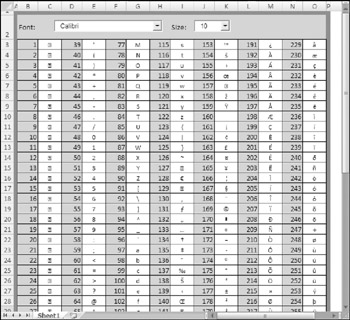
Figure 5-1: The ANSI character set (for the Calibri font).
| On the CD | The companion CD-ROM includes a copy of the workbook |
 character set.xlsm
Two functions come into play when dealing with character codes: CODE and CHAR. These functions aren't very useful by themselves. However, they can prove quite useful in conjunction with other functions. I discuss these functions in the following sections.
| Note | The CODE and CHAR functions work only with ANSI strings. These functions will not work with double-byte Unicode strings. |
THE CODE FUNCTION
Excel's CODE function returns the character code for its argument. The formula that follows returns 65, the character code for uppercase A:
=CODE("A") If the argument for CODE consists of more than one character, the function uses only the first character. Therefore, this formula also returns 65:
=CODE("Abbey Road")
THE CHAR FUNCTION
The CHAR function is essentially the opposite of the CODE function. Its argument should be a value between 1 and 255, and the function should return the corresponding character. The following formula, for example, returns the letter A:
=CHAR(65)
To demonstrate the opposing nature of the CODE and CHAR functions, try entering this formula:
=CHAR(CODE("A")) This formula (illustrative rather than useful) returns the letter A. First, it converts the character to its code value (65) and then it converts this code back to the corresponding character.
Assume that cell A1 contains the letter A (uppercase). The following formula returns the letter a (lowercase):
=CHAR(CODE(A1)+32)
This formula takes advantage of the fact that the alphabetic characters all appear in alphabetical order within the character set, and the lowercase letters follow the uppercase letters (with a few other characters tossed in between). Each lowercase letter lies exactly 32 character positions higher than its corresponding uppercase letter.
 |
Don't overlook the handy Symbol dialog box (which appears when you choose Insert  Text
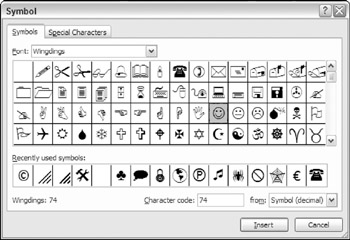
Text  Symbol). This dialog box makes it easy to insert special characters (including Unicode characters) into cells. For example, you might (for some strange reason) want to include a smiley face character in your spreadsheet. Access Excel's Symbol dialog box and select the Wingdings font (see the accompanying figure). Examine the characters, locate the smiley face, click Insert, and then click Cancel. You'll also find out that this character has a code of 74.
|
Determining Whether Two Strings Are Identical
You can set up a simple logical formula to determine whether two cells contain the same entry. For example, use this formula to determine whether cell A1 has the same contents as cell A2:
=A1=A2
Excel acts a bit lax in its comparisons when text is involved. Consider the case in which A1 contains the word January (initial capitalization), and A2 contains JANUARY (all uppercase). You'll find that the previous formula returns TRUE even though the contents of the two cells are not really the same. In other words, the comparison is not case sensitive.
In many cases, you don't need to worry about the case of the text. However, if you need to make an exact, case-sensitive comparison, you can use Excel's EXACT function. The formula that follows returns TRUE only if cells A1 and A2 contain exactly the same entry:
=EXACT(A1,A2)
The following formula returns FALSE because the first string contains a trailing space:
=EXACT("zero ","zero")
Joining Two or More Cells
Excel uses an ampersand as its concatenation operator. Concatenation is simply a fancy term that describes what happens when you join the contents of two or more cells. For example, if cell A1 contains the text Tucson and cell A2 contains the text Arizona, the following formula will return TucsonArizona:
=A1&A2
Notice that the two strings are joined together without an intervening space. To add a space between the two entries (to get Tucson Arizona), use a formula like this one:
=A1&" "&A2
Or, even better, use a comma and a space to produce Tucson, Arizona:
=A1&", "&A2
Another option is to eliminate the quote characters and use the CHAR function, with an appropriate argument. Note this example of using the CHAR function to represent a comma (44) and a space (32):
=A1&CHAR(44)&CHAR(32)&A2
If you'd like to force a line break between strings, concatenate the strings by using CHAR(10), which inserts a line break character. Also, make sure that you apply the wrap text format to the cell (choose Home  Alignment
  Wrap Text). The following example joins the text in cell A1 and the text in cell B1, with a line break in between:
=A1&CHAR(10)&B1
Here's another example of the CHAR function. The following formula returns the string Stop by concatenating four characters returned by the CHAR function:
=CHAR(83)&CHAR(116)&CHAR(111)&CHAR(112)
Here's a final example of using the & operator. In this case, the formula combines text with the result of an expression that returns the maximum value in column C:
="The largest value in Column C is " &MAX(C:C)
| Note | Excel also has a CONCATENATE function, which takes up to 255 arguments. This function simply combines the arguments into a single string. You can use this function if you like, but using the & operator is usually simpler. |
Displaying Formatted Values as Text
The Excel TEXT function enables you to display a value in a specific number format. Although this function may appear to have dubious value, it does serve some useful purposes, as the examples in this section demonstrate. Figure 5-2 shows a simple worksheet. The formula in cell D1 is
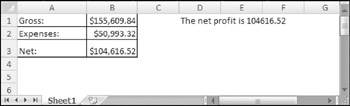
Figure 5-2: The formula in D1 doesn't display the formatted number.
="The net profit is " & B3
This formula essentially combines a text string with the contents of cell B3 and displays the result. Note, however, that the contents of B3 are not formatted in any way. You might want to display B3's contents using a currency number format.
| Note | Contrary to what you might expect, applying a number format to the cell that contains the formula has no effect. This is because the formula returns a string, not a value. |
Note this revised formula that uses the TEXT function to apply formatting to the value in B3:
="The net profit is " & TEXT(B3,"$#,##0.00")
This formula displays the text along with a nicely formatted value: The net profit is $104,616.52.
The second argument for the TEXT function consists of a standard Excel number format string. You can enter any valid number format string for this argument.
The preceding example uses a simple cell reference (B3). You can, of course, use an expression instead. Here's an example that combines text with a number resulting from a computation:
="Average Expenditure: "& TEXT(AVERAGE(A:A),"$#,##0.00")
This formula might return a string such as Average Expenditure: $7,794.57.
Here's another example that uses the NOW function (which returns the current date and time). The TEXT function displays the date and time, nicely formatted.
="Report printed on "&TEXT(NOW(),"mmmm d, yyyy at h:mm AM/PM")
The formula might display the following: Report printed on July 22, 2004 at 3:23 PM.
| Cross Ref | Refer to Appendix B for details on Excel number formats. |
Displaying Formatted Currency Values as Text
Excel's DOLLAR function converts a number to text using the currency format. It takes two arguments: the number to convert, and the number of decimal places to display. The DOLLAR function uses the regional currency symbol (for example, a $).
You can sometimes use the DOLLAR function in place of the TEXT function. The TEXT function, however, is much more flexible because it doesn't limit you to a specific number format.
The following formula returns Total: $1,287.37.
The second argument for the DOLLAR function specifies the number of decimal places.
="Total: " & DOLLAR(1287.367, 2)
Counting Characters in a String
The Excel LEN function takes one argument and returns the number of characters in the argument. For example, assume that cell A1 contains the string September Sales. The following formula returns 15:
=LEN(A1)
Notice that space characters are included in the character count. This can be useful for identifying strings with extraneous spaces. For instance, if A1 contains Sales and the preceding formula returns 6, there may be a leading or trailing space.
The following formula shortens text that is too long. If the text in A1 is more than ten characters in length, this formula returns the first nine characters plus an ellipsis (133 on the ANSI chart) as a continuation character. If it's ten or fewer, the whole string is returned:
=IF(LEN(A1)>10,LEFT(A1,9)&CHAR(133),A1)
| Cross Ref | You will see example formulas that demonstrate how to count the number of specific characters within a string later in this chapter. Also, Chapter 7 contains additional counting techniques. Still more counting examples are provided in Chapter 15, which deals with array formulas. |
Repeating a Character or String
The REPT function repeats a text string (first argument) any number of times you specify (second argument). For example, this formula returns HoHoHo:
=REPT("Ho",3) You can also use this function to create crude vertical dividers between cells. This example displays a squiggly line, 20 characters in length:
=REPT("~",20)
Creating a Text Histogram
A clever use for the REPT function is to create a simple histogram (also known as a frequency distribution) directly in a worksheet (chart not required). Figure 5-3 shows an example of such a histogram. You'll find this type of graphical display especially useful when you need to visually summarize many values. In such a case, a standard chart may be unwieldy.
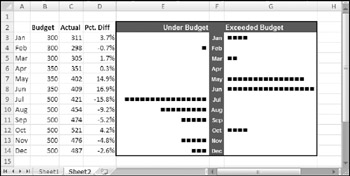
Figure 5-3: Using the REPT function to create a histogram in a worksheet range.
The formulas in columns E and G graphically depict monthly budget variances by displaying a series of characters in the Wingdings font. This example uses the character n, which displays as a small square in the Wingdings font. A formula using the REPT function determines the number of characters displayed. Key formulas include
E3: =IF(D3<0,REPT("n",-ROUND(D3*100,0)),"") F3: =A3 G3: =IF(D3>0,REPT("n",ROUND(D3*100,0)),"") Assign the Wingdings font to cells E3 and G3, and then copy the formulas down the columns to accommodate all the data. Right-align the text in column E and adjust any other formatting. Depending on the numerical range of your data, you may need to change the scaling. Experiment by replacing the 100 value in the formulas. You can substitute any character you like for the n in the formulas to produce a different character in the chart.
| New | The Data Bars conditional formatting option (new in Excel 2007) may be a better option for displaying a histogram in a range. |
| On the CD | The workbook shown in Figure 5-3, |
Padding a Number
You're probably familiar with a common security measure (frequently used on printed checks) in which numbers are padded with asterisks on the right. The following formula displays the value in cell A1, along with enough asterisks to make 24 characters total:
=(A1 & REPT("*",24-LEN(A1))) Or if you'd prefer to pad the number with asterisks on the left, use this formula:
=REPT("*",24-LEN(A1))&A1 The following formula displays asterisk padding on both sides of the number. It will return 24 characters when the number in cell A1 contains an even number of characters; otherwise, it returns 23 characters.
=REPT("*",12-LEN(A1)/2)&A1&REPT("*",12-LEN(A1)/2) The preceding formulas are a bit deficient because they don't show any number formatting. Note this revised version that displays the value in A1 (formatted), along with the asterisk padding on the left:
=REPT("*",24-LEN(TEXT(A1,"$#,##0.00")))&TEXT(A1,"$#,##0.00") Figure 5-4 shows this formula in action.
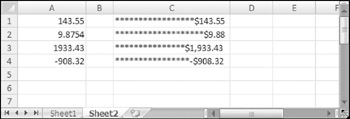
Figure 5-4: Using a formula to pad a number with asterisks.
You can also pad a number by using a custom number format. To repeat the next character in the format to fill the column width, include an asterisk (*) in the custom number format code. For example, use this number format to pad the number with dashes:
$#,##0.00*-
To pad the number with asterisks, use two asterisks, like this:
$#,##0.00**
| Cross Ref | Refer to Appendix B for more information about custom number formats, including additional examples using the asterisk format code. |
Removing Excess Spaces and Nonprinting Characters
Often, data imported into an Excel worksheet contains excess spaces or strange (often unprintable) characters. Excel provides you with two functions to help whip your data into shape: TRIM and CLEAN.
-
TRIM: Removes all leading and trailing spaces, and replaces internal strings of multiple spaces by a single space.
-
CLEAN: Removes all nonprinting characters from a string. These "garbage" characters often appear when you import certain types of data.
This example uses the TRIM function. The formula returns Fourth Quarter Earnings (with no excess spaces):
=TRIM(" Fourth Quarter Earnings ")
Changing the Case of Text
Excel provides three handy functions to change the case of text:
-
UPPER: Converts the text to ALL UPPERCASE.
-
LOWER: Converts the text to all lowercase.
-
PROPER: Converts the text to Proper Case. (The First Letter In Each Word Is Capitalized.)
These functions are quite straightforward. The formula that follows, for example, converts the text in cell A1 to proper case. If cell A1 contained the text MR. JOHN Q. PUBLIC, the formula would return Mr. John Q. Public.
=PROPER(A1)
These functions operate only on alphabetic characters; they simply ignore all other characters and return them unchanged.
|
Many of the examples in this chapter describe how to use functions to transform data in some way. For example, you can use the UPPER function to transform text into uppercase. Often, you'll want to replace the original data with the transformed data. To do so, Paste Values over the original text. Here's how:
-
Create your formulas to transform the original data.
-
Select the formula cells.
-
Choose Home
 Clipboard
  Copy (or press Ctrl+C).
 -
Select the original data cells.
-
Choose Home
 Clipboard
  Paste
Paste  Paste Values
After performing these steps, you can delete the formulas.
|
| Caution | The PROPER function will capitalize the first letter of every word, which isn't always desirable. Applying the PROPER function to a tale of two cities results in A Tale Of Two Cities. Normally, the preposition of wouldn't be capitalized. In addition, applying the PROPER function to a name such as ED MCMAHON results in Ed Mcmahon (not Ed McMahon). |
Extracting Characters from a String
Excel users often need to extract characters from a string. For example, you may have a list of employee names (first and last names) and need to extract the last name from each cell. Excel provides several useful functions for extracting characters:
-
LEFT: Returns a specified number of characters from the beginning of a string
-
RIGHT: Returns a specified number of characters from the end of a string
-
MID: Returns a specified number of characters beginning at any position within a string
The formula that follows returns the last ten characters from cell A1. If A1 contains fewer than ten characters, the formula returns all of the text in the cell.
=RIGHT(A1,10)
This next formula uses the MID function to return five characters from cell A1, beginning at character position 2. In other words, it returns characters 2–6.
=MID(A1,2,5)
The following example returns the text in cell A1, with only the first letter in uppercase (sometimes referred to as sentence case). It uses the LEFT function to extract the first character and convert it to uppercase. This then concatenates to another string that uses the RIGHT function to extract all but the first character (converted to lowercase).
=UPPER(LEFT(A1))&LOWER(RIGHT(A1,LEN(A1)-1))
If cell A1 contained the text FIRST QUARTER, the formula would return First quarter.
Replacing Text with Other Text
In some situations, you may need to replace a part of a text string with some other text. For example, you may import data that contains asterisks, and you need to convert the asterisks to some other character. You could use Excel's Find and Replace dialog box to make the replacement. If you prefer a formula-based solution, you can take advantage of either of two functions:
-
SUBSTITUTE: Replaces specific text in a string. Use this function when you know the character(s) to be replaced, but not the position.
-
REPLACE: Replaces text that occurs in a specific location within a string. Use this function when you know the position of the text to be replaced, but not the actual text.
The following formula uses the SUBSTITUTE function to replace 2006 with 2007 in the string 2006 Budget. The formula returns 2007 Budget.
=SUBSTITUTE("2006 Budget","2006","2007") The following formula uses the SUBSTITUTE function to remove all spaces from a string. In other words, it replaces all space characters with an empty string. The formula returns the title of an excellent Liz Phair CD: Whitechocolatespaceegg.
=SUBSTITUTE("White chocolate space egg"," ","") The following formula uses the REPLACE function to replace one character beginning at position 5 with nothing. In other words, it removes the fifth character (a hyphen) and returns Part544.
=REPLACE("Part-544",5,1,"") You can, of course, nest these functions to perform multiple replacements in a single formula. The formula that follows demonstrates the power of nested SUBSTITUTE functions. The formula essentially strips out any of the following seven characters in cell A1: space, hyphen, colon, asterisk, underscore, left parenthesis, and right parenthesis.
=SUBSTITUTE(SUBSTITUTE(SUBSTITUTE( SUBSTITUTE(SUBSTITUTE(SUBSTITUTE(SUBSTITUTE( A1," ",""),"-",""),":",""),"*",""),"_",""),"(",""),")","") Therefore, if cell A1 contains the string Part-2A - Z(4M1)_A*, the formula returns Part2AZ4M1A.
Finding and Searching within a String
The Excel FIND and SEARCH functions enable you to locate the starting position of a particular substring within a string:
-
FIND: Finds a substring within another text string and returns the starting position of the substring. You can specify the character position at which to begin searching. Use this function for case-sensitive text comparisons. Wildcard comparisons are not supported.
-
SEARCH: Finds a substring within another text string and returns the starting position of the substring. You can specify the character position at which to begin searching. Use this function for non–case-sensitive text or when you need to use wildcard characters.
The following formula uses the FIND function and returns 7, the position of the first m in the string. Notice that this formula is case sensitive.
=FIND("m","Big Mamma Thornton",1) The formula that follows, which uses the SEARCH function, returns 5, the position of the first m (either uppercase or lowercase):
=SEARCH("m","Big Mamma Thornton",1) You can use the following wildcard characters within the first argument for the SEARCH function:
-
Question mark (?): Matches any single character
-
Asterisk (*): Matches any sequence of characters
| Tip | If you want to find an actual question mark or asterisk character, type a tilde (~) before the question mark or asterisk. |
The next formula examines the text in cell A1 and returns the position of the first three- character sequence that has a hyphen in the middle of it. In other words, it looks for any character followed by a hyphen and any other character. If cell A1 contains the text Part- A90, the formula returns 4.
=SEARCH("?-?",A1,1)
Searching and Replacing within a String
You can use the REPLACE function in conjunction with the SEARCH function to replace part of a text string with another string. In effect, you use the SEARCH function to find the starting location used by the REPLACE function.
For example, assume cell A1 contains the text Annual Profit Figures. The following formula searches for the word Profit and replaces those six characters it with the word Loss:
=REPLACE(A1,SEARCH("Profit",A1),6,"Loss") This next formula uses the SUBSTITUTE function to accomplish the same effect in a more efficient manner:
=SUBSTITUTE(A1,"Profit","Loss")

EAN: 2147483647
Pages: 212