Chapter 4. creating the related tables
| Investment Minder is about to go relational. We'll create three new data tables in which to record transactions for each investment: one for savings or money market deposits, withdrawals, and interest; one for stock or mutual fund dividends and interest; and another for CD interest. While such data could be stored in the Main table as a series of repeating fields (as one might do with line items on an invoice), it's best to record these transactions as separate records that are instead related to each investment by a key field, such as a CD certificate number, bond number, or stock name. By creating a separate record for each transaction, we have the advantage of being able to work with specific transactions (which is very difficult to do with repeating fields), perform calculations on a data subset (rather than on all transactions), and sort the transactions in any order we choose. 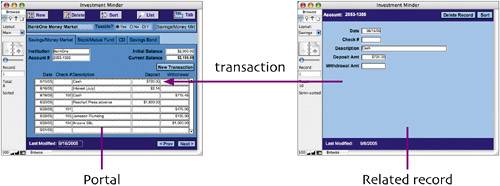 For example, the portal we'll add to the Savings/Money Market tab will display all transactions for each savings account. Transactions will be recorded in a separate data table and will be related to an account by its account number. |

EAN: 2147483647
Pages: 115