Logon Procedures
The logon procedure on a terminal server client is basically the same as the procedure under Windows XP. However, a network connection between client and server is involved, and this can be critical from a security perspective. We will now take a closer look at some terminal server logon basics to gain a better understanding of the entire procedure.
Domains and the Secure Path
Logging on to a computer running Microsoft Windows XP or the local Windows Server 2003 console requires three keys to be pressed simultaneously : Ctrl, Alt, and Del. This keyboard combination activates a secure path that leads to the logon screen. At the logon screen, the user is asked to enter an account (= user name ), password, and possibly a domain. The predefined behavior upon activation of this screen is very difficult to change. This makes it much harder for Trojan horses to be inserted ”that is, programs that spy for passwords. Normally, one operating system cannot imitate the response of another operating system when the Ctrl, Alt, and Del key combination is entered and an Intel x86-compatible processor is used.
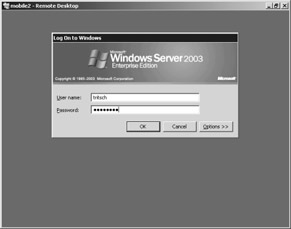
Figure 8-1: Logon screen for logon to a terminal server from a Terminal Services client.
Using terminal server clients in combination with terminal servers is, of course, problematic . The different client operating systems respond in different ways to the usual logon key combination. If the clients are Windows systems, the key combination will call up the local logon screen.
Starting a new Windows Server 2003 terminal server session naturally requires the same logon procedure as the local console session. This is why it is necessary to find an alternative for the secure path and the security screen. As a consequence, connecting to a terminal server leads directly to the logon screen in most cases.
| Note | Windows Server 2003 now allows the use of smart cards for Terminal Services. If you use a Terminal Services client that supports this option (for example, under Windows XP), the corresponding logon data is transmitted to the terminal server via a virtual RDP channel and the user credentials are evaluated there. This is how authentication for terminal server environments becomes more secure. |
The Security Screen
After logging on, users interact with their individual work environment until they log off or want to change a security-relevant feature of the environment. The secure path must always be available for activation from the client and must always lead to a security screen. For this reason, alternative key combinations, menu items, or special client programs are permitted.
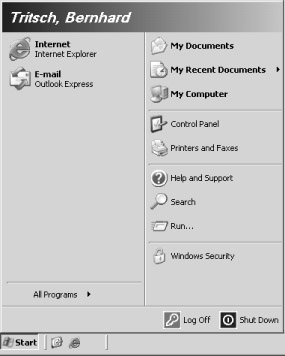
Figure 8-2: On a Terminal Services client, the secure path is available through a special option in the Start menu (bottom right). This entry is visible only on the client, not on the local console session.
The security screen is displayed within the trusted context of a special session that does not permit any connection to other processes. The screen therefore allows a number of security-relevant actions with low risk of unauthorized access:
-
Changing the password. The password can be either for a local or a network- based user account.
-
Password-protected locking of the screen and all input devices. The secure path unlocks the screen and devices.
-
Logging off the current user.
-
Shutting down the computer. The user must have the corresponding permissions.
-
Observing and modifying all processes the user works with.
Note Only an administrator can modify, to a limited extent, the appearance and responses of the security screen that receives the logon information. Most functions are, however, predetermined by the system.
The appearance and functionality of the security system are determined by a system component called graphical identification and authentication (GINA) DLL. The GINA DLL communicates with the security monitor, implements network access to user accounts, and handles password encryption. Msgina.dll, the standard GINA component, is, in part, freely available as source code so that relevant security algorithms can be verified independently. Many third-party system extensions that are relevant to the Windows Server 2003 security system and are often used with terminal servers use a modified GINA DLL. GINA DLL extensions can contain functions (such as single sign-on) to other systems or special authentication devices (such as fingerprint readers).
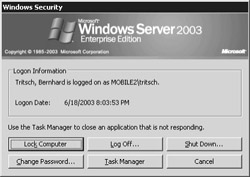
Figure 8-3: The Windows security dialog box on a Terminal Services client. Depending on permissions, the user will or will not be able to shut down the computer.
| Tip | If security concerns exist when using alternative logon components that have been installed on the terminal servers at a later time, it is possible to enforce the use of the default Windows authentication through the Terminal Services Configuration tool. |
| Important | The Shut Down... button of the security screen holds unexpected functions in terminal services sessions, including, for instance, disconnecting the session or user logoff . The latter can, of course, also be done using the Log Off... button. However, a user who is not member of a group with the relevant permissions cannot shut down the system. The same is true for the Shut Down option in the Start menu. (See Figure 8-2.) The significance of this button in the security screen and the Start menu is therefore quite confusing for many users and will need to be explained before terminal server technology can be rolled out in an enterprise. |
Local Logon Procedures and User Accounts
At the beginning of a local Windows Server 2003 logon procedure, the password entered together with the user name is encrypted and compared to a reference saved on the system. After successful authentication, the WinLogon process creates an access token based on the user s security identification (SID). Subsequently, an access control list is generated that has the same structure as the SID. WinLogon derives the access token from the security subsystem, which, in turn , is dependent on the Security Account Manager (SAM). As soon as the user is authenticated, WinLogon hands over the ACL and the access token to the Win32 subsystem.
Naturally, the Security Account Manager for local user accounts is an especially protected area of the registry. The security settings are basically reduced to two attributes: Read and Full Access . However, full access is granted only to the system; even administrators have very limited options. All other users and groups are totally excluded.
By taking a closer look at the extended security attributes of the registry, you will recognize the SAM database access options:
-
Query value system only
-
Set value system only
-
Create subkey system only
-
Enumerate subkey system only
-
Notify system only
-
Create link system only
-
Delete system only
-
Write DAC (access control list) system and administrators
-
Write owner system only
-
Read control system and administrators
Remote Logon
For logon via the network, the password is conveyed via multiple-encrypted transmission. Single encryption would allow the password to be intercepted and reused and is also a rather outdated method. Other very powerful encryption methods exist. One of the older methods is called Challenge-Response , formerly used for Windows NT and for the historic LAN Manager. The server transmits a single key to the client where a user requests authentication. With this key, the client creates a hash value of the password after default encryption and transmits it to the server, which waits for the hash value for a preset time. The server then creates the same hash value of the encrypted local password and compares the two. If they are identical, authentication is successful. Using the single key precludes the same (encrypted) password character string from being transmitted more than once over the network.
| Note | A hash value is a cryptographic fingerprint that unmistakably identifies a character string or file. It is impossible to reconstruct the original data from the hash value. |
With the Active Directory came a much more powerful remote logon method: Kerberos . Kerberos is based on Internet RFC 1510, with the corresponding Kerberos service (Kdcsvc.dll) executed on a domain controller under Windows 2000 Server or Windows Server 2003. Kerberos uses TCP/IP port 88 for communication between clients and domain controller.
Kerberos is based on what is commonly called the ticketing method . A ticket master on a domain controller issues a user-specific ticket upon logon. This ticket is then used for authentication and authorization purposes on other computer nodes involved. The initial transmission of user name and password is similar to the Challenge-Response method. However, with Kerberos, information is not aligned with the Security Account Manager but with the user objects in the Active Directory. The instance that handles this process is the Active Directory Server (\Windows\System32\Ntdsa.dll) located on the domain controller.
After the user is authenticated, the local system verifies the user s access permission with the help of local policies. If the user does not have the necessary permissions for interactive logon, the process is aborted and a corresponding system message is displayed. If access is granted, the Lsass process adds all necessary security information and privileges to the user s access ID.
This is the point at which the user session is created (this is also true for local logon). In the registry, the Winlogon process reads the value from the HKLM\SOFTWARE\Microsoft\Windows NT\Current Version\Winlogon\Userinit key and starts all programs enumerated in this character string. The character string usually contains several executable files that are separated by commas. One of the default programs is Userinit.exe. This program deals with loading the user profile and generating the process that is located in HKLM\SOFTWARE\Microsoft\Windows NT\Current Version\Winlogon\Shell. In a standard environment, this would be Explorer.exe.
| Note | In terminal server environments, the value in the Shell key can be modified to prevent users from having full access to the desktop. This can apply to both clients and terminal servers. An alternative to Explorer.exe could, for instance, be Iexplore.exe. In this case, Internet Explorer would start instead of the regular desktop and all applications would need to be launched from a specially prepared HTML page. |
However, there is one basic problem concerning all authentication procedures when using a terminal server. The user does not sit at the server hardware console and use the applications there; the applications are accessed through a Terminal Services client. The communication between client and terminal server always harbors a potential security risk. Communication does not necessarily include security- relevant data such as passwords in plain text. Rather, it transmits only the graphical representation of this information (for example, asterisks instead of the password) or the corresponding keyboard strokes that are encrypted before transmission. Only if the password is saved on the client and used for logging on to the terminal server is it possible to find the corresponding character strings in the data stream. For this reason, most communications protocols for connecting clients to a terminal server contain encryption options for the data stream. On the terminal server itself, the mechanisms described in this paragraph apply again when the terminal server accesses its local user database or a remote domain controller.
If, after successful authentication, the user wants to access an object ”that is, a file, a directory, an application, and so on ”the security subsystem requests the user s access token, verifies the relevant values, and supplies an object handle. The object handle allows the user to manipulate the object in line with his or her permissions.
Secondary Logon
In addition to the primary Windows Server 2003 logon methods described so far, there is another option of logging on to a remote system via the network. In contrast to terminal server sessions, secondary logon does not have the purpose of working interactively with the remote computer. Instead, this secondary logon usually serves to access shared resources of a remote server. If both computers involved are in the same domain and the network is accessed within the context of a domain user, logon takes place in the background, invisible to the user. Further access is regulated by the security structure based on the Active Directory. This type of access is crucial for terminal servers when it comes to connecting file or print servers.
Smart Cards
Smart cards are considered one of the most secure methods for logging on to a computer. This is because of their properties including a combination of hardware and a personal identification number (PIN). Unlike logging on with a user name and password, an unauthorized person must have the smart card and the PIN in their possession before he or she can initiate a successful attack on a user account.
The software components of an RDP client are able to transmit the information on a smart card to a terminal server for logon. This requires the client and the security policies to allow smart card information to be redirected to the terminal server.

EAN: 2147483647
Pages: 119