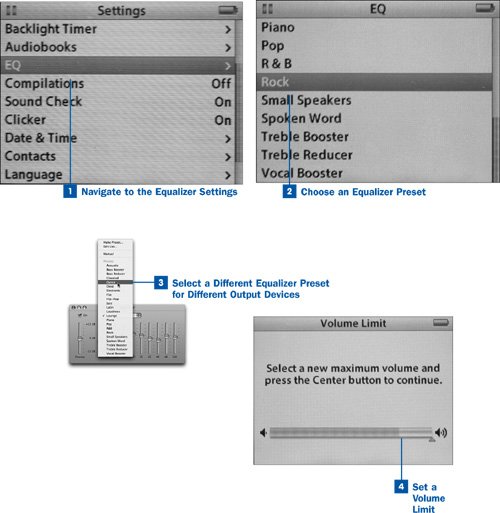
The iPod comes with a wide selection of internal "graphic equalizer" presetsadjustment curves applied to the spectrum of audio output frequencies, amplifying some frequency ranges and quieting othersthat you can select to compensate for the frequency range of your speakers or headphones. Because you can use the iPod with any of a nearly infinite range of sound output devices, from tiny in-ear headphones to large powered speakers, it's necessary to be able to choose an equalizer curve that matches the capabilities of the speakers you're using. For instance, earbuds that have poor bass response might need to have the high frequencies dulled and the bass boosted, whereas large, deep stereo speakers might need to have the midranges and high frequencies boosted according to their own weak areas. Certain genres of music also have equalizer curves that enhance their typical range of frequencies, so you can set an appropriate equalizer preset if you're going to be listening to a certain style of music a lot (such as Rock or Dance). You'll want to experiment with various equalizer settings until you get a satisfying sound response.
Return to this task after you've filled your iPod with music and spent some time listening to it. After you've become familiar with the iPod's operation, you can select an appropriate equalizer setting with more accuracy.
 Navigate to the Equalizer Settings
Navigate to the iPod's Settings menu. (Press Menu repeatedly until you arrive at the Main Menu screen, and then select Settings.) Highlight the EQ (Equalizer) option and press the Select button.
 Choose an Equalizer Preset
Use the navigation wheel to browse the list of equalizer presets. The presets are named in ways that should help you choose an appropriate one. If you listen primarily to rock music, for example, the Rock preset might be for you; if you have a small pair of earbuds or a small set of external speakers, try the Small Speakers or Treble Reducer preset.
It can be helpful to use iTunes to examine each equalizer preset's profile visually. Click the Equalizer Settings button in the lower-right corner of the iTunes window. All the same presets are present in iTunes' Equalizer window as are available in the iPod; simply choose one from the drop-down menu to see the amplification curve described by the blue sliders.
The Off setting (at the top of the EQ menu) means that the iPod doesn't apply a special amplification curve to the music as it sends it to the headphones or speakers.
Tip
If you define custom equalizer presets in iTunes (see  Adjust the Global Equalizer), the iPod cannot synchronize them; the iPod's list of presets is fixed in its firmware and cannot expand to include any customized presets you have created.
 Select a Different Equalizer Preset for Different Output Devices
Repeat Steps 1 and 2 anytime you connect a different set of speakers or headphones to your iPod.
Note
If you have set equalizer presets for individual songs in iTunes (see  Adjust Equalizer Settings for Individual Songs), those presets do not affect the way the songs are played in the iPodthe iPod uses only the equalizer preset you've selected manually.
 Set a Volume Limit
A recent addition to the iPod's feature set is the ability to set a limit on the output volume that the iPod can produce. This feature might interest you if you've bought an iPod for your child and don't want her damaging her hearing by cranking it up all the way. The volume level limit you set is optionally protected by a numeric combination, and only the person who sets the volume limit can unlock it and change the limit.
Tip
If you have already loaded music onto the iPod, it can be helpful to have a song playing while you set the volume limit so that you know what the music will sound like at the new maximum setting.
Navigate into the Settings menu and choose Volume Limit. In the next screen, use the track wheel to adjust the volume level up or down to the point where you want to set the new maximum volume. Press Select.
You are then given the choice to exit the volume limit function (select Done) or to set a four-digit numeric combination that locks the volume limit so that it can't be changed by anybody but you. If you choose to set a combination, it uses a locking screen similar to the one used in  Secure Your iPod Against Theft. You must unlock the feature using an analogous unlocking screen before you can reset the volume limit.
 Before You Begin
 See Also
 Connect Your iPod for the First Time
 Auto-Level Song Volumes
 Configure Your iPod for Your Headphones or Speakers