Tapping to Type
|
|
Typing may be something you can do like the wind, or it may be your own personal one-fingered definition of torture. But however you feel about typing on a regular keyboard, you can use your knowledge of the keyboard to tap out text letter by letter on your Tablet PC. You can also use the keyboard to navigate around open documents, and you can use function keys (like F1, which displays help for the application you're working in).
Entering text with on-screen keys
Using the on-screen keyboard is exactly the same as typing on a regular keyboard . . . except there's no real keyboard, you use a pen instead of your fingers, and you can't type nearly as fast (details, details . . .).
Okay, so it's pretty different, really. But for an on-the-go way to enter short notes or quick e-mail messages, the on-screen keyboard can be pretty efficient. And because many of you want the Tablet PC for its lightweight portability, giving up a regular keyboard to lose a few pounds of baggage seems a reasonable trade-off.
The first thing to know about using this (ahem) virtual keyboard is that you have to have a document open (say, an Excel spreadsheet or WordPad document). With your insertion point active, whatever you type on the keyboard appears in the document (as shown in Figure 5-5).
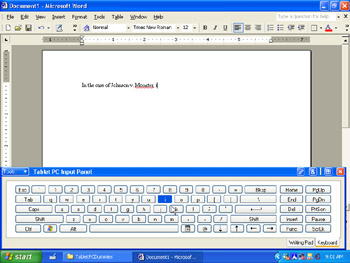
Figure 5-5: When you tap a key on the keyboard, it is highlighted, and the letter is inserted in the open document.
When you have an application open and a document displayed on-screen, it's time to hit the keys. Sort of. The equivalent to pressing a key on a regular keyboard is tapping a key on the Input Panel Keyboard with your pen. Tapping a letter inserts the letter, tapping the spacebar inserts a space, tapping the tab key inserts a tab, and so on. When you hold your pen over a key on the keyboard, the key becomes highlighted with a border (shown in Figure 5-6). Tap on the key, and that letter, number, punctuation, or action is inserted in the document.
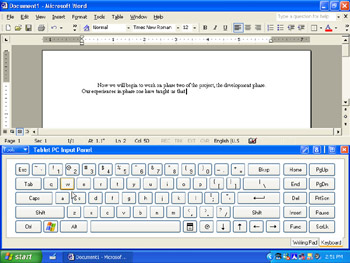
Figure 5-6: A highlight around a key indicates that when you tap again you will have done the Tablet PC equivalent of typing the key on a standard keyboard.
To use function keys (such as Ctrl and Alt) that you often hold down simultaneously with other keys, just tap the first one in the sequence. It stays highlighted as you tap additional function keys. Tablet PC is smart enough to know that Ctrl followed by V is a cut command, Alt followed by Tab is a command to switch from one open application to another, and so on.
Remember Tablet PCs feature a Windows Security tablet button somewhere on the hardware surrounding your computer screen, depending on the model you own. Look for the symbol of a key to identify the button. You can use this instead of Ctrl+Alt+Delete to display the Task Manager dialog box.
Tip In addition to entering text, you can use the Tab, Space, and Enter keys on your keyboard just as you do with a regular keyboard to add space or move to the next line in the document.
Capitalizing your type
When, in the course of typing, you want to use a capital letter or alternative punctuation or symbol, on a traditional keyboard you press Shift and the key together. On a Tablet PC, you tap Shift and all the symbols on the keys switch to uppercase options (as illustrated in Figure 5-7). Then tap the key for the character you want to capitalize. After you tap that key, you're right back in lowercase land.
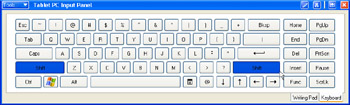
Figure 5-7: Note that the number and punctuation keys all show their uppercase options, and all letter keys display uppercase letters.
If you want to capitalize a series of letters, you use a Caps Lock feature just as you would on a standard keyboard. Tap the key labeled Caps on the Input Panel and then capitalize away. When you no longer want to capitalize, just tap Caps again.
 |
A neat feature of Tablet PC is gestures. If you've used a PDA handwriting program such as Graffiti, gestures may already be old hat. You can use gestures to perform four standard keyboard operations by using the Writing Panel or Write Anywhere features (see Chapter 4 for more about using both of these).
For example, you can press your pen on your screen in Write Anywhere mode and draw a line to the left to perform a Backspace operation. You can press on your screen and draw a line to the right to enter a Space. Press and draw down and to the left instead of tapping the Enter key. Then press on the screen and draw up and to the right to Tab.
|
Remember With Caps on, numbers are not automatically switched to their uppercase alternatives (for example a percent sign instead of the numeral 5). You'll need to tap the Shift key to get optional input for numbers, punctuation, and symbols such as forward slash.
Working with the Symbols Pad
There are certain symbols people use all the time. For example number-minded people use dollar signs and percentage symbols, while anybody who writes e-mail probably uses the @ symbol about 3,578 times a day.
Your Tablet PC provides a handy little pad attached to the Input Panel that you can use to quickly and easily insert symbols. Many of these symbols can be found on your regular keyboard keys, but you may have to press Shift to use them. Being able to access them without the Shift function can speed your input.
The Symbols Pad, shown in Figure 5-8, can be displayed by tapping the Symbols Pad button in the title bar of the Input Panel, and it can be hidden by tapping the Symbols Pad button again. When you then tap a symbol key on the pad to insert a symbol, the pad disappears. You have to tap the button again to display it.
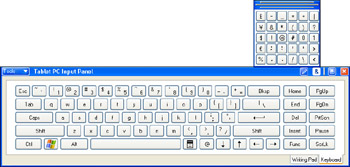
Figure 5-8: Commonly used symbols can be input easily from this handy little pad.
If you'd like the pad to always be available, you can tap its title bar and drag it away from the Input Panel. When the Symbols Pad is floating freely, it will stay open until you close it by tapping the Close button.
Tip If you close the freely floating Symbols Pad, then the next time you open it, you'll discover it's gone right back to being docked to the Input Panel.
Editing text
Because the keyboard types text into an open document in an application such as Word, one obvious option for editing text is the editing tools found in that application. However, just as with your desktop computer, you'll often use keys such as Delete and Backspace to modify text.
With your insertion point in existing text, tap the Backspace key to delete one letter at a time to the left. Tap the Delete key to delete one letter at a time to the right of the insertion point.
If you want new text to overwrite existing text, remember that you can tap the Insert key on your on-screen keyboard, or tap it again to have new text you enter be inserted within existing text.
You can use your pen to select text and use the keyboard to edit it. For example, tap in a document and drag your pen to highlight several words. Then, tap the Delete or Backspace key to delete that text (as shown in Figure 5-9).
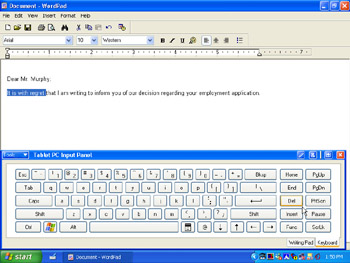
Figure 5-9: Select text with your pen, then edit it using your keyboard or application editing tools.
Remember You can also use shortcut key combinations, such as Ctrl+X to cut text and Ctrl +V to paste it.
Moving around in documents
By now you've figured out that using the on-screen keyboard is pretty much like using any old keyboard, except that it's on-screen and you tap keys with a pen. So if you guess that the Home, End, Page Up, and Page Down keys all help you move around the document you're working in, you're right. . . .
Taking shortcuts
You may have noticed a couple of keys in the Input Panel that have little symbols on them. First, there's the Windows logo key that you probably have on your standard keyboard. Then there's a little key on the other side of the spacebar that looks like a little menu. Table 5-1 shows how these work.
| Key(s) | Function |
|---|---|
| Windows logo | Opens Start menu |
| Windows logo+Tab | Makes next taskbar button active |
| Windows logo+E | Opens Windows Explorer |
| Windows logo+F | Opens Windows Search function |
| Windows logo+M | Minimizes all windows |
| Windows logo+R | Opens the Run dialog box |
| Application | Opens a context-sensitive menu (as right-tap does) |
| Left Arrow | Turns Brightness down |
|
|

EAN: 2147483647
Pages: 139