| Word gives you several ways to adjust the amount of space between characters . In most documents, you won't need to adjust spacing, but once in a while you may want to change the spacing in a heading. To adjust character spacing, follow these steps: -
Select the text in which you want to change character spacing. -
Choose Format, Font or press Ctrl+D to display the Font dialog box. -
Click the Character Spacing tab (see Figure 6.8). Figure 6.8. The Character Spacing tab contains four options for adjusting spacing. 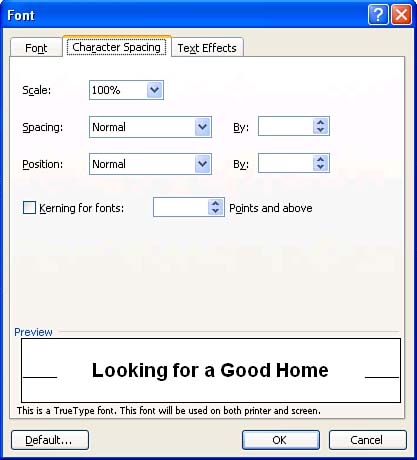 -
Select the desired options, and click OK . Here is an explanation of how to use the options in the Character Spacing tab: -
Scale Use this list to expand or condense your text horizontally by a particular percentage. Any percentage over 100 percent expands the text; any percentage under 100 percent condenses it. If you like, you can click in the Scale box, type a percentage that doesn't appear in the list (120 percent, for example), and press Enter. In Figure 6.9, the top version of Fernwood is scaled at 100 percent. The lower one is scaled at 120 percent. Figure 6.9. You may want to adjust character spacing and turn on kerning for large headings. 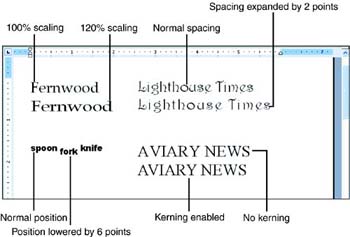 -
Spacing Use this list if you want to expand or condense your text by a number of points, and then type the number of points in the By text box. Figure 6.9 shows two versions of the heading Lighthouse Times . The first has normal character spacing; the second is expanded by 2 points. -
Position Use this list to raise the text above the baseline or lower it beneath the baseline without decreasing its size (as you would if you applied superscript or subscript formatting, as described in the next section). Type the number of points by which you'd like to raise or lower the text in the By text box. In Figure 6.9, the word fork is lowered 6 points below spoon and knife . -
Kerning Mark this check box if you want to adjust the amount of space between certain combinations of letters. When kerning is not turned on and you're using a large point size, large gaps appear between some letters . Kerning closes these gaps. In the Points and Above text box, type the smallest point size for which you want to adjust kerning. Figure 6.9 shows two versions of the heading AVIARY NEWS . Kerning is not turned on for the first one and there is a noticeable gap between the A and the V . In the second version, kerning is turned on and the gap between the A and the V is gone. Kerning works only with TrueType and Adobe Type Manager fonts. To return character spacing for a block of text to its default settings, select the text, choose Format, Font, click the Character Spacing tab, choose 100% in the Scale list, Normal in the Spacing and Position lists, clear the Kerning check box, and click OK. |
