| Each template is unique, but there are a few characteristics that crop up in most of them. The Contemporary Fax and Professional Rsum templates are typical examples. After you've used both of them, you should feel comfortable trying the others. The Contemporary Fax Template It takes only a few moments to put together a nicely formatted fax cover sheet if you use a template or wizard. To create a fax cover sheet by using the Contemporary Fax template, follow these steps: -
Choose File, New to display the New Document task pane. -
Click On My Computer to display the Templates dialog box. -
Click the Letters & Faxes tab, and double-click Contemporary Fax . -
If the template isn't already installed, Word installs it now (make sure to have your Office CD handy). A document based on the Contemporary Fax template then appears onscreen (see Figure 5.9). Figure 5.9. A document based on the Contemporary Fax template, before it's been filled in. 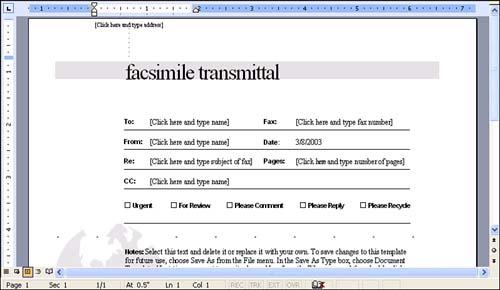 -
In the upper-left corner, click the [Click Here and Type Address] text. Type your address, pressing Enter at the end of each line. The text you type replaces the dummy text.  | Documents that you start from wizards or templates (other than Normal) display onscreen at a reduced magnification so that you can see the full width of the page. As a result, some of the text may be too small to read clearly. If you need to increase the magnification of the document to see what you're typing, increase the Zoom setting. |
-
Continue to replace the other [Click Here and Type] prompts with the text that you want to include in the fax coversheet. If you want to leave an area blank (for example, you don't want to type a name after CC:), click the prompt text and press Delete. -
Double-click any of the check boxes (Urgent, For Review, Please Comment, and so on) in which you want to place a check mark. (You can double-click when your I-beam mouse pointer is over the check box.) -
In the body of the memo, select the text beginning with the word Notes: . Type over it with the text that you want in the body of the memo. The memo should now be completely filled in, as shown in Figure 5.10. Figure 5.10. A finished document based on the Contemporary Fax template. 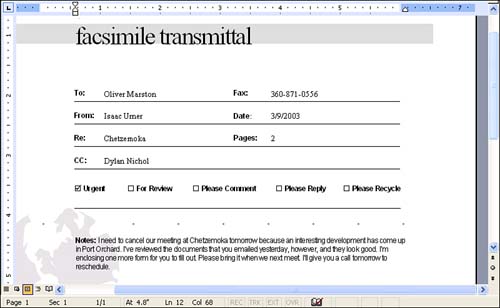  | The "dummy" text after Notes includes instructions for modifying the template to include your personal information so that you don't have to type it each time you use the template. You'll learn how to do this in Hour 10, "Working with Templates." |
-
Click the Save button in the Standard toolbar. In the Save As dialog box, notice that Word Document is selected in the Save As Type drop-down list (see Figure 5.11). This tells you that Word will save the file as a Word document, and not as a template, so it won't overwrite the template itself. (Templates have the file extension .dot instead of .doc, and they are stored in a special Templates folder.) Choose a name and location for the file, and click the Save button. Figure 5.11. Save your document after you've filled it in. 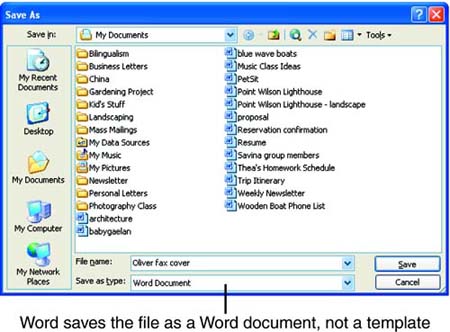 -
Choose File, Close to close the document. The Professional Rsum Template Designing a rsum can be quite time-consuming if you have to handle all of the formatting on top of drafting the text. If you use one of Word's rsum templates, you can use the built-in formatting in the template, which lets you focus on the writing. To create a rsum using the Professional Rsum template, follow these steps: -
Choose File, New to display the New Document task pane. -
Click the On My Computer button to display the Templates dialog box. -
Click the Other Documents tab, and double-click Professional Rsum . -
If the template isn't already installed, Word installs it now (have your CD handy). A document based on the Professional Rsum template then appears onscreen (see Figure 5.12). Figure 5.12. A document based on the Professional Rsum template, before it's been filled in. 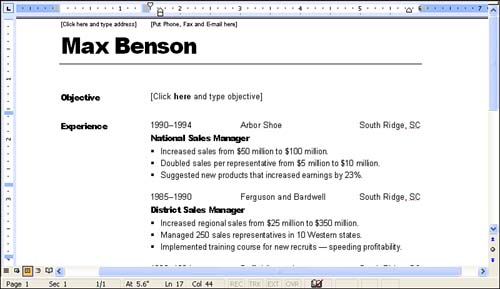 -
One by one, click the [Click Here and Type Address], [Put Phone, Fax, and E-mail Here] , and [Click Here and Type Objective] prompts to select them, and type over them with your own personal information. -
Notice that this template includes fictitious data about a person named Max Benson to show you where your text should go. Select all of this text, one piece of information at a time, and type over it with your own information. Figure 5.13 shows the document after the "dummy text" has been replaced . Figure 5.13. A document based on the Professional Rsum template, after it's been modified. 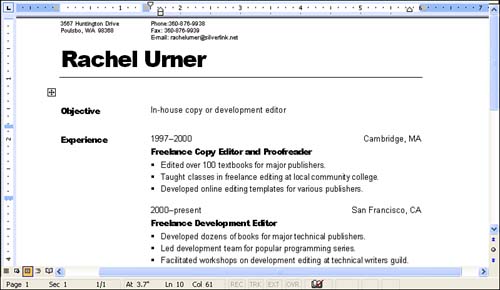 -
Choose File, Save As to name and save the new document. |
