Recipe2.7.Compiling an AspectJ Project Using Eclipse
Recipe 2.7. Compiling an AspectJ Project Using EclipseProblemYou want to compile your AspectJ project using Eclipse.
SolutionDownload and install the AspectJ Development Tools (AJDT) plug-in into Eclipse. DiscussionAspectJ is run under the same open source collective as the Eclipse project and provides the most advanced AspectJ plug-in for an IDE. The AspectJ Eclipse plug-in can be downloaded by following the instructions available at http://www.eclipse.org/ajdt.
To check that the plug-in has been correctly installed, click on File Figure 2-1. Creating a new AspectJ project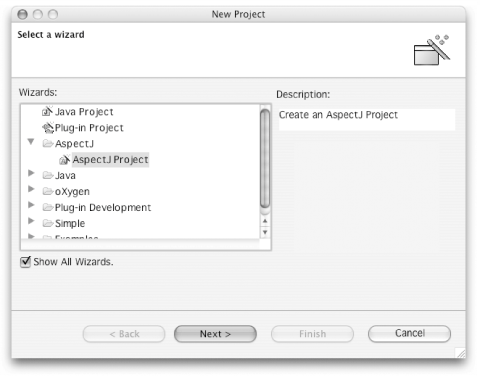
Highlighting the AspectJ Project option, click on Next in the New Project dialog and complete the next few steps to set up the new AspectJ project. Once the project wizard has completed, you may be asked to switch to the Java perspective. You may also be asked for some AJDT preferences if this is the very first time that you have used the wizard. It's a good idea to switch to the Java Perspective and accept the default values for the project preferences. Once Eclipse has switched to the Java perspective, your project should look like Figure 2-2. Figure 2-2. AspectJ project sources and jars within the Eclipse Java perspective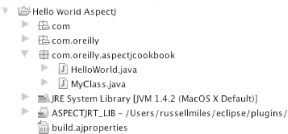
Your new AspectJ application should automatically compile with the creation of the new project. If you are at all worried that this hasn't happened, click on the Build AspectJ Project button shown in Figure 2-3. This will force a rebuild of the project just to be sure. Figure 2-3. Use the Build AspectJ Project button to check that your project has compiled correctly Your application is now compiled and ready for running, but before you run it, it is interesting to note the enhancements that the AJDT brings to the Java perspective. Perhaps the most obvious enhancement is in the contents of the Outline view which will contain, when an aspect or advised class is selected, new sections indicating where advice has been applied. An example of the additional information available in the Outline view is shown in Figures Figure 2-4 and Figure 2-5. Figure 2-4. Using the Outline View to see on which classes or aspects a specific advice is applied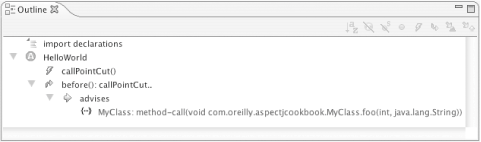 Figure 2-5. Using the Outline View to see what advice is applied to a specific class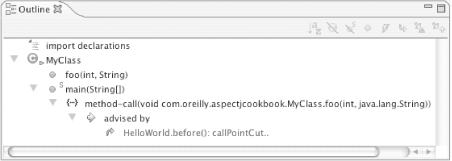 The AJDT also provides another view of your project that graphically displays an overview of how your aspects are applied to your application, The Aspect Visualization perspective can be opened by selecting Window Figure 2-6. The AJDT Aspect Visualization perspective with an example project selected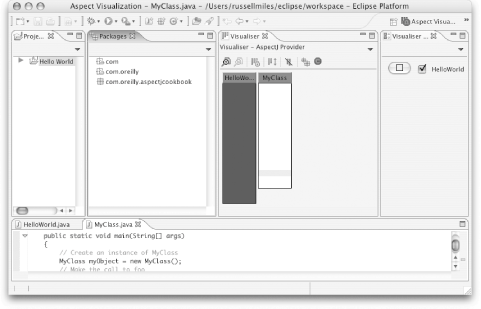 Switching back to the Java perspective, it's time to run your application. In Eclipse, it is as easy to run an AspectJ application as it is to run a traditional Java application. In the Java perspective, click on the class that contains the public static void main(String[]) method and select Run Figure 2-7. The output on the Console view when Recipe 5.1 is run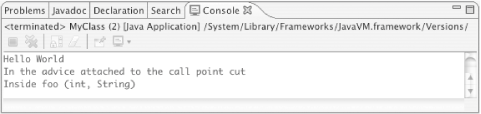 There are enough features and enhancements supported by the AJDT to fill a chapter in its own right. Take some time to tour the different preferences and features that are available, perhaps while you work with some of the other recipes in this book, to help you get used to what features are most useful to you. See AlsoRecipe 2.9 shows how to automate the build process using the Ant tool; a complete user guide for the AJDT plug-in can be accessed by visiting http://www.eclipse.org/ajdt and following the User Resources:Documentation link; an AspectJ plug-in for Borland JBuilder is available at http://sourceforge.net/projects/aspectj4jbuildr/; an AspectJ plug-in for Sun's NetBeans is available at http://sourceforge.net/projects/aspectj4netbeans/; Eclipse and Eclipse Cookbook by Steve Holzner (O'Reilly). |

 New
New