System Requirements
| The first thing to know and understand is that the days of worrying whether your current hardware setup will run Linux are largely over. SUSE Linux will run on most any Intel-based hardware. Novell/SUSE promises full support on anything Pentium-classed, including Celerons and AMD K5 processors. SUSE will also handle DEC Alpha and various multiprocessor systems quite well. Two ends of the aging process present difficulties: Aging 486 machines and brand-new machines with 64-bit processors and the high-performance gaming video card just released last week may have problems (though perhaps fewer than you might think). Note* Do you have a 64-bit processor on your PC? See the section on 64-bit SUSE Linux in Chapter 1, "Welcome to SUSE Linux." Hardware problems generally stem from vendors not writing Linux drivers for their equipment. This is distinctly true for laptop manufacturers. Because of Linux's recent gain in popularity, the biggest hardware vendors are beginning to support Linux with their hardware, either providing drivers directly or providing open-source developers with software development kits (SDKs) for writing open-source drivers. The drivers often wind up directly in the Linux kernel for all distributions. SUSE recommends three basic system requirements for running SUSE Linux 10:
Before installing SUSE Linux, you should spend some time and compare your existing hardware with the SUSE Linux Hardware Database at http://cdb.suse.de/. The site offers two types of hardware search. The Express Search lets you type in a vendor or device type, or you can browse from the preselected hardware categories. Tip If you are migrating from Microsoft Windows and are unsure of the details (manufacturer, type, and so on) of your hardware, go to the Device Manager to find out. Right-click My Computer and choose Properties from the context menu. Go to the Hardware tab and click Device Manager. Select the system at the top of the list. Click Print to get a list of all your devices. This can be quite lengthy. For something a little more configurable, try downloading the shareware product mvPCinfo or using another third-party system utility. The results of the Express Search is just a Yes or No, with some listings of "partial." Click the Details button for more information on a specific item, including whether older versions of SUSE Linux support an item. Results are printable; click the link at the top of the page. The Extended Search offers many more categories and many more ways of sifting the data. Use this search if you want to check whether your Zip drive, ham radio card, or your ISDN high-speed connection will work under DEC Alpha (see Figure 2.1). Figure 2.1. The SUSE Hardware Database Extended Search page lets you look for just about anything.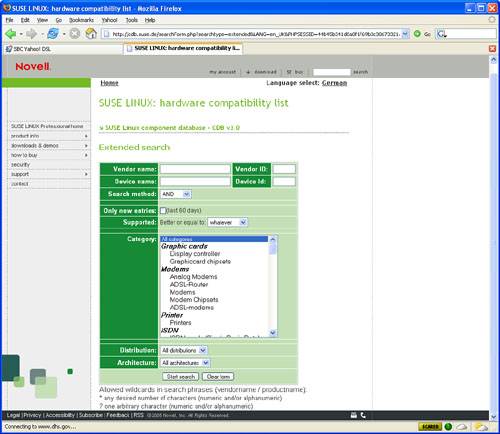 The main results page is similar to the Express page, but the honesty level of the Status column is refreshing. Some printers, for example, are listed as Problematic. You are encouraged to click the Details button for more information. Here, too, results are printable. Note Do not panic if you search for a specific item and it is not in the database. With the number of vendors and different pieces of hardware out there, it's hard to test everything, especially when you are also trying to write and test software! For example, there are very few ADSL high-speed modems in the SUSE database, but judging from personal experience and what comes up on the SUSE support lists, the record is quite good on recognizing and supporting these devices. When searching the database, here are some of the categories you'll want to confirm:
Linux on LaptopsSUSE Linux 10 has improved support for the Advanced Configuration and Power Interface (ACPI) standard, so your laptop battery will last longer. If you plan to run Linux on your laptop, be aware that manufacturers include many proprietary drivers for their hardware, and Linux support may be spotty at best. But don't be completely discouraged. The Linux on Laptops page at http://linux-laptop.net/ has the latest news and HOWTOs on its subject. Tip If you are in the market for a new Linux laptop, a few companies have sprung up to preinstall SUSE Linux, or any other distribution you want, on a name-brand portable. Browse the ads in your favorite Linux magazine or head over to http://www.linuxcertified.com/ or http://emperorlinux.com/. SUSE Linux and Legacy HardwareThe problem with older hardware and Linux is, as stated earlier, a general lack of device drivers. This is somewhat reasonable, in that the operating system was being built from the ground up, both in terms of people hacking on the Linux kernel and using it. As Linux grew in usage, at least on the server, more hardware manufacturers took notice, and more active support existed for server-side cards and peripherals. Only recently have advanced video cards, dial-up modems, and printers started shipping with Linux drivers. Do not fret if you have an ancient Pentium box with the 33MHz processor, built-in sound and video cards, and the 1 gigabyte hard drive. Although you may not be able to install a GUI on it, there are several valuable modern-day uses you can put that box to. These include the following:
With pre-Pentium processors (386/486), you will probably not be able to run any current version of SUSE Linux. You should be able to install a basic Debian GNU/Linux, though. Check out the Debian Project at http://www.debian.org. Avoiding Potential Hardware ProblemsIt should come as no surprise that no operating system is perfect. With every Windows service pack, some software breaks, and that often includes hardware drivers. The same is true with Linux. Many devices will work out of the box or at the point of install. More and more, manufacturers are providing Linux drivers for their equipment. But some pieces of hardware always seem to have at least some trouble working under Linux. This section is designed to help you through the special minefields. Software-Based ModemsMost computer peripherals handle whatever task they are built for by themselves; all that's needed is a device driver that integrates with the operating system. Tell an application you want to print the file on your screen, the application tells the OS, which tells the driver, which tells the printer. Done! An exception to this rule exists that most users may never realize until they install Linux on their computer. Suddenly the modem doesn't work anymore, and you can't access the Internet. Welcome to the world of WinModems! Many popular modem models, both the internal and external varieties, work as you would expect. Driver support for modems is excellent under Linux. Some modems, though, move much of the functioning to software software designed for Microsoft Windows. The argument for this setup is that it is easier and cheaper to update software than hardware, but making hardware functioning dependent on having a specific operating system seems difficult, at best. This is somewhat like Michelin deciding to make tires only for General Motors, telling Ford owners they'd have to make their own if they wanted to use the features Michelin had, only they won't tell you how they did it. Nonetheless, many open-source software developers have taken on the challenge of making Winmodems work under Linux. Not that many years ago, the only choice available to users was to buy another modem, but that is no longer true. Some Winmodem makers have helped provide details and development kits to create open-source drivers. IBM has integrated support for software-based modems on the ThinkPad 600/E and 770 in the Linux kernel. It's always best to check for Linux compatibility before buying a modem, but you don't always get that choice. The place to turn for information on Winmodems on Linux is http://www.linmodems.org. Universal Serial Bus DevicesThe Universal Serial Bus (USB) specification was designed to allow PCs to support more peripheral devices without adding serial or parallel connections to an already overburdened pile of cables. It also allows devices that don't need a permanent connection to the PC (such as digital cameras and audio players) to plug in and out only as needed, without having to reboot, much less open the box every time you needed it. Nearly all PCs produced since the late 1990s have included at least two ports based on v1.1 of the USB specification. Devices built to this specification move data to and from the device to the PC at speeds between 1.5 and 12 megabytes per second (MBps). USB V2.0 permits much faster transfer speeds (up to 480 MBps), and so now you see even portable hard drives plugging into USB 2.0 ports and moving data swiftly. Among the types of devices you'll see that plug into a USB port are keyboards, mice, modems, scanners, printers, digital cameras, webcams, and network cards (both wired and wireless). The Linux kernel has supported the USB standard since v2.2.18, so all recent versions of SUSE Linux support at least USB 1.1 through the uhci kernel module. Developers working on the 2.6 kernel created the ehci module to support USB 2.0 and have since included compatible modules for earlier kernel versions, going back to v2.4. Still, some USB devices still have problems, mainly wireless (802.11b) network adapters, scanners, and some webcams. Visit http://www.qbik.ch/usb/devices/ to search an excellent database of USB devices, and visit http://www.linux-usb.org/ for general information on this topic. "Peripherals" on the MotherboardMost laptops and some less-expensive desktop PCs include built-in video, audio, and network support right on the motherboard. This practice lowers power requirements and simplifies the design, although these units often don't have all the power and features of more expensive PCI cards. If these are new devices, Linux support can be flaky. When buying these machines, be careful to check for Linux support. Ask the vendor questions, and get answers. That's good advice for anything, but especially if you have a new, cutting-edge notebook, because you can't replace just one piece of a notebook yourself. It almost always has to go back to the factory. Thinking About Dual Booting, Partitioning, and Other WorriesThe last thing you need to think about before beginning your SUSE Linux installation is the question of what to do with your current installed OS. Chances are you have perfectly good data on your computer that you want to keep. This should already be backed up on some other media (CD-ROM, Zip drive, tape) in any case. But what about that copy of Windows XP under which you have created all that data? Do you want to start over from scratch, or should you keep it around? This goes back to the original question asked at the beginning of the chapter what do you want to do with your PC? Unless you have a small hard drive packed with applications and data, installing SUSE Linux alongside your existing Windows and using a boot manager to switch back and forth is a simple matter. Installing a standard Office package with X, KDE, and OpenOffice would not take up more than 1 gigabyte of space. Table 2.2 shows you what SUSE recommends in the way of partition sizes for various uses:
As you can see, SUSE Linux won't eat up your 80GB drive all at once or even after a lot of usage. And even if you're a glutton for choices, it's not really a problem. A system with both KDE and GNOME desktop environments, three office suites, five browsers, six text editors (both graphical and plain), a couple of personal information managers, and a fair amount of data still barely takes up 10GB. So if for any reason you want to keep Windows around, this is easily done. Dual Booting with WindowsWhen installing SUSE to dual boot with Windows, YaST installs SUSE Linux into an "extended" partition, leaving Windows with the primary partition. Note On any dual-boot machine, Windows must always be installed first. SUSE Linux comes with a free software-partitioning tool, GNU Parted, that works much like the commercial products Partition Magic and Partition Commander. This makes it easier to create and organize data on your drive. Unlike the fdisk tool (both the DOS/Windows and UNIX/Linux versions) that destroys data when modifying partitions, Parted protects the data on partitions that are being resized. YaST uses a version of Parted called Expert Partitioner during the initial install, and the root user can run it directly from YaST at any time to resize, delete, or add partitions. Learn more about Parted/Expert Partitioner in Chapter 18, "Managing Files, Volumes, and Drives." Caution Anytime you want to play with the partition table, be aware that you are putting your data at some risk, even if it is a small one. Power surges, fuse burnouts, and temporary blackouts happen, and never at a convenient time. Always back up critical data. Have an emergency boot disk on hand. Create one when the SUSE Linux install asks you to. See Chapter 20, "Managing Data: Backup, Restoring, and Recovery," for more information. The downside to dual booting is that you must reboot every time you want to use a different OS. Shutdown and startup time can add up when you are trying to get things done. The good news is that you don't have to do this to access and use a data file on the Windows side of your box. SUSE Linux will read and open (with an appropriate application) any file on your system. Linux supports both FAT and NTFS file systems. When detecting the presence of a Windows file system, SUSE Linux creates a /windows directory where it stores and displays your directories and files. How much you can move and copy files to and from these directories depends on the underlying Windows file system. Linux permissions won't transfer from a Linux file system to the Windows File Allocation Table (FAT), and copying from a Linux file system to the NT File System (NTFS) used by default in Windows NT/2000/XP is nearly impossible. Unfortunately, no Windows OS supports any Linux file system. Third-party Windows utilities allow you to view and copy files from a Linux ext2 file system, but none will let you open a file directly from your /home directory. Note Want to work with files on a Windows box on your network? For that you need Samba. See Chapter 25, "Setting Up Networks and Samba." How to Partition Your Drive(s)Whether you dual boot or not, you will need at least two partitions to run SUSE Linux properly. You can do this before the install with a commercial product if you're comfortable doing that, or YaST will help you with the process during the install. If you are not planning to dual boot, you are probably better off waiting for the install, as YaST will reformat the drive for you. The two minimum partitions are the root partition, signified with a forward slash (/), and a swap partition, which Linux uses as virtual memory. Traditionally, the size of the swap partition is equivalent to (or a multiple of) the amount of hardware RAM you have installed. So if you have 256MB of RAM, your swap should be 256MB (or even 512MB) as well. YaST will configure this automatically during the install. If you have only these two partitions, YaST will put all the other standard directories on the same partition as /. These are
You may want to consider putting one or several of these directories on a separate partition (mount point), because doing so can make a drive more efficient and ready for expansion. Candidates for separate mount points include /home (especially with multiple users on the same system), /opt (if you find several applications installing here, setting aside a gigabyte as a mount point could improve performance), and /usr (this would enable you to further separate programs from data and may improve performance; make this partition up to 6GB if you plan to install everything on the SUSE install disks). |

EAN: 2147483647
Pages: 332