Move Around in a Document
You can use many different techniques to move to a different location in a document; the technique you select depends on the location to which you want to move.
MOVE ONE CHARACTER
-
Note the location of the insertion point.
-
Press
 .
.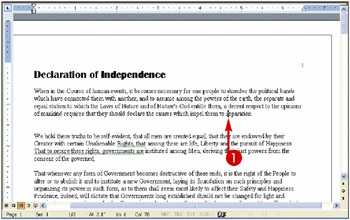
 Word moves the insertion point one character to the right.
You can press
 ,
,  , or
, or  to move the insertion point one character left, up, or down.
Holding any arrow key moves the insertion point repeatedly in the direction of the arrow key.
You can press
 + or + to move the insertion point one word at a time to the right or left.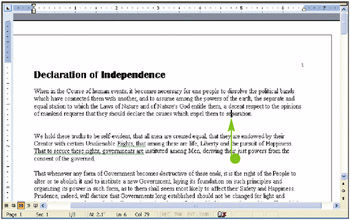
MOVE ONE SCREEN
-
Note the last visible line on-screen.
-
Press
 .
.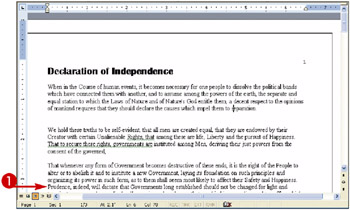
 Word moves the insertion point down one screen.
You can press
 to move the insertion point up one screen.
 You can click the Tiles icon (
 ) to scroll up, or the Icons icon (
 ) to scroll down, one line at a time in a document.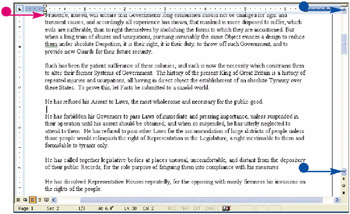
 |
Is there a way to quickly move the insertion point to the beginning or the end of a document?
Yes. Press + to move the insertion point to the beginning of a document or +
 to move the insertion point to the bottom of a document. You can press
  +
+ to move the insertion point to the last place you changed in your document.

Is there a way to move the insertion point to a specific location?
Yes, you can use bookmarks to mark a particular place and then return to it. See Chapter 3 for details on creating a bookmark and returning to the bookmark’s location. See Chapter 4 for details on searching for a specific word and, if necessary, replacing that word with a different one.

|

EAN: 2147483647
Pages: 175