Working with the Notes Master
You worked with the Slide Master in Chapter 6, "Changing the Presentation's Look." Like the Slide Master, the Notes Master is where you can set the basic format and look for all the Notes pages in your presentation.
-
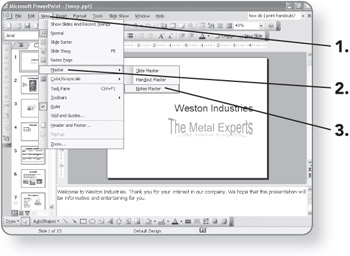
Click on View. The View menu will appear.
-
Point to Master. A submenu will appear.
-
Click on Notes Master. The Notes Master page will appear.
Removing a Placeholder
The Notes Master has several placeholder boxes. You can delete any placeholders that you do not want.
-
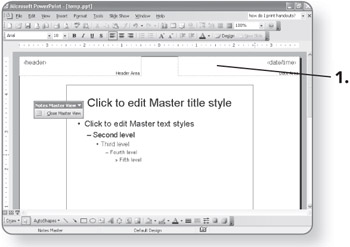
Click on the placeholder to remove. The placeholder will be selected.
-
Press the Delete key. The placeholder will disappear.
Moving a Placeholder
-
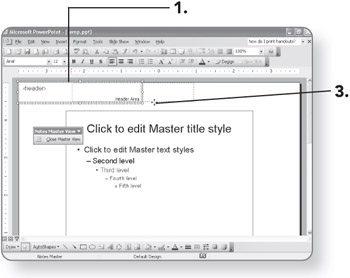
Click on a placeholder's border. It will be selected.
-
Point the mouse pointer at the border, but not on a selection handle.
-
Drag the placeholder to a different location.
Resizing a Placeholder
-
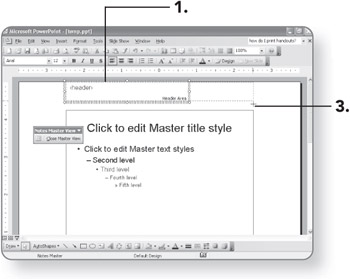
Click on the placeholder's border. It will be selected.
-
Point the mouse pointer at a selection handle. The mouse pointer will become a double- headed arrow.
-
Drag the selection handle to change the size of the placeholder box.
Restoring Deleted Placeholders
-
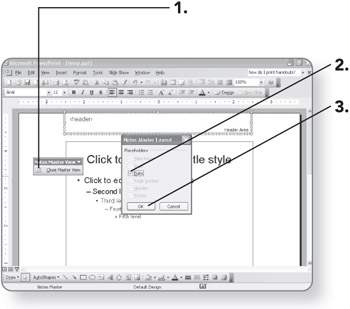
Click on the Notes Master Layout button. The Notes Master Layout dialog box will open. Any placeholders that have been deleted will appear as empty check boxes.
-
Click in a check box for a placeholder you want to restore.
-
Click on OK. The placeholder will be restored on the Notes Master.
Editing Headers and Footers
The preceding procedures worked with the placeholders for the header and footer elements. Now you will specify what text should appear in them.
-
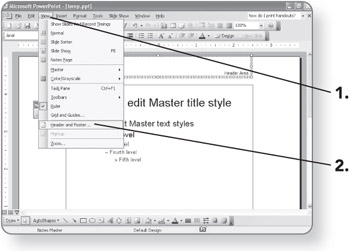
Click on View to add information to the Header and Footer areas. The View menu will appear.
-
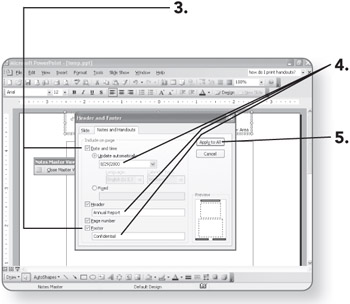
Click on Header and Footer. The Header and Footer dialog box will open, and the Notes and Handouts tab will be on top.
-
Mark the check boxes for the placeholder items you want to appear, and clear the check boxes for the placeholders you don't want to appear.
-
Type any text that you want to appear in those areas, or specify automatic entry (as with Date and time).
-
Click on Apply to All. The information you've typed will appear in the Header and Footer areas.
-
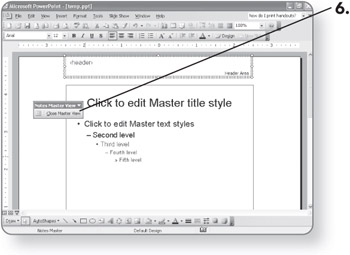
Click on the Close Master View button on the Notes Master View toolbar when you finish making changes to the Notes Master. You will return to the view you were using previously.
Printing Your Notes
-
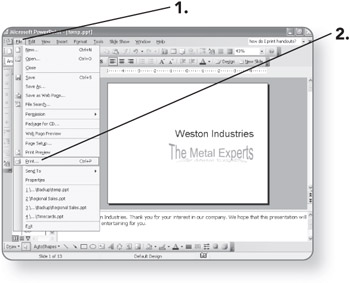
Click on File. The File menu will appear.
-
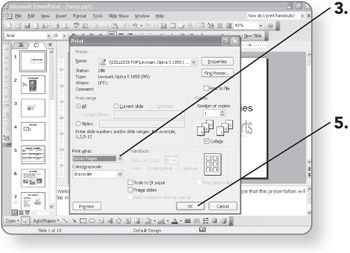
Click on Print. The Print dialog box will open.
-
Click on the down arrow next to the Print what list box, and click on Notes Pages. The option will appear in the list box.
-
Change any other options as needed.
-
Click on OK. The Notes pages will be printed.

EAN: 2147483647
Pages: 158