Browsing Lists on a SharePoint Site
SharePoint lists are Web-based, editable tables. SharePoint lists provide you and your team with the ability to work with structured data. As we have discussed, the typical team Web site provides four default lists.
-
 Announcements The Announcements list is a place to post information for the team.
 - Calendar The Calendar list is a place to maintain information about upcoming events.
- Links The Links list displays hyperlinks to Web pages of interest to team members.
- Tasks The Tasks list provides a to-do list for team members.
| Tip | Links to the Calendar and Tasks lists appear by default in the Quick Launch of the team site. |
In addition to these default lists, you can create your own lists when necessary. When creating a new list, you can choose to place a link to this list on the Quick Launch.
For more information on working with lists, refer to Chapter 4, “Working with Lists.”
In this exercise, you will view a list of all SharePoint lists that exist on your site. You will navigate to a list and then return to the home page.
OPEN the SharePoint site in which you’d like to view the existing lists. If prompted, type your user name and password, and then click OK.
1. On the Quick Launch, click Lists.
The All Site Content page is displayed in the Lists view. This view shows links to all existing lists in your site.
2. Click a list, such as Announcements.
The Announcements page appears. Notice the content navigation breadcrumb displayed above the page title and the global navigation breadcrumb displayed at the top left of the page.
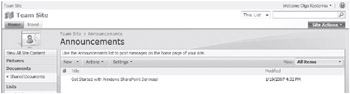
3. On the Announcement page, view the list items.
The team members of Wide World Importers have not put any additional announcement on this list as yet, so only the default announcement is displayed.
4. To return to the site’s home page, click the Home tab on the top link bar.
CLOSE the browser.

EAN: N/A
Pages: 201