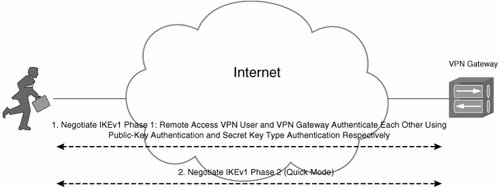
Deploying IPsec Remote Access VPNs Using Preshared Key and Digital Signature Authentication
Comparing, Designing, and Deploying VPHs
Authors: Lewis M.
Published year: 2007
Pages: 70/124
Buy this book on amazon.com >>

Deploying IPsec Remote Access VPNs Using Preshared Key and Digital Signature Authentication

Now that you understand some of the challenges associated with the deployment of IPsec remote access VPNs, it is time move on to discussing their deployment.

The following sections discuss the configuration of IPsec remote access VPNs using preshared key and digital signature authentication.

Implementing IPsec Remote Access VPNs Using Preshared Key Authentication

The deployment of IPsec remote access VPNs using preshared keys is pretty simple. To configure an IPsec remote access VPN, you must configure both the IPsec VPN gateway and the IPsec remote access VPN clients. The configuration of the VPN gateway and the remote access VPN clients is described in the following two sections.

Configuring an IPsec Remote Access VPN Gateway for Preshared Key Authentication

This section describes the configuration of Cisco VPN 3000 concentrators , Cisco IOS routers, and the Cisco ASA 5500 IPsec VPN gateways.

Cisco VPN 3000 Concentrator as an IPsec Remote Access VPN Gateway Using Preshared Key Authentication

The following steps comprise the configuration of a Cisco VPN 3000 concentrator as an IPsec remote access VPN gateway:

Step 1.

Specify an IP address pool or another form of IP address assignment.

Step 2.

Configure a group for IPsec remote access VPN users.

Step 3.

Configure user accounts for remote access VPN users.

Step 4.

Optionally modify IPsec/IKE parameters.

If you have already read Chapter 8, "Designing and Implementing L2TPv2 and L2TPv3 Remote Access VPNs," the preceding steps will seem familiar. In fact, these high-level steps are the same as those described in Chapter 8. The detail is a little different, however.

Step 1: Specify an IP Address Pool or Other Form of IP Address Assignment

The Cisco VPN 3000 concentrator can assign IP addresses, together with other information such as DNS and WINS server addresses, to remote access VPN clients during ISAKMP Mode Config negotiation ( assuming IKEv1 negotiation).

Note that IP addresses assigned by a VPN gateway (Cisco VPN 3000 concentrator) to IPsec remote access VPN clients are applied by the clients to their VPN tunnel interfaces (virtual adapters), not to their physical interfaces.

To configure a local IP address pool from which to assign addresses to IPsec remote access VPN clients, you need to go to Configuration > System > Address Management > Pools (see Figure 9-10).

Figure 9-10. Configuration of a Local IP Address Pool


In Figure 9-10, an address pool ranging from 10.30.20.1 to 10.30.20.150 and with mask 255.255.255.0 is configured. After you have configured the range, just click the Add button and the pool will be entered into the Cisco VPN 3000 concentrator's configuration.

Although the address pool is entered into the configuration file when you click the Add button, you also have to enable the pool by going to Configuration > System > Address Management > Assignment and check Use Address Pools , as shown in Figure 9-11.

Figure 9-11. Enabling Local Address Pool Assignment


One look at the screen shown in Figure 9-11, and you will see that not only is it possible to assign IP addresses to IPsec remote access VPN clients from an address pool configured on the Cisco VPN 3000 concentrator, but it is also possible to allow clients to specify their own IP addresses, use an authentication server (such as RADIUS), or use DHCP.

When you have checked the Use Address Pools box as shown in Figure 9-11, click Apply . The Cisco VPN 3000 concentrator is now ready to assign IP addresses.

Step 2: Configure a Group for IPsec Remote Access VPN Users

Having configured a method of IP address assignment, it is now time to configure a group for IPsec remote access VPN user. To do this, go to Configuration > User Management > Groups , click Add Group , and you will see the screen shown in Figure 9-12.

Figure 9-12. Configuring a Group for IPsec Remote Access VPN Users (Identity Tab)


On the Identity tab, specify a group name and a password. This password is, in fact, the preshared key that is used for IKE phase 1 authentication of remote access VPN clients.

Note

Although there are no precise rules as to the best composition of preshared keys, to make preshared keys as secure as possible, it is a good idea to make them a random combination of numbers , upper- and lowercase characters, and punctuation characters. It is also a good idea to make preshared keys at least 10 characters long.

Note that the preshared keys shown in various figures and examples in this chapter are not secure and are used for illustrative purposes only.


Next , click the General tab, and ensure that IPSec is selected in the Tunneling Protocols section (see Figure 9-13).

Figure 9-13. Configuring the General Tab


As shown in Figure 9-13, you can also configure primary and secondary DNS and WINS server addresses. These will also be assigned to the remote access VPN clients during ISAKMP Mode Configuration.

Now that you have configured the General tab, you can move on to the IPSec tab (see Figure 9-14).

Figure 9-14. Configuring the IPSec Tab


In the IPSec tab, select an IPsec SA to protect user traffic that will be sent over the VPN tunnel between the remote access VPN clients and the Cisco VPN 3000 concentrator (this IPsec SA is negotiated during IKEv1 phase 2).

Also, ensure that you select the Remote Access tunnel type as well as the Internal authentication type (authentication via the locally configured username/password database).

Step 3: Configure User Accounts for Remote Access VPN Users

Now that you have configured the group for IPsec remote access VPN users, you are ready to configure individual remote access VPN user accounts. You can do so by going to Configuration > User Management > Users and clicking the Add button. You then see the screen shown in Figure 9-15.

Figure 9-15. Configuring IPsec Remote Access VPN User Accounts (Identity Tab)


Type a username and password, and assign the user to the group that you have just configured for IPsec remote access VPN users by selecting the group from the drop-down box.

The password that you configure in the Identity tab is used to authenticate the user rather than the IPsec remote access VPN machine (which is authenticated by the group password [preshared key] during IKE negotiation). The user is authenticated using the Xauth mechanism during IKEv1 negotiation.

Finally, click the Add button, and the user is ready to go.

Note that is also possible to authenticate remote access VPN users using external authentication servers. This can be accomplished by specifying authentication servers under Configuration > Systems > Servers > Authentication and then configuring the appropriate authentication type in the IPSec tab for the appropriate group under Configuration > User Management > Groups .

Step 4: Modify IPsec/IKE Parameters (Optional)

A final task that you can perform on the Cisco VPN 3000 concentrator is to modify the proposals (parameters) that are negotiated using IKE (phase 1 and 2).

The IKE proposals specified on the Cisco VPN concentrator must match those used by the IPsec remote access VPN clients. You can modify those used by the Cisco VPN 3000 concentrator by going to Configuration > Policy Management > Traffic Management > SAs , selecting the IPsec SA that you specified under the group (see Figure 9-14 on page 821), and clicking the Modify button.

It is useful just to run down each section of the screen (Figure 9-16). The top section of the screen shows the SA name and the granularity of the SA.

Figure 9-16. Modifying IKE Proposals


The next section shows IKEv1 phase 2 parameters, including the authentication algorithm, the encryption algorithm, the encapsulation mode, whether or not PFS is enabled, the method by which the SAs lifetime is measured, and the data and time lifetimes.

The final section shows the IKE phase 1 parameters, including the IP address of the IKE peer (only relevant for site-to-site VPN configurations), the method of IKEv1 phase 1 negotiation ( aggressive or main mode), the digital certificate used for digital signature authentication (if relevant), whether the Cisco VPN concentrator's identity certificate alone or the complete certificate chain is supplied to the remote access VPN client during IKE phase 1 authentication, and the name of the IKE phase 1 proposal.

The specific algorithms associated with IKEv1 phase can be found by going to Configuration > Tunneling and Security > IPSec > IKE Proposals . You will see a number of active and inactive IKE phase 1 proposals.

Click the IKE phase 1 proposal specified under the Configuration > Policy Management > Traffic Management > SAs screen, and then click Modify . You will then see the specific algorithms and parameters associated with IKE proposal.

IKE proposals used by Cisco VPN Client are described in the administrator guide. See the following URL for those IKE phase 1 and phase 2 proposals supported by Cisco VPN Client version 4.6 (see Tables 8-3 and 8-4, respectively):

http://www.cisco.com/en/US/products/sw/secursw/ps2308/products_administration_guide_chapter09186a00802d3ac3.html#wp1168133

URLs sometimes change, so if this URL does not work, search Cisco.com for the "VPN Client Administrator Guide" relating to the version of the Cisco VPN Client that you are using and then navigate to the section called "Troubleshooting and Programmer Notes."

You must make sure that at least one IKEv1 phase 1 and one phase 2 proposal on the Cisco VPN 3000 concentrator and the remote access VPN clients are compatible.

Note

For more information on specific IPsec/IKE parameters, see Chapter 6.


Cisco IOS Router as an IPsec Remote Access VPN Gateway with IKE Preshared Key Authentication

One alternative as an IPsec remote access VPN gateway is a Cisco IOS router. The configuration steps necessary to set up a Cisco IOS router as an IPsec remote access VPN gateway are as follows :

Step 1.

Configure a local username/password database.

Step 2.

Configure authentication, authorization, and accounting (AAA).

Step 3.

Configure IKE (ISAKMP) policies.

Step 4.

Configure a VPN client group policy profile.

Step 5.

Configure an IPsec transform set.

Step 6.

Configure a dynamic crypto map.

Step 7.

Configure IKE extended authentication, ISAKMP authorization, client mode address configuration, and a crypto profile.

Step 8.

Configure an IP address pool.

Step 9.

Apply the crypto map to the outside interface.

Example 9-1 shows a sample configuration of a Cisco IOS IPsec remote access VPN gateway.

Example 9-1. Sample Configuration of an IPsec Remote Access VPN Gateway
!

hostname mjlnet.VPN.GW.01

!


username mark password 7 09414405170003405B5C52 (line 1)


username john password 7 05060C032F495A5B495540 (line 2)


!


aaa new-model (line 3)


aaa authentication login mjlLogin local (line 4)


aaa authorization network mjlAuth local (line 5)


!


crypto isakmp policy 10 (line 6)


hash md5 (line 7)


authentication pre-share (line 8)


group 2 (line 9)


!


crypto isakmp client configuration group mjlVPN (line 10)


key mjlnet2007 (line 11)


dns 10.10.10.161 (line 12)


wins 10.10.10.171 (line 13)


pool mjlPool (line 14)


!


crypto ipsec transform-set mjlTransform esp-des esp-md5-hmac (line 15)


!


crypto dynamic-map mjlDynmap 10 (line 16)


set transform-set mjlTransform (line 17)


!


crypto map mjlnetMap client authentication list mjlLogin (line 18)


crypto map mjlnetMap isakmp authorization list mjlAuth (line 19)


crypto map mjlnetMap client configuration address respond (line 20)


crypto map mjlnetMap 10 ipsec-isakmp dynamic mjlDynmap (line 21)


!

interface FastEthernet0/0


ip address 10.10.10.70 255.255.255.0 (line 22)


!

interface FastEthernet2/0


ip address 192.168.1.1 255.255.255.0 (line 23)


crypto map mjlnetMap (line 24)


!
!


ip local pool mjlPool 10.30.20.1 10.30.20.150 (line 25)


ip route 0.0.0.0 0.0.0.0 192.168.1.2 (line 26)


!

The username username password password command (lines 1 and 2) is used to configure a local database of username and passwords. These are used to authenticate remote access VPN users during Xauth.

Next is the aaa new-model command (line 3). This command is used to enable AAA on the IPsec remote access VPN gateway.

In line 4, the aaa authentication login method-list-name local command is used to configure a method list to be used for login authentication. The local keyword is used to specify the local username password database configured in lines 1 and 2. If you want to use a AAA server for user authentication, you can use the appropriate keyword such as radius to specify that (instead of using the local keyword).

The aaa authorization network method-list-name local command in line 5 is used to configure the VPN gateway to use local authorization for network connections (connections from remote access VPN clients). Again, it is possible to specify an external server to authorize remote access VPN clients.

If you do want to use AAA servers for user authentication/authorization, you can configure their IP addresses/host name and keys using commands such as radius-server host .

Lines 6 to 9 contain the IKE policy. The crypto isakmp policy priority command in line 6 is used to configure an IKE (ISAKMP) policy with the specified priority. In line 7, the hash {sha md5} command is used to configure a hashing algorithm for the IKE policy. Next, the authentication {rsa-sig pre-share} command (line 8 configures the method of authentication used in IKE phase 1, This method is used to authenticate the remote access VPN client's machine (rather than the user him/herself [users are authenticated using Xauth]).

The final command that makes up the IKE policy is group {1 2} . This configures the Diffie-Hellman group.

The VPN client group policy profile is configured next (see lines 10 to 14).

The crypto isakmp client configuration group { group-name default} in line 10 is used to specify a policy profile that will be used to control remote access VPN client connectivity (IKE/ISAKMP Mode Config parameters and controls).

The key preshared-key command (line 11) is used to specify the IKE group preshared key.

The wins server-ip-address and dns server-ip-address commands in lines 12 and 13 are then used to specify the WINS and DNS server address to supply to remote access VPN clients during ISAKMP Mode Config exchange.

In line 14, the pool pool-name command links to a local IP address from which to assign addresses to the remote access VPN client during ISAKMP Configuration Mode exchange.

There are quite a number of other options that you can specify within the policy profile, including an access list number used to control split tunneling ( acl acl-number ), a list of backup VPN gateways for remote access VPN clients to use in the event that the main VPN gateway is down ( backup-gateway ), domain membership ( domain ), client firewall status ( firewall are-u-there ), and so on.

Lines 16 and 17 show the configuration of a dynamic crypto map. A dynamic crypto map is used to allow the VPN gateway to negotiate IPsec SAs with remote access VPN clients. Specifically, a dynamic crypto map is required when not all the parameters about an IPsec peer are known, and often the IP addresses of remote access VPN clients are not known.

The crypto dynamic-map dynamic-map-name dynamic-seq-number command (line 16) is used to create a dynamic crypto map entry.

Line 17 shows the set transform-set transform-set-name1 [ transform-set-name2 ...... transform-set-name6 ] command. This command links to the IPsec transform set created in highlighted line 15.

Lines 18 to 21 bring together the configuration for IKE Xauth, authorization, ISAKMP Mode Configuration (Mode Config), and a crypto profile.

The crypto map map-name client authentication list method-list-name command (line 18) is used to enable ISAKMP Xauth using the method list specified using the aaa authentication login method-list-name command in line 4.

In line 19, the crypto map map-name isakmp authorization list method-list-name command configures authorization for IKE (ISAKMP) and links to the method list configured by the aaa authorization network method-list-name command in line 5.

The crypto map map-name client configuration address { initiate respond } command in line 20 configures the VPN gateway to either initiate IP address assignment with the remote access VPN clients or to accept IP address requests from remote access VPN clients.

Line 21 shows the crypto map map-name seq-number ipsec-isakmp dynamic dynamic-map-name command. This links to the dynamic crypto map created in lines 16 and 17 and is used to configure a crypto profile that is used to create dynamic crypto map as remote access VPN clients connect.

Inside and outside interface IP addresses are configured in lines 22 and 23. And in line 24, the crypto map is applied to the outside (external) interface using the crypto map map-name command. Notice that the crypto map name is that configured using the crypto map commands in lines 17 to 20.

In this example, IP addresses are assigned to remote access VPN clients from a local IP address pool. This pool is configured in line 25 using the ip local pool pool-name start-address end-address command. The IP address pool name is that which is specified using the pool command in line 14.

Finally, in line 26, the ip route command is used to configure a default route that provides reachability to the Internet (and remote access VPN clients).

Cisco ASA as an IPsec Remote Access VPN Gateway with IKE Preshared Key Authentication

A second alternative as an IPsec remote access VPN gateway is a Cisco ASA 5500. The configuration is similar to that for a Cisco IOS remote access VPN gateway:

Step 1.

Configure a local username/password database.

Step 2.

Configure an IP address pool.

Step 3.

Configure IP route(s) for traffic received over IPsec VPN tunnels (optional).

Step 4.

Configure default group policy attributes.

Step 5.

Configure user group policy attributes.

Step 6.

Configure IPsec transform set(s).

Step 7.

Enable IKE (ISAKMP) on the outside interface.

Step 8.

Configure IKE (ISAKMP) policies.

Step 9.

Configure a dynamic crypto map.

Step 10.

Configure a crypto map.

Step 11.

Configure the tunnel group type.

Step 12.

Configure tunnel group (general/IPsec) attributes.

Step 13.

Apply the crypto map to the outside interface.

Example 9-2 shows a sample configuration of an IPsec remote access VPN using preshared key authentication on the Cisco ASA 5500.

Example 9-2. Configuration of a Cisco ASA 5500 IPsec Remote Access VPN Gateway
!

interface Ethernet0/0


description Inside interface


nameif Inside0/0


security-level 100


ip address 10.10.10.49 255.255.255.0

!

interface Ethernet0/1


description Outside interface


nameif Outside0/1


security-level 0


ip address 192.168.1.1 255.255.255.0

!
!

hostname mjlnet.VPN.GW.10

!


ip local pool mjlPool 10.10.10.110-10.10.10.190 (line 1)


!


route outside 0.0.0.0 0.0.0.0 192.168.1.2 1


route Inside0/0 0.0.0.0 0.0.0.0 10.10.10.1 tunneled (line 2)


!


group-policy DfltGrpPolicy attributes (line 3)


wins-server value 10.10.10.51 (line 4)


dns-server value 10.10.10.52 (line 5)


vpn-tunnel-protocol IPSec (line 6)


!


group-policy ipsec-users internal (line 7)


group-policy ipsec-users attributes (line 8)


banner value Hello There! (line 9)


default-domain value mjlnet.com (line 10)


!


username mark password 7EwWZdAmpPRnJfI1 encrypted (line 11)


username brian password lSVvOXM633DCBMur encrypted (line 12)


username arthur password a1uu0/TQulnjpblO encrypted (line 13)


username frank password 9Lq6Q3qF/2EfVCxY encrypted (line 14)


!


crypto ipsec transform-set mjlnet-trans esp-3des esp-sha-hmac (line 15)


!


crypto dynamic-map mjlnet-dynamic 10 set transform-set mjlnet-trans (line 16)


crypto map mjlnet-map 10 ipsec-isakmp dynamic mjlnet-dynamic (line 17)


crypto map mjlnet-map interface Outside0/1 (line 18)


!


isakmp enable Outside0/1 (line 19)


isakmp policy 10 authentication pre-share (line 20)


isakmp policy 10 encryption 3des (line 21)


isakmp policy 10 hash sha (line 22)


isakmp policy 10 group 2 (line 23)


isakmp policy 10 lifetime 86400 (line 24)


!


tunnel-group mjlnet-ipsec type ipsec-ra (line 25)


tunnel-group mjlnet-ipsec general-attributes (line 26)


address-pool mjlnet-addrs (line 27)


tunnel-group mjlnet-ipsec ipsec-attributes (line 28)


pre-shared-key * (line 29)


!

As previously discussed, IP addresses are assigned to remote access VPN clients during ISAKMP Configuration Mode (Mode Config) exchange. In this example, an IP address pool called mjlPool is configured using the ip local pool poolname start-address end-address [ mask mask ] (line 1), and it is from this pool that IP addresses are assigned to remote access VPN clients.

Next, in line 2, the route interface-name ip-address netmask next-hop [ metric tunneled] command is used to configure a default route, with the tunneled keyword specifying that this default route is used for traffic that is received over IPsec tunnels from remote access VPN clients. In this example, traffic received over the IPsec tunnels is routed via next hop 10.10.10.1 (a router reachable via inside interface Inside0/0).

As with the Cisco VPN 3000 concentrator, you can specify configuration attributes that apply to remote access VPN clients in a default group policy, in a user group policy, and in user policies on the Cisco ASA 5500. Attributes that are configured under the default group policy can be inherited by the group policy, and in turn , attributes configured under a group policy can be inherited by a user policy.

In line 3, the group-policy name attributes global configuration mode command is used to begin configuration of attributes that apply to the default policy (DfltGrpPolicy).

A wide variety of attributes can be configured, but in this case, the IP addresses of WINS and DNS servers addresses are configured (lines 4 and 5), and the IPsec is enabled as a VPN protocol type (line 6) under the default policy using the wins-server value { ip_address } [ ip_address ] none, dns-server { value ip_address [ ip_address ] none }, and vpn-tunnel-protocol {webvpn IPSec} commands. The WINS and DNS server addresses are also advertised to remote access VPN clients during ISAKMP Configuration Mode exchange.

A user group called ipsec-users is then configured beginning with the group-policy name internal and group-policy name attributes global configuration mode commands in lines 7 and 8. The group-policy name internal command is used to specify that attributes for this group will be configured locally on the Cisco ASA 5500 (rather than on an external AAA server).

As with the default group, a wide variety of attributes can be configured under a user group. In this example, a login banner is configured using the banner {value banner_string none} command (line 9), and a default domain name is configured using the default-domain {value domain-name none} command (line 10).

Other attributes that can be configured under the default or user groups include a split-tunneling policy ( split-tunnel-network-list / split-tunnel-policy ), a list of backup VPN gateways ( backup-servers ), and a client firewall policy ( client-firewall ).

It is also possible to configure user policies with specific attributes (in addition to default group policy and user group policy attributes) using the username username attributes global configuration mode command. User policy attributes can be useful if, for example, you want to assign a particular IP address to a certain user rather than one from an address pool or other source.

A local username/password database for user authentication (Xauth) is configured next from lines 11 to 14 using the username username password password command. Passwords are encrypted by default by the Cisco ASA 5500, and so the encrypted keyword is added in the configuration file.

A local username/password database has limited scalability. A more scalable solution is to use a AAA server such as a RADIUS server. Example 9-3 shows configuration of a RADIUS server for remote access VPN user authentication.

Example 9-3. Configuration of a RADIUS Server for Remote Access VPN User Authentication
!

aaa-server radius_servers protocol radius


aaa-server radius_servers host 10.10.10.51


key cisco

!

tunnel-group mjlnet-ipsec general-attributes


authentication-server-group radius_servers

!

In Example 9-3, the aaa-server server-tag protocol server-protocol global configuration mode command is used to configure the AAA protocol as RADIUS.

The aaa-server server-tag [( interface-name )] host server-ip [ key ] [ timeout seconds ] command configures the RADIUS server's IP address, and the key key command configures the secret key used to authenticate communications between the RADIUS server and the Cisco ASA 5500 (as well as being used to encrypt passwords sent to the RADIUS server).

The authentication-server-group [( interface name )] server group [ LOCAL NONE ] command is then used to reference the previously configured AAA server (using the server_group parameter) under the tunnel-group general-attributes configuration mode (more on this later). The LOCAL keyword can optionally be used to specify that the local username/password database should be used in the event that the RADIUS server is unreachable.

An IPsec transform set is configured next in Example 9-2, line 15 using the crypto ipsec transform-set transform-set-name transform1 [ transform2 ] command. In this example, an IPsec transform set called, mjlnet-trans is configured using ESP with 3DES encryption and SHA-1 as the hash algorithm.

In line 16, the crypto dynamic-map dynamic-map-name dynamic-seq-num set transform-set transform-set-name1 [... transform-set-name9 ] command is used to configure a dynamic crypto map called mjlnet-dynamic. This dynamic crypto map references the transform set called mjlnet-trans that was configured in line 15.

The crypto map map-name seq-num ipsec-isakmp dynamic dynamic-map-name command (line 17) configures a crypto map called mjlnet-map that, in turn, links to the dynamic crypto map configured in line 16 (mjlnet-dynamic). This command allows the dynamic creation of crypto maps as remote access VPN clients connect to the Cisco ASA 5500.

Next, in line 18, the crypto map map-name interface interface-name command is used to apply the crypto map called mjlnet-map to the outside interface (Outside0/1).

The isakmp policy priority authentication , isakmp policy priority encryption , isakmp policy priority hash , isakmp policy priority group , and isakmp policy priority lifetime commands (lines 20 to 24) are used to configure an IKE (ISAKMP) policy with priority 10. This IKE policy specifies preshared key authentication ( pre-share ), 3DES encryption (3des), the SHA-1 hashing algorithm ( sha ), Diffie-Hellman group 2 (1024-bit), and a default IKE SA lifetime of 86,400 seconds.

The isakmp enable interface-name command in line 19 is then used to enable ISAKMP (IKE) on the outside interface (Outside0/1).

In line 25, the tunnel-group name type type global configuration mode command specifies that the tunnel group named mjlnet-ipsec will be used for IPsec remote access ( ipsec-ra ) VPNs. A tunnel group is used to manage certain parameters associated with remote access (or site-to-site) VPNs.

The tunnel-group name general-attributes command in line 26 begins the configuration of general parameters that are common for all tunneling protocols.

In the tunnel-group general attributes configuration mode, the address-pool [( interface name )] address_pool1 [... address_pool6 ] command is used to specify that IP address pool configured in line 1 will be used to assign IP addresses to remote access VPN clients as they connect to the Cisco ASA 5500.

Note that it is also possible to assign IP addresses to remote access VPN clients using either DHCP or a AAA server. In this case, you can use the vpn-addr-assign [aaa dhcp local] global configuration mode command to specify the particular method of address assignment that you would like to use. If you specify DHCP as the method of address assignment, you'll also need to specify the DHCP server address using the dhcp-server ip-address command under tunnel group general attributes configuration mode (under tunnel-group name general-attributes ). If you specify AAA as the method of address assignment, you'll need to configure the AAA protocol and AAA server IP address (and key) using the commands shown in Example 9-3.

Finally, the tunnel-group name ipsec-attributes command in line 28 begins the configuration of IPsec-specific attributes. In this case, a preshared key is configured under the tunnel-group ipsec-attributes configuration mode using the pre-shared-key key command (line 29). This preshared key is used to authenticate remote access client machines (rather than the users themselves ) during IKE phase 1.

Before finishing this section, it is also worth mentioning the global configuration mode sysopt connection permit-ipsec and crypto dynamic-map map-name seq-num set reverse route commands. The sysopt connection permit-ipsec command is used to allow traffic received over IPsec tunnel from remote access VPN clients to pass through the Cisco ASA 5500 and it is enabled by default. The crypto dynamic-map map-name seq-num set reverse-route command can optionally be used to inject routes corresponding to (IPsec SAs negotiated with) remote access clients into the routing table, and these routes can then be advertised to devices on the inside network.

Configuring the Cisco VPN Client for IKE Preshared Key Authentication

The configuration of the Cisco VPN Client for preshared key authentication is pretty simple. The following steps are required:

Step 1.

From the Start menu (on Windows), start the VPN client.

Step 2.

From the Connection Entries menu, choose New .

Step 3.

In the Authentication tab, specify a connection entry name, description, and IP address or DNS name of the VPN gateway. Additionally, select Group Authentication and configure the group name and password.

Figure 9-17 shows the Authentication tab.

Figure 9-17. Authentication Tab


In Figure 9-17, a connection entry called mjlnet VPN is created (Connection Entry). This connection entry contains the configuration for an IPsec remote access VPN connection.

This connection entry configures a VPN connection to VPN gateway 192.168.1.1 (Host).

The group name associated with this entry is Engineering (Name), and must match the group name configured on the Cisco VPN 3000 concentrator (see Figure 9-12), Cisco IOS router (see line 9 in Example 9-1), or ASA 5500 (see Example 9-2).

The password specified is the preshared key and must match the group password/preshared key configured on the Cisco VPN 3000 concentrator, the Cisco IOS router, or Cisco ASA 5500.

Step 4.

(Optional) If you are using a dial-up connection, in the Dial-Up tab, choose Connect to Internet via dial-up and select the appropriate entry from the drop-down menu.

Figure 9-18 shows the Dial-Up tab.

Figure 9-18. Dial-Up Tab


That's it! As you can see, it is simple to configure the Cisco VPN Client for preshared key authentication.

After you have configured the Cisco VPN Client, you are ready to connect to the VPN gateway, and you can do this by double-clicking the entry in the Connection Entries tab.

Designing and Deploying IPsec Remote Access VPNs Using Digital Signature Authentication

As already discussed in this book, one big problem with preshared keys is their scalability. If preshared keys are to be as secure as possible, each pair of IPsec peers needs a unique preshared keygroup preshared keys are more vulnerable to compromise because the same key is used by a number of IPsec peers. Also, administrators will often choose easy-to-remember but less-secure preshared keys (see Chapter 6 for more information on preshared keys and their relative weakness).

So, if preshared key authentication is not as secure as you would like, what is? The answer is digital signature authentication (using digital certificates).

One challenge with digital signature authentication using digital certificates is the administration of those digital certificates. Specific challenges include the following:

  • Enrolling and obtaining certificates for the VPN gateways as well as all of the remote access VPN clients

  • Ensuring that time is accurately set on VPN gateways and remote access VPN clients

  • Ensuring that new certificates are obtained before old ones expire

  • Securing the PKI that is used to (among other things) store and issue certificates

  • (Optionally) Ensuring that IPsec peers can check on the revocation status of certificates

So, just because digital signature authentication is more secure than preshared key authentication does not necessarily mean that it is a simple choice as to which type of authentication to use. If you do decide to use digital signature authentication, this section will tell you what you need to do to implement it in a remote access VPN environment.

The following two sections examine how to implement digital signature authentication on VPN gateways and remote access VPN clients.

Implementing Digital Signature Authentication on IPsec Remote Access VPN Gateways

This section describes how to implement IKE digital signature authentication on both Cisco VPN 3000 concentrators, Cisco IOS VPN gateways, and Cisco ASA 5500sthey all make a good VPN gateway, although the Cisco VPN 3000 concentrator and Cisco ASA 5500 are more specialized (as far as remote access VPNs are concerned ) and therefore offer more functionality, and potentially better performance (although this depends on specific models used).

IKE Digital Signature Authentication on a Cisco VPN 3000 Concentrator

To implement IPsec remote access VPNs with digital signature authentication on a VPN gateway, you need to complete the following steps:

Step 1.

Obtain the CA's certificate.

Step 2.

Enroll the VPN gateway with the CA and obtain an identity certificate.

Step 3.

Specify an IP address pool or another form of IP address assignment.

Step 4.

Configure a group for IPsec remote access VPN users.

Step 5.

Configure user accounts for remote access VPN users.

Step 6.

Modify IPsec/IKE parameters.

Steps 2 to 5 are identical to those for preshared key authentication, and so will not be described again in this section.

As alluded to in the previous section, you should also ensure that the VPN gateway (and VPN clients) has accurate timeif it does not, this may cause authentication failures with remote access VPN clients.

Step 1: Obtain the CA's Certificate Using SCEP

Two methods you can use to obtain the CA's certificate are as follows:

  • Manually, using a web browser (upload from workstation)

  • Using the Simple Certificate Enrollment Protocol (SCEP)

The first method was outlined in the section "Step 1: Retrieving and Installing the Certificate Authority's (CA's) Certificate" in Chapter 8. The second method is described in this section.

This section describes how to obtain the CA's certificate using SCEP. Before starting, however, it is essential to ensure that your CA server supports enrollment via SCEP. If you are using a Microsoft CA, ensure that the administrator has installed the SCEP plug-inthis is an executable called cepsetup.exe, and it can be found on the Resource Kit CD and on the Microsoft website (http://www.microsoft.com).

To obtain the CA's certificate using SCEP, you should first go to the Administration > Certificate Management screen (see Figure 9-19).

Figure 9-19. Certificate Management Screen


Click Click here to install a CA certificate , and you will see the page shown in Figure 9-20.

Figure 9-20. CA Certificate Page


Next, click SCEP (Simple Certificate Enrollment Protocol) , and you will now be presented with the SCEP page (see Figure 9-21).

Figure 9-21. SCEP Page


You must now type the URL and CA descriptor. If you are using a Microsoft CA server, the URL is in the form /certsrv/mscep/mscep.dll">http://<CA_server_name_or_ip_address>/certsrv/mscep/mscep.dll.

Click the Retrieve button, and after a short wait, you should see the Certificate Management page again (see Figure 9-22).

Figure 9-22. Certificate Management Page (Showing CA Certificate)


If you look under the Certificate Authorities heading in Figure 9-22, you can see that a CA certificate has now been installed.

Step 2: Enroll the VPN Gateway with the CA and Obtain an Identity Certificate Using SCEP

Now that the CA certificate is installed, you can enroll with the CA server and obtain an identity certificate for the Cisco VPN concentrator.

To enroll the Cisco VPN 3000 concentrator with the CA and obtain an identity certificate, click the Click here to enroll with a Certificate Authority link, and you will see the page shown in Figure 9-23.

Figure 9-23. Identity Certificate Page


You must now click the Enroll via SCEP at CA_name link.

You will then be asked to fill out the form shown in Figure 9-24. The information in this form is included in the certificate request sent to the CA.

Figure 9-24. Certificate Request Information


If you take a look at the lower part of the page shown in Figure 9-24, you can see boxes in which to enter a challenge password. This password is the SCEP challenge passwordcheck with your CA server administrator to obtain this (if one exists).

After you have finished filling out the form, click Enroll , and the Cisco VPN 3000 concentrator will attempt to enroll and obtain an identity certificate.

Figure 9-25 shows the page that should appear when you enroll the Cisco VPN 3000 concentrator with the CA server.

Figure 9-25. Identity Certificate Request Is Pending


If you take a close look at the page shown in Figure 9-25, you can see that the SCEP status is Polling. This is an indication that the SCEP certificate request has been sent and is pending on the CA server (the Cisco VPN concentrator is polling the CA server). The CA administrator should now issue the certificatesee Figure 8-35 on page 751).

The Cisco VPN 3000 concentrator will continue to poll the CA server, and after the CA administrator has issued the identity certificate, it will appear in the Certificate Management page (see Figure 9-26).

Figure 9-26. Identity Certificate Has Been Issued


If you take a look under the Identity Certificates heading in Figure 9-26, you can see that the CA server has issued the certificate to the Cisco VPN 3000 concentrator.

Step 6: Modify IPsec/IKE Parameters for Digital Signature Authentication

As previously mentioned, Steps 3 through 5 are identical to those in the section "Cisco VPN 3000 Concentrator as an IPsec Remote Access VPN Gateway Using Preshared Key Authentication" earlier in this chapter. But Step 6 differs slightly.

Digital signature authentication takes place during IKEv1 phase 1, so it is it is important to ensure that IKEv1 phase 1 parameters are correctly selected.

You can view and, if necessary, modify certain IKEv1 phase 1 parameters by going to Configuration > Policy Management > Traffic Management > SAs , selecting the IPsec SA that you specified in the group settings (Step 4), and clicking Modify.

The important part of the page shown in Figure 9-27 is the lower part (IKE Parameters)this contains some of the parameters used during IKEv1 phase negotiation.

Figure 9-27. Viewing and Modifying IKEv1 Phase 1 Parameters to Use the Appropriate Digital Certificate


In the IKE Parameters section of the page, make sure that you select the identity certificate that you have just obtained for the Cisco VPN 3000 concentrator (Step 2) in the Digital Certificate drop-down box, and click Apply .

Additionally, it is important to ensure that the IKE proposal is configured to use digital signature authentication. You can do this by going to Configuration > Tunneling and Security > IPSec > IKE Proposals , selecting the IKE proposal, and clicking Modify . You will then see the page shown in Figure 9-28.

Figure 9-28. Viewing and Modifying IKEv1 Phase 1 Parameters to Ensure That Digital Signature Authentication Is Used


The relevant portion of the page shown in Figure 9-28 is the Authentication Mode drop-down box. This box is used to specify digital signature (either RSA or DSA) using digital certificates. In Figure 9-28, digital signature authentication using RSA digital certificates, in conjunction with IKE Xauth is selected.

Remember that digital signature authentication is used to authenticate the remote access VPN client machine during IKE phase 1, and IKE Xauth is used to authenticate the remote access VPN user .

If necessary, you must change the authentication mode to specify the appropriate type of digital signature authentication. After you have done that, click the Apply button, and you are ready to configure the remote access VPN clients.

One other important element to configure is CRL checking. This can be configured by going to Administration > Certificate Management > Certificates and clicking CRL on the root certificate.

Finally, by default, remote access VPN clients are associated with user groups using the OU field contained in their certificates when using digital signature authentication (more on this later). It is possible to associate clients to user groups based on other certificate fields by going to Configuration > Policy Management > Certificate Group Matching .

IKE Digital Signature Authentication on a Cisco IOS VPN Gateway

Configuring a Cisco IOS router as a VPN gateway with IKE digital signature authentication is similar to configuring a Cisco IOS router as a VPN gateway with IKE preshared key authenticationthe major differences are that you must obtain the install the appropriate certificates (CA and identity), configure the authentication rsa-sig command in the IKE policy (rather than the authentication pre-share command), and also remove the crypto isakmp key preshared-key address peer-address mask command from the configuration. Otherwise, the configuration is the same as that described in the section "Cisco IOS Router as an IPsec Remote Access VPN Gateway with IKE Preshared Key Authentication" earlier in this chapter (see page 824).

The process of obtaining the CA's certificate, as well as enrolling and obtaining an identity certificate for a Cisco IOS VPN gateway, is described in the section "IKE Digital Signature Authentication" on page 448 in Chapter 6.

IKE Digital Signature Authentication on a Cisco ASA VPN Gateway

The configuration of IKE digital signature authentication with IPsec remote access VPNs on the Cisco ASA 5500 is again similar to that for preshared key authentication (Example 9-2).

When configuring digital signature authentication, you must first obtain the CA's certificate and then enroll and obtain an identity certificate for the Cisco ASA 5500. This can be achieved with SCEP using the following procedure:

  • Set the time on the Cisco ASA 5500 manually using the global configuration mode clock set command, or using an NTP server with the global configuration mode ntp server ip-address command. You can also set the time zone using the clock timezone command.

  • Configure the host name (if not already configured) and domain name using the global configuration mode hostname name and domain-name name commands.

  • Generate RSA keys using the crypto key generate rsa global configuration mode command.

  • Declare the CA using the global configuration mode crypto ca trustpoint trustpoint-name command, followed by (in crypto ca trustpoint configuration mode) the enrollment url url command to specify the URL to use for enrollment with the CA (http:// CA_name_or_ip_address / certsrv/mscep/mscep.dll if you are using a Microsoft CA).

    The crl optional and crl required can also optionally be used to specify that CRL checking is either optional or required, respectively. Having specified the crl optional or crl required commands, the crl configure command can be used to configure parameters such as the protocol used to retrieve the CRL.

  • Authenticate the CA using the crypto ca authenticate global configuration mode command.

  • Enroll the Cisco ASA 5500 with the CA and obtain an identity certificate using the crypto ca enroll trustpoint global configuration mode command.

After you have obtained the CA's certificate and enrolled and obtained an identity certificate for the Cisco ASA 5500, you can then complete the configuration using the following steps:

  • Specify the ras-sig parameter using the isakmp policy priority authentication command (rather than the pre-share parameter). Also, do not specify the pre-shared-key command under tunnel-group ipsec-attributes configuration mode.

  • Configure VPN tunnel group parameters for digital signature authentication. Under the tunnel-group ipsec-attributes configuration mode (entered using the tunnel-group name ipsec-attributes global configuration mode command), specify that the identity of the remote access VPN clients should be validated using the peer-id-validate cert command, and configure the name of the previously configured trustpoint using the trust-point trustpoint-name command.

It is worth noting that the VPN tunnel group name must, by default, match the OU field in the certificate supplied by the remote access VPN clients (during IKE phase 1 authentication).

If you want to associate remote access VPN clients to groups using other (DN) information in the remote access VPN clients' certificates, you can use the crypto ca certificate map command to specify the information that you want to match and the tunnel-group-map command to link to the group.

Deploying IKE Digital Signature Authentication on IPsec Remote Access VPN Clients

Okay, you are now halfway there. The VPN gateway is configurednow for the remote access VPN clients.

The configuration of a Cisco VPN Client for IKE digital signature authentication comprises the following steps:

Step 1.

Obtain the CA's certificate.

Step 2.

Enroll the Cisco VPN Client with the CA and obtain an identity certificate.

Step 3.

Create a VPN connection entry and specify IKE digital signature authentication.

This section focuses on obtaining the CA's certificate and enrolling the Cisco VPN Client using SCEP, although it is also possible to perform these tasks manually.

Okay, without further ado, on to obtaining the CA's certificate and enrolling the Cisco VPN Client. The first thing you must do is start the Cisco VPN Client, and from the Certificates menu choose Enroll . The dialog box shown in Figure 9-29 should now appear.

Figure 9-29. Certificate Enrollment Dialog Box


In the Certificate Enrollment dialog box shown in Figure 9-29, choose Online , and in the CA URL box type the CA's URL (for SCEP). If you are using a Microsoft CA server, this URL is in the format http:// CA_name_or_ip_address /certsrv/mscep/mscep.dll.

Also, type the CA's domain in the CA Domain box, and if required type the SCEP challenge password in the Challenge Password box. Check with the CA server administrator to determine whether a password is required, and if so, what it is.

After you have done typed in the appropriate information, click Next , and you will see the dialog box shown in Figure 9-30.

Figure 9-30. Enter Certificate Fields Dialog Box


As indicated, you should now enter the information that will be included in the identity certificate request and, ultimately, the identity certificate itself. By default, the Department (OU) is used to map the user to a group, so make sure that the Department (OU) specified is the same as the group name that you have configured on the VPN gateway (see Figure 9-12 or Example 9-1 [highlighted line 9], as appropriate). As described earlier in this chapter, it is also possible to use other fields in the client identity certificate to map to the group on the VPN gateway.

Now click Enroll , and you will see the dialog box in Figure 9-31.

Figure 9-31. Certificate Is Pending Dialog Box


As shown in Figure 9-31, certificate enrollment is now pending.

The Cisco VPN Client should already have obtained the CA (and RA) certificates (to see these, select Show CA/RA Certificates from the Certificates menu) and has enrolled with the CA. But, the identity certificate has not yet been issued. The CA server administrator has to issue the identity certificate.

You can check the status of the identity certificate by right-clicking the identity certificate (request) and choosing Retry Certificate Enrollment (see Figure 9-32).

Figure 9-32. Checking the Status of a Pending Identity Certificate


If the CA administrator has issued the identity certificate, you will now see the dialog box shown in Figure 9-33.

Figure 9-33. Identity Certificate Has Been Issued


Click OK , and you are ready to configure the VPN connection entry using IKE digital signature authentication.

Creation of the VPN connection is exactly the same as that described in the section "Configuring a Cisco VPN Client for IKE Preshared Key Authentication," with the exception that you must choose Certificate Authentication rather than Group Authentication in the Authentication tab of the Cisco VPN Client (see Figure 9-34).

Figure 9-34. Selecting Certificate Authentication in the Authentication Tab


When you choose Certificate Authentication in the Authentication tab (Figure 9-34), you must also select the appropriate (certificate) name from the Name drop-down box.

And that is itafter you have finished configuring the VPN connection entry, you are ready to connect to the VPN gateway.

Implementing IPsec Remote Access VPNs Using Hybrid Authentication

As discussed at the beginning of the chapter, the problem with using group preshared key authentication with Xauth is that the Xauth exchange is protected by the IKEv1 SA that is set up using the group preshared key. This means that any member of the group (or an attacker that has obtained the inherently more insecure group preshared key) can impersonate the VPN gateway and obtain usernames and passwords used during Xauth or hijack an already established VPN connection.

So, how can you enhance the security of IPsec remote access VPNs? One option is to use digital signature authentication (using digital certificates). Another option is to use Hybrid Authentication.

Hybrid Authentication is a good option if you do not want to deploy a full PKI but want to enhance the security of your IPsec remote access VPN. The configuration of Hybrid Authentication on the Cisco VPN concentrator and the Cisco VPN Client is discussed in the following two sections.

Note

Hybrid Authentication is not supported on Cisco IOS routers or Cisco ASA 5500. However, IKEv2 (which addresses issues associated with IKEv1) will be supported on Cisco IOS routers and ASA 5500s.


Deploying Hybrid Authentication on the Cisco VPN 3000 Concentrator

To configure Hybrid Authentication on a Cisco VPN 3000 concentrator, follow the steps described in the section, "IKE Digital Signature Authentication on a Cisco VPN 3000 Concentrator." There are one or two additional considerations, however, and these are described in this section.

Under Configuration > Policy Management > Traffic Management > SAs , choose the IPsec SA that you configured for the group under the IPSec tab, and then click Modify , and you will see a screen similar to that shown in Figure 9-35.

Figure 9-35. Modifying IPsec SA Parameters and Algorithms


Under the section IKE Parameters at the bottom of the page, ensure that the Cisco VPN 3000 concentrator's identity certificate is selected in the Digital Certificate drop-down box and apply the configuration by clicking the Apply button.

Next, it is a good idea to go to Configuration > Tunneling and Security > IPSec > IKE Proposals and ensure that an IKE proposal that utilizes Hybrid Authentication (these include the word Hybrid in their names ) is at the top of the Active Proposals column (see Figure 9-36).

Figure 9-36. Active IKE Proposals


As shown in Figure 9-36, an IKE proposal that utilizes Hybrid Authentication is at the top of the Active Proposals list. You can ensure that your chosen IKE proposal is at the top of the list by selecting it and (repeatedly) clicking the Move Up button until it is at the top of the list.

Configuring Hybrid Authentication on Cisco VPN Clients

Now that the Cisco VPN 3000 concentrator is configured for Hybrid Authentication, you can move on to configuring the Cisco VPN Clients.

The configuration of the Cisco VPN Clients consists of the following steps:

Step 1.

Obtain the CA's certificate.

Step 2.

Configure a VPN connection entry and specify Mutual Group Authentication.

You can obtain the CA's certificate manually by importing it as a file. The procedure for importing a certificate can be found in the Cisco VPN Client user guide at the following URL (select the appropriate client version and then navigate to the "Enrolling and Managing Certificates" section):

http://www.cisco.com/en/US/products/sw/secursw/ps2308/products_user_guide_chapter09186a008031f1c5.html

Note that it is not necessary to obtain an identity certificate for the Cisco VPN Client when using Hybrid Authentication.

After obtaining the CA's certificate, you should configure a VPN connection entry as described in the section "Configuring a Cisco VPN Client For IKE Preshared Key Authentication." However, instead of selecting Group Authentication, you must choose Mutual Group Authentication under the Authentication tab.

The name and password that you enter under the Authentication tab must correspond the group name and password that you have configured on the Cisco VPN 3000 concentrator.

Figure 9-37 shows the configuration of Mutual Group Authentication under the Authentication tab.

Figure 9-37. Configuration of Mutual Group Authentication Under the Authentication Tab


Verifying and Debugging IPsec Remote Access VPNs

You now know how to implement IPsec remote access VPNs, but how can you verify correct operation, and debug them if things go wrong?

Verifying IPsec Remote Access VPNs on Cisco VPN 3000 Concentrators

You can verify and debug IPsec remote access VPNs on the VPN gateway by going to Monitoring > Filterable Event Log . Example 9-4 shows a sample log when a Cisco VPN Client connects. Note that this log includes event classes IKE, IKEDBG, and IKEDECODE.

Example 9-4. Sample Cisco VPN 3000 Concentrator Log When a Cisco VPN Client Connects

1 07/04/2005 23:30:17.080 SEV=5 IKEDBG/64 RPT=6 172.16.1.1 (line 1)

IKE Peer included IKE fragmentation capability flags:

Main Mode: True (line 2)

Aggressive Mode: False
3 07/04/2005 23:30:17.850 SEV=5 IKE/21 RPT=6 172.16.1.1
No Group found by matching IP Address of Cert peer 172.16.1.1
4 07/04/2005 23:30:17.850 SEV=5 CERT/101 RPT=6
Cert group matching feature is disabled

5 07/04/2005 23:30:17.970 SEV=5 IKE/79 RPT=6 172.16.1.1 (line 3)


Group [Engineering] (line 4)


Validation of certificate successful (line 5)


(CN=Mark Lewis, SN=6166B623000000000027) (line 6)


7 07/04/2005 23:30:27.750 SEV=4 IKE/52 RPT=4 172.16.1.1 (line 7)


Group [Engineering] User [mark] (line 8)


User (mark) authenticated. (line 9)

8 07/04/2005 23:30:28.580 SEV=5 IKE/184 RPT=4 172.16.1.1
Group [Engineering] User [mark]
Client Type: WinNT
Client Application Version: 4.6.03.0021
10 07/04/2005 23:30:28.690 SEV=4 IKE/119 RPT=3 172.16.1.1
Group [Engineering] User [mark]

PHASE 1 COMPLETED (line 10)

11 07/04/2005 23:30:28.700 SEV=4 AUTH/22 RPT=3 172.16.1.1
User [mark] Group [Engineering] connected, Session Type: IPSec
12 07/04/2005 23:30:28.710 SEV=5 IKE/25 RPT=3 172.16.1.1
Group [Engineering] User [mark]
Received remote Proxy Host data in ID Payload:
Address 10.30.20.1, Protocol 0, Port 0
15 07/04/2005 23:30:28.710 SEV=5 IKE/34 RPT=3 172.16.1.1
Group [Engineering] User [mark]
Received local IP Proxy Subnet data in ID Payload:
 Address 0.0.0.0, Mask 0.0.0.0, Protocol 0, Port 0
18 07/04/2005 23:30:28.710 SEV=5 IKE/66 RPT=3 172.16.1.1
Group [Engineering] User [mark]

IKE Remote Peer configured for SA: ESP-3DES-MD5 (line 11)

19 07/04/2005 23:30:28.720 SEV=5 IKE/75 RPT=3 172.16.1.1
Group [Engineering] User [mark]
Overriding Initiator's IPSec rekeying duration from 2147483 to 28800 seconds
21 07/04/2005 23:30:28.760 SEV=4 IKE/49 RPT=3 172.16.1.1
Group [Engineering] User [mark]
Security negotiation complete for User (mark)
Responder, Inbound SPI = 0x4c726a26, Outbound SPI = 0x8d8265a4
24 07/04/2005 23:30:28.770 SEV=4 IKE/120 RPT=3 172.16.1.1
Group [Engineering] User [mark]

PHASE 2 COMPLETED (msgid=225a047a) (line 12)

25 07/04/2005 23:30:28.770 SEV=4 NAC/27 RPT=3
NAC is disabled for peer - PUB_IP:172.16.1.1, PRV_IP:10.30.20.1
26 07/04/2005 23:30:47.310 SEV=5 IKE/50 RPT=2 172.16.1.1
Group [Engineering] User [mark]

Connection terminated for peer mark. (line 13)


Reason: Peer Terminate (line 14)

Remote Proxy 10.30.20.1, Local Proxy 0.0.0.0
29 07/04/2005 23:30:47.320 SEV=5 IKE/194 RPT=6 172.16.1.1
Group [Engineering] User [mark]
Sending IKE Delete With Reason message: No Reason Provided.
31 07/04/2005 23:30:47.320 SEV=4 AUTH/28 RPT=3 172.16.1.1

User [mark] Group [Engineering] disconnected: (line 15)


Session Type: IPSec (line 16)


Duration: 0:00:18 (line 17)


Bytes xmt: 256 (line 18)


Bytes rcv: 584 (line 19)


Reason: User Requested (line 20)


Lines 1 and 2 show that an IKEv1 phase 1 (main mode) message has been received from a remote access VPN client.

Lines 3 to 6 show that IKEv1 phase 1 (main mode) authentication has been successful and that remote access VPN client's certificate (OU field) has identified the user as belonging to the Engineering group.

IKE Xauth now succeeds. The user is identified as mark (lines 7 to 9).

IKEv1 phase 1 has been completed, as indicated in line 10.

Line 11 indicates the IPsec SA configured for user mark (the IPsec SA is, in this case, inherited from the group).

In line 12, you can see that IKEv1 phase 2 has been completed. The remote access VPN client is connected.

The remote access VPN client now terminates his connection (see lines 13 and 14).

Lines 15 to 20 show information related to the terminated remote access VPN client's connection. Specifically, they show that the VPN connection type was IPsec, the duration was 18 seconds, and the number of bytes transmitted (xmt) and received (rcv) to/from the remote access VPN client were 256 and 584 respectively.

You can also find information concerning IPsec remote access VPN connections by going to Monitoring > Sessions and Monitoring > Statistics > IPSec .

Verifying IPsec Remote Access VPNs on Cisco IOS VPN Gateways

You can use a number of show and debug commands to verify IPsec remote access VPNs, including show crypto isakmp sa , show crypto ipsec sa , and debug crypto isakmp sa .

Examples 9-5 to 9-8 shows the output of the debug crypto isakmp sa command, which shows IKE negotiation between a Cisco IOS VPN gateway and a remote access VPN client. Note that only the relevant output is shown.

As with all debug commands, you should be careful when using the debug crypto isakmp sa command because its use can severely disrupt the operation of a heavily loaded router.

Example 9-5. IKE Phase 1 Is Negotiated
mjlnet.VPN.GW.01#

debug crypto isakmp

Crypto ISAKMP debugging is on
mjlnet.VPN.GW.01#

*Jul 16 13:09:13.827: ISAKMP (0:0): received packet from 172.16.1.1 dport


500 sport 500 Global (N) NEW SA (line 1)

<output omitted>

*Jul 16 13:09:13.831: ISAKMP:(0:0:N/A:0): processing ID payload.


message ID = 0 (line 2)

*Jul 16 13:09:13.831: ISAKMP (0:0): ID payload
        next-payload : 13
        type     : 11

group id   : mjlVPN (line 3)

protocol   : 17
        port     : 500
        length    : 14
*Jul 16 13:09:13.831: ISAKMP:(0:0:N/A:0):: peer matches *none* of the profiles
*Jul 16 13:09:13.831: ISAKMP:(0:0:N/A:0): processing vendor id payload
*Jul 16 13:09:13.831: ISAKMP:(0:0:N/A:0): vendor ID seems Unity/DPD but major 215
 mismatch

*Jul 16 13:09:13.831: ISAKMP:(0:0:N/A:0): vendor ID is XAUTH (line 4)

*Jul 16 13:09:13.831: ISAKMP:(0:0:N/A:0): processing vendor id payload
*Jul 16 13:09:13.831: ISAKMP:(0:0:N/A:0): vendor ID is DPD
*Jul 16 13:09:13.831: ISAKMP:(0:0:N/A:0): processing vendor id payload
*Jul 16 13:09:13.831: ISAKMP:(0:0:N/A:0): vendor ID seems Unity/DPD but major 123
 mismatch
*Jul 16 13:09:13.831: ISAKMP:(0:0:N/A:0): vendor ID is NAT-T v2
*Jul 16 13:09:13.831: ISAKMP:(0:0:N/A:0): processing vendor id payload
*Jul 16 13:09:13.831: ISAKMP:(0:0:N/A:0): vendor ID seems Unity/DPD but major 194
 mismatch
*Jul 16 13:09:13.831: ISAKMP:(0:0:N/A:0): processing vendor id payload
*Jul 16 13:09:13.831: ISAKMP:(0:0:N/A:0): vendor ID is Unity
*Jul 16 13:09:13.831: ISAKMP:(0:0:N/A:0): Authentication by xauth preshared

*Jul 16 13:09:13.831: ISAKMP:(0:0:N/A:0):Checking ISAKMP transform 1 against priority


10 policy (line 5)

*Jul 16 13:09:13.831: ISAKMP:   encryption AES-CBC
*Jul 16 13:09:13.831: ISAKMP:   hash SHA
*Jul 16 13:09:13.831: ISAKMP:   default group 2
*Jul 16 13:09:13.831: ISAKMP:   auth XAUTHInitPreShared
*Jul 16 13:09:13.831: ISAKMP:   life type in seconds
*Jul 16 13:09:13.831: ISAKMP:   life duration (VPI) of 0x0 0x20 0xC4 0x9B
*Jul 16 13:09:13.831: ISAKMP:   keylength of 256

*Jul 16 13:09:13.831: ISAKMP:(0:0:N/A:0):Encryption algorithm offered does not match


policy! (line 6)

<output omitted>

*Jul 16 13:09:13.839: ISAKMP:(0:0:N/A:0):Checking ISAKMP transform 13 against priority


10 policy (line 7)

*Jul 16 13:09:13.839: ISAKMP:   encryption DES-CBC
*Jul 16 13:09:13.839: ISAKMP:   hash MD5
*Jul 16 13:09:13.839: ISAKMP:   default group 2
*Jul 16 13:09:13.839: ISAKMP:   auth XAUTHInitPreShared
*Jul 16 13:09:13.839: ISAKMP:   life type in seconds
*Jul 16 13:09:13.839: ISAKMP:   life duration (VPI) of 0x0 0x20 0xC4 0x9B

*Jul 16 13:09:13.839: ISAKMP:(0:0:N/A:0):atts are acceptable.


Next payload is 3 (line 8)

<output omitted>

*Jul 16 13:09:13.979: ISAKMP:(0:1:SW:1):Old State = IKE_R_AM2 New State =


IKE_P1_COMPLETE (line 9)


Line 1 shows that the Cisco IOS VPN gateway has received an ISAKMP packet from a remote access VPN client (172.16.1.1).

As shown in line 2, this packet contains an ID payload, and in line 3, you can see that the ID payload contains a group name. This group name must match one of those configured on the Cisco IOS VPN gateway.

The packet also contains a vendor ID that is used to specify Xauth (line 4).

Then, in line 5, the Cisco IOS VPN gateway begins to check ISAKMP transforms contained in the ISAKMP packet received from the remote access VPN client against its own locally configured IKE (ISAKMP) policies.

The algorithms and parameters associated with the first transform are shown below line 5.

In line 6, you can see that the encryption algorithm contained in the transform does not match the locally configured IKE policy.

The Cisco IOS VPN gateway then checks a further 11 transforms against its locally configured IKE policy, all of which do not, in one way or other, match, before getting to the thirteenth transform (line 7).

Line 8 shows that this transform is acceptable, and after the exchange of a further two messages (not shown), in line 9, you can see that IKE phase 1 (P1) is complete.

As shown in Example 9-6, IKE negotiation now continues with Xauth.

Example 9-6. IKE Negotiation Continues with Xauth
*Jul 16 13:09:13.979: ISAKMP:(0:1:SW:1):Need XAUTH
*Jul 16 13:09:13.979: ISAKMP: set new node -1863776210 to CONF_XAUTH

*Jul 16 13:09:13.979: ISAKMP/xauth: request attribute XAUTH_USER_NAME_V2 (line 1)


*Jul 16 13:09:13.979: ISAKMP/xauth: request attribute XAUTH_USER_PASSWORD_V2 (line 2)

*Jul 16 13:09:13.979: ISAKMP:(0:1:SW:1): initiating peer config to 172.16.1.1. ID = -
 1863776210

*Jul 16 13:09:13.979: ISAKMP:(0:1:SW:1): sending packet to 172.16.1.1 my_port 500


peer_port 500 (R) CONF_XAUTH (line 3)

*Jul 16 13:09:13.979: ISAKMP:(0:1:SW:1):Input = IKE_MESG_INTERNAL, IKE_PHASE1_COMPLETE
*Jul 16 13:09:13.979: ISAKMP:(0:1:SW:1):Old State = IKE_P1_COMPLETE New State =
 IKE_XAUTH_REQ_SENT

*Jul 16 13:09:18.083: ISAKMP (0:134217729): received packet from 172.16.1.1 dport 500


sport 500 Global (R) CONF_XAUTH (line 4)

*Jul 16 13:09:18.083: ISAKMP:(0:1:SW:1):processing transaction payload from
 172.16.1.1. message ID = -1863776210
*Jul 16 13:09:18.083: ISAKMP: Config payload REPLY

*Jul 16 13:09:18.083: ISAKMP/xauth: reply attribute XAUTH_USER_NAME_V2 (line 5)


*Jul 16 13:09:18.083: ISAKMP/xauth: reply attribute XAUTH_USER_PASSWORD_V2 (line 6)

*Jul 16 13:09:18.083: ISAKMP:(0:1:SW:1):deleting node -1863776210 error FALSE reason
 "Done with xauth request/reply exchange"
*Jul 16 13:09:18.083: ISAKMP:(0:1:SW:1):Input = IKE_MESG_FROM_PEER, IKE_CFG_REPLY
*Jul 16 13:09:18.083: ISAKMP:(0:1:SW:1):Old State = IKE_XAUTH_REQ_SENT New State =
 IKE_XAUTH_AAA_CONT_LOGIN_AWAIT
<output omitted>

In lines 1 to 3, you can see that the Cisco IOS VPN gateway has sent an ISAKMP packet to the remote access VPN client requesting an Xauth username and password.

Lines 4 to 6 show that the remote access VPN client has replied with an Xauth username and password.

Xauth completes successfully, and in Example 9-7, IKE ISAKMP Configuration Method (Mode Config) exchange takes place.

Example 9-7. ISAKMP Configuration Method Exchange Takes Place

*Jul 16 13:09:18.287: ISAKMP (0:134217729): received packet from 172.16.1.1 dport 500


sport 500 Global (R) QM_IDLE (line 1)

*Jul 16 13:09:18.287: ISAKMP: set new node -1607912449 to QM_IDLE
*Jul 16 13:09:18.287: ISAKMP:(0:1:SW:1):processing transaction payload from
 172.16.1.1. message ID = -1607912449

*Jul 16 13:09:18.287: ISAKMP: Config payload REQUEST (line 2)

*Jul 16 13:09:18.287: ISAKMP:(0:1:SW:1):checking request:
*Jul 16 13:09:18.287: ISAKMP:  IP4_ADDRESS
*Jul 16 13:09:18.287: ISAKMP:  IP4_NETMASK
*Jul 16 13:09:18.287: ISAKMP:  IP4_DNS
*Jul 16 13:09:18.287: ISAKMP:  IP4_NBNS
*Jul 16 13:09:18.287: ISAKMP:  ADDRESS_EXPIRY
*Jul 16 13:09:18.287: ISAKMP:  UNKNOWN Unknown Attr: 0x7000
*Jul 16 13:09:18.287: ISAKMP:  MODECFG_SAVEPWD
*Jul 16 13:09:18.287: ISAKMP:  DEFAULT_DOMAIN
*Jul 16 13:09:18.287: ISAKMP:  SPLIT_INCLUDE
*Jul 16 13:09:18.287: ISAKMP:  SPLIT_DNS
*Jul 16 13:09:18.287: ISAKMP:  PFS
*Jul 16 13:09:18.287: ISAKMP:  UNKNOWN Unknown Attr: 0x700B
*Jul 16 13:09:18.287: ISAKMP:  BACKUP_SERVER
*Jul 16 13:09:18.287: ISAKMP:  APPLICATION_VERSION
*Jul 16 13:09:18.287: ISAKMP:  FW_RECORD
*Jul 16 13:09:18.287: ISAKMP:  UNKNOWN Unknown Attr: 0x700A
*Jul 16 13:09:18.287: ISAKMP:  UNKNOWN Unknown Attr: 0x7005
*Jul 16 13:09:18.287: ISAKMP/author: setting up the authorization request
*Jul 16 13:09:18.287: ISAKMP/author: Author request successfully sent to AAA
*Jul 16 13:09:18.287: ISAKMP:(0:1:SW:1):Input = IKE_MESG_FROM_PEER, IKE_CFG_REQUEST
*Jul 16 13:09:18.287: ISAKMP:(0:1:SW:1):Old State = IKE_P1_COMPLETE New State =
 IKE_CONFIG_AUTHOR_AAA_AWAIT

*Jul 16 13:09:18.287: ISAKMP:(0:1:SW:1):attributes sent in message: (line 3)

*Jul 16 13:09:18.287:     Address: 0.2.0.0

*Jul 16 13:09:18.287: ISAKMP:(0:1:SW:1):allocating address 10.30.20.3


*Jul 16 13:09:18.287: ISAKMP: Sending private address: 10.30.20.3 (line 4)


*Jul 16 13:09:18.287: ISAKMP: Sending IP4_DNS server address: 10.10.10.161 (line 5)


*Jul 16 13:09:18.287: ISAKMP: Sending IP4_NBNS server address: 10.10.10.171 (line 6)

*Jul 16 13:09:18.287: ISAKMP: Sending ADDRESS_EXPIRY seconds left to use the address:
 86395
*Jul 16 13:09:18.287: ISAKMP (0/134217729): Unknown Attr: UNKNOWN (0x7000)
*Jul 16 13:09:18.287: ISAKMP: Sending save password reply value 0
*Jul 16 13:09:18.287: ISAKMP (0/134217729): Unknown Attr: UNKNOWN (0x700B)
*Jul 16 13:09:18.287: ISAKMP: Sending APPLICATION_VERSION string: Cisco IOS Software,
   7200 Software (C7200-A3JK9S-M), Version 12.3(8)T, RELEASE SOFTWARE (fc2)
   Technical Support: http://www.cisco.com/techsupport
   Copyright © 1986-2004 by Cisco Systems, Inc.
 Compiled Thu 13-May-04 21:20 by eaarmas
*Jul 16 13:09:18.291: ISAKMP (0/134217729): Unknown Attr: UNKNOWN (0x700A)
*Jul 16 13:09:18.291: ISAKMP (0/134217729): Unknown Attr: UNKNOWN (0x7005)
*Jul 16 13:09:18.291: ISAKMP:(0:1:SW:1): responding to peer config from 172.16.1.1.
   ID = -1607912449
*Jul 16 13:09:18.291: ISAKMP:(0:1:SW:1): sending packet to 172.16.1.1 my_port 500
   peer_port 500 (R) CONF_ADDR
<output omitted>

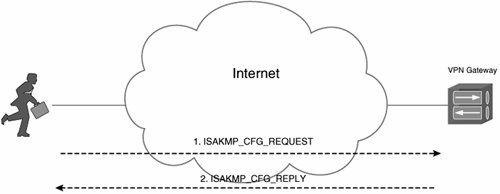
An ISAKMP packet is received from the remote access VPN client (line 1). This is an ISAKMP_CFG_REQUEST (see line 2).

Line 3 shows the Cisco IOS VPN gateway sending an ISAKMP_CFG_REPLY, which contains a number of attributes, including an IP address (line 4), a DNS server address (line 5), and a WINS server address (line 6).

IKE phase 2 (quick mode) now completes IKE negotiation (Example 9-8).

Example 9-8. IKE Negotiation Now Completes with IKE Phase 2 (Quick Mode)

*Jul 16 13:09:18.363: ISAKMP (0:134217729): received packet from 172.16.1.1 dport 500


sport 500 Global (R) QM_IDLE (line 1)

*Jul 16 13:09:18.363: ISAKMP: set new node -1293319992 to QM_IDLE
 <output omitted>

*Jul 16 13:09:18.379: ISAKMP:(0:1:SW:1):Checking IPSec proposal 14 (line 2)

*Jul 16 13:09:18.379: ISAKMP: transform 1, ESP_DES
*Jul 16 13:09:18.379: ISAKMP:  attributes in transform:
*Jul 16 13:09:18.379: ISAKMP:   authenticator is HMAC-MD5
*Jul 16 13:09:18.379: ISAKMP:   encaps is 1 (Tunnel)
*Jul 16 13:09:18.379: ISAKMP:   SA life type in seconds
*Jul 16 13:09:18.379: ISAKMP:   SA life duration (VPI) of 0x0 0x20 0xC4 0x9B

*Jul 16 13:09:18.379: ISAKMP:(0:1:SW:1):atts are acceptable. (line 3)

<output omitted>

*Jul 16 13:09:18.635: %CRYPTO-5-SESSION_STATUS: Crypto tunnel is UP.


Peer 172.16.1.1:500 Id: mjlVPN (line 4)


*Jul 16 13:09:18.691: ISAKMP:(0:1:SW:1):Old State = IKE_QM_R_QM2 New State =


IKE_QM_PHASE2_COMPLETE (line 5)


An ISAKMP packet is received from the remote access VPN client in highlighted line 1this packet is the first in the IKE phase 2 (quick mode [QM]) negotiation.

This packet contains a number of IPsec transforms, and these are checked against the IPsec transform configured locally on the Cisco IOS VPN gateway.

Line 2 shows the Cisco IOS VPN gateway checking the fourteenth proposal sent by the remote access VPN client against the locally configured IPsec transform, and line 3 shows that this proposal is acceptable. Note that the first 13 proposals sent by the remote access VPN client (not shown) were not acceptable.

In lines 4 and 5, you can see that IKE phase 2 (quick mode) is complete, and that the IPsec VPN (crypto) tunnel is up (active).

You can verify IKE SAs using the show crypt isakmp sa command (see Example 9-9).

Example 9-9. show crypto isakmp sa Command Output
mjlnet.VPN.GW.01#

show crypto isakmp sa

dst       src       state     conn-id slot

192.168.1.1   172.16.1.1   QM_IDLE       1 0

mjlnet.VPN.GW.01#

The highlighted line in Example 9-9 shows the local and remote IP addresses (VPN tunnel endpoints) as well as the fact that IKE phase 2 (quick mode [QM]) has been negotiated and is now in an idle state.

As shown in Example 9-10, you can use the show crypto ipsec sa command to examine IPsec SAs negotiated between the local Cisco IOS VPN gateway and the remote access VPN client.

Example 9-10. show crypto ipsec sa Command Output
mjlnet.VPN.GW.01#

show crypto ipsec sa

interface: FastEthernet2/0

Crypto map tag: mjlnetMap, local addr. 192.168.1.1 (line 1)

protected vrf:
  local ident (addr/mask/prot/port): (0.0.0.0/0.0.0.0/0/0)
  remote ident (addr/mask/prot/port): (10.2.2.3/255.255.255.255/0/0)
  current_peer: 172.16.1.1:500
   PERMIT, flags=
  #pkts encaps: 0, #pkts encrypt: 0, #pkts digest: 0
  #pkts decaps: 40, #pkts decrypt: 40, #pkts verify: 40
  #pkts compressed: 0, #pkts decompressed: 0
  #pkts not compressed: 0, #pkts compr. failed: 0
  #pkts not decompressed: 0, #pkts decompress failed: 0
  #send errors 0, #recv errors 0

local crypto endpt.: 192.168.1.1, remote crypto endpt.: 172.16.1.1 (line 2)

path mtu 1500, media mtu 1500
   current outbound spi: 88FACC5D

inbound esp sas: (line 3)

spi: 0xA12E6583(2704172419)
    transform: esp-des esp-md5-hmac,
    in use settings ={Tunnel, }
    slot: 0, conn id: 2000, flow_id: 1, crypto map: mjlnetMap
    crypto engine type: Software, engine_id: 1
    sa timing: remaining key lifetime (k/sec): (4558818/3515)
    ike_cookies: 395D08CA 6998BFAF 4F693ECA 7505FBCC
    IV size: 8 bytes
    replay detection support: Y
   inbound ah sas:
   inbound pcp sas:

outbound esp sas: (line 4)

spi: 0x88FACC5D(2298137693)
    transform: esp-des esp-md5-hmac,
    in use settings ={Tunnel, }
    slot: 0, conn id: 2001, flow_id: 2, crypto map: mjlnetMap
    crypto engine type: Software, engine_id: 1
    sa timing: remaining key lifetime (k/sec): (4558833/3513)
    ike_cookies: 395D08CA 6998BFAF 4F693ECA 7505FBCC
    IV size: 8 bytes
    replay detection support: Y
   outbound ah sas:
   outbound pcp sas:
mjlnet.VPN.GW.01#

Highlighted line 1 shows that crypto map mjlnetMap is applied to interface FastEthernet 2/0.

In highlighted lines 2, you can see the local and remote VPN tunnel endpoints.

Then, below highlighted lines 3 and 4, you can see details of inbound and outbound (ESP) SAs negotiated with a remote access VPN client.

Note

For in-depth information about verifying and troubleshooting IPsec VPNs, see the book Troubleshooting Virtual Private Networks (Cisco Press).


Verifying IPsec Remote Access VPNs on the Cisco ASA

You can use a number of commands to verify IPsec remote access VPNs on the Cisco ASA 5500two of the most useful are show isakmp sa and show ipsec sa .

Example 9-11 shows the output of the show isakmp sa command.

Example 9-11. show isakmp sa Command Output
mjlnet.VPN.GW.10#

show isakmp sa

Active SA: 1
  Rekey SA: 0 (A tunnel will report 1 Active and 1 Rekey SA during rekey)

Total IKE SA: 1 (line 1)


1 IKE Peer: 192.168.1.147 (line 2)


Type   : user     Role : responder (line 3)


Rekey   : no      State : MM_ACTIVE (line 4)

mjlnet.VPN.GW.10#

Line 1 shows the total number of IKE (ISKAMP) SAs, which in this case is 1.

Lines 2 to 4 show information relating to the IKE SA. In particular, highlighted line 2 shows that the IKE peer (remote access VPN client) is 192.168.1.147, highlighted line 3 shows that the IKE role of the Cisco ASA 5500 in this case is responder (rather than initiator), and highlighted line 4 shows that the current state is MM_ACTIVE (IKE main mode has been negotiated).

Example 9-12 shows the output of the show ipsec sa command.

Example 9-12. show ipsec sa Command Output
mjlnet.VPN.GW.10#

show ipsec sa


interface: Outside0/1 (line 1)


Crypto map tag: mjlnet-dynamic, local addr: 192.168.1.149 (line 2)

local ident (addr/mask/prot/port): (0.0.0.0/0.0.0.0/0/0)
    remote ident (addr/mask/prot/port):
(10.10.10.160/255.255.255.255/0/0)

current_peer: 192.168.1.147 (line 3)


dynamic allocated peer ip: 10.10.10.160 (line 4)

#pkts encaps: 2081, #pkts encrypt: 2081, #pkts digest: 2081
    #pkts decaps: 1479, #pkts decrypt: 1479, #pkts verify: 1479
    #pkts compressed: 0, #pkts decompressed: 0
    #pkts not compressed: 2081, #pkts comp failed: 0, #pkts decomp
failed: 0
    #send errors: 0, #recv errors: 0

    local crypto endpt.: 192.168.1.149, remote crypto endpt.:
192.168.1.147
    path mtu 1500, ipsec overhead 60, media mtu 1500
    current outbound spi: A55CF4D3

inbound esp sas: (line 5)

spi: 0xEF2D9E27 (4012744231)
      transform: esp-3des esp-sha-hmac
      in use settings ={RA, Tunnel, }
      slot: 0, conn_id: 1, crypto-map: mjlnet-dynamic
      sa timing: remaining key lifetime (sec): 28496
      IV size: 8 bytes
      replay detection support: Y

outbound esp sas: (line 6)

spi: 0xA55CF4D3 (2774332627)
      transform: esp-3des esp-sha-hmac
      in use settings ={RA, Tunnel, }
      slot: 0, conn_id: 1, crypto-map: mjlnet-dynamic
      sa timing: remaining key lifetime (sec): 28496
      IV size: 8 bytes
      replay detection support: Y

mjlnet.VPN.GW.10#

Highlighted lines 1 and 2 show that a (dynamic) crypto map is applied to interface Outside0/1 and that the local address is 192.168.1.149.

In highlighted lines 3 and 4, you can see that the remote access VPN client's address is 192.168.1.147 and that it has been assigned the IP address 10.10.10.160 from the IP address pool (this is applied to the virtual adapter [VPN tunnel interface]).

You can also see details regarding inbound and outbound ESP SAs below lines 5 and 6.

Other useful commands include the following:

  • show crypto accelerator statistics This command displays information from the hardware crypto accelerator.

  • show isakmp stats This command displays IKE (ISAKMP) statistics including the number of active tunnels, packet statistics, and IKE phase 2 exchanges.

  • show ipsec stats This command displays IPsec statistics including the number active tunnels, the number of previous tunnels, packet/byte statistics, and statistics relating to authentication and encryption.

  • show crypto ca certificates This command displays certificates stored on the Cisco ASA 5500.

  • show crypto ca crls This command displays CRLs that have been cached by the Cisco ASA 5500.

  • show crypto key mypubkey This command displays key pairs.

  • debug crypto isakmp [ level ] This shows information relating to IKE (ISAKMP) negotiation. The level parameter can be a value from 1 to 255 (the default is 1), and it controls the amount of information displayeda value of 127 displays a similar level of detail to that displayed by the debug crypto isakmp command on a Cisco IOS router.

  • debug crypto ipsec [ level ] This shows debug information relating to IPsec in general. The level parameter again controls the level of detail displayed.

Verifying IPsec Remote Access VPNs on Cisco VPN Clients

There are two main ways to verify a IPsec remote access VPN on a Cisco VPN Client:

  • You can view VPN connection statistics.

  • You can examine the log files.

You can view VPN connection statistics by going to the Status menu and choosing Statistics . You will then be presented with VPN connection information, as shown in Figure 9-38.

Figure 9-38. Examining VPN Connection Statistics


In Figure 9-38, the VPN connection statistics shown include the VPN client address (applied to the virtual adapter/VPN tunnel interface [supplied by the VPN gateway]), server address, entry name, connection duration, bytes sent and received, algorithms used for encryption and authentication, packets encrypted and decrypted, as well as the status of other transport options such as compression.

If you need more detailed information, you can enable logging by going to the Log menu and choosing Enable . You can then select the types and amount of logging information by choosing Log Settings from the Log menu.

Logging can be viewed by clicking the Log tab or navigating to <system_root>\Program Files\Cisco Systems\VPN Client\Logs and opening the text file that relates to a particular VPN connection attempt (the files are time and date stamped).

The (considerably edited/ shortened ) log file shown in Example 9-13 was produced by specifying a high level (3) of IKE logging in Log Settings.

Example 9-13. Sample Cisco VPN Client Log
Cisco Systems VPN Client Version 4.6.03.0021
Copyright © 1998-2005 Cisco Systems, Inc. All Rights Reserved.
Client Type(s): Windows, WinNT
Running on: 5.1.2600 Service Pack 2
Config file directory: C:\Program Files\Cisco Systems\VPN Client\
1    23:30:43.986 07/04/05 Sev=Info/6 IKE/0x6300003B
Attempting to establish a connection with 192.168.1.1.
2    23:30:45.699 07/04/05 Sev=Info/4 IKE/0x63000013

SENDING >>> ISAKMP OAK MM (SA, VID(Xauth), VID(dpd), VID(Nat-T), VID(Frag),


VID(Unity)) to 192.168.1.1 (line 1)

3    23:30:45.869 07/04/05 Sev=Info/5 IKE/0x6300002F
Received ISAKMP packet: peer = 192.168.1.1
4    23:30:45.869 07/04/05 Sev=Info/4 IKE/0x63000014

RECEIVING <<< ISAKMP OAK MM (SA, VID(Frag)) from 192.168.1.1 (line 2)

<output omitted>
44   23:30:57.225 07/04/05 Sev=Info/5 IKE/0x63000010

MODE_CFG_REPLY: Attribute = INTERNAL_IPV4_ADDRESS: , value = 10.30.20.1 (line 3)

45   23:30:57.235 07/04/05 Sev=Info/5 IKE/0x63000010

MODE_CFG_REPLY: Attribute = INTERNAL_IPV4_NETMASK: , value = 255.255.255.0 (line 4)

46   23:30:57.235 07/04/05 Sev=Info/5 IKE/0x63000010

MODE_CFG_REPLY: Attribute = INTERNAL_IPV4_DNS(1): , value = 10.10.10.160 (line 5)

47   23:30:57.235 07/04/05 Sev=Info/5 IKE/0x63000010

MODE_CFG_REPLY: Attribute = INTERNAL_IPV4_DNS(2): , value = 10.10.10.161 (line 6)

<output omitted>

55   23:30:57.326 07/04/05 Sev=Info/4 IKE/0x63000013

SENDING >>> ISAKMP OAK QM *(HASH, SA, NON, ID, ID) to 192.168.1.1 (line 7)

56   23:30:57.356 07/04/05 Sev=Info/5 IKE/0x6300002F
Received ISAKMP packet: peer = 192.168.1.1
57   23:30:57.356 07/04/05 Sev=Info/4 IKE/0x63000014

RECEIVING <<< ISAKMP OAK INFO *(HASH, NOTIFY:STATUS_RESP_LIFETIME) from 192.168.1.1


(line 8)

58   23:30:57.366 07/04/05 Sev=Info/5 IKE/0x63000045
RESPONDER-LIFETIME notify has value of 86400 seconds
59   23:30:57.376 07/04/05 Sev=Info/5 IKE/0x63000047
This SA has already been alive for 12 seconds, setting expiry to 86388 seconds from now
<output omitted>

Lines 1 and 2 show the exchange of the first two messages in IKEv1 phase 1 (main mode [MM]) negotiation. Main mode is made up of the exchange of six messages.

In lines 3 to 6, a number of ISAKMP Configuration Method (Mode Config [MODE CFG]) attributes are supplied by the VPN gateway to the Cisco VPN Client. The attributes shown include IPv4 address (to be applied to the virtual adapter/VPN tunnel interface), IPv4 network mask, and DNS server addresses.

Lines 7 and 8 show an exchange of messages during IKEv1 phase 2 (quick mode [QM]) negotiation. Quick mode consists of the exchange of 3 messages.

After quick mode has completed successfully, the VPN connection is active.

Configuring NAT Transparency for IPsec Remote Access VPNs

When there is a Network Address Translation / Port Address Translation (NAT/PAT) device between the Cisco VPN Client and the VPN gateway, there may be problems establishing IPsec remote access VPN connections (see Figure 9-39). Cisco VPN 3000 concentrators, IOS VPN gateways, Cisco ASA 5500s, and Cisco VPN Clients support a variety of methods of overcoming this issue.

Figure 9-39. NAT/PAT Devices May Prevent IPsec Remote Access VPN Connections from Being Established


Note

For more detailed information on issues with IPsec when there is a NAT/PAT device between IPsec peers, see the section "Deploying IPsec VPNs with NAT/PAT" in Chapter 6.


The sections that follow describe how you can overcome issues with NAT/PAT if your VPN gateway is a Cisco VPN 3000 concentrator, if your VPN gateway is a Cisco IOS router, or if your VPN gateway is a Cisco ASA 5500.

Overcoming Issues with NAT/PAT When Using Cisco VPN 3000 Concentrators

Cisco VPN concentrators provide a number of methods of overcoming issues with NAT/PAT. These methods each provide NAT transparency and can be summarized as follows:

  • Configure NAT transparency for IPsec using TCP on an administrator-defined port (default 10000).

    It is worth noting that IPsec over TCP can, in certain circumstances, cause performance issues. So, this is not generally considered the preferred method of implementing NAT transparency.

  • Configure NAT transparency for IPsec using UDP on an administrator-defined port (default 10000).

  • Configure NAT transparency using IETF standard NAT Traversal (NAT-T). NAT-T uses UDP port 4500.

All three methods overcome issues with NAT/PAT devices by encapsulating IPsec packets in either TCP or UDP (NAT/PAT devices can typically much more easily handle TCP or UDP than ESP [AH does not work with NAT/PAT at all]).

The first two methods are not industry standards and will only work with Cisco VPN Clients. The third method is an IETF standard and so will work with both Cisco VPN Clients, and other VPN clients.

To configure NAT transparency, you need to go to Configuration > Tunneling and Security > IPSec > NAT Transparency (see Figure 9-40).

Figure 9-40. Configuring NAT Transparency on Cisco VPN 3000 Concentrators


As you can see from looking at Figure 9-40, configuration is fairly straightforward:

  • If you want to use NAT transparency for IPsec using TCP (IPsec over TCP), check the IPSec over TCP box (Figure 9-40), optionally modify the TCP port (the default is 10000), and click Apply .

  • If you want to use NAT transparency for IPsec using UDP on an administrator-defined port, you must go to Configuration > User Management > Groups , select the appropriate group, click Modify , select the IPSec tab, check IPSec through NAT , and optionally specify a UDP port (the default is 10000). After you have done that, click Apply .

  • If you want to use NAT transparency for IPsec using IETF standard NAT-T, check the IPSec over NAT-T box (Figure 9-40), and then click Apply .

Overcoming Issues with NAT/PAT When Using Cisco IOS VPN Gateways

Cisco IOS routers configured as VPN gateways support only one method of overcoming issues NAT/PATNAT-T.

NAT-T was introduced in Cisco IOS Release 12.2(13)T and it is enabled by default. So, no configuration is necessary as long as the VPN gateway is running Cisco IOS Software Release 12.2(13)T or later.

Overcoming Issues with NAT/PAT When Using the Cisco ASA 5500

The Cisco ASA 5500 supports all three methods of providing NAT transparency:

  • To use IPsec over TCP, you can configure the isakmp ipsec-over-tcp [port port1... port10 ] global configuration mode command. This command can be used to specify up to 10 ports on which the Cisco ASA will accept IPsec over TCP connections, with the default port being 10000.

  • IPsec over UDP can be configured using the ipsec-udp enable group policy configuration mode command. You can specify a particular port using the ipsec-udp-port port group policy configuration mode command (the default is 10000).

  • You can configure the isakmp nat-traversal natkeepalive global configuration mode command to enable IETF NAT-T. The natkeepalive parameter can be used to specify the interval at which keepalives are sent (the default is every 20 seconds).

Configuring NAT/PAT Transparency on Cisco VPN Clients

Configuration of Cisco VPN Clients to support NAT/PAT transparency is simple. All that you need to do is click the Transport tab, check Enable Transparent Tunneling , and then select the appropriate method of NAT/PAT transparency (either IPsec over UDP or IPsec over TCP)see Figure 9-41.

Figure 9-41. Configuring Cisco VPN Clients to Support NAT/PAT Transparency


IPsec Remote Access/Telecommuter VPNs Using Easy VPN (EZVPN)

Up to this point, this chapter has focused on remote access VPNs where the client software is running on a PC or other workstation. But, there is often more than one device at telecommuters' sites that need to communicate over the VPN (PCs, IP phones, and so on). In this case, it may be more convenient or make more sense to deploy IPsec remote access VPN between routers (hardware clients) at these telecommuter sites and the central site VPN gateway(s) (see Figure 9-42).

Figure 9-42. Deploying an IPsec Remote Access VPN Between a Telecommuter Router (Hardware Client) and Central Site VPN Gateway(s)


There are a number of ways to deploy the telecommuter solutions shown in Figure 9-42you can deploy a standard point-to-point IPsec VPN solution; you can deploy a DMVPN solution; or you can deploy a point-to-point IPsec VPN solution using the EZVPN feature.

All of these solutions work well, but the EZVPN solution is especially applicable for this particular type of deployment scenario, and so this section focuses on this feature. One reason that the EZVPN solution is applicable is because it is based on the Cisco VPN Client software and is, as the name suggests, similarly easy to configure.

Note

For more information on standard point-to-point IPsec VPNs and DMVPN, see Chapters 6, "Deploying Site-to-Site IPsec VPNs," and 7, "Scaling and Optimizing IPsec VPNs."


There are two parts to the configuration of EZVPNthe client and the server. The client is the located at remote access VPN client/telecommuter site, and the server is the VPN gateway at the central site.

An EZVPN server can, for example, be a Cisco VPN concentrator, a Cisco IOS VPN gateway (router), or a Cisco ASA 5500. In fact, because the EZVPN client just mimics the operation of the Cisco VPN Client, you can use the configuration for the Cisco VPN concentrator and Cisco IOS VPN gateway described in the sections "Cisco VPN 3000 Concentrator as an IPsec Remote Access VPN Gateway Using Preshared Key Authentication," "Cisco IOS Router as an IPsec Remote Access VPN Gateway with IKE Preshared Key Authentication," and "Cisco ASA as an IPsec Remote Access VPN Gateway with IKE Preshared Key Authentication," respectively.

Example 9-14 shows a sample configuration of a Cisco IOS EZVPN client.

Example 9-14. Sample Configuration of a Cisco IOS EZVPN Client
!

hostname mjlnet.EZVPN.Client

!


crypto ipsec client ezvpn mjlnet.VPN (line 1)


connect auto (line 2)


group Engineering key mjlnet2006 (line 3)


mode network-extension (line 4)


peer 192.168.1.1 (line 5)


!

interface FastEthernet0


ip address 10.10.20.1 255.255.255.0


ip nat inside (line 6)


crypto ipsec client ezvpn mjlnet.VPN inside (line 7)


!

interface Serial1


ip address 172.16.1.1 255.255.255.0


ip nat outside (line 8)


crypto ipsec client ezvpn mjlnet.VPN outside (line 9)


!


ip nat inside source list 150 interface Serial1 overload (line 10)


ip classless


ip route 0.0.0.0 0.0.0.0 172.16.1.2

!


access-list 150 deny ip 10.10.20.0 0.0.255.255 10.10.10.0 0.0.255.255 (line 11)


access-list 150 permit ip 10.10.20.0 0.0.0.255 any (line 12)


!

Highlighted lines 1 to 5 are used to configure EZVPN client connection parameters.

The crypto ipsec client ezvpn name command (line 1) is used to enter Cisco Easy VPN remote configuration mode and create the VPN connection specified using the name parameter.

In line 2, the connect {auto manual} command is used to configure the router to auto-initiate a VPN connection with the VPN gateway. The manual parameter causes the router to wait for manual intervention (the administrator typing the crypto ipsec client ezvpn connect name command at the privileged exec command prompt).

Next, the group group-name key group-password command (line 3) is used to configure the group name and password (the preshared key). These must be identical to the group name and password (preshared key) configured on your Cisco VPN concentrator, Cisco IOS VPN gateway, or Cisco ASA 5500.

The mode {client network-extension} command (line 4) in this example configures the router inside interface as an extension of the central site network. That is, no NAT/PAT is performed on traffic that transits the VPN connection between the local router and the VPN gateway. The client parameter, on the other hand, ensures that all traffic transiting the VPN connection from the local inside interface to the VPN gateway is NAT'ed or PAT'ed. The choice or client or network-extension mode will often hinge on whether enterprise network address space is available for telecommuters, and/or whether telecommuter applications function well with NAT/PAT.

In line 5, the peer {ip-address hostname} command is used to configure either the IP address or DNS name of the central site VPN gateway.

The ip nat inside command (line 6) is now used to specify the inside NAT interface, and the crypto ipsec client ezvpn name inside command (line 7) specifies the EZVPN inside interface (the local LAN interface, FastEthernet 0). The name parameter configured in the crypto ipsec client ezvpn name inside command corresponds to that specified using the crypto ipsec client ezvpn name command (line 1).

Lines 8 and 9 contain the ip nat outside and crypto ipsec client ezvpn name outside commands. It will probably be no surprise to learn that these commands configure the NAT outside interface and EZVPN outside interface respectively (interface serial 1). The name parameter in the crypto ipsec client ezvpn name outside command must again correspond to the name parameter specified using the crypto ipsec client ezvpn name command (line 1).

The ip nat inside source list acl interface interface overload command (line 10) is then used to link to an access list (150) that specifies the IP traffic that is PAT'ed/not PAT'ed (PAT is configured by the overload keyword) as well as the address to use for PAT (in this case, the IP address on interface serial 1).

In lines 11 and 12, you can see the access list specified in the ip nat inside source list acl interface interface overload command (150). The access list line shown in highlighted line 11 is used to specify that traffic that will not be PAT'ed (traffic going to/from the local LAN and central site LAN). And the access list line shown in line 12 specifies the traffic that will be PAT'ed (any other traffic from the local LAN).

That's itpretty simple, isn't it?

One thing you may have noticed about the configuration shown in Example 9-14, however, is that at no point are IPsec or IKE parameters and algorithms specified. The reason for this is that, like the Cisco VPN Client, the EZVPN client does not require (or allow) the direct configuration of these parameters.

One other thing you might have noticed is that the configuration does not include the ISAKMP Xauth username or password. In fact, these can be entered at the command line during IKE negotiation with the VPN gateway.

During IKE negotiation with the VPN gateway, the EZVPN client (router) will display the following message:

EZVPN(mjlnet.VPN): Pending XAuth Request, Please enter the following command:
EZVPN: crypto ipsec client ezvpn xauth


At this point, you should enter the specified command ( crypto ipsec client ezvpn xauth at the privileged exec prompt), and you will be prompted for your username and password, as follows:

Enter Username and Password.:

mark

Password: :

mjlnet2006


Enter the appropriate username and password, and, assuming IKE negotiation completes successfully, the VPN connection will be completed with the VPN gateway.

You can verify IPsec remote access VPNs on an EZVPN client by using the usual IPsec verification commands ( show crypto isakmp sa , and so on) as well as by using the following:

  • show crypto ipsec ezvpn client This command output displays EZVPN client configuration.

  • debug crypto ipsec ezvpn client This command output displays EZVPN configuration and implementation information.

Integrating IPsec with MPLS VPNs

Some service providers might want to provide remote connectivity to MPLS VPNs using IPsec. Two common remote connectivity configurations using IPsec are as follows:

  • IPsec remote access VPN connectivity into MPLS VPNs

  • IPsec site-to-site VPN connectivity into an MPLS VPN

Figure 9-43 illustrates these types of connectivity.

Figure 9-43. IPsec Remote Access and Site-to-Site VPN Connectivity into MPLS VPNs


As shown in Figure 9-43, a remote access VPN users (a "road warrior ") connects to an MPLS VPN over the Internet via a Provider Edge (PE) router. Similarly, an IPsec VPN gateway connects to an MPLS VPN over the Internet via PE router.

The integration of IPsec remote access and site-to-site connectivity to MPLS VPNs is discussed in the following two sections.

Providing IPsec Remote Access Connectivity to MPLS VPNs

Service providers can deploy IPsec remote access connectivity to MPLS VPNs. This allows road warriors and telecommuters to connect into their respective organizations' VPN across the Internet.

Figure 9-44 shows IPsec remote access VPN connectivity into MPLS VPNs.

Figure 9-44. IPsec Remote Access VPN Connectivity into MPLS VPNs


Example 9-15 shows the PE router configuration of IPsec remote access connectivity to MPLS VPNs. As you examine this configuration, you may want to compare it to a standard IPsec remote access VPN configuration for a Cisco IOS router. Many of the commands shown in Example 9-15 are identical to those in Example 9-1, and so they will not be explained again here.

Note that only the relevant configuration is shown in Example 9-15. For other MPLS PE router configuration, see Chapters 4, "Designing MPLS Layer 3 Site-to-Site VPNs," and 5, "Advanced MPLS L3VPN Deployment Considerations."

Example 9-15. Configuration of IPsec Remote Access Connectivity to MPLS VPNs
!

hostname London.PE

!


username mark password 0 mjlnet2006 (line 1)


username john password 0 mjlnet2007 (line 2)


!


aaa new-model (line 3)


!


aaa authentication login authen.mjlnet.remote local (line 4)


aaa authorization network authorize.mjlnet.remote local (line 5)


!


ip vrf mjlnet.VPN (line 6)


rd 64512:100 (line 7)


route-target export 64512:100 (line 8)


route-target import 64512:100 (line 9)


!

ip cef

!


crypto isakmp policy 10 (line 10)


encr aes 256 (line 11)


authentication pre-share (line 12)


group 2 (line 13)


!


crypto isakmp client configuration group mjlnet.eng (line 14)


key mjlnet2006 (line 15)


dns 10.10.10.161 (line 16)


wins 10.10.10.171 (line 17)


pool mjlnet.pool (line 18)


!


crypto isakmp profile mjlnet.remote.prof (line 19)


vrf mjlnet.VPN (line 20)


match identity group mjlnet.eng (line 21)


client authentication list authen.mjlnet.remote (line 22)


isakmp authorization list authorize.mjlnet.remote (line 23)


client configuration address initiate (line 24)


client configuration address respond (line 25)


!


crypto ipsec transform-set mjlnet.VPN.trans esp-aes 256 esp-sha-hmac (line 26)


!


crypto dynamic-map mjlnet.map 10 (line 27)


set transform-set mjlnet.VPN.trans (line 28)


set isakmp-profile mjlnet.remote.prof (line 29)


reverse-route (line 30)


!


crypto map all.remote 10 ipsec-isakmp dynamic mjlnet.map (line 31)


!

interface FastEthernet0/0


ip address 172.31.1.1 255.255.0.0


tag-switching ip (line 32)


!

interface FastEthernet2/0


ip address 192.168.1.1 255.255.255.0


crypto map all.remote (line 33)


!


ip local pool mjlnet.pool 10.30.20.1 10.30.20.100 group mjlnet.VPN (line 34)


!

A local username/password database is configured in highlighted lines 1 and 2. This database is used for Xauth authentication of remote access VPN users.

Lines 3 to 5 contain the configuration of AAA. This configuration includes method lists for user login authentication (Xauth) and local authorization for network connections.

Local authentication is not a scalable solution, and so in order to specify a AAA server for user authentication and network connection authorization, configure the appropriate keyword (for example, radius ) rather than the local keyword in the aaa authentication and aaa authorization commands.

Lines 6 to 9 include the configuration of an (inside) VRF to which remote access VPN users will connect. For more information on the configuration of VRFs, see the section "Deploying MPLS Layer 3 VPNs" in Chapter 4.

Lines 10 to 13 include the configuration of an IKE (ISAKMP) policy. For more information on these commands, see Chapter 6.

ISAKMP group parameters are configured in lines 14 to 18. The group name specified using the crypto isakmp client configuration group name command must be the same as that configured in the Name box in the Authentication tab of a connection entry on the Cisco VPN Client.

These ISAKMP parameters include configuration of a group preshared key (password), DNS server address, WINS server address, and link to an IP address pool (from which IP addresses are assigned to remote access VPN clients). The group preshared key must be the same as that configured in the Password box in the Authentication tab of a connection entry on the Cisco VPN Client and is used to authenticate the remote access VPN client machines during IKE phase 1. The other parameters are pushed to the remote access VPN clients using the ISAKMP Configuration Method (Mode Config) after IKE phase 1 has been completed.

Lines 19 to 25 show the configuration of an ISAKMP profile. The ISAKMP profile is used to group ISAKMP (IKE phase 1, Xauth, and ISAKMP Configuration Method) configuration that corresponds to a particular IVRF.

The crypto isakmp profile profile-name command (line 19) is used to specify the profile name and enter ISAKMP profile configuration mode.

The vrf vrf-name command in line 20 is used to link to a particular IVRF.

In line 21, the match identity { group group-name address address [ mask ] [ fvrf ] host host-name host domain domain-name user user-fqdn user domain domain-name } command is used to specify the IKE identity that is passed to the remote access VPN clients during IKE phase 1. The identity specified in this example is the group name specified under the Authentication tab of a VPN connection entry on a Cisco VPN Client, and it links to the ISAKMP group parameters configured from lines 14 to 18.

The commands in lines 22 to 25 may be familiar from the configuration shown in Example 9-1 earlier in this chapter. The only difference is the command syntaxin Example 9-1, these commands are prefixed by the crypto map map-name syntax (for example, client authentication list method-list-name becomes crypto map map-name client authentication list method-list-name in Example 9-1).

The client authentication list method-list-name command in line 22 configures Xauth using the method list specified using the aaa authentication login method-list-name command in line 4.

The isakmp authorization list method-list-name command (line 23) specifies authorization for ISAKMP and links to the method list defined in the aaa authorization network method-list-name command in line 5.

In lines 24 and 25, the client configuration address { initiate respond } commands configure the PE router to initiate IP address assignment with the remote access VPN clients and to accept IP address requests from remote access VPN clients.

Note

Note that the initiate keyword causes the PE router to use Set and Acknowledge ISAKMP Configuration Method messages to assign IP addresses, and the respond keyword causes the PE router to use Request and Reply ISAKMP Configuration Method messages to assign IP addresses. If you are not sure which to use with the particular type and version of remote access VPN clients that you use, just specify both, as shown in Example 9-15.


Line 26 contains the, by now familiar, crypto ipsec transform-set command. This is used to configure encryption, authentication, and compression algorithms and parameters negotiated during IKE phase 2.

Lines 27 to 30 show the configuration of a dynamic crypto map. This dynamic crypto map allows the VPN gateway to negotiate IPsec SAs with remote access VPN clients when not all the parameters about an IPsec peer are known (for example, often the IP addresses of remote access VPN clients are not known).

Line 28 contains the set transform-set transform-set-name1 [ transform-set-name2 ...... transform-set-name6 ] command. This command specifies the IPsec transform set created in line 25.

The set isakmp-profile profile-name command in line 29 links to the crypto profile created in lines 19 to 25.

In line 30, the reverse-route command configures the PE router to inject routes corresponding to IPsec SAs negotiated with remote access VPN clients.

The crypto map map-name seq-number ipsec-isakmp dynamic dynamic-map-name command in line 31 configures a crypto profile creates dynamic crypto maps as remote access VPN clients connect. This crypto profile links to the dynamic crypto map created in lines 26 to 29.

Line 32 shows the configuration of the tag-switching ip (mpls ip) command on an inside (MPLS backbone) interface.

In line 33, the crypto map map-name command is used to apply the crypto map created in line 31 to the outside interface (the interface that connects to the Internet and remote access VPN clients).

An IP address pool from which addresses are assigned via ISAKMP Configuration Method to remote access VPN clients is configured in line 34. This address pool is referenced by the pool command in line 18. The group name parameter configured using the IP local pool allows multiple IP address pools to overlap if necessary (IP address overlap between VPNs often occurs in an MPLS VPN architecture).

All the usual commands can be used to verify IPsec remote access VPN connectivity to MPLS VPNs. Example 9-16 shows the output of the show crypto isakmp sa detail command.

Example 9-16. show crypto isakmp sa detail Command Output
London.PE#

show crypto isakmp sa detail

Codes: C - IKE configuration mode, D - Dead Peer Detection
    K - Keepalives, N - NAT-traversal
    X - IKE Extended Authentication
    psk - Preshared key, rsig - RSA signature
    renc - RSA encryption
C-id Local      Remote     I-VRF  Encr Hash Auth DH Lifetime Cap.

1   192.168.1.1   172.16.1.1   mjlnet.V aes sha    2 23:58:30 CX

Connection-id:Engine-id = 1:1(software)
London.PE#

The highlighted line shows the local and remote IP addresses. The IVRF is also shown, along with the encryption, hash, Diffie-Hellman group, lifetime, and capabilities. The capabilities column shows that the local PE router and the remote access VPN client in question have negotiated ISAKMP Configuration Method (IKE Config Mode) and Xauth.

The show crypto ipsec sa command (Example 9-17) displays details of IPsec SAs negotiated with remote access VPN clients.

Example 9-17. show crypto ipsec sa Command Output
London.PE#

show crypto ipsec sa

interface: FastEthernet2/0

Crypto map tag: all.remote, local addr. 192.168.1.1 (line 1)


protected vrf: mjlnet.VPN (line 2)

local ident (addr/mask/prot/port): (0.0.0.0/0.0.0.0/0/0)
  remote ident (addr/mask/prot/port): (10.30.20.1/255.255.255.255/0/0)
  current_peer: 172.16.1.1:500
   PERMIT, flags=
  #pkts encaps: 0, #pkts encrypt: 0, #pkts digest: 0
  #pkts decaps: 0, #pkts decrypt: 0, #pkts verify: 0
  #pkts compressed: 0, #pkts decompressed: 0
  #pkts not compressed: 0, #pkts compr. failed: 0
  #pkts not decompressed: 0, #pkts decompress failed: 0
  #send errors 0, #recv errors 0

local crypto endpt.: 192.168.1.1, remote crypto endpt.: 172.16.1.1 (line 3)

path mtu 1500, media mtu 1500
   current outbound spi: 60010B9

inbound esp sas: (line 4)

spi: 0xE9A560B(244995595)
   transform: esp-256-aes esp-sha-hmac ,
   in use settings ={Tunnel, }
   slot: 0, conn id: 2000, flow_id: 1, crypto map: all.remote
   crypto engine type: Software, engine_id: 1
   sa timing: remaining key lifetime (k/sec): (4588787/3503)
   ike_cookies: 4A06F6D3 938DF69C BC6EA848 70932562
   IV size: 16 bytes
   replay detection support: Y
  inbound ah sas:
  inbound pcp sas:

outbound esp sas: (line 5)

spi: 0x60010B9(100667577)
   transform: esp-256-aes esp-sha-hmac ,
   in use settings ={Tunnel, }
   slot: 0, conn id: 2001, flow_id: 2, crypto map: all.remote
   crypto engine type: Software, engine_id: 1
   sa timing: remaining key lifetime (k/sec): (4588787/3502)
   ike_cookies: 4A06F6D3 938DF69C BC6EA848 70932562
   IV size: 16 bytes
   replay detection support: Y
  outbound ah sas:
  outbound pcp sas:
London.PE#

Highlighted lines 1, 2, and 3 show the crypto map name, IVRF (protected VRF) name, and local and remote IPsec tunnel endpoints.

The output below lines 4 and 5 shows the details of inbound and outbound IPsec SAs negotiated with a remote access VPN client, including encryption and authentication algorithms.

You can use the show ip local pool command to examine the IP address pool from which IP addresses assigned to remote access VPN clients (see Example 9-18). These IP addresses are assigned during ISAKMP Configuration Method negotiation.

Example 9-18. show ip local pool Command Output
London.PE#

show ip local pool

Pool           Begin       End          Free In use

** pool <mjlnet.pool> is in group <mjlnet.VPN> (line 1)


mjlnet.pool       10.30.20.1   10.30.20.100   99    1 (line 2)

London.PE#

Highlighted lines 1 and 2 show the IP address pool name, associated group, pool start and end addresses, and allocation statistics. In this case, one IP address has been assigned to a remote access VPN client, and 99 addresses in the pool are free.

You can use the ipconfig /all command to examine IP parameters pushed to the remote access VPN client during ISAKMP Configuration Method negotiation (see Figure 9-45).

Figure 9-45. IP Parameters Assigned to the Remote Access VPN Client ( ipconfig /all Command Output)


The output of the ipconfig /all command in the command window in Figure 9-45 shows that IP address 10.30.20.1 has been assigned to the remote access VPN client's virtual adapter (VPN tunnel interface). DNS and WINS server IP addresses have also been pushed to the remote access VPN client.

Integrating IPsec Site-to-Site VPNs with MPLS VPNs

It is also possible to implement IPsec site-to-site VPN connectivity into MPLS VPNs. This allows service providers to extend site-to-site customer VPNs across the Internet.

Figure 9-46 depicts the extension of customer site-to-site VPNs across the Internet.

Figure 9-46. Extension of Customer Site-to-Site VPNs Across the Internet


Example 9-19 shows the configuration of site-to-site IPsec connectivity into MPLS VPNs.

Example 9-19. Configuration of Site-to-Site IPsec Connectivity into MPLS VPNs
!

hostname London.PE

!
!

ip vrf mjlnet.VPN


rd 64512:100


route-target export 64512:100


route-target import 64512:100

!

ip cef

!


crypto keyring mjlnet.key (line 1)


pre-shared-key address 172.16.1.1 key mjlnet2007 (line 2)


!

crypto isakmp policy 10


encr aes 256


authentication pre-share


group 2

!


crypto isakmp profile mjlnet.prof (line 3)


vrf mjlnet.VPN (line 4)


keyring mjlnet.key (line 5)


match identity address 172.16.1.1 255.255.255.255 (line 6)


!

crypto ipsec transform-set mjlnet.trans esp-aes 256 esp-sha-hmac

!


crypto map mjlnet.map 10 ipsec-isakmp (line 7)


set peer 172.16.1.1 (line 8)


set transform-set mjlnet.trans (line 9)


set isakmp-profile mjlnet.prof (line 10)


match address 150 (line 11)


!
!

interface FastEthernet0/0


ip address 172.31.1.1 255.255.0.0


tag-switching ip

!

interface FastEthernet2/0


ip address 192.168.1.1 255.255.255.0


crypto map mjlnet.map

!
!


ip route vrf mjlnet.VPN 192.168.10.0 255.255.255.0 172.16.1.1 global (line 12)


!


access-list 150 permit ip 192.168.1.0 0.0.0.255 192.168.10.0 0.0.255.255 (line 13)


!

Much of the configuration shown in Example 9-19 is the same as that contained in Example 9-15. The paragraphs that follow cover only the differences in the configurations. See the previous section for explanations of other commands.

Highlighted lines 1 and 2 show the configuration of a crypto keyring. This crypto keyring contains the configuration of a preshared key, which is then referenced from an ISAKMP profile.

The crypto keyring keyring-name command (line 1) is used specify the crypto keyring name and enter crypto keyring configuration mode.

In line 2, the pre-shared-key {address address [ mask ] hostname hostname } key preshared-key command configures a preshared key and associates it with a particular remote IPsec peer's IP address or hostname.

Lines 3 to 6 shows the configuration of a crypto profile. The keyring keyring-name command (line 5) links to the crypto keyring configured in lines 1 and 2. Line 6 shows the configuration of the match identity address ip-address mask is used to specify the identity in the form of an IP address that is used to identify a remote IPsec peer.

Lines 7 through 11 show the configuration of a crypto map entry. The set peer peer-ip-address command in line 8 specifies the IP address of the remote IPsec peer. Then, in highlighted lines 9 and 10, the set transform-set transform-set-name and set isakmp-profile profile - name commands are used to reference the previously configured IPsec transform set (mjlnet.trans) and the ISAKMP profile configured in highlighted lines 3 to 6, respectively.

The match address crypto-acl command (line 11) references a crypto access list that is used to define traffic that is protected (and not protected) by IPsec.

In line 12, the ip route vrf vrf-name ip-address mask next-hop global command is used to configure a static route to the remote network via the remote IPsec peer, with the global keyword specifying that the remote IPsec peer is reachable via the global routing table.

Finally, the access-list command in line 13 is used to configure the crypto access list.

The show crypto isakmp sa detail command can again be used to examine IKE SA information (see Example 9-20).

Example 9-20. Examining IKE SA Information Using the show crypto isakmp sa detail Command
London.PE#

show crypto isakmp sa detail

Codes: C - IKE configuration mode, D - Dead Peer Detection
    K - Keepalives, N - NAT-traversal
    X - IKE Extended Authentication
    psk - Preshared key, rsig - RSA signature
    renc - RSA encryption
C-id Local      Remote     I-VRF  Encr Hash Auth DH Lifetime Cap.

1   192.168.1.1   172.16.1.1   mjlnet.V aes sha psk 2 23:56:43

Connection-id:Engine-id = 1:1(software)
London.PE#

The highlighted line shows information including the local and remote IPsec peer IP addresses, the IVRF name, the encryption and hashing algorithms, the method of authentication, and the lifetime.

If you compare the information shown in Example 9-20 with that shown in Example 9-16 on page 874, you can see that neither ISAKMP Configuration Method nor Xauth was negotiated with the remote IPsec peer. This is not surprising as ISAKMP Configuration Method and Xauth are used to assign configuration parameters and authenticate remote access VPN users but are not used in a site-to-site IPsec deployment.

As shown in Example 9-21, you can use the show crypto ipsec sa command to examine IPsec SA information.

Example 9-21. Examining IPsec SA Information
London.PE#

show crypto ipsec sa

interface: FastEthernet2/0

Crypto map tag: mjlnet.map, local addr. 192.168.1.1 (line 1)


protected vrf: mjlnet.VPN (line 2)

local ident (addr/mask/prot/port): (192.168.1.0/255.255.255.0/0/0)
  remote ident (addr/mask/prot/port): (192.168.10.0/255.255.0.0/0/0)
  current_peer: 172.16.1.1:500
   PERMIT, flags={origin_is_acl,}
  #pkts encaps: 0, #pkts encrypt: 0, #pkts digest: 0
  #pkts decaps: 0, #pkts decrypt: 0, #pkts verify: 0
  #pkts compressed: 0, #pkts decompressed: 0
  #pkts not compressed: 0, #pkts compr. failed: 0
  #pkts not decompressed: 0, #pkts decompress failed: 0
  #send errors 0, #recv errors 0

local crypto endpt.: 192.168.1.1, remote crypto endpt.: 172.16.1.1 (line 3)

path mtu 1500, media mtu 1500
   current outbound spi: 0
   inbound esp sas:
   inbound ah sas:
   inbound pcp sas:
   outbound esp sas:
   outbound ah sas:
   outbound pcp sas:
  protected vrf: mjlnet.VPN
  local ident (addr/mask/prot/port): (192.168.1.0/255.255.255.0/0/0)
  remote ident (addr/mask/prot/port): (192.168.10.0/255.255.255.0/0/0)
  current_peer: 172.16.1.1:500
   PERMIT, flags=
  #pkts encaps: 4, #pkts encrypt: 4, #pkts digest: 4
  #pkts decaps: 4, #pkts decrypt: 4, #pkts verify: 4
  #pkts compressed: 0, #pkts decompressed: 0
  #pkts not compressed: 0, #pkts compr. failed: 0
  #pkts not decompressed: 0, #pkts decompress failed: 0
  #send errors 0, #recv errors 0
   local crypto endpt.: 192.168.1.1, remote crypto endpt.: 172.16.1.1
   path mtu 1500, media mtu 1500
   current outbound spi: 827BDE49

inbound esp sas: (line 4)

spi: 0x13FFD3E6(335533030)
    transform: esp-256-aes esp-sha-hmac ,
    in use settings ={Tunnel, }
    slot: 0, conn id: 2000, flow_id: 3, crypto map: mjlnet.map
    crypto engine type: Software, engine_id: 1
    sa timing: remaining key lifetime (k/sec): (4487540/3416)
    ike_cookies: B7CE1F4E 31452703 6862E8B8 AE2FFE24
    IV size: 16 bytes
    replay detection support: Y
   inbound ah sas:
   inbound pcp sas:

outbound esp sas: (line 5)

spi: 0x827BDE49(2189155913)
    transform: esp-256-aes esp-sha-hmac ,
    in use settings ={Tunnel, }
    slot: 0, conn id: 2001, flow_id: 4, crypto map: mjlnet.map
    crypto engine type: Software, engine_id: 1
    sa timing: remaining key lifetime (k/sec): (4487541/3415)
    ike_cookies: B7CE1F4E 31452703 6862E8B8 AE2FFE24
    IV size: 16 bytes
    replay detection support: Y
   outbound ah sas:
   outbound pcp sas:
London.PE#

Highlighted lines 1 and 2 show the crypto map name and VRF name, respectively.

Line 3 shows local and remote IPsec peer addresses.

Below lines 4 and 5, you can see detailed information regarding inbound and outbound IPsec SAs negotiated with the remote IPsec peer.

High Availability: Enabling Redundancy for IPsec Remote Access VPNs

One of the most important considerations when designing and deploying IPsec remote access VPNs is high availabilitythat is, ensuring that IPsec remote access VPN users can still access corporate or organizational resources in the event of the failure of one or more VPN gateways or sites.

There are thee basic methods of provisioning high availability for IPsec remote access VPNs:

  • Load balancing of IPsec remote access VPN connections over a number of VPN gateways at the same central site

  • Failover between a number of VPN gateways at the same central site using the Virtual Router Redundancy Protocol (VRRP)

  • The use of backup VPN gateways (servers) at geographically dispersed VPN gateways at a number of sites

These three different approaches to implementing high availability for IPsec remote access VPNs are discussed in the following three sections.

Load Balancing of IPsec Remote Access VPN Connections over a Number of VPN Gateways at the Same Central Site

It is possible to configure load balancing on either Cisco VPN 3000 concentrators or Cisco ASA 5520/5540s (the Cisco ASA 5510 does not support load balancing). The configuration of load balancing on the Cisco VPN 3000 concentrators and Cisco ASA 5500s is discussed in the following two sections.

Load Balancing on Cisco VPN 3000 Concentrators

When implementing load balancing of IPsec remote access VPN connections over a number of VPN gateways at the same central site, VPN connections are load balanced over a number of VPN gateways (called a cluster ) based on the loading on those VPN gatewaysthis mechanism provides an active-active configuration. A single IP address represents the cluster as a whole.

When implementing load balancing, one of the VPN gateways functions as a cluster master and distributes connections among the cluster members based on load information that the secondary members (those VPN gateways that are not the master) report to it via keepalive messages.

Figure 9-47 illustrates load balancing of IPsec remote access VPN connections among VPN gateways in a cluster.

Figure 9-47. Load Balancing of IPsec Remote Access VPN Connections Among VPN Gateways in a Cluster


As shown in Figure 9-47, there is a master and two secondary gateways. IPsec remote access VPN connections are load balanced among the gateways, and load information is reported to the master via keepalive messages. The VPN gateways in the cluster must all share common IP subnets on public and private interfaces.

You might be wondering how VPN connection setup proceeds when using load balancing. During VPN connection setup, the Cisco VPN Client connects to the cluster IP address, the master responds by informing the client of the physical IP address of the least-loaded VPN gateway in the cluster, and finally, the client the connects to this VPN gateway.

Note

The type of load balancing described in this section can only be used if you are using Cisco VPN Client software (or Cisco hardware VPN clients). It will not function with other non-Cisco client software.


To configure load balancing on the Cisco VPN 3000 concentrator, you must do two things on all cluster members:

  • Ensure that cluster members can communicate by reconfiguring VPN gateway public and private filters.

  • Configure load-balancing parameters.

First, go to Configuration > Interfaces , choose (in turn) the Ethernet 1 ( Private ), ensure that the 1. Private (Default) filter is selected in the Filter drop-down box on the General tab, and click Apply .

Next, under Configuration > Interfaces , choose the Ethernet 2 ( Public ) interface, ensure that the 2. Public (Default) filter is selected in the Filter drop-down box on the General tab, and click Apply .

Go to Configuration > Policy Management > Traffic Management > Filters to configure public and private interface filters themselves (see Figure 9-48).

Figure 9-48. Selecting and Configuring Public and Private Interface Filters


Choose Public (Default) , click Assign Rules to Filter , and you will be presented with the page shown in Figure 9-49.

Figure 9-49. Assigning Rules to Public and Private Interface Filters


Choose, in turn, VCA In (forward/in) and VCA Out (forward/out) in the Available Rules, and add them to the Current Rules in Filter by clicking Add . After both VCA In (forward/in) and VCA Out (forward/out) have been added to Current Rules in Filter, click Done .

Note

VCA is the virtual cluster agent, and is used to control load balancing among cluster members.


Now return to the Configuration > Policy Management > Traffic Management > Filters page, choose Private (Default) , click Assign Rules to Filter , and you will see a page almost identical to that in Figure 9-48 (the only difference being that the filter rules apply to the Private interface).

At this point, again select, in turn, VCA In (forward/in) and VCA Out (forward/out) in the Available Rules, add them to the Current Rules in Filter by clicking Add , and then click Done .

After you have configured Public and Private interface filters on all cluster members, cluster members will be able communicate on both public and private interfaces.

You are now ready to configure load balancingto do this, go to Configuration > System > Load Balancing (see Figure 9-50).

Figure 9-50. Configuring Load Balancing


The page shown in Figure 9-50 is divided into two sections:

  • Cluster Configuration This section of the page is used to configure cluster-wide parameters. These parameters must be configured identically on all cluster members.

    - VPN Virtual Cluster IP Address In this box, you must configure the cluster IP address.

    - VPN Virtual Cluster UDP Port This is the UDP port on which cluster members communicate. The default port is 9023it is only really necessary to change this if there is another application using this port.

    - Encryption By checking this box, you can ensure that all intra-cluster communications are encrypted using IPsec.

    - IPSec Shared Secret When using IPsec to encrypt intra-cluster communications, preshared key authentication is used.

    - WebVPN Redirect via DNS / WebVPN DNS Re-resolution Count These two options are not covered in this chapter as they relate to SSL VPNs.

  • Device Configuration This section of the page is used to configure parameters that apply to this specific device.

    - Load Balancing Enable Check this to enable load balancing on this VPN gateway, and configure it as a member of the cluster.

    - Priority This priority is used to control the likelihood that this VPN gateway will become the cluster master.

    The priority can be a value from 1 to 10. The higher the priority, the more likely that the VPN gateway will become the cluster master. It is a good idea to ensure that VPN gateways with greater capacities have higher priorities and are therefore more likely to becomes the cluster master (this is the default). The cluster master incurs additional overhead (compared to secondary devices).

    The cluster master is selected according to which VPN gateway in the cluster is powered on first. If two or more VPN gateways are powered on at the same time, the VPN gateway with the highest priority becomes the cluster master. If two or more VPN gateways are powered on at the same time and have the same priority, the VPN gateway with the lowest physical IP address becomes the cluster master.

    It is worth noting that the after a cluster master has been selected, all other VPN gateways in the cluster become secondary devices. If the cluster master fails, the secondary device with the highest priority becomes the new cluster master. If the priorities of the secondary devices are the same, the secondary device with the lowest physical IP address becomes the new cluster master.

    - NAT Assigned IP Address If the VPN gateways are located behind a NAT device on their public interface, the public IP address for this VPN gateway must be configured in this box. If there is no NAT device, this box should contain 0.0.0.0.

After you have configured all of the appropriate parameters, click the Apply button.

Note

Remember that Cisco VPN Clients must be configured with the cluster IP address (or DNS name representing the IP address of the cluster) in the Host box of the VPN connection entry.


You can verify the correct operation of the cluster by going to Monitoring > Sessions > Load Balancing .

Load Balancing on Cisco ASA 5500s

Load balancing with Cisco ASA 5500s works in exactly the same way as for Cisco VPN 3000 concentratorsa number of devices form a virtual cluster, and one of the devices performs the role of cluster master. Remote access VPN clients initially connect to the cluster master, which then redirects the connection to a member of the cluster.

Note

Load balancing on Cisco ASA 5500s is compatible with that on Cisco VPN 3000 concentrators.


Example 9-22 shows a sample configuration for load balancing on the Cisco ASA 5500.

Example 9-22. Sample Configuration for Load Balancing on the Cisco ASA 5500
!

vpn load-balancing


priority 8


interface lbpublic Outside0/1


interface lbprivate Inside0/0


cluster ip address 192.168.1.1


cluster key mjlnet2008


cluster encryption


cluster port 9023


participate

!

The vpn load-balancing global configuration mode command is used to begin the configuration of load balancing (and enter load-balancing configuration mode).

Within load-balancing configuration mode, the priority priority command is used to help determine whether this Cisco ASA 5500 becomes the cluster master (the default priorities are 5 and 7 for the Cisco ASA 5520 and 5540, respectively).

Next, the interface [lbprivate lbpublic] [ interface-name ] command is used to specify the names of the inside and outside interfaces used with load balancing.

The cluster ip address ip-address command is then used to configure the cluster virtual IP address.

The cluster encryption and cluster key shared-key commands are used to specify that load balancing information should be encrypted when exchanged between cluster members and to configure the key used to encrypt the information. The key used to encrypt load-balancing information must be the same on all cluster members.

The next command, cluster port port , configures the UDP port used for load balancing (the default is 9023).

When you are happy with the load-balancing configuration, you can use the participate command to cause the Cisco ASA 5500 to participate in the load-balancing cluster.

Note that ISAKMP must be enabled on all interfaces that are participating in load balancing (inside and outside) using the isakmp enable interface-name global configuration mode command.

Finally, if there is a NAT device in front of the Cisco ASA 5500s that form the cluster, you can use the nat ip-address load-balancing configuration mode command to configure the IP address to which the NAT device translates the IP address of the Cisco ASA 5500.

Failover Between a Number of VPN Gateways at the Same Central Site Using VRRP

A second method of implementing redundancy for VPN gateways at the same central site is to use VRRP.

When using VRRP, VPN gateways in a VRRP group operate in an active-standby configurationthere is a single VRRP master (a VPN gateway that is active when operational), and all other VPN gateways function as backups (they are in a standby state). When the master VPN gateway fails, one of the backups takes over traffic forwarding for VPN connections for the VRRP group.

Figure 9-51 shows redundancy of VPN gateways using VRRP.

Figure 9-51. Redundancy of VPN Gateways Using VRRP


In Figure 9-51, you can see the when the VRRP master is active; it terminates VPN connections from IPsec remote access VPN clients. If the master fails, one of the backup VPN gateways takes over this role.

To implement VRRP redundancy, go to Configuration > System > IP Routing > Redundancy and configure the parameters shown in Figure 9-52.

Figure 9-52. Implementing VRRP


As you can see, there are a number of VRRP parameters and settings to configure:

  • Enable VRRP Check this to enable VRRP on each VPN gateway in the VRRP group.

  • Group ID This is an ID for the VRRP group, and can be a value from 1 to 255. This ID must be identical on all VPN gateways in the group.

  • Group Password If configured, this must be identical on all VPN gateways in the VRRP group.

  • Role One of the VPN gateways in the VRRP group must be configured as the master. Other VPN gateways in the group must be configured as backups (15). These roles can be selected from the drop-down box.

  • Advertisement Interval The number of seconds between VRRP advertisements. Configure this identically on all members of the group (or just leave it at the default of 1 second).

  • Group Shared Addresses These are the shared IP addresses for the VRRP group.

    - 1 (Private) This must be configured as the IP address of the master's private interface. Configure this identically on all VRRP group members.

    - 2 (Public) This must be configured as the IP address of the master's public interface. Again, configure this identically on all VRRP group members.

    VPN clients connect to this IP address (this IP address (or a DNS name corresponding to this IP address)it is configured in the Host box in the VPN connection entry.

It is important to note that the configurations on all VRRP members must be configured identically with two exceptions:

  • The VRRP role (as previously described)

  • The physical interface IP addresses will be configured differently on each of the members of the VRRP group.

You can monitor the operation of VRRP on a Cisco VPN 3000 concentrator by going to Monitoring > Statistics > VRRP .

Using Backup VPN Gateways (Servers) at Geographically Dispersed VPN Gateways

The first two methods of deploying high availability for VPN gateways described in this section are based on a number of redundant VPN gateways at the same central site location. This section describes a method of implementing high availability by configuring a number of backup VPN gateways at geographically dispersed sites. These backup gateways allow IPsec remote access VPN clients to continue to access the corporate or organization's resources even when all the gateways at one or more sites have failed.

Figure 9-53 depicts the implementation of high availability using backup VPN gateways. As shown in Figure 9-53, if the VPN gateway at one site fails, the Cisco VPN Clients fail over to the VPN gateways at other sites.

Figure 9-53. High Availability Using Backup VPN Gateways


The list of backup VPN gateways that Cisco VPN Clients use can be configured either locally on the clients or pushed to the client by a VPN gateway. Figure 9-54 shows the configuration of backup VPN gateways on a Cisco VPN Client.

Figure 9-54. Configuration of Backup VPN Gateways on a Cisco VPN Client


Backup VPN gateways can be configured under the Backup Servers tab of a VPN connection entry. The first step is to check the Enable Backup Servers box, and then add the backup VPN gateways to the backup list by clicking the Add button and specifying the IP address or host name (DNS name) of the gateway.

The order in which the Cisco VPN Client tries the backup VPN gateways depends on the order in which they are listed in the Backup Servers tab. You can change the order of the backup VPN gateways are listed by choosing a gateway in the list and either moving it up or down the list by clicking the up or down arrows.

Another way of implement backup VPN gateways is to configure them on the VPN gateway. As previously mentioned, the IP addresses or DNS names of these backup VPN gateways are pushed to the Cisco VPN Clients when they connect to the VPN gateway.

Figure 9-55 shows how backup VPN gateway IP addresses or DNS names are pushed to the Cisco VPN Clients when they connect to a VPN gateway.

Figure 9-55. Backup VPN Gateway IP Addresses or DNS Names Are Pushed to Cisco VPN Clients


In Figure 9-55, mjlnet.London.GW pushes the IP addresses of mjlnet.Birmingham.GW (10.70.10.1) and mjlnet.Manchester.GW (10.80.10.1) to the Cisco VPN Client as it connects.

You can find the configuration of backup VPN gateways by going to Configuration > User Management > Groups , choosing a group, and clicking the Client Config tab.

Under the IPSec Backup Servers attribute, select Use List Below from the drop-down box, and then type up to 10 backup VPN gateway IP addresses or DNS names in the box (see Figure 9-56).

Figure 9-56. Configuring Backup VPN Gateways Under the Group Settings


The order that you list the backup VPN gateway IP addresses or DNS names dictates the order in which the Cisco VPN Clients use them.

Placing IPsec Remote Access VPN Gateways in Relation to Firewalls

When designing IPsec remote access VPNs, it is important to decide how to place VPN gateways in relation to firewalls at the edge of the network.

There are two main ways to place VPN gateways in relation to firewalls:

  • In parallel with the firewall(s)

  • Behind the firewall(s)

Figure 9-57 depicts these methods of placing VPN gateways. Note that the dotted lines in Figure 9-57 represent connectivity options for the Private (inside) interface of the VPN gateway.

Figure 9-57. Placement of VPN Gateways


When VPN gateways are placed in parallel with a firewall, its public interface connects to an Internet router without any intermediate firewall. The inside interface can connect either to a firewall or directly to the corporate LAN (these connectivity options are labeled 1 and 2, respectively, in Figure 9-57).

The advantage of connecting the inside interface to a firewall is that it can inspect traffic that has arrived inside the IPsec VPN tunnels from remote access VPN clients. This traffic can also be filtered on the Cisco VPN 3000 concentrator (or Cisco IOS VPN gateway/Cisco ASA 5500), but administrators might want to centralize the inspection of all traffic coming into the network from the Internet (including from the remote access VPN clients) on one firewall or cluster of firewalls.

If VPN gateways are placed behind a firewall, the firewall can inspect all traffic going to the public interface of the VPN gateway and allow only legitimate IPsec VPN traffic.

IPsec VPN traffic consists of the following:

  • ISAKMP traffic (UDP port 500).

  • ESP traffic (IP protocol 50).

  • AH traffic (IP protocol 51). Note that the Cisco VPN 3000 concentrator does not support AH.

  • IPsec traffic carried over UDP or TCP when traversing a NAT/PAT device. In this case, the form that IPsec traffic takes depends on how NAT-T is configured:

    - Industry standard NAT-T uses UDP port 4500.

    - IPsec over a user-defined TCP port (10000, by default, on the Cisco VPN 3000 concentrator).

    - IPsec over a user-defined UDP port (10000, by default, on the Cisco VPN 3000 concentrator).

Note

For more information on how IPsec traffic is transported when using NAT-T, see the section "Configuring NAT Transparency for IPsec Remote Access VPNs" earlier in this chapter.


The Cisco VPN 3000 concentrator has a default public interface filter ( Configuration > Policy Management > Traffic Management > Filters ) that you can easily modify to permit only IPsec VPN traffic.

Note

If some remote access users are using other VPN protocols to connect to the VPN gateway(s), do not forget to permit these protocols to access the public interface of the VPN gateway(s).

Also, some administrators may want to permit ICMP Echo/Echo Reply packets (ping) to the public interface of the VPN gateway(s) in order to allow diagnostics (remote access clients to test IP reachability to the VPN gateway[s]).


Again, the private interface can be connected either to a firewall or directly to the private LAN (labeled 1 and 2, respectively, in Figure 9-57). The primary consideration is again where administrators want to inspect traffic arriving over remote access VPN tunnels (on the VPN gateway or on a firewall).

In summary, it is a good idea to carefully consider exactly which traffic needs to be permitted/blocked to/on the public interface(s) of the VPN gateway(s). Then, decide where you want to permit or block this traffic (on a firewall connected to the public interface of the VPN gateway[s] or on the public interface of the VPN gateway[s]).

Similarly, consider which traffic should be allowed/ denied into the corporate LAN from the remote access VPN clients (received over IPsec VPN tunnels), and then decide where to permit/block this traffic (on the VPN gateway[s] or on a firewall connected to the private interface of the VPN gateway[s]).

Considerations When Building Wireless IPsec VPNs

Although not something that follows the typical remote access VPN model, IPsec is also sometimes used to secure wireless LANs.

An IPsec remote access VPN model using one or more VPN gateways, and IPsec client software deployed on users workstations, laptops, or other mobile devices, can be used to address real (or imaginary) concerns with regard to the security of wireless LANs.

Figure 9-58 depicts the deployment of the IPsec remote access VPN model to secure a wireless LAN.

Figure 9-58. Deployment of the IPsec Remote Access VPN Model to Secure a Wireless LAN


In Figure 9-58, user devices connect over an untrusted wireless LAN to a VPN gateway. User devices are authenticated during IKE phase 1, and users themselves are authenticated with Xauth. All user traffic is encrypted between the VPN gateway and user devices.

In this model, most, if not all, of the design and configuration considerations discussed already in this chapter apply when using IPsec in a wireless LAN environment. There are, however, one or two additional considerations for IPsec remote access VPNs in a wireless LANs:

  • Remote access VPN client auto-initiation To save users from having to manually connect to the VPN gateway, auto-initiation of VPN connections can be configured on the Cisco VPN Client.

  • DHCP relay Some people choose not to place a DHCP server on the outside interface of the VPN gateway because it could become the focus of a denial-of-service attack (users are unable to obtain IP addresses because the DHCP server is under attack). Instead, the VPN gateway can be configured to relay DHCP requests to DHCP server on the inside network (connected via the private interface of the VPN gateway).

You can configure the Cisco VPN Client to auto-initiate a VPN connection to a VPN gateway by modifying the vpnclient.ini file (contained in the system_root\Program Files\Cisco Systems\VPN Client directory).

Tip

It is a good idea to make a copy of the vpnclient.ini file and save it to a separate location before modifying it.


Figure 9-59 shows a vpnclient.ini file modified to enable auto-initiation.

Figure 9-59. vpnclient.ini File Modified to Enable Auto-Initiation


A number of keywords and a new section have been added to the vpnclient.ini file in Figure 9-59:

  • AutoInitiationEnable=1 enables auto-initiation of VPN connections. A value of 0 disables auto-initiation.

    This keyword and value add Automatic VPN Initiation to the options menu of the Cisco VPN Client, which allows automatic initiation to be enabled/disabled from the GUI allows modification of the interval at which the Cisco VPN Client attempts auto-initiation.

  • AutoInitiationList= specifies a vpnclient.ini section name where details of the VPN connection(s) to auto-initiate can be found.

    If a user visits multiple sites where auto-initiation is required (multiple WLANs), links to sections where details of these VPN connections are found can be chained after the AutoInitiationList= keyword (these section names must be separated by a comma). Up to 64 sections can be specified.

    For example, AutoInitiationList=mjlnetWLAN, ciscoWLAN, blahWLAN .

  • AutoInitiationRetryInterval=1 configures the auto-initiation interval to 1 minute (the default). This interval can range from 1 to 10 when the interval is in minutes, and 5 to 600 when the interval is in seconds.

    The interval type (minutes or seconds) can be modified using the AutoInitiationRetryIntervalType= keyword (the default is minutes).

  • [mjlnetWLAN] delineates the beginning of the section where details of the VPN connection to auto-initiate are found (previously linked to using the AutoInitiationList= keyword).

    A number of keywords appear under the section header:

    - Network= specifies the network address which if detected causes the VPN connection in this section to be auto-initiated.

    If the local client receives an IP address from a DHCP server that falls within this network (or is manually configured with such as address) then it will auto-initiate the VPN connection in this section.

    - Mask= specifies the mask corresponding to the network configured using the Network= keyword.

    - ConnectionEntry= specifies the name of the VPN connection entry to auto-initiate.

    VPN connection entries are stored as.pcf files in the system_root\Program Files\Cisco Systems\VPN Client\Profiles directory.

    - Connect=1 causes auto-initiation of a VPN connection. A value of 0 stops auto-initiation and can be used in conjunction with the Network= and Mask= keywords to indicate an exception for auto-initiation.

    If you want to cause auto-initiation for network 192.168.0.0/16, with the exception of 192.168.1.0/24, you could create two sections, one specifying 192.168.1.0/24 with Connect=0 , and one specifying 192.168.0.0/16 with Connect=1 . By ordering the 192.168.1.0/24 section before the 192.168.0.0/16 section in the vpnclient.ini file, this would cause the desired auto-initiation (the sections are searched one by one in the order they appear in the [main] section of the vpnclient.ini file, in a manner similar to that used for an ACL).

To configure DHCP relay on the Cisco VPN 3000 concentrator, go to Configuration > System > IP Routing > DHCP Relay (see Figure 9-60).

Figure 9-60. Enabling DHCP Relay


Check the Enabled box and specify the IP address and corresponding mask of the DHCP server in the Forward to boxes.

Also, make sure that DHCP is permitted by the filter on the Public interface. Verify this by going to Configuration > Policy Management > Traffic Management > Filters , choose the Public (Default) filter, click Assign Rules to Filter , and add the DHCP In (forward/in) and DHCP Out (forward/out) to Current Rules in Filter.

Allowing or Disallowing Split Tunneling for Remote Access VPN Clients

To maintain the security of a remote access VPN, it is necessary to control if and how split tunneling is permitted on VPN clients.

Split tunneling is when VPN clients are allowed to directly access other destinations such as the Internet at the same time as accessing corporate resources via a VPN connection, rather than having to access these other destinations over the VPN connection via an Internet gateway at the corporate site.

Split tunneling can be useful to optimize traffic flow, but is a potential security risk.

Figure 9-61 illustrates split tunneling.

Figure 9-61. Split Tunneling


On the Cisco VPN concentrator, you can configure split tunneling under the Client Config tab of a group (see Figure 9-62). These settings are then pushed to Cisco VPN Clients as they connect to the Cisco VPN 3000 concentrator.

Figure 9-62. Configuring Split Tunneling


In the Split Tunneling Policy section, the Tunnel everything option ensures that all traffic is sent via the VPN tunnel (split tunneling is disabled). This is the default.

The Tunnel everything option is the most secure because it does not allow client workstations to send traffic to the Internet or other networks while at the same time connecting via a VPN to a corporate network. When split tunneling is enabled (not this option), on the other hand, clients can access other networks at the same time as connecting via a VPN, and this might open the corporate network up to attacks from individuals on the Internet (or elsewhere) who attack client workstations and access the corporate network via the VPN connection.

The second option is a limited form of split tunneling. This can be enabled by selecting Tunneling everything , checking the Allow the networks in list to bypass the tunnel , and then selecting VPN Client Local LAN (Default) from the Split Tunneling Network List drop-down box.

This limited form of split tunneling allows the clients to access resources on their local LANs (such as networked printers), but not other resources, such as those on the Internet, while connected to the Cisco VPN 3000 concentrator.

If you want to be more specific as to exactly which IP addresses can be accessed by the client, you can go to Configuration > Policy Management > Traffic Management > Network Lists and create a network list of resources that you would like clients in the group to be able to access (the network list in this case defines traffic that bypasses the VPN connection).

You can enable complete split tunneling allowing clients to access all other resources at the same time as connecting to the Cisco 3000 VPN concentrator by selecting Only tunnel networks in the list . In this case, you must configure a network list ( Configuration > Policy Management > Traffic Management > Network Lists ) and then select this network list in the Split Tunneling Network List drop-down box. In this case, the network list defines which traffic is sent over the VPN connection.

When configuring split tunneling (especially complete split tunneling), it is a good idea to enforce a firewall policy via the group Client FW tab. You can use a firewall policy to ensure that clients wanting to connect to the Cisco VPN 3000 concentrator are running certain types of firewall software. By enforcing a firewall policy, it becomes much more difficult for hackers on the Internet to gain access to the client to then access the corporate network via the VPN connection.

On the Cisco ASA 5500, you can control split tunneling for remote access VPN clients using the split-tunnel-policy { tunnelall tunnelspecified excludespecified } and split-tunnel-network-list { value access-list name none} group policy configuration mode commands.

The split-tunnel-policy command is used to specify whether all traffic from remote access VPN clients should be tunneled to the Cisco ASA 5500 ( tunnelall , the default), whether only traffic indicated in an access list should be tunneled ( tunnelspecified ), or whether all traffic except that indicated in an access list should be tunneled ( excludespecified ).

The split-tunnel-network-list command is used to reference the name of the access list that indicates what traffic should either be tunneled to the Cisco ASA (with split-tunnel-policy tunnelspecified ) or indicates what traffic should not be tunneled to the Cisco ASA (with split-tunnel-policy excludespecified ). The access list itself can be configured using the access-list global configuration mode command.

As previously mentioned, it is a good idea to configure a firewall policy for remote access VPN clients (the Cisco VPN Client) when split tunneling is allowed. You can configure a firewall policy using the client-firewall [ none opt req ] group policy configuration mode command on the Cisco ASA 5500. The none keyword specifies that a firewall is not required, the opt keyword specifies that a firewall is optional, and the req keyword specifies that a firewall is required.

A split tunneling policy can also be enforced on a Cisco IOS VPN gateway. You can find more information in the section "Cisco IOS Router as an IPsec Remote Access VPN Gateway with IKE Preshared Key Authentication" earlier in this chapter.


Comparing, Designing, and Deploying VPHs
Authors: Lewis M.
Published year: 2007
Pages: 70/124
Buy this book on amazon.com >>

Similar books on Amazon