The Survey Application
| The application that's featured in this chapter is a Survey application, and it demonstrates the use of ADO.NET. The program in Chapter 2 used ADO.NET to perform database access, but in this chapter and with this application, we'll take time to explain the ADO.NET functionality in greater detail. The Survey application contains three distinct parts. One is the administrative part, in which questions can be edited, added, and deleted. Another part consists of the code that generates the survey questions and answers based on some parameters. And the third part of the demo application is the main screen on which the actual survey data is shown, and user interaction mechanisms are provided.
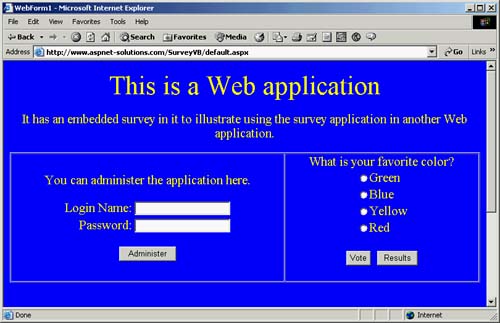
NOTE: The Survey application can be viewed from the www.ASPNet-Solutions.com Web site. From the main page of the site, go to the Chapter Examples page. Then click on the Chapter 3 link. This page offers the capability to run the Survey application. You can go directly to the www.ASPNet-Solutions.com/Chapter_3.htm page for the Survey application link. The C# and VB source code and the backed-up database can be downloaded from the Chapter 3 page. The Administrative CodeIf you download the code from the Web site, you'll find all of the administrative functionality in administer.aspx.cs or administer.aspx.vb (depending on whether you are using the C# or VB version). This source code module contains all the methods that perform the administrative functions for the application. Table 3.3 shows what the methods are and describes the purpose of each. When the program runs, you'll see a way to log in to the administrative section, and you'll see a survey appear in the right side of the screen, as shown in Figure 3.3. Figure 3.3. The Survey Application Lets Users Log In to the Administrative Functionality and Offers Them a Survey Item.
PopulateQuestionList() and Page_Load()The PopulateQuestionList() method is called from the Page_Load() method (which executes during the initial page-loading sequence). This method needs to be called only the first time that the page is loaded. When a page load is a post back, the QuestionList ListBox object is already populated because its state persists in the VIEWSTATE hidden field. In many situations, not calling PopulateQuestionList() in response to post backs will save the server some processor time. In some situations, though, the PopulateQuestionList() method is called in response to a user-generated event. Examples of this are when a user adds or deletes a question. In these cases, the QuestionList object needs to be repopulated.
RECOMMENDED PRACTICE: Make sure your applications don't repopulate user interface objects for post backs unless it's absolutely necessary. For objects that query a database for their contents but never change throughout the life cycle of the application page requests, repopulating would represent an unnecessary burden on the server. Check the IsPostback property to see whether the current request is a post back. The property will be true if it is. We talked earlier in the chapter about SqlConnection objects. These objects will be used throughout the entire Survey application to connect to the database. The first thing that's done in Listing 3.5 (on page 87) is to create a SqlConnection object. Its one and only parameter is the connection string, which is contained in the Global.asax. Making any changes to this code is an easy matter because only one place must be edited for changes to take effect (this was mentioned as a recommended practice earlier in the chapter).
RECOMMENDED PRACTICE: It is always a bad idea to leave database connections open longer than necessary. I once had a student who opened a connection in the Global.asax. The connection stayed open until the application shut down. Several problems are inherent with doing this. The first is that a connection can have only one open DataReader, and if more than one user requests a page that causes simultaneous readers to be open, at least one exception will be thrown. In addition, open connections consume resources. This means that if you leave a connection open for a long time, and you have a large number of users accessing the database, the server will have a large portion of its resources allocated to database connections. Another issue is deploying the Web application in a Web farm. In these cases, you might really slow down SQL Server, connection pooling is the best bet. You can set the connection pool size in the database connection string as follows: server=localhost;uid=sa;pwd=;database=pubs;Pooling=true;Max Pool Size=500 After the database connection has been opened with the Open() method, a SqlCommand object is created that will call the sp_QuestionList stored procedure. This stored procedure returns a recordset containing all the questions in the database (whether or not they are enabled). The sp_QuestionList stored procedure follows. CREATE PROCEDURE sp_QuestionList AS SELECT Text FROM Questions ORDER BY Text GO Once a recordset has been obtained from the sp_QuestionList stored procedure by calling the SqlCommand object's ExecuteReader() method, the recordset will be bound to the QuestionList ListBox object. The QuestionList DataTextField and DataValueField property values are set so that the data-binding process knows to bind using the Text field that's in the recordset. The last two things to be done are to set the DataSource property to the SqlDataReader object, and to call the DataBind() method. A flag named bPopulateCategoryListAlso indicates whether the CategoryList DropDownList object should be populated. Population will need to happen only once at initial page load (not for post backs). To retrieve the list of categories, the sp_CategoryList stored procedure is called. To do this, we almost literally repeat the process used to retrieve the question list. The only difference is that we set the SqlCommand object to access the sp_CategoryList stored procedure. This stored procedure is shown below. CREATE PROCEDURE sp_CategoryList AS SELECT Text FROM Categories ORDER BY ID GO The DataTextField and DataValueField properties are set, the DataSource property is set, and the DataBind() method is called. This completes the process of populating the CategoryList object.
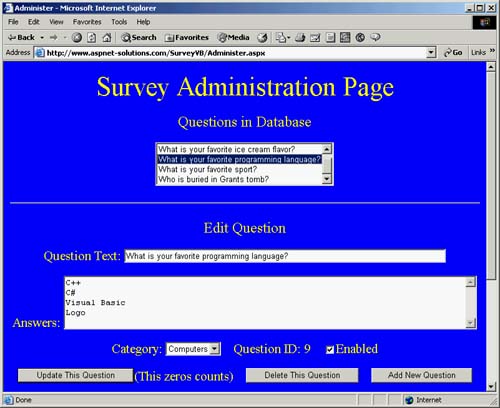
NOTE: SqlDataReader objects must always be closed before you retrieve another SqlDataReader object because you can't open more than one reader per connection. Not closing the SqlDataReader objects has two negative results: Resources won't be released, and an exception will be thrown. The SqlConnection object won't allow more than one simultaneous open SqlDataReader. The last thing to note, in Listing 3.5, is that code to close the database connection is in the catch block. This location is in case the database connection opens successfully, but, at some point after it has been opened, an exception is thrown. Figure 3.4 shows the application during execution. Listing 3.5 The PopulateQuestionList() Method Private Sub PopulateQuestionList(ByVal bPopulateCategoryListAlso As Boolean) ' Create the connection object Dim myConnection As New _ SqlConnection(Convert.ToString(Application("DBConnectionString"))) Try myConnection.Open() ' Create the command object specifying the sp_QuestionList ' stored procedure, and set the CommandType property to ' CommandType.StoredProcedure. Dim myCommand As New SqlCommand("sp_QuestionList", _ myConnection) myCommand.CommandType = CommandType.StoredProcedure ' Retrieve a SqlDataReader by calling the ExecuteReader() ' method. Then, databind the recordset with the ' QuestionList object. It's important to specify the ' column name for the ' DataTextField and DataValueField properties. Dim reader As SqlDataReader = myCommand.ExecuteReader() QuestionList.DataTextField = "Text" QuestionList.DataValueField = "Text" QuestionList.DataSource = reader QuestionList.DataBind() reader.Close() ' If the Boolean variable is true, we'll need to populate ' the CategoryList object. If bPopulateCategoryListAlso Then myCommand = New SqlCommand("sp_CategoryList", _ myConnection) myCommand.CommandType = CommandType.StoredProcedure reader = myCommand.ExecuteReader() CategoryList.DataTextField = "Text" CategoryList.DataValueField = "Text" CategoryList.DataSource = reader CategoryList.DataBind() reader.Close() End If Catch ex As Exception Message.Text = ex.Message.ToString() Finally If myConnection.State = ConnetionState.Open Then myConnection.Close() End If End Try End Sub Private Sub Page_Load(ByVal sender As System.Object, ByVal e As _ System.EventArgs) Handles MyBase.Load If Not IsPostBack Then If Session("CurrentQuestionID") = Nothing Then Session("CurrentQuestionID") = -1 End If PopulateQuestionList(True) End If End Sub Figure 3.4. Selecting Questions in the QuestionList Object Populates the Fields.
The UpdateButton_Click() MethodUsers click the UpdateButton_Click() method on the update of a question's information. The items that are saved are the question text, the answers, the category, and whether the question is enabled. The method starts by making sure the Question and Answers TextField objects contain data. Updating the question would be pointless without data in these fields. If either field is empty, a message is shown to the user (by being placed in the Message Label object). After the error message is set, the method then ends when a Return statement is encountered. After the method checks for data in the Question and Answers objects, a SqlConnection object is created. This connection is used for all database access in this method. The question ID (which is a unique key for the Question table in the database) is stored in a session variable. You will see that an integer variable named nID is assigned with the integer value in the Session("CurrentQuestionID") variable. The database connection is opened with a call to the Open() method. A SqlCommand object named myCommand is created, and the sp_UpdateQuestionInfo stored procedure is specified as the command that will be performed. This CommandType property of the SqlCommand object is set to StoredProcedure. You can see the sp_UpdateQuestionInfo stored procedure below. CREATE PROCEDURE sp_UpdateQuestionInfo @Text varchar(254), @CategoryID int, @Enabled int, @ID as int output AS if( @ID <> -1 ) begin DELETE Answers WHERE QuestionID=@ID UPDATE Questions SET Text=@Text,CategoryID=@CategoryID,Enabled=@Enabled WHERE ID=@ID end else begin INSERT INTO Questions (Text,CategoryID,Enabled) VALUES (@Text,@CategoryID,@Enabled) SELECT @ID=@@IDENTITY end GO The stored procedure expects four parameters: the question text (variable named @Text), the category ID (variable named @CategoryID), an indicator of whether the question is enabled (variable @Enabled), and the question ID (variable @ID). The question ID can be a valid question ID or 1, which indicates that this is a new question and should be added rather than updated. The database provides unique question IDs because the ID field in the Questions table is an identity column. This arrangement means that the database will enforce uniqueness, and as a matter of fact will assign the ID value at the time a record is created. SQL Server makes available a mechanism whereby it is easy to get an identity column after a record has been created. The following code shows how T-SQL or a stored procedure can get an identity column into a parameter named @ID: INSERT INTO SomeTable (FieldName1,FieldName2) VALUES ('Data1', 'Data2') SELECT @ID=@@IDENTITY Once the four parameters have been set up, a call to the ExecuteNonQuery() method is made. This updates or inserts the record, and for new records returns a unique question ID. This unique ID is retrieved with the following code: If nID = -1 Then nID = Convert.ToInt32(myCommand.Parameters("@ID").Value) End If With the question added, we'll need to add the answers (or survey choices). The Answers TextField object contains answers that are all separated by carriage return/line feed (CR/LF) pairs. This is the perfect opportunity to use the String object's Split() method. The Split() method can easily find separator characters and split a string into an array of strings. The only difficulty here is that our separator is a pair of characters, not the single character that the Split() method needs. For this reason, we'll use a newly created string that replaces the CR/LF pairs with '|' characters. This only works when there is no '|' symbol in the answer string, so make sure that your survey administrators understand this limitation. We can then easily use the Split() method and specify the '|' as the separator character. The following code shows how a single string of four answers (separated by three CR/LF pairs) is split into four substrings: ' Here's our initial string. Dim strData as string = "Red"+ vbCrLf + "Green" + vbCrLf + "Blue" + _ vbCrLf + "Yellow" ' Here's the new string with '|' replacing the CR/LF pairs. Dim strNewData as string = strData.Replace( vbCrLf, "|" ) ' Here we perform the split. Dim strAnswers as string() = _ strNewData.Split( New Char {Chr(124)}, 100 ) ' Now we'll loop through and use each substring. Dim i as Integer For i=0 to strAnswers.Length 1 ' Now do something with strAnswers(i) Next A stored procedure named sp_AddAnswer takes a question ID, the order of the answer (such as 0, 1, or 2), and the answer text and creates an answer in the database that can be used later when the question data is retrieved. The stored procedure can be seen below. CREATE PROCEDURE sp_AddAnswer @QuestionID int, @Text varchar(254), @Ord int AS INSERT INTO Answers (Text,QuestionID,Ord) VALUES (@Text,@QuestionID,@Ord) GO After the parameters (@Text, @QuestionID, and @Ord) are added to the SqlCommand object, a loop is used to treat each substring separately. Each substring is set into the @Text parameter, along with the @Ord parameter. A call to the stored procedure is made, thus storing the data in the database. Finally, the database connection is closed and a call to the PopulateQuestionList() method is made. Listing 3.6 The UpdateButton_Click() Method Private Sub UpdateButton_Click(ByVal sender As System.Object, _ ByVal e As System.EventArgs) Handles UpdateButton.Click If Question.Text.Length = 0 Or Answers.Text.Length = 0 Then Message.Text = "You need text in the answers field." Return End If Dim myConnection As New _ SqlConnection(Convert.ToString(Application("DBConnectionString"))) Try Dim nID As Integer = _ Convert.ToInt32(Session("CurrentQuestionID")) myConnection.Open() Dim myCommand As New SqlCommand("sp_UpdateQuestionInfo", _ myConnection) myCommand.CommandType = CommandType.StoredProcedure myCommand.Parameters.Add(New SqlParameter("@Text", _ SqlDbType.VarChar, 254)) myCommand.Parameters("@Text").Direction = _ ParameterDirection.Input myCommand.Parameters("@Text").Value = Question.Text myCommand.Parameters.Add(New SqlParameter("@CategoryID", _ SqlDbType.Int)) myCommand.Parameters("@CategoryID").Direction = _ ParameterDirection.Input myCommand.Parameters("@CategoryID").Value = _ CategoryList.SelectedIndex myCommand.Parameters.Add(New SqlParameter("@Enabled", _ SqlDbType.Int)) myCommand.Parameters("@Enabled").Direction = _ ParameterDirection.Input myCommand.Parameters("@Enabled").Value = 0 If Enabled.Checked Then myCommand.Parameters("@Enabled").Value = 1 End If myCommand.Parameters.Add(New SqlParameter("@ID", _ SqlDbType.Int)) myCommand.Parameters("@ID").Direction = _ ParameterDirection.InputOutput myCommand.Parameters("@ID").Value = nID myCommand.ExecuteNonQuery() If nID = -1 Then nID = Convert.ToInt32(myCommand.Parameters("@ID").Value) QuestionID.Text = Convert.ToString(nID) End If Dim strWork As String = Answers.Text.Replace(vbCrLf, "|") Dim strAnswers As String() = _ strWork.Split(New Char() {Chr(124)}, 100) myCommand = New SqlCommand("sp_AddAnswer", myConnection) myCommand.CommandType = CommandType.StoredProcedure myCommand.Parameters.Add(New SqlParameter("@Text", _ SqlDbType.VarChar, 254)) myCommand.Parameters("@Text").Direction = _ ParameterDirection.Input myCommand.Parameters.Add(New SqlParameter("@QuestionID", _ SqlDbType.Int)) myCommand.Parameters("@QuestionID").Direction = _ ParameterDirection.Input myCommand.Parameters.Add(New SqlParameter("@Ord", _ SqlDbType.Int)) myCommand.Parameters("@Ord").Direction = _ ParameterDirection.Input Dim i As Integer For i = 0 To strAnswers.Length - 1 If strAnswers(i).Length > 0 Then myCommand.Parameters("@Text").Value = _ strAnswers(i) myCommand.Parameters("@QuestionID").Value = nID myCommand.Parameters("@Ord").Value = i myCommand.ExecuteNonQuery() End If Next myConnection.Close() PopulateQuestionList(False) Catch ex As Exception If myConnection.State = ConnectionState.Open Then myConnection.Close() End If Message.Text = ex.Message.ToString() End Try End Sub The DeleteButton_Click() MethodQuestions can be deleted by clicking the Delete button. When users click the Delete button, the code in Listing 3.7 is called. The question ID is retrieved from the Session("CurrentSessionID") variable and stored in a local integer variable named nID. If the question ID is negative, this means no question is currently selected and therefore the user can't delete the question. A message is placed in the Message Label object indicating this condition, and the method is ended with a Return command. If, however, the current question has a valid ID (greater than or equal to zero), the process moves forward to delete the question. First, a connection to the database is created and opened. A SqlCommand object is then created that specifies that sp_DeleteQuestion stored procedure. This stored procedure takes a single parameter that represents the question ID, and deletes the question and all of its related answers. This stored procedure can be seen below. CREATE PROCEDURE sp_DeleteQuestion @ID as int AS DELETE Answers WHERE QuestionID=@ID DELETE Questions WHERE ID=@ID GO A call is made to the ExecuteNonQuery() method that performs the question-delete operation. The connection is closed, and several of the application variables, such as Session("CurrentQuestionID"), are set to indicate that there is no currently selected question. Listing 3.7 The DeleteButton_Click() Method Private Sub DeleteButton_Click(ByVal sender As System.Object, _ ByVal e As System.EventArgs) Handles Button2.Click Dim nID As Integer = _ Convert.ToInt32(Session("CurrentQuestionID")) If nID < 0 Then Message.Text = _ "There is not a valid question that is currently being edited." Return End If Dim myConnection As New _ SqlConnection(Convert.ToString(Application("DBConnectionString"))) Try myConnection.Open() Dim myCommand As New SqlCommand("sp_DeleteQuestion", _ myConnection) myCommand.CommandType = CommandType.StoredProcedure myCommand.Parameters.Add(New SqlParameter("@ID", _ SqlDbType.Int)) myCommand.Parameters("@ID").Direction = _ ParameterDirection.Input myCommand.Parameters("@ID").Value = nID myCommand.ExecuteNonQuery() myConnection.Close() QuestionList.SelectedIndex = -1 Session("CurrentQuestionID") = -1 Enabled.Checked = True QuestionID.Text = "" PopulateQuestionList(False) Catch ex As Exception If myConnection.State = ConnectionState.Open Then myConnection.Close() End If Message.Text = ex.Message.ToString() End Try End Sub The AddCategoryButton_Click() MethodUsers can add to the list of categories if they don't find what they want. To do this, they simply enter a category into the New Category editable text field (which is type EditBox named NewCategory), and click the Add It button. This action invokes the AddCategoryButton_Click() method shown in Listing 3.8. This code takes the text in the NewCategory object and sends it to a stored procedure named sp_AddCategory, which is shown below. CREATE PROCEDURE sp_AddCategory @Text varchar(254) AS INSERT INTO Categories (Text) VALUES (@Text) GO This code follows the pattern that we've seen thus far: Create a database connection and open it (using a SqlConnection object), create a Command object (using a SqlCommand object), set up the parameters that the stored procedure expects (by using the SqlCommand object's Parameters collection), and execute the stored procedure (with the ExecuteNonQuery() method). The only thing added to the basic pattern is that the newly created category's text is added to the CategoryList DropDownList object so that it is available to the user for selection. Listing 3.8 The AddCategoryButton_Click() Method[View full width] Private Sub AddCategoryButton_Click(ByVal sender As System.Object, ByVal e As System The AddButton_Click() and MainButton_Click() MethodsTwo short and simple methods named AddButton_Click() and MainButton_Click() can be seen in Listing 3.9. The AddButton_Click() method is triggered in response to the user clicking on the Add New Question button. The AddButton_Click() method sets the Session("CurrentQuestionID") variable to 1 to indicate no currently selected question, clears the TextBox objects, deselects any question in the QuestionList object by setting its SelectedIndex property to 1, and then sets the Enabled check so that it is on. The MainButton_Click() method just redirects users to the Survey application's main page. Listing 3.9 The AddButton_Click() and MainButton_Click() Methods Private Sub AddButton_Click(ByVal sender As System.Object, _ ByVal e As _ System.EventArgs) Handles Button3.Click Session("CurrentQuestionID") = -1 Question.Text = "" Answers.Text = "" QuestionList.SelectedIndex = -1 Enabled.Checked = True End Sub Private Sub MainButton_Click(ByVal sender As System.Object, _\ ByVal e As _ System.EventArgs) Handles Button1.Click Response.Redirect("default.aspx") End Sub The QuestionList_SelectedIndexChanged() MethodA good bit of code executes when the user selects a question in the QuestionList object, as you can see in Listing 3.10. The purpose of this code is to find all the related data and populate all the fields on the page so that questions can be edited. An interesting thing happens at the top of the QuestionList_ SelectedIndexChanged() method. It declares a ListBox object named lb because that is the object type for which this event handler was created. The lb variable is then set to reference the Sender object that was passed into this method. In C#, the declared object must be cast as a ListBox object, as follows: ListBox lb = (ListBox) sender; With a reference to the ListBox object, the text for the selected question can be retrieved. We'll eventually use this text as one of the stored procedure parameters. As with most of the methods in this source-code module, a connection to the database is created and opened. A Command object specifying the sp_QuestionInfoFromText stored procedure is created. The sp_QuestionInfoFromText can be seen below. CREATE PROCEDURE sp_QuestionInfoFromText @Text varchar(254), @ID int output, @CategoryID int output, @Enabled int output AS SELECT @ID=ID,@CategoryID=CategoryID,@Enabled=Enabled FROM Questions WHERE Text=@Text if( @ID IS NULL ) SELECT @ID = -1 GO Four parameters must be created and set up for the sp_QuestionInfoFromText stored procedure. These parameters are @Text (for the question text), @ID (for the unique question ID), @CategoryID (for the category ID that has been assigned to the question), and @Enabled (which indicates whether a question is enabled). After the parameters are set up, the ExecuteNonQuery() method is called. Three of the four parameters are marked for output and will contain important information. The question ID, category ID, and enabled flag are all available after the QuestionInfoFromText stored procedure has been executed. The answers must all be obtained from the database. This is done with the sp_AnswerInfo stored procedure shown below. CREATE PROCEDURE sp_AnswerInfo @ID int AS SELECT Text FROM Answers WHERE QuestionID=@ID GO Each answer that is retrieved is appended to the Answers TextField object. And all variables, such as Session("CurrentQuestionID"), are set so that proper application behavior will result. Listing 3.10 The QuestionList_SelectedIndexChanged() Method Private Sub QuestionList_SelectedIndexChanged(ByVal sender As _ System.Object, ByVal e As System.EventArgs) Handles _ QuestionList.SelectedIndexChanged Dim lb As ListBox lb = sender Dim myConnection As New _ SqlConnection(Application("DBConnectionString").ToString()) Try myConnection.Open() Dim myCommand As New SqlCommand("sp_QuestionInfoFromText", _ myConnection) myCommand.CommandType = CommandType.StoredProcedure myCommand.Parameters.Add(New SqlParameter("@Text", _ SqlDbType.VarChar, 254)) myCommand.Parameters("@Text").Direction = _ ParameterDirection.Input myCommand.Parameters("@Text").Value = _ lb.SelectedItem.Value myCommand.Parameters.Add(New SqlParameter("@ID", _ SqlDbType.Int)) myCommand.Parameters("@ID").Direction = _ ParameterDirection.Output myCommand.Parameters.Add(New SqlParameter("@CategoryID", _ SqlDbType.Int)) myCommand.Parameters("@CategoryID").Direction = _ ParameterDirection.Output myCommand.Parameters.Add(New SqlParameter("@Enabled", _ SqlDbType.Int)) myCommand.Parameters("@Enabled").Direction = _ ParameterDirection.Output myCommand.ExecuteNonQuery() Dim nCatID As Integer = _ Convert.ToInt32(myCommand.Parameters("@CategoryID").Value) Dim nID As Integer = _ Convert.ToInt32(myCommand.Parameters("@ID").Value) If nID <> -1 Then Session("CurrentQuestionID") = nID QuestionID.Text = Convert.ToString(nID) Question.Text = lb.SelectedItem.Value Enabled.Checked = True If _ Convert.ToInt32(myCommand.Parameters("@Enabled").Value)= 0 _ Then Enabled.Checked = False End If Answers.Text = "" myCommand = New SqlCommand("sp_AnswerInfo", _ myConnection) myCommand.CommandType = CommandType.StoredProcedure myCommand.Parameters.Add(New SqlParameter("@ID", _ SqlDbType.Int)) myCommand.Parameters("@ID").Direction = _ ParameterDirection.Input myCommand.Parameters("@ID").Value = nID Dim reader As SqlDataReader = _ myCommand.ExecuteReader() While reader.Read() Answers.Text += (reader.GetString(0) + vbCrLf) End While reader.Close() If nCatID < 0 Then nCatID = 0 End If CategoryList.SelectedIndex = nCatID End If myConnection.Close() Catch ex As Exception If myConnection.State = ConnectionState.Open Then myConnection.Close() End If Message.Text = ex.Message.ToString() End Try End Sub As you can see, the code in the Administer source code is straightforward. It follows a fairly predictable pattern and uses stored procedures for optimal performance. The Main Survey Application CodeIn the project code, you'll find all of the main screen functionality in default.aspx.cs or default.aspx.vb (depending on whether you are using the C# or VB version). This source code module contains all of the methods that perform the administrative functions for the application. Table 3.4 shows what the methods are and describes their purpose. The Page_Load() MethodThe Page_Load() method performs a fairly powerful procedure. It obtains the data for a question (both the question and all choices) and populates the user interface objects (SurveyQuestion and AnswerList). Although this procedure is powerful, it appears simple because a Web Service is invoked that returns the information. The code in Listing 3.11 instantiates a Web Service class (named com.aspnet_solutions.www.SurveyItem), invokes its GetSurveyData() method, and receives a populated SurveyData structure that contains all the necessary survey question information. You might notice that the GetSurveyData() method takes two arguments, both of which are 1 here. The first argument lets the caller specify a category ID. That way, a specific category can be selected from. If the value is 1, then the survey question is selected from all categories. The second argument allows a specific question ID to be asked for. This way, if you want to make sure a certain question is asked, you can pass the question's ID number as the second argument. If this value is 1, it is ignored. It's important to take a look at the data structures that are used in the application. They can be seen in Listing 3.11.
Listing 3.11 The Page_Load() MethodIf Not IsPostBack Then Dim srv As New com.aspnet_solutions.www.SurveyItem() Dim data As com.aspnet_solutions.www.SurveyData = _ srv.GetSurveyData(-1, -1) SurveyQuestion.Text = data.strQuestion If SurveyQuestion.Text.Length = 0 Then SurveyQuestion.Text = data.strError End If Dim i As Integer For i = 0 To data.Answers.Length - 1 Dim item As New ListItem(data.Answers(i)) AnswerList.Items.Add(item) Next QuestionID.Text = Convert.ToString(data.nQuestionID) End If The LoginButton_Click() MethodThe LoginButton_Click() method shown in Listing 3.12 checks the database for a match with the user's name and password. It uses a stored procedure named sp_Login that's shown below. CREATE PROCEDURE sp_Login @Name varchar(254), @Password varchar(254), @ID int output AS SELECT @ID=ID FROM Administrators WHERE Name=@Name AND Password=@Password if( @ID IS NULL ) SELECT @ID = -1 GO The sp_Login stored procedure takes three parameters: @Name, @Password, and @ID. The @ID parameter will contain the ID of the user if a match was found. If not match was found, the ID will be 1. If the login was successful, the user is redirected to Administer.aspx. If not, a message stating that the login failed is placed into the Message Label object. Listing 3.12 The LoginButton_Click() Method Private Sub LoginButton_Click(ByVal sender As System.Object, ByVal e _ As System.EventArgs) Handles Button1.Click Dim myConnection As New _ SqlConnection(Convert.ToString(Application("DBConnectionString"))) Try myConnection.Open() Dim myCommand As New SqlCommand("sp_Login", myConnection) myCommand.CommandType = CommandType.StoredProcedure myCommand.Parameters.Add(New SqlParameter("@Name", _ SqlDbType.VarChar, 254)) myCommand.Parameters("@Name").Direction = _ ParameterDirection.Input myCommand.Parameters("@Name").Value = Name.Text myCommand.Parameters.Add(New SqlParameter("@Password", _ SqlDbType.VarChar, 254)) myCommand.Parameters("@Password").Direction = _ ParameterDirection.Input myCommand.Parameters("@Password").Value = Password.Text myCommand.Parameters.Add(New SqlParameter("@ID", _ SqlDbType.Int)) myCommand.Parameters("@ID").Direction = _ ParameterDirection.Output myCommand.ExecuteNonQuery() myConnection.Close() Dim nID As Integer = _ Convert.ToInt32(myCommand.Parameters("@ID").Value) If nID = -1 Then Message.Text = "Login failure" Else Session("AdminID") = nID Response.Redirect("Administer.aspx") End If Catch ex As Exception If myConnection.State = ConnectionState.Open Then myConnection.Close() End If Message.Text = ex.Message.ToString() End Try End Sub The VoteButton_Click() MethodYou would think that the VoteButton_Click() method as shown in Listing 3.13 would be complicated. It's not; it's simple. That's because it calls the Web Service's Vote() method, which takes care of the dirty work of registering the vote in the database. That's the beauty of using Web Services; your application focus on program logic and not on procedural things that can easily be encapsulated in Web Services. Other situations in which to use a Web Service might include when you want to allow voting from other client applications and when you want to keep vote functionality close to the database server but deploy the larger application across a Web farm. The code in the VoteButton_Click() method starts by setting Button2's Visible property to False. This helps prevent users from voting more than once (although they could simply reload the page and vote again). The SurveyMessage Label object is set with a message thanking the user for voting. The Web Service is instantiated, and the Vote() method is called. The Vote() method needs two parameters, the answer number (0, 1, 2, and so on) and the question ID number. If you want to skip ahead, the code for the Vote() method can be seen in Listing 3.18. Listing 3.13 The VoteButton_Click() MethodPrivate Sub Vote_Click(ByVal sender As System.Object, ByVal e As_ System.EventArgs) Handles Button2.Click Vote.Visible = False SurveyMessage.Text = "Thanks for voting!" Try Dim srv As New com.aspnet_solutions.www.SurveyItem() Dim nAnswerNumber As Integer = AnswerList.SelectedIndex srv.Vote(Convert.ToInt32(QuestionID.Text), nAnswerNumber) Catch ex As Exception SurveyMessage.Text = ex.Message.ToString() End Try End Sub The ResultsButton_Click() MethodWhen users click on the Results button, the ResultsButton_Click() method is invoked, as shown in Listing 3.14. This method goes to the Web Service for the results that pertain to the currently displayed survey question. The first thing the method does is instantiate a Web Service class. A call to the GetResults() method is then made. The only parameter this method requires is the question ID, and this is supplied by converting a hidden field named QuestionID to an integer. A data structure containing the relevant information is returned from the GetResults() method. For details, see Listing 3.15. Once the survey results have been retrieved, the SurveyMessage Label object is populated with the survey result data. Listing 3.14 The Results_Click() Method Private Sub ResultsButton_Click(ByVal sender As System.Object, ByVal e_ As System.EventArgs) _ Handles Button3.Click Dim srv As New com.aspnet_solutions.www.SurveyItem() Dim res As com.aspnet_solutions.www.SurveyResults = _ srv.GetResults(Convert.ToInt32(QuestionID.Text)) If res.strError.Length > 0 Then SurveyMessage.Text = res.strError Return End If SurveyMessage.Text = "The results are:<br>" + vbCrLf Dim i As Integer For i = 0 To res.nCount.Length - 1 SurveyMessage.Text += (AnswerList.Items(i).Value + ": ") Dim strPercent As String = res.dPercent(i).ToString(".00") If res.dPercent(i) = 0 Then strPercent = "0" End If SurveyMessage.Text += (strPercent + "%<br>" + vbCrLf) Next End Sub As you can see, the code in the Survey application's main page is simple. This simplicity is a direct result of using a Web Service to encapsulate the survey functionality. TheSurvey Web ServiceIn the TheSurvey Web Service project, you'll find all of the Web Service functionality in surveyItem.asmx.cs or surveyItem.asmx.vb (depending on whether you are using the C# or VB version). This source code module contains all the methods that perform the administrative functions for the application. Table 3.5 shows what the methods are and describes their purpose. The Data StructuresTo return all the information necessary to display a survey question on the client machine, the application needs a data structure. A Web Service can return only one thing (via a return statement), and it can't have reference (noted by the ref keyword) variables that are passed in (which expect to be populated before a method returns). To solve the problem in which we need to pass back the question, an error (if it occurs), the list of answers, the question ID, and the category ID, we'll collect all of the information into a data structure.
The Web Service also needs to return information pertaining to survey results. For this, another data structure collects the information so that it can be returned as a single data type. The data structure that contains the survey question data is called SurveyData, and it can be seen in Listing 3.15. Also shown in Listing 3.15 is the SurveyResults data structure. Listing 3.15 The Data Structures Used to Return InformationC# public struct SurveyData { public string strQuestion; public string strError; public StringCollection Answers; public int nQuestionID; public int nCategoryID; } public struct SurveyResults { public string strError; public int[] nCount; public double[] dPercent; } VB Public Structure SurveyData Public strQuestion As String Public strError As String Public Answers As StringCollection Public nQuestionID As Integer Public nCategoryID As Integer End Structure Public Structure SurveyResults Public strError As String Public nCount As Integer() Public dPercent As Double() End Structure The _GetSurveyData() MethodThe _GetSurveyData() method is marked as private. The publicly callable method is called GetSurveyData(). The real work is done in _GetSurveyData(), and GetSurveyData() simply calls _GetSurveryData() (as shown in Listing 3.16) to return its results. This was done so that the Web Service can be easily extended at a later time. When I developed the Web Service, I considered returning two versions of the data: one with the question and a list of answers (as is returned now in the GetSurveyData() method), and one that includes user-interface HTML codes so that the client application doesn't have to construct the presentation's objects but can just use what is retrieved from the Web Service. If you ever extend the Web Service so that you have a method called GetSurveyInHTML() that returns the survey with the appropriate HTML, you can still call the _GetSurveyData() method to get the actual survey data. You can then construct the HTML data in your GetSurveyInHTML() method before returning the HTML data to the client application. The _GetSurveyData() method has two paths: one when a specific question ID has been given, and the other when the question ID value has been given as 1, which indicates the pool of all questions can be drawn upon. If the first path is taken, the routine calls the sp_QuestionFromID stored procedure to retrieve the information corresponding to the question ID. The second path of the _GetSurveyData() method follows this sequence: Find the number of survey questions in the database that match the criteria (either a given category ID or all questions), generate a random number that's in the correct range, and then retrieve the row that matches the random number. To accomplish the first task, a stored procedure named sp_QuestionCount (which is shown below) is called. This procedure requires a single input parameter that indicates the requested category ID. If this parameter value is less than 0, then all categories are selected. CREATE PROCEDURE sp_QuestionCount @CategoryID int, @Count as int output AS if( @CategoryID < 0 ) SELECT @Count=Count(*) FROM Questions WHERE Enabled=1 else SELECT @Count=Count(*) FROM Questions WHERE Enabled=1 AND CategoryID=@CategoryID GO An instance of the Random class is created to provide random number functionality. A call is made to its Next() method, with a parameter indicating the largest number desired, thus generating the random number. Remember that this number is zero based it ranges from zero to the record count minus one. The following code shows how the random number is generated: Dim rnd As New Random() Dim nRandomNumber As Integer = rnd.Next(nCount - 1) With the random number generated, a call to the sp_GetSingleQuestion stored procedure can be made (shown below). This stored procedure takes two parameters the random number and the category ID. Here again, the category ID can be 1, which indicates that all categories can be drawn upon. The random number can't be zero based because the SQL FETCH Absolute command considers the first row to be numbered as 1. For this reason, we add one to the random number when we assign the @RecordNum parameter's value. CREATE PROCEDURE sp_GetSingleQuestion @RecordNum int, @CategoryID int AS if( @CategoryID >= 0 ) begin DECLARE MyCursor SCROLL CURSOR For SELECT Text,ID,CategoryID FROM Questions WHERE Enabled=1 AND CategoryID=@CategoryID OPEN MyCursor FETCH Absolute @RecordNum from MyCursor CLOSE MyCursor DEALLOCATE MyCursor end else begin DECLARE MyCursor SCROLL CURSOR For SELECT Text,ID,CategoryID FROM Questions WHERE Enabled=1 OPEN MyCursor FETCH Absolute @RecordNum from MyCursor CLOSE MyCursor DEALLOCATE MyCursor end GO Once we have the question information (which includes the question ID), whether the code took the first or second paths, we can get the answers for this question. The code calls the sp_AnswerInfo stored procedure to retrieve all the answers for this survey question. The answers will be in a SqlDataReader object, and the code just loops through and gets each record. Listing 3.16 The _GetSurveyData() Method Private Function _GetSurveyData(ByVal nCategoryID As Integer, _ ByVal nQuestionID As Integer) As SurveyData ' Create a SurveyData object and set its ' properties so the it will contain a ' StringCollection object, the question id ' and the category id. Dim sd As SurveyData sd.strQuestion = "" sd.strError = "" sd.Answers = New StringCollection() sd.nQuestionID = nQuestionID sd.nCategoryID = nCategoryID ' Create the connection object. Dim myConnection As New _ SqlConnection(Application("DBConnectionString").ToString()) Try ' Open the connection myConnection.Open() Dim myCommand As SqlCommand Dim reader As SqlDataReader = nothing ' If we have a valid question id, perform this code. If nQuestionID >= 0 Then ' Create a command the will use the sp_QuestionFromID ' stored procedure. myCommand = New SqlCommand("sp_QuestionFromID", _ myConnection) myCommand.CommandType = CommandType.StoredProcedure ' Add a parameter for the question id named @ID ' and set the direction and value. myCommand.Parameters.Add(New SqlParameter("@ID", _ SqlDbType.Int)) myCommand.Parameters("@ID").Direction = _ ParameterDirection.Input myCommand.Parameters("@ID").Value = nQuestionID ' Retrieve a recordset by calling the ExecuteReader() ' method. reader = myCommand.ExecuteReader() ' If we got a record, set the question text and ' the category id from it. If reader.Read() Then sd.strQuestion = reader.GetString(0) sd.nCategoryID = reader.GetInt32(1) End If ' Set the question id and close the reader. sd.nQuestionID = nQuestionID reader.Close() Else ' This is a new question, so we'll need the count from ' the category. myCommand = New SqlCommand("sp_QuestionCount", _ myConnection) myCommand.CommandType = CommandType.StoredProcedure ' The parameter is CategoryID since we need to specify ' the category id. myCommand.Parameters.Add(_ New SqlParameter("@CategoryID", _ SqlDbType.Int)) myCommand.Parameters("@CategoryID").Direction = _ ParameterDirection.Input myCommand.Parameters("@CategoryID").Value = - nCategoryID ' The count will be retrieved, and is therefore set ' for output direction. myCommand.Parameters.Add(New SqlParameter("@Count", _ SqlDbType.Int)) myCommand.Parameters("@Count").Direction = _ ParameterDirection.Output ' Execute the stored procedure by calling the ' ExecuteNonQuery() method. myCommand.ExecuteNonQuery() ' Get the count as in Int32. Dim nCount As Integer = _ Convert.ToInt32(myCommand.Parameters("@Count").Value) ' If the count is zero, we have a problem and will ' alert the user to the error and return. If nCount = 0 Then sd.strError = _ "The sp_QuestionCount procedure returned zero." myConnection.Close() Return End If ' We need a random number from 0 to nCount 1. Dim rnd As New Random() Dim nRandomNumber As Integer = rnd.Next(nCount - 1) ' We're going to call the sp_GetSingleQuestion ' stored procedure. myCommand = _ New SqlCommand("sp_GetSingleQuestion", myConnection) myCommand.CommandType = CommandType.StoredProcedure ' We need to specify the category id. myCommand.Parameters.Add(_ New SqlParameter("@CategoryID", _ SqlDbType.Int)) myCommand.Parameters("@CategoryID").Direction = _ ParameterDirection.Input myCommand.Parameters("@CategoryID").Value = _ nCategoryID ' We need to specify the record number that we're ' after. myCommand.Parameters.Add(_ New SqlParameter("@RecordNum", _ SqlDbType.Int)) myCommand.Parameters("@RecordNum").Direction = _ ParameterDirection.Input myCommand.Parameters("@RecordNum").Value = _ nRandomNumber + 1 ' Execute the stored procedure by calling the ' ExecuteReader() method. This returns a recordset. reader = myCommand.ExecuteReader() ' If we got a record, perform this code. If reader.Read() Then ' Store the question text. sd.strQuestion = reader.GetString(0) ' Store the question id. sd.nQuestionID = reader.GetInt32(1) sd.nCategoryID = reader.GetInt32(2) ' Store the category id. MyReader.Close() End If ' We're going to call the sp_AnswerInfo stored procedure. myCommand = New SqlCommand("sp_AnswerInfo", myConnection) myCommand.CommandType = CommandType.StoredProcedure ' Create an id parameter and set its value. myCommand.Parameters.Add(New SqlParameter("@ID", - SqlDbType.Int)) myCommand.Parameters("@ID").Direction = _ ParameterDirection.Input myCommand.Parameters("@ID").Value = sd.nQuestionID ' Execute the stored procedure by calling the ' ExecuteReader() method. This returns a recordset. reader = myCommand.ExecuteReader() ' For each record, add the string to the StringCollection ' object. While reader.Read() sd.Answers.Add(reader.GetString(0)) End While reader.Close() Catch ex As Exception sd.strError = ex.Message.ToString() Finally If myConnection.State = ConnectionState.Open Then myConnection.Close() End If End Try Return (sd) End Function The GetSurveyData() MethodThere isn't much to the GetSurveyData() method. It simply calls the _GetSurveyData() method and returns the results. As discussed earlier in the text, this was done so that the survey generation code could be a private method that other methods (added at a later date) could call upon to retrieve survey data. Listing 3.17 The GetSurveyData() Method<WebMethod()> Public Function GetSurveyData(ByVal nCategory As Integer,_ ByVal nQuestionID As Integer) As SurveyData Return (_GetSurveyData(nCategory, nQuestionID)) End Function The Vote() MethodThe Vote() method is straightforward. It takes the question number and the answer key (which is actually the order of the answer, with a value such as 0, 1, 2, and so on) and calls the sp_Vote stored procedure. This stored procedure simply increments that value in the database of the appropriate question, as shown below: CREATE PROCEDURE sp_Vote @ID int, @Answer int AS UPDATE Answers SET Cnt=Cnt+1 WHERE Ord=@Answer AND QuestionID=@ID GO The actual Vote() method creates and opens a database connection (SqlConnection), creates a Command object (SqlCommand), sets up the @ID and @Answer parameters, and executes the stored procedure (with the ExecuteNonQuery() method). The code can be seen in Listing 3.18. Listing 3.18 The Vote() Method <WebMethod()> Public Function Vote(ByVal nQuestionID As Integer,_ ByVal nAnswerNumber As Integer) Dim myConnection As New _ SqlConnection(Convert.ToString(Application("DBConnectionString"))) Try myConnection.Open() Dim myCommand As New SqlCommand("sp_Vote", myConnection) myCommand.CommandType = CommandType.StoredProcedure myCommand.Parameters.Add(New SqlParameter("@ID", _ SqlDbType.Int)) myCommand.Parameters("@ID").Direction = _ ParameterDirection.Input myCommand.Parameters("@ID").Value = nQuestionID myCommand.Parameters.Add(New SqlParameter("@Answer", _ SqlDbType.Int)) myCommand.Parameters("@Answer").Direction = _ ParameterDirection.Input myCommand.Parameters("@Answer").Value = nAnswerNumber myCommand.ExecuteNonQuery() myConnection.Close() Catch ex As Exception If myConnection.State = ConnectionState.Open Then myConnection.Close() End If End Try End Function The GetResults() MethodThe GetResults() method performs three main tasks: It gets a record set with the number of votes for the answers, it creates a list of the raw answer counts in the data structure, and it creates a list of the percentages for each answer in the data structure. The sp_Results stored procedure is called upon to retrieve the answers, and this stored procedure can be seen below. CREATE PROCEDURE sp_Results @ID int AS SELECT Cnt FROM Answers WHERE QuestionID=@ID ORDER BY Ord GO The next chunk of code that's in the GetResults() method takes care of creating the list of answer counts. These values are the counts for each answer, and they indicate how many times the answers have been voted for. The last part of the method takes the counts for each answer and calculates the total number of votes for the question. It then goes through and calculates the percentage of votes that each answer has received. The entire GetResults() method can be seen in Listing 3.19. Listing 3.19 The GetResults() Method <WebMethod()> Public Function GetResults(ByVal nQuestionID As_ Integer) As SurveyResults ' Create a SurveyResults object and initialize some members. Dim sr As SurveyResults sr.strError = "" sr.nCount = Nothing sr.dPercent = Nothing ' Create the connection object. Dim myConnection As New _ SqlConnection(Convert.ToString(Application("DBConnectionString"))) Try ' Open the connection. myConnection.Open() ' We're going to call the sp_Results stored procedure. Dim myCommand As New SqlCommand("sp_Results", _ myConnection) myCommand.CommandType = CommandType.StoredProcedure ' We'll have to specify the ID as a parameter and set its ' value. myCommand.Parameters.Add(New SqlParameter("@ID", _ SqlDbType.Int)) myCommand.Parameters("@ID").Direction = _ ParameterDirection.Input myCommand.Parameters("@ID").Value = nQuestionID ' Call the ExecuteReader() method, which returns a ' recordset that's contained in a SqlDataReader object. Dim reader As SqlDataReader = myCommand.ExecuteReader() ' Go through the records and store the new result. Dim i As Integer Dim nCount As Integer = 0 While reader.Read() ' Increment the counter nCount = nCount + 1 ' Create a temporary Integer array and copy ' the values from the nCount array into it. Dim nTempCounts(nCount) As Integer For i = 0 To nCount - 2 nTempCounts(i) = sr.nCount(i) Next ' Now reinitialize the nCount Integer array to contain ' one more than it contains now. Copy the old ' values into it. sr.nCount(nCount) = New Integer() For i = 0 To nCount - 2 sr.nCount(i) = nTempCounts(i) Next ' Copy the new value into the newly-created array. sr.nCount(nCount - 1) = reader.GetInt32(0) End While ' We're now going to total up all of the counts. Dim dTotal As Double = 0 For i = 0 To nCount = 1 dTotal = dTotal + sr.nCount(i) Next ' Create a double array for the percents. sr.dPercent(nCount) = New Double() ' Loop through the list. For i = 0 To nCount - 1 ' Either set the percent to zero, or calculate it. If dTotal = 0 Then sr.dPercent(i) = 0 Else sr.dPercent(i) = (sr.nCount(i) * 100.0) / dTotal End If Next Catch ex As Exception sr.strError = ex.Message.ToString() Finally If myConnection.State = ConnectionState.Open Then myConnection.Close() End If End Try Return (sr) End Function |
 .EventArgs) _ Handles Button5.Click If NewCategory.Text.Length > 0 Then Dim myConnection As New _ SqlConnection(Convert.ToString(Application("DBConnectionString"))) Try myConnection.Open() Dim myCommand As New SqlCommand("sp_AddCategory", _ myConnection) myCommand.CommandType = CommandType.StoredProcedure myCommand.Parameters.Add(New SqlParameter("@Text", _ SqlDbType.VarChar, 254)) myCommand.Parameters("@Text").Direction = _ ParameterDirection.Input myCommand.Parameters("@Text").Value = NewCategory.Text myCommand.ExecuteNonQuery() Message.Text = "New category: '" + _ NewCategory.Text + _ "' was added." Dim item As New ListItem(NewCategory.Text) CategoryList.Items.Add(item) Catch ex As Exception Message.Text = ex.Message.ToString() Finally If myConnection.State = ConnectionState.Open Then myConnection.Close() End If End Try End If NewCategory.Text = "" End Sub
EAN: N/A
Pages: 175