Creating Text Boxes
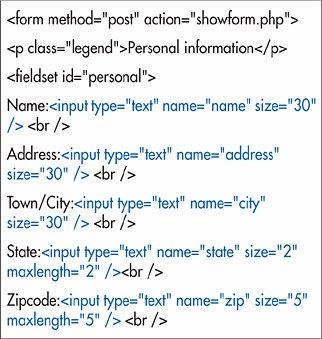
Text boxes can contain one line of free-form textthat is, anything that the visitor wants to typeand are typically used for
Figure 17.16. While it's essential to set the
|
|
1. |
If desired, type the label that will identify the text box to your visitor (for example,
Name:
).
|
|
2. |
Type
<input type="text"
.
|
|
3. |
Type
name="label"
, where
label
is the text that will identify the input data to the server (and your script).
|
|
4. |
If desired, type
value="default"
, where
default
is the data that will initially be shown in the field and that will be sent to the server if the visitor doesn't type something else.
|
|
5. |
If desired, define the
|
|
6. |
If desired, type
maxlength="n"
, where
n
is the maximum number of characters that can be entered in the box.
|
|
7. |
Finish the text box by typing a final
/>
.
Figure 17.17. Text boxes can be different sizes to accommodate different types of fields. We'll straighten these up in just a moment (on page 264).
|
Tips
Even if your visitor skips the field (and you haven't set the default text with the value attribute), the name attribute is still sent to the server (with an undefined, empty value ).
The default for
size
is 20. However,
Creating Password Boxes
The only difference between a password box and a text box is that whatever is typed in the former is hidden by bullets or
Figure 17.18. The
|
|
1. |
If desired, type the label that will identify the password box to your visitor (for example,
Enter password:
).
|
|
2. |
Type
<input type="password"
.
|
|
3. |
Type
name="label"
, where
label
is the text that will identify the input data to the server (and your script).
|
|
4. |
If desired, define the
|
|
5. |
If desired, type
maxlength="n"
, where
n
is the maximum number of characters that can be entered in the box.
|
|
6. |
Finish the text box by typing a final
/>
.
Figure 17.19. When the visitor enters a password in a form, the password is hidden with bullets or asterisks.
|
Tips
Even if nothing is entered in the password box, the name is still sent to the server (with an undefined value ).
You could set default text for value (as in step 4 on page 262), but that kind of defeats the purpose of a password.
The only protection the password box offers is from folks peering over your visitor's shoulder as she types in her password. To really protect passwords you have to use them on a secure server.
|
|
1. |
Type
<label
.
|
|
2. |
If desired, type
for="idname">
, where
idname
is the value of the
id
attribute in the corresponding form element.
|
|
3. |
Type the contents of the label.
|
|
4. |
Type
</label>
.
Figure 17.20. Marking field labels in a formal way gives you an easy way to identify them in a CSS style sheet.
|
Tips
If you use the
for
attribute, you must also add the
id
attribute to the associated form element's opening tag in order to mark it with a
label
. (Otherwise, the document will not validate.) For more details about the
id
attribute,
If you omit the for attribute, no id attribute is required in the element being labeled. The label and the element, in that case, are then associated by proximity, or perhaps by being placed in a common div element.
Another labeling technique is to use the title attribute. For more information, consult Labeling Elements in a Web Page on page 68.
You can use CSS to format your labels ( Figure 17.21) .