1.4. New
|
|
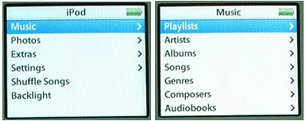
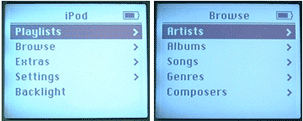
Contrast this to the older iPod, where there is a Browse menu for you to browse songs by Artists, Albums, etc (see Figure 1-10).
Chapter 2. Using your iPod Photo
In this chapter, I will show you the various ways to use the iPod photo. In particular, I will be
|
2.1. Obtaining and Installing
|
|
When you first start iTunes with your iPod photo connected, iTunes will prompt you with a dialog box (see Figure 2-1). Check the "Automatically copy photos to my iPod" option if you want to automatically copy photos to your iPod photo.
2.2. Photo Syncing using iTunes 4.7You can use iTunes to synchronize your photos on your Mac with your iPod photo. First, connect your iPod to your Mac. In iTunes, locate the iPod photo and click on the iPod icon at the bottom of the screen (see Figure 2-2). Figure 2-2. Using iTunes
2.2.1. Synchronizing with a folderIn the Photos tab, check the "Synchronize photos from" tab and select the folder that stores your photos (see Figure 2-3). In my case, I have stored my photos in a folder on the Desktop called "My Photos". Figure 2-3. Setting the photo synchronization options
By default, iTunes will copy all the photos (including subdirectories) into the iPod. However, you can check the "Copy selected folders only" option if you want to selectively copy the folders you want. In this case, you simply check the folders you want to copy (see Figure 2-4). Figure 2-4. Selecting the folders to synchronize
Note that when iTunes copies your photos to the iPod photo, it does not copy the full-resolution versions of your photos by default. That is, it compresses your photos so that they are just sufficient to display on your iPod. In Figure 2-3, I have checked the "Include full-resolution photos" option so that iTunes will copy the full-resolution of my photos. This is useful when you are performing a backup of your photos, or are intending to use your iPod photo to transfer your photos to another computer. Note that you must enable your iPod photo for disk use (see Figure 2-5) (so that your iPod can be mounted as a drive on your Mac) if you want to access the full-resolution photos. Figure 2-5. Enabling the iPod to be used as a hard disk
To locate the full-resolution copies of your photos in your iPod photo, double click on the iPod icon on your desktop and examine the Photos folder (see Figure 2-6). Figure 2-6. Examining the folders containing your photos in the iPod photo
To view the
Navigate to the photo album you want to view and press the Select button on your iPod photo. Figure 2-7. Viewing the photos on your iPod photo
To view a photo in full screen, select the photo and press the Select button again (see Figure 2-8). Figure 2-8. Viewing a photo in full screen
2.2.2. Synchronizing with iPhotoBesides synchronizing with a folder on your Mac, you can also synchronize your iPod photo with iPhoto. This is useful for transferring photos from your digital camera to your Mac and then to your iPod photo.
To synchronize with iPhoto, in the iPod options window, select the Photos tab and check the "Synchronize photos from" option and select iPhoto (see Figure 2-9). Figure 2-9. Synchronizing your iPod photo with iPhoto
{% if main.adsdop %}{% include 'adsenceinline.tpl' %}{% endif %}
In the warning dialog that
Figure 2-10. All existing photos on the iPod photo would be deleted if you change the synchronization option
You will now be able to choose to copy all photos and albums, or selectively copy the selected albums only (see Figure 2-11). Check the "Include full-resolution photos" option to copy the photos in their full-
Figure 2-11. Selecting the albums to snychronize
|