Hack 4 Use Terminal and X Bindings
|
Take advantage of your terminal's capabilities. It's not just the tcsh shell that is capable of understanding bindings. Your FreeBSD terminal provides the kbdcontrol command to map commands to your keyboard. Unfortunately, neither NetBSD nor OpenBSD offer this feature. You can, however, remap your keyboard under X, as described later. 1.5.1 Creating Temporary MappingsLet's start by experimenting with some temporary mappings. The syntax for mapping a command with kbdcontrol is as follows: kbdcontrol -f number "command" Table 1-2 lists the possible numbers, each with its associated key combination.
Those last three key combinations may or may not be present, depending upon your keyboard. My Logitech keyboard has a key with a Windows icon next to the left Ctrl key; that is the left GUI key. There's another key with a Windows icon next to my right Alt key; this is the right GUI key. The next key to the right has an icon of a cursor pointing at a square containing lines; that is the Menu key. Now that we know the possible numbers, let's map lynx to the Menu key: % kbdcontrol -f 64 "lynx" Note that the command must be contained within quotes and be in your path. (You could give an absolute path, but there's a nasty limitation coming up soon.) If I now press the Menu key, lynx is typed to the terminal for me. I just need to press Enter to launch the browser. This may seem a bit tedious at first, but it is actually quite handy. It can save you from inadvertently launching the wrong application if you're anything like me and tend to forget which commands you've mapped to which keys. Let's see what happens if I modify that original mapping somewhat: % kbdcontrol -f 64 "lynx www.google.ca" kbdcontrol: function key string too long (18 > 16) When doing your own mappings, beware that the command and its arguments can't exceed 16 characters. Other than that, you can pretty well map any command that strikes your fancy. 1.5.2 Shell Bindings Versus Terminal BindingsBefore going any further, I'd like to pause a bit and compare shell-specific bindings, which we saw in [Hack #3], and the terminal-specific bindings we're running across here. One advantage of using kbdcontrol is that your custom bindings work in any terminal, regardless of the shell you happen to be using. A second advantage is that you can easily map to any key on your keyboard. Shell mappings can be complicated if you want to map them to anything other than "Ctrl letter". However, the terminal mappings have some restrictions that don't apply to the tcsh mappings. For example, shell mappings don't have a 16 character restriction, allowing for full pathnames. Also, it was relatively easy to ask the shell to press Enter to launch the desired command. Terminal bindings affect only the current user's terminal. Any other users who are logged in on different terminals are not affected. However, if the mappings are added to rc.conf (which only the superuser can do), they will affect all terminals. Since bindings are terminal specific, even invoking su won't change the behavior, as the user is still stuck at the same terminal. 1.5.3 More Mapping CaveatsThere are some other caveats to consider when choosing which key to map. If you use the tcsh shell and enjoy viewing your history [Hack #1], you'll be disappointed if you remap your up and down arrows. The right and left arrows can also be problematic if you use them for navigation, say, in a text editor. Finally, if you're physically sitting at your FreeBSD system, F1 through F8 are already mapped to virtual terminals and F9 is mapped to your GUI terminal. By default, F10 to F12 are unmapped. If you start experimenting with mappings and find you're stuck with one you don't like, you can quickly return all of your keys to their default mappings with this command: % kbdcontrol -F On the other hand, if you find some new mappings you absolutely can't live without, make them permanent. If you have superuser privileges on a FreeBSD system you physically sit at, you can carefully add the mappings to /etc/rc.conf. Here, I've added two mappings. One maps lynx to the Menu key and the other maps startx to the left GUI key: keychange="64 lynx" keychange="62 startx" Since the superuser will be setting these mappings, the mapped keys will affect all users on that system. If you want to save your own personal mappings, add your specific kbdcontrol commands to the end of your shell configuration file. For example, I've added these to the very end of my ~/.cshrc file, just before the last line which says endif: % kbdcontrol -f 64 "lynx" % kbdcontrol -f 62 "startx" 1.5.4 Making Mappings Work with XThis is all extremely handy, but what will happen if you try one of your newly mapped keys from an X Window session? You can press that key all you want, but nothing will happen. You won't even hear the sound of the system bell beeping at you in protest. This is because the X protocol handles all input and output during an X session. You have a few options if you want to take advantage of keyboard bindings while in an X GUI. One is to read the documentation for your particular window manager. Most of the newer window managers provide a point and click interface to manage keyboard bindings. My favorite alternative is to try the xbindkeys_config application, which is available in the ports collection [Hack #84] : # cd /usr/ports/x11/xbindkeys_config # make install clean This port also requires xbindkeys: # cd /usr/ports/x11/xbindkeys # make install clean
Once your builds are complete, open an xterm and type: % xbindkeys --defaults ~/.xbindkeysrc % xbindkeys_config The GUI in Figure 1-1 will appear. Figure 1-1. The xbindkeys_config program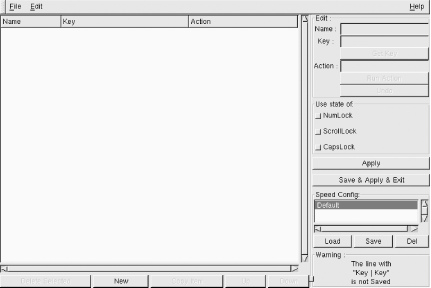 Creating a key binding is a simple matter of pressing the New button and typing a useful name into the Name: section. Then, press Get Key and a little window will appear. Press the desired key combination, and voilà, the correct mapping required by X will autofill for you. Associate your desired Action:, then press the Save & Apply & Exit button. Any keyboard mappings you create using this utility will be saved to a file called ~/.xbindkeysrc. 1.5.5 See Also
|


