Windows
| Mac OS makes extensive use of windows for displaying icons and other information in the Finder and documents in other applications. Figures 36 and 37 show two different views of a Finder window. Figure 36. A Finder window in icon view.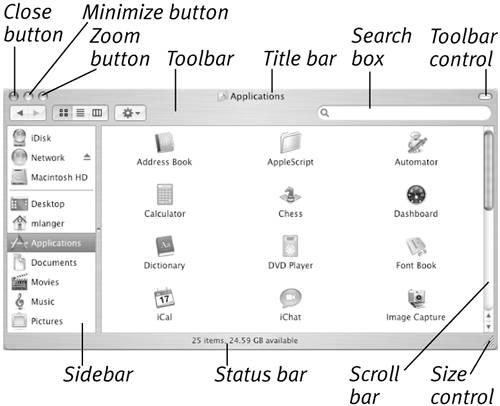 Figure 37. The same Finder window in list view.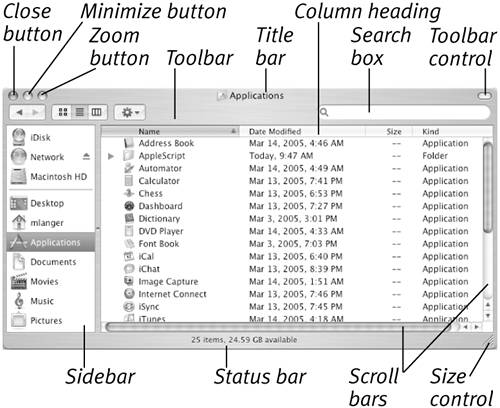 Each window includes a variety of controls you can use to manipulate it:
To open a new Finder windowChoose File > New Finder Window (Figure 38), or press Figure 38. Choose New Finder Window from the File menu.
Figure 39. The active window appears atop all other windows and the buttons on the left end of its title bar appear in color.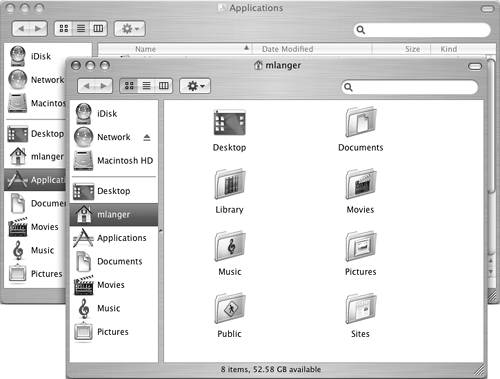
To open a folder or disk in a new Finder windowHold down
To close a windowClick the window's close button (Figures 36 and 37). Or Choose File > Close Window (Figure 40), or press Figure 40. Choose Close Window from the File menu ...
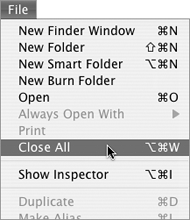
To close all open windowsHold down Or Hold down Figure 41. ...or hold down |
 . A new Home folder window for your account appears (
 while opening a folder or disk icon. A new window containing the contents of the folder or disk appears.
 .
.
 .
.
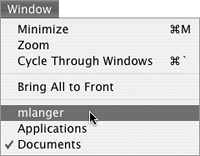
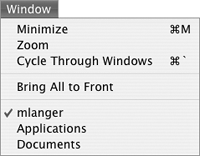
 , to activate each open window, in sequence.
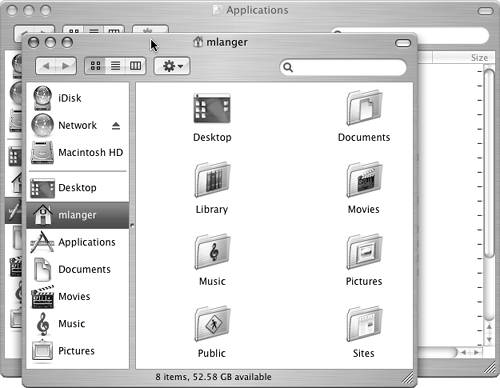
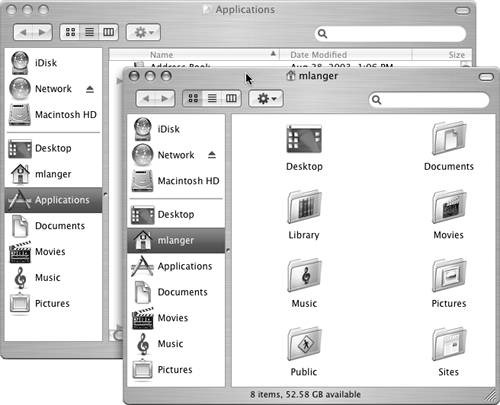
1. | Position the mouse pointer on the window's title bar (Figure 44) or border. Figure 44. Position the mouse pointer on the title bar.
|
2. | Press the mouse button and drag the window to a new location. As you drag, the window moves along with your mouse pointer (Figure 45). Figure 45. As you drag, the window moves.
|
3. | When the outline of the window is in the desired position, release the mouse button. |
 Tip
Tip
As discussed later in this chapter, hiding the toolbar and Sidebar removes window borders. If window borders are not showing, the only way to move a window is to drag its title bar.
To resize a window
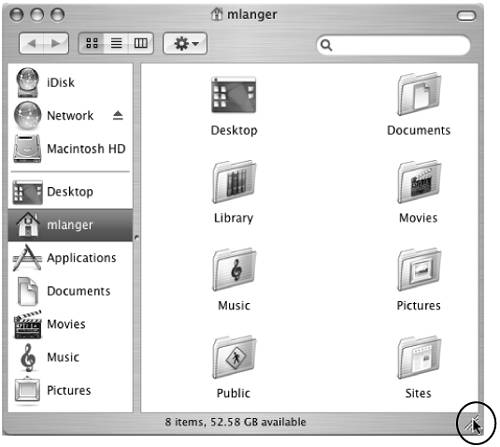
1. | Position the mouse pointer on the size control in the lower-right corner of the window (Figure 46). Figure 46. Position the mouse pointer on the size control.
|
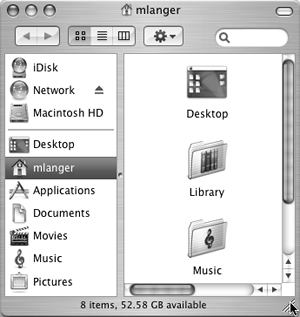
2. | Press the mouse button and drag. As you drag, the size control moves with the mouse pointer, changing the size and shape of the window (Figure 47). Figure 47. As you drag, the window's size and shape changes.
|
3. | When the window is the desired size, release the mouse button. |
Tips
The larger a window is, the more you can see inside it.
By resizing and repositioning windows, you can see inside more than one window at a time. This comes in handy when moving or copying the icons for files and folders from one window to another. Moving and copying files and folders is covered in Chapter 3.
To minimize a window
Click the window's minimize button (Figures 36 and 37).
Or
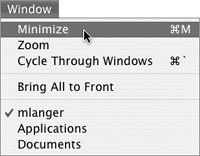
Choose Window > Minimize (Figure 48), or press  .
.
Figure 48. The Minimize Window command minimizes the active window.
Or
Double-click the window's title bar.
The window shrinks into an icon and slips into the Dock at the bottom of the screen (Figure 49).
Figure 49. Minimized windows shrink down into icons in the Dock.

Tip
To minimize all windows, hold down
 and choose Windows > Minimize All, or press
  .
.
To redisplay a minimized window
Click the window's icon in the Dock (Figure 49).
Or
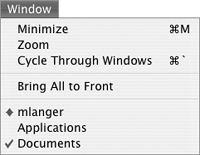
Choose the window's name from the Window menu (Figure 50).
Figure 50. A diamond beside a window name indicates that the window has been minimized.
To zoom a window
Click the window's zoom button (Figures 36 and 37).
Each time you click the zoom button, the window's size toggles between two sizes:
Standard state size is the smallest possible size that would accommodate the window's contents and still fit on your screen (Figure 1).
User state size, which is the size you specify with the size control (Figure 47).
To scroll a window's contents
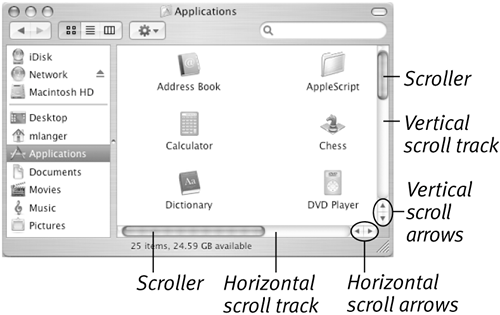
Click one of the scroll bar arrows (Figure 51) as follows:
To scroll the window's contents up, click the down arrow on the vertical scroll bar.
To scroll the window's contents down, click the up arrow on the vertical scroll bar.
To scroll the window's contents to the left, click the right arrow on the horizontal scroll bar.
To scroll the window's contents to the right, click the left arrow on the horizontal scroll bar.
Figure 51. Scroll bar components.
Tips
If you have trouble remembering which scroll arrow to click, think of it this way:
Click down to see down.
Click up to see up.
Click right to see right.
Click left to see left.
You can also scroll a window's contents by either clicking in the scroll track on either side of the scroller or by dragging the scroller to a new position on the scroll bar. Both of these techniques enable you to scroll a window's contents more quickly.
Scroll bars only appear when necessarywhen part of a window's contents are hidden. In Figure 36, for example, it isn't necessary to scroll from side to side so the horizontal scroll bar does not appear. In Figure 46, all of the window's contents are displayed so no scroll bars appear.
The scrollers in Mac OS X are proportionalthis means that the more of a window's contents you see, the more space the scroller will take up in its scroll bar.

EAN: 2147483647
Pages: 301