Building Redundancy
Redundant computing and networking systems can be an easy, though not always inexpensive, route to Exchange server reliability and availability. Automatic failover from a nonfunctional to a functional component is best. Even if you have to bring your system down for a short time to replace a component, with no or minimal data loss, you'll be a hero to your users. In addition to eliminating or sharply reducing downtime, redundant systems can help you avoid the pain of standard or disaster-based Exchange server recovery.
System redundancy is a complex matter. It's mostly about hardware, though a good deal of software, especially operating system software, can be involved. We are going to deal here with two areas that are essential to redundant systems: server redundancy and network redundancy.
Server Redundancy
In the following sections, we are going to talk about two basic kinds of server redundancy:
-
Intraserver redundancy
-
Interserver redundancy
Intraserver redundancy is all about how redundant components are installed in a single server. Interserver redundancy involves multiple servers that, in some form or other, mirror each other. The goal with either kind of redundancy is for good components or servers to replace bad ones as quickly as possible. Automatic replacement is highly desirable.
Intraserver Redundancy
When you think redundancy in a server, you think about storage, power, cooling, and CPUs. Redundant disk storage and power components are the most readily available in today's servers. Tape storage has lagged behind disk storage in the area of redundancy, but it is available. Redundant cooling fans have been around for some time. Historically, Intel has not offered good support for redundant CPUs. However, the company now provides hardware for this purpose, and that hardware is finding its way into production servers.
Let's look at each aspect of server redundancy in more detail.
Redundant Storage
Redundant disk storage relies on a collection of disks to which data is written in such a way that all data continues to be available even if one of the disk drives fails. The popular acronym for this sort of set up is RAID, which stands for Redundant Array of Independent Disks.
There are several levels of RAID, one of which is not redundant. These are certainly not the only ones you will find in storage technologies. Many vendors create proprietary implementations in order to get better performance or redundancy. Here's a quick look at a few of the more common levels of RAID:
-
RAID 0 Raid 0 is also called striping. When data must be written to a RAID 0 disk array, the data is split into parts and each part of the data is written (striped) to a different drive in the array. RAID 0 is not redundant, but it provides the highest performance because each byte of data is written in parallel fashion, not sequentially, and there is no delay while parity data is calculated. We don't recommend implementing RAID 0 by itself in production as it provides no fault tolerance. RAID 0 is included here because RAID 0 strategies are used in another RAID design that we discuss later. RAID 0 requires a minimum of two disk drives of approximately equal size.
-
RAID 1 All data on a drive is mirrored to a second drive. This provides the highest reliability. Write performance is fairly slow because data must be written to both drives. Read performance can be enhanced if both drives are used when data is accessed. RAID 1 is implemented using a pairs of disks. Mirroring requires considerably more disk storage compared to RAID 5.
-
RAID 0 + 1 As with RAID 0, data is striped across each drive in the array. However, the array is mirrored to one or more parallel arrays. This provides the highest reliability and performance and has even higher disk storage requirements than RAID 1.
-
RAID 5 Data to be written to disk is broken up in to multiple blocks. Part of the data is striped to each drive in the array. However, writes include parity information that allows any data to be recovered from the remaining drives if a drive fails. RAID 5 is reliable, though performance is slower. With RAID 5, you lose the equivalent of one disk in total GB of storage. For example, a RAID 5 array of three 36GB drives gives you 72GB, not 108GB of storage. This is more efficient than RAID 1 or 0 + 1, which requires a disk for each drive mirrored, but write performance is about one-third of RAID 0 + 1 and read performance is about one-half of RAID 0 + 1.
So, which RAID level is right for you ? RAID0 + 1 is nice, but we reserve it for organizations with really demanding performance requirements such as servers with high I/O per second requirements. You compromise some with RAID 5, but it's the best price-performance-reliability option.
It should be clear how RAID works from a general redundancy/reliability perspective. Now you're probably wondering how it works to assure high availability. The answer is pretty simple. With a properly set up RAID 1, 0 + 1, or 5 system, you simply replace a failed drive and the system automatically rebuilds itself. If the system is properly configured, you can actually replace the drive while your server keeps running and supporting users. If your RAID system is really highly neat, you set up hot spares that are automatically used should a disk drive fail. A lot of this depends on the vendor of the RAID controller and whether or not the controller allows automatic rebuilds and hot spares.
 |
"So, how do you know a RAID disk failed, and what do you do about it other than inserting a good drive? Most systems make entries in the Windows system event log. Many also let you know by talking to you. I'll never forget the first time a RAID 5 disk failed in one of my client's Dell servers. I got a call about a high-pitched whistling sound. They reported that they were 'going nuts from the sound.' So I had to figure out what was up as quickly as possible. I contacted Dell premium support, and within five minutes I knew it was a failed RAID drive. I used the Remote Desktop client in Windows Server 2003 to get to the computer over the Internet, using a virtual private network connection for security. Using Dell's support software for its RAID arrays, I was quickly able to shut off that horrible sound and set the server to the tasks of checking the failed drive and attempting to reinsert it into the array. Meanwhile, users were happily working away on their Exchange-based e-mail, knowing nothing about the failure. The drive recovered without a problem.
"If the failed drive was not recoverable, I would have asked my clients to remove the failed drive and insert a ready-to-go standby drive into the server. The server has three active RAID drives and three empty slots all on a hot-swap backplane. So, drive removal and insertion can be done without interrupting user access to the server. I could have also installed a fourth drive and set it up to act as a standby drive. The initial failure would then have triggered a rebuild of the array on to the standby drive. Then, at my leisure, I could come by and check the failed drive to see if it was still serviceable."
|
If RAID sounds like a good idea but you're worrying about costs, consider this: For most mainstream server vendors, adding a RAID controller option and a few hundred gigabytes of usable storage will increase the cost of the server by only a few thousand dollars. Figure out what a few hours (or days) of downtime and possibly a few days of lost e-mail data would cost and we think you'll conclude that the peace of mind that comes with redundant server hardware is worth the extra cost.
| Tip | For the best performance, be sure to use a RAID solution that is implemented in hardware on a RAID adapter. Limited software-based RAID is available in Windows Server 2003, but you're not going to be happy with the speed of such an implementation. |
RAID solutions don't necessarily have to be implemented inside a server. There is one very viable, if expensive, RAID solution that connects to your server or servers via a very high-throughput link. The technology is called a storage area network (SAN).SANdevices connect to servers using fiber-optic cable. You can connect multiple servers to a SAN. Each server is connected to the SAN through one or more very high-speed switches. This provides excellent throughput between the SAN and each server. Backups also benefit from the SAN's high levels of performance. Tape units are available that connect directly to SAN fiber switches.
SANs include fairly complex storage and management software. Support is not a trivial matter, though support requirements are reduced somewhat because data can be consolidated onto one device. Minimal SAN implementations are measured in terabytes (TB) of storage. Five TB is not unusual for such an implementation. At this writing, because of their costs and complexity, SANs are being promoted by vendors for really high-end storage capacity and performance requirements. Microsoft takes the same position regarding running Exchange on SANs.
Generally, if you're going to implement a SAN solution, you'll do it in a clustered server environment. For more on server clustering, see the section, "Interserver Redundancy" later in this chapter.
| Warning | If SANs are too rich for your blood, take comfort: There are alternatives. You can buy lower-throughput, lower-capacity, external RAID, or iSCSI storage systems that attach to your server or servers using sufficiently high-speed links to support an Exchange environment. Vendors such as Network Appliance (www.netapp.com), LeftHand Networks (www.lefthandnetworks.com), Compaq (www.hp.com), and Dell (www.dell.com) offer this hardware. |
If you've been tempted by network attached storage (NAS) solutions, forget it. Exchange databases must reside on a disk that is directly attached to the server. Through their switches, SANs are attached to the servers they support. NAS devices are not. It is no different than if you tried to install an Exchange information store on a disk residing on another server on your network. It doesn't work. However, if you are looking at iSCSI solutions, those are now supported.
Devices are available based on Redundant Array of Independent Tapes (RAIT) technology. Like RAID disk units, RAIT tape backup systems either mirror tapes one to one or stripe data across multiple tapes. As with disk, multitape striping can improve backup and restore performance as well as provide protection against the loss of a tape. Obviously, RAIT technology includes multiple tape drives. It is almost always implemented with tape library hardware so that tapes can be changed automatically, based on the requirements of backup software.
Redundant Power Supplies
Redundant power supplies are fairly standard in higher-end servers. Dell, IBM, and HP server-class hardware all include an additional power supply for a small incremental cost. Each power supply has its own power cord and runs all of the time. In fact, both power supplies provide power to the server at all times. Because either power supply is high enough in wattage to support the entire computer, if one power supply fails, the other is fully capable of running the computer. As with storage, system monitoring software lets you know when a power supply component has failed.
Many higher-end servers offer more than two redundant power supplies. These are designed for higher levels of system availability. They add relatively little to the cost of a server and are worth it.
Ideally, each power supply should be plugged into a different circuit. That way, the other circuit or circuits will still be there if the breaker trips on one circuit. We urge organizations that have high-availability requirements like hospitals to go a step further and ensure that one of the power supplies is plugged into an emergency circuit that is backed up by the organization's diesel-powered standby electricity-generating system. And, of course, each circuit should be plugged into an uninterruptible power supply (UPS).
Large-scale data centers will often implement two backup generators, two completely separate power grids, and two different sets of UPSs. Each server has a power supply connected to one grid and the other power supply is connected to the other.
Compaq, now a part of Hewlett Packard, offers another form of power redundancy, redundant voltage regulator modules (VRMs). In some environments, it's fine to have multiple power supplies, but if the power to your server isn't properly regulated because the computer's VRM has totally or partially failed, you'd be better off if the power had just failed. We expect that redundant VRMs will quickly become standard on higher-end servers from other manufacturers.
Redundant Cooling
Modern CPUs, RAM, and power supplies produce a lot of heat. Internal cooling fans are supposed to pull this heat out of a computer's innards and into the surrounding atmosphere. If a fan fails, components can heat to a point where they stop working or permanently fail. Redundant cooling fans help prevent this nightmare scenario. In most systems, there is an extra fan that is always running. Monitoring software lets you know when a fan fails. The system is set up so that the remaining fans can support the server until you are able to replace the failed fan.
One-for-one redundant fans are becoming more and more available. With these, each fan in a system is shadowed by an always-running matching fan. When a fan fails, monitoring software lets you know so you can replace it.
Redundant CPUs
As we mentioned earlier, redundancy has not been a strong point of Intel CPUs. Mainframe and specialty mini-computer manufacturers have offered such redundancy for years. Pushed by customers and large companies such as Microsoft, Intel now has a standard for implementation of redundant CPUs.
Each CPU lives on its own plug-in board. Each CPU has its own mirror CPU. Mirroring happens at extremely high speed. When one CPU board detects problems in the other CPU, it shuts down the CPU and takes over the task of running the server. Intel claims that these transitions are transparent to users.
System monitoring software lets you know that a CPU has been shut down. You can use management software to assess the downed CPU to see if the crash was soft (CPU is still okay and can be brought back online) or hard (time to replace the CPU board). If the board needs replacing, you can do it while the computer is running. This is another victory for hot-swappable components and high system reliability and availability.
Intel is marketing this technology for extremely high-reliability devices such as telecommunications networking. However, we expect that it will quickly find its way into higher-end corporate server systems.
| Note | While they don't fall into the category of redundancy because they don't use backup hardware, error-correcting code (ECC) memory and registered memory deserve brief mention here. ECC memory includes parity information that allows it to correct a single bit error in an 8-bits of memory. It can also detect, but not correct, an error in 2 bits per byte. Higher-end servers use special algorithms to correct full 8-bit errors. Registered memory includes registers where data is held for one clock cycle before being moved onto the motherboard. This very brief delay allows for more reliable high-speed data access. |
Uninterruptible Power Supplies
In most every installation anywhere in the world, the uninterruptible power supply (UPS) is a standard part of the installation. In its simplest form, the UPS is an enclosure with batteries and some power outlets connected to the batteries. During normal operations, the UPS will keep the batteries fully charged and allow the server to pull its power from the commercial power. In the event of a power failure or even just a brownout, the batteries kicks in and keeps supplying power to the server.
We see a few things that people do wrong constantly. One of the biggest mistakes people make is that they do not plan for sufficient capacity. Consequently, the UPS is overloaded and cannot provide power to everything connected to the UPS. Here are a few tips:
-
Always buy more UPS capacity than you think you are going to need.
-
Plan for at least 15 minutes of battery capacity at maximum load.
-
Don't forget other things that may end up on the UPS, such as monitors, external tape devices, and external storage systems.
-
Make sure that network infrastructure hardware is protected by a UPS; this includes routers, switches, and SAN and NAS equipment.
-
UPS batteries need to be replaced. Replace batteries based on the manufacturer's schedule.
Interserver Redundancy
Interserver redundancy is all about synchronizing a set of servers so that server failures result in no or little downtime. There are a number of third-party solutions that provide some synchronizing services, but Microsoft's Windows clustering does the most sophisticated and comprehensive job of cross-server synchronization. We're going to focus here on this product. We'll also spend a bit of time on redundant SMTP hosts using a simple DNS trick.
Mailbox Server Redundancy
To provide higher availability for mailbox access, you should consider implementing Exchange server clustering. The Enterprise and Datacenter editions of Windows Server 2003 include clustering capabilities. Interserver redundancy clustering is supported by the Microsoft Cluster Service (MSCS). MSCS supports clusters using up to eight servers or nodes. The servers present themselves to clients as a single server. A server in a cluster uses ultra-high-speed internode connections and very fast, hardware-based algorithms to determine if a fellow server has failed. If a server fails, another server in the cluster can take over for it with minimal interruption in user access. It takes between two and five minutes for a high-capacity Exchange server cluster with a heavy load (around 5,000 users) to recover from a failure. With resilient e-mail clients such as Outlook 2003 or Outlook 2007, client-server reconnections are transparent to users.
We will take a closer look at clustering Exchange servers later in this chapter.
Redundant Inbound Mail Routing
Larger organizations will want to provide some redundancy for their inbound mail from the Internet. Redundant inbound messaging starts with at least two SMTP servers. In Figure 15.2, we are showing two Exchange 2007 Edge Transport servers in the organization's perimeter (DMZ) network. This could just as easily be any type of SMTP mail system located in the perimeter network. If Edge Transport servers are not used, then these servers could be on the internal network and they could be Exchange 2007 Hub Transport servers.
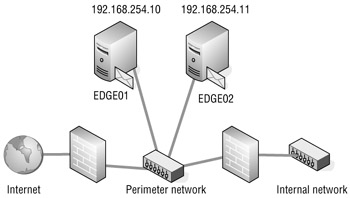
Figure 15.2: Redundant inbound mail routing
Server EDGE01 has an IP address of 192.168.254.10 and server EDGE2 has an IP address of 192.168.254.11. We will pretend that these are the public IP addresses. The most common way to provide redundancy for inbound mail is to use DNS and mail exchanger (MX) records. Here is a sample of the MX records that would provide inbound mail routing for a domain called somorita.com.
somorita.com IN MX 10 edge01.somorita.com somorita.com IN MX 10 edge02.somorita.com edge01 IN A 192.168.254.10 edge02 IN A 192.168.254.10
That number 10 in the MX record is called a priority value. Most mail servers will automatically load-balance between these two servers when they send mail. We could change one of the MX record's priorities to something higher and mail would always be routed to the lower-priority MX record. It doesn't matter what you set the higher value to as long as it is higher. You can have as many MX records for an Internet domain as you want. Just be sure each points to a different server.
Another method of providing higher redundancy and high availability for inbound SMTP servers is to use some type of load balancing. We'll talk more about that later in this chapter.
Neither network load balancing nor multiple MX records provides complete fault tolerance for inbound mail routing. They provide better availability, but if an Edge Transport server fails in the middle of a message being delivered to your organization, the message transfer will fail. However, the sending server will reestablish a connection and automatically use the other Edge Transport server either because of the additional MX records or because network load balancing directs the SMTP client to the other server.
Redundant Internal Mail Routing
Internal mail routing is handled by the Exchange 2007 Hub Transport server role. If the Hub Transport role is on a separate physical server from the Mailbox server role, then all mail delivery - whether on the local Mailbox server, another Mailbox server in the same Active Directory site, or a Mailbox server in a remote Active Directory site - must be routed through the Hub Transport server role. If the Mailbox server role and the Hub Transport server role are on the same physical machine, then the local Hub Transport server role takes care of messaging routing.
In a larger environment where server roles are all split, the best way to achieve redundancy in message routing is to install at least two servers that host the Hub Transport server role in each Active Directory site. Figure 15.3 shows a sample network with two Active Directory sites. Each Active Directory site has two servers with the Hub Transport role installed.
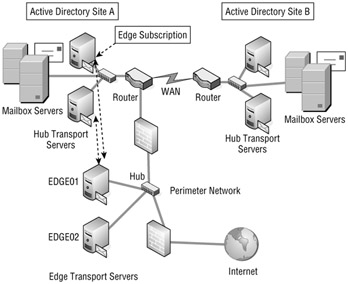
Figure 15.3: Improving redundancy with multiple Hub Transport servers
Exchange 2007 will automatically load-balance between the Hub Transport servers that it's using within your organization. If a server fails and an alternate Hub Transport server is available within the Active Directory site, Exchange will start using the other Hub Transport server.
Redundant Outbound Mail
Within your Exchange organization, all mail delivery is handled by the Hub Transport server role. This is also true for e-mail that is destined for outside sources, such as Internet domains. Outbound mail is delivered using Send connectors and/or using Edge Subscriptions to Edge Transport servers located in your perimeter network. Figure 15.3 includes two Edge Transport servers located in the perimeter network. To achieve redundancy in outbound mail routing, we would need to create Edge Subscriptions for the Edge Transport servers and define a Send connector that will deliver mail to the Edge Transport servers.
Again, this solution is not a completely fault-tolerant solution but rather a high-availability solution. If an Edge Transport or Hub Transport server fails during message routing or transmission, Exchange will attempt to deliver messages through an alternate path.
Client Access and Unified Messaging Redundancy
The Client Access server role and the Unified Messaging server role can both be made more available by implementing multiple servers supporting these roles in the same Active Directory site and then implementing some type of load-balancing solution.
Figure 15.4 shows an example of how you could provide higher availability for Client Access and Unified Messaging server roles. In this figure, the physical servers host both roles. Load balancing between the two physical servers will providing users with connectivity to the least busy server at the time that they need to connect. Load balancing will also direct users to the remaining server if the first server fails.
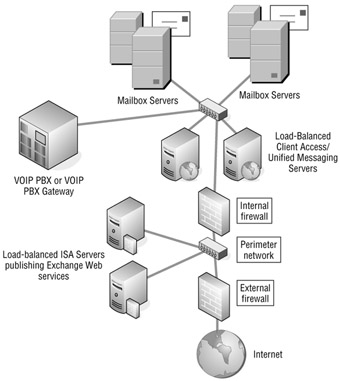
Figure 15.4: Implementing load balancing for Client Access and Unified Messaging servers
Notice in Figure 15.4 that we have included load-balanced ISA servers in the perimeter network. This allows you to securely publish Exchange 2007 web services such as Outlook Web Access, Outlook Anywhere, ActiveSync, and the Availability service. The ISA servers act as reverse proxy servers and handle the initial inbound HTTP/HTTPS connection from Internet clients.
Load-balancing a Client Access or Unified Messaging server provides higher availability, but it does not provide complete fault tolerance. If the Exchange server fails, any active connections on that server will be terminated and the user (or VOIP call) will be terminated and the connection will have to be reestablished.
Network Load Balancing
We have mentioned load balancing a few times in this chapter as a mechanism for improving availability for certain types of server roles or functions. Load balancing works well in situations where you have multiple servers (two or more) that can handle the same type of request. This includes web servers and SMTP mail servers. In the case of something like a web server, the assumption is that a copy of the website is located on all of the servers that are being load-balanced.
In the case of Exchange, we can use load balancing to help provide better availability to the following server roles:
-
Client Access servers
-
Hub Transport servers (for inbound e-mail from the Internet or POP3/IMAP4 clients)
-
Edge Transport servers
-
Unified Messaging servers
| Tip | SMTP servers that provide inbound STMP connectivity from outside of your organization such as the Edge Transport or Hub Transport servers are best served by providing load balancing by creating multiple DNS mail exchanger (MX) records. |
Load balancing does not work for mailbox servers because the mailbox is only accessible from one server at a time, even when the servers are clustered. If you provide load balancing for Hub Transport, Unified Messaging, or Client Access servers, this only provides higher availability for the client access point; the actual mailbox data must still have a high availability solution such as clustering.
There are a number of solutions on the market for load balancing, including Cisco's Local Director appliance (www.cisco.com) and F5's BIG-IP (www.f5.com) appliance. Microsoft includes a built-in load-balancing tool with Windows Server 2003 called Network Load Balancing (NLB). You will often hear NLB people refer to NLB as a clustering technology; indeed, even the Microsoft Windows Server 2003 documentation refers to the feature as NLB clustering.
| Tip | Prior to actually setting up load balancing for the first time, you always want to ensure that each node or host works independently before you put it into a load-balanced cluster. This will save you a lot of troubleshooting time. |
Let's take a quick look at load balancing from a conceptual point of view and apply those concepts to an Exchange example. Figure 15.5 shows an example of load balancing where we want to provide higher availability for our Client Access servers. In this example, there are two Windows Server 2003 servers that are hosting the Exchange 2007 Client Access role and they are load-balanced using the Windows Network Load Balancing tool.
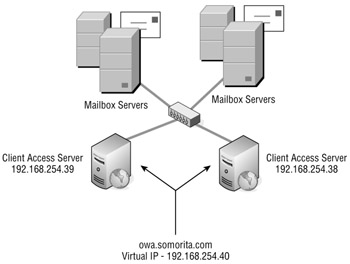
Figure 15.5: Implementing Network Load Balancing
Each Windows server is assigned its own unique IP address, but all servers must be on the same IP subnet. These IP addresses are 192.168.254.38 and 192.168.254.39. The "cluster" IP address will be 192.168.254.40. We will create a DNS record called owa.somorita.com that will be mapped to 192.168.254.40. We will ask our Outlook Web Access, Outlook Anywhere, and ActiveSync clients to use this FQDN. The load-balanced IP address must be on the same IP subnet as the hosts.
As connections attempts are made to the IP address 192.168.254.40, the two hosts communicate with each other and decide which host should accept the connection. The connection will be accepted by one of the two hosts and that connection is maintained until the client disconnects or the host is shut down. The entire process is transparent to the end user.
|
One option you will frequently hear people talk about when running more than one web server is to use DNS round robin. With DNS round robin, you configure a single hostname with multiple IP addresses. The DNS server rotates IP addresses it gives out. While this works reasonably well, the client may change IP addresses after the DNS cache lifetime expires and that will break an SSL session.
|
Setting up an NLB cluster using the Windows Server 2003 Network Load Balancing Manager is pretty straightforward. In our example, we are setting up two servers into an NLB cluster, so it is best to run the NLB Manager from the console of one of the two servers. Log on to the console of one of the servers as a member of the local Administrators group and then launch the Network Load Balancing Manager program from the Administrative Tools folder. The console should show no NLB clusters. From the Cluster menu, choose New to get to the Cluster Parameters screen (shown in Figure 15.6).
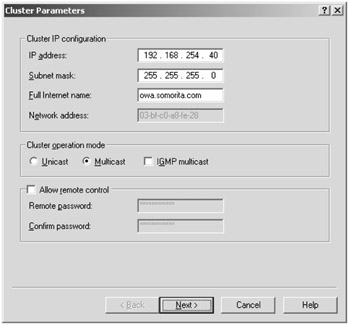
Figure 15.6: Creating a new NLB cluster
In the IP address and subnet mask fields, enter the "cluster" IP address and subnet mask, not the IP address and subnet mask of the individual node. In this example, we will use 192.168.254.40. The Full Internet Name box is usually optional, but it is a good idea to enter the name here that the clients will be using when they connect to this NLB cluster.
Finally, in the Cluster Operation Mode section, depending on your network, either Unicast or Multicast should work, but we recommend using multicast mode. When you have finished with this screen, click the Next button. The following screen is the Cluster IP Addresses screen, which allows you to add additional cluster IP addresses. In most cases, this is not necessary, so you can click Next again.
The next screen is the Port Rules dialog box. Port rules allow you to configure the actual TCP or UDP ports to which the NLB cluster will respond. For example, you might configure a rule that says the cluster only services TCP port 80 or 443 if you wanted to provide Network Load Balancing clustering for just web applications. The default screen is shown in Figure 15.7.
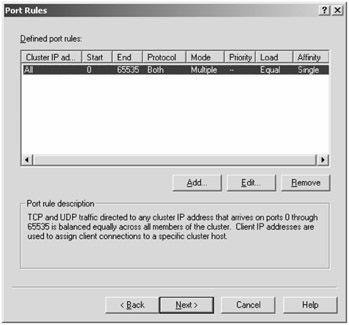
Figure 15.7: Defining port rules for a Network Load Balancing cluster
In the default configuration, all ports are used with the cluster, and for simplicity's sake you should leave it this way. Notice in Figure 15.7 that the protocol column is set to Both (meaning TCP and UDP) and the port range is 0 to 65535. Since you are not going to change anything on this screen, you can click Next.
The next screen is the Connect dialog box; when creating a new NLB cluster, there should be no interfaces or host information listed by default. In the Host box, you need to type the IP address of the first host that will be joining the cluster and click Connect. This will initiate a connection to the host you specify and list the network adapters that can be configured to join the cluster; this is shown in Figure 15.8.
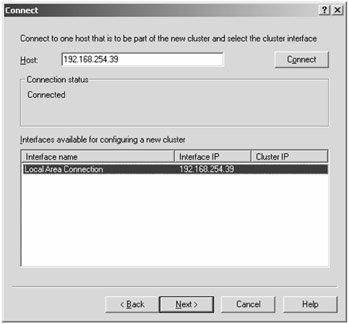
Figure 15.8: Adding a host to the Network Load Balancing cluster
Select the network adapter to which you want to bind NLB and click Next. The following screen is the Host Parameters dialog box (shown in Figure 15.9). Here you specify a priority for the adapter (each host needs a unique priority), you confirm the IP address and subnet mask of the host you are adding to the NLB cluster, and you select the initial state of the host. We recommend that you always select Started as the default state so that you don't have to remember to start each node of the cluster manually after a reboot.
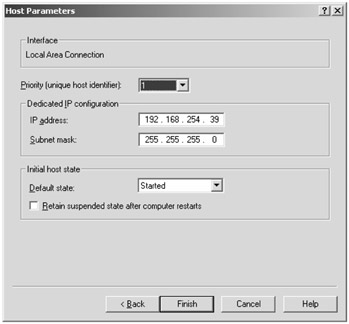
Figure 15.9: Confirming host parameters for a member of a Network Load Balancing cluster
When you have finished configuring the host parameters, you can click the Finish button. The configuration change for this particular node of the NLB cluster will begin. If you are connected to the server via the Remote Desktop Connection client, you may be disconnected because the network will be stopped and restarted. In some instances, we have seen a situation in which configuring NLB leaves a node in an inconsistent state and you must manually reconfigure it from the console. While this is rare, if the server is remote, it is always a good idea to have someone available onsite that can log on to the server console and fix the problem. Or have some type of out-of-band server management tool available.
When you have configured the first node into the NLB cluster, you can add additional nodes. In the NLB Manager, connect to the existing cluster (if you are not already connected) and right-click on the cluster name. From the pop-up menu, select Add Host to Cluster. This takes you through another wizard that allows you to add a new node to the NLB cluster. When you have finally added all of the nodes, the NLB Manager (shown in Figure 15.10) will show you the status of the cluster and all of the nodes.
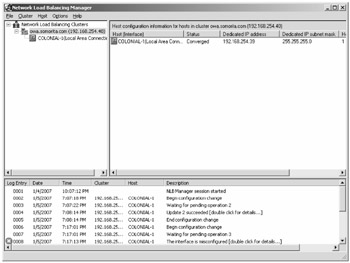
Figure 15.10: Examining the status of the Network Load Balancing cluster
Network Redundancy
The concepts that apply to server redundancy also apply to network redundancy. There are network adapters, switches, bridges, and routers that support intradevice redundancy. Of course, as you learned with Exchange connectors, redundancy doesn't mean much if redundant devices are connected to the same physical network.
You can achieve network interface card (NIC) redundancy by using what is called NIC teaming. With teaming, two or more NICs are treated by your server and the outside world as a single adapter with a single IP address. For fault tolerance, you connect each NIC to a separate layer 2 MAC address-based switch. All switches must be able to physically communicate with each other; that is, they must be in the same layer 2 domain and they must support NIC teaming. All the network cards work together to send and receive data. If one NIC fails, the others keep on chugging away doing their job and you are notified of the failure. You need Windows Server 2003-based software from your NIC vendor to pull this off. Dell, HP, IBM, and others offer this software and compatible NICs.
Beyond the switch, you can use routers with redundant components. Cisco Systems (www.cisco.com) makes a number of these. Cisco also offers some nice interdevice redundancy routing options. They can get expensive, so if you want redundant physical connections to the Internet or other remote corporate sites, you need to factor in their cost.
If you use an ISP, you should pick one with more sophisticated networking capabilities. Maybe you can't afford multiple redundant links to the Internet, but your ISP should. Look for ISPs that use the kinds of routers discussed in the previous paragraph.

EAN: 2147483647
Pages: 198