Transparent Firewalls
Architectural Overview
As discussed in Chapter 9, "Security Contexts," Cisco ASA can be deployed in either single or multiple mode. A transparent firewall can coexist with these modes to provide a great deal of flexibility for network deployments. This section discusses these modes in detail.
Single-Mode Transparent Firewall
In a single-mode transparent firewall (SMTF), the ASA acts as a secured bridge that switches traffic from one interface to another. You do not configure IP addresses on either the inside or the outside interface. Rather, you must specify a global IP address that is primarily used for management purposesTelnet and Secure Shell (SSH). The transparent firewall also uses the management IP address when it needs to source packets such as ARP requests.
This is the simplest form of configuration because it does not require configuration of security contexts, static or dynamic routes, or address translation. All that is needed is to set up the ACLs and inspection rules to determine what traffic is allowed. The next section talks about how a packet flows through an SMTF.
Packet Flow in an SMTF
Figure 10-3 shows SecureMe's office in Sydney, where the company has recently installed a Cisco ASA firewall in transparent mode. The network administrator in Sydney is curious to know how traffic traverses the ASA so that he can better implement network security. Therefore, he is monitoring the traffic sourced from Host A that is destined to www.cisco.com.
Figure 10-3. Packet Flow in an SMTF
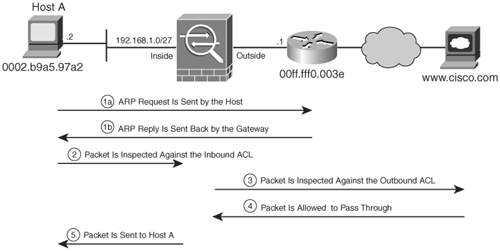
For a successful connection, the ASA follows these steps:
|
Step 1. |
ARP resolution Because the Cisco website is located in a different subnet from Host A's network, Host A needs to perform Address Resolution Protocol (ARP) to determine its default gateway, 192.168.1.1. For the ARP process through an ASA, there are four possible cases that we will discuss.
If, for some reason, the Cisco ASA does not learn the MAC address of the default gateway (either it aged out or someone manually cleared it), it goes through the process of learning the destination MAC address. Hence, when Host A sends a packet to its default gateway, the Cisco ASA drops the packet and generates an ICMP request packet with TTL (time to live) set to 1. It sets the destination MAC address of the default gateway, which is learned from the packet sent by Host A. The security appliance sends the packet on all interfaces. If a response is received on an interface, the security appliance updates its L2F table accordingly. Case 3: Host A does not have gateway's MAC address, but ASA does When Host A needs to resolve a gateway's MAC address, it sends out an ARP broadcast. The Cisco ASA treats this case similarly to Case 1. If there is a discrepancy in what the Cisco ASA learns and in what is already in the L2F table, the ASA updates its table with the new information. Case 4: Host A and ASA have MAC address resolution If both devices know about the MAC address of the default gateway, they do not need to update either the ARP or the L2F table. As such, they do not participate in any address resolution process. Note For non-IP traffic, such as an Internetwork Packet Exchange (IPX) packet, there is no concept of ARP or ICMP to resolve destination MAC addresses. In this case, when the ASA receives a non-IP packet and it does not find an entry in its L2F table, it drops the packet and does not participate in resolution. |
|
Step 2. |
Inbound ACL checking Once Host A knows about the MAC address of its default gateway, it sends out a SYN packet to the web server to initiate a three-way TCP handshake. When the packet enters the inside interface of the security appliance, the packet is checked for uauth (user authentication) and an inbound ACL. If the packet is allowed in, a connection entry is created by verifying it against the inspection rules and TCP checks. It is then forwarded to the bridging engine, where the L2F table is used to determine the correct outbound interface (outside interface, in this case). |
|
Step 3. |
Outbound ACL checking After bridging the packet to the outside interface, the packet is then checked against the outbound interface ACL before transmitting it on the wire. If the packet is denied, it is dropped and a log entry is created in case the log keyword is specified in the ACL. The security appliance deletes the connection entry for this session if the packet is denied. If the packet is allowed, it is forwarded to the interface drivers for transmission. |
|
Step 4. |
The web server replies with a SYN-ACK, the ASA allows the packet to pass because the connection had already been created. |
|
Step 5. |
The packet is bridged to Host A after checking it against the outbound ACL on the inside interface. Finally, Host A and the web server complete the TCP three-way handshake and initiate data transmission. |
As you can see from this packet flow, the security appliance applies security policies regardless of the firewall mode.
Multimode Transparent Firewall
In a multimode transparent firewall (MMTF), the ASA acts in a similar fashion to how it acts in single mode, with one major exception: packets are handled in different contexts. Because each context acts and behaves as an independent entity, you must configure an IP address in each context for administration and management purposes.
Packet Flow in an MMTF
Figure 10-4 illustrates SecureMe's topology for its Sydney office. SecureMe has recently acquired a small startup company (Site 2) in the same office building and is now responsible for providing the network services to the office. The new company currently uses an IP subnet of 192.168.2.0/27, and SecureMe wants to transparently add a firewall to inspect the Internet traffic destined to www.cisco.com.
Figure 10-4. Packet Flow in an MMTF
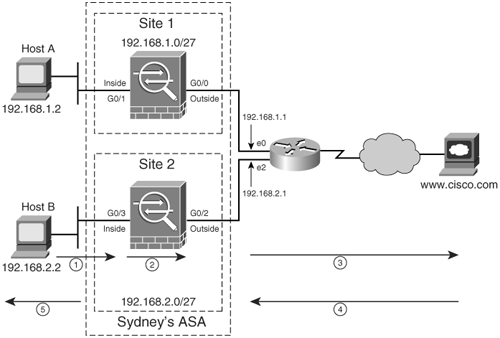
The following steps briefly talk about packet flow in an MMTF, as illustrated in Figure 10-4:
|
Step 1. |
ARP resolution The process to resolve the default gateway's IP address is the same as discussed in the previous section. Host B sends a broadcast if it does not know the MAC address of its gateway. The ASA receives that packet on its GigabitEthernet0/3(G0/3) interface, which belongs to the "Site 2" context. The ASA forwards this request to its outside interface. Because the default gateway (192.168.2.1/27) is also on the same context, it sends a unicast reply to Host B. The ASA updates its L2F table once the reply packet traverses through it. |
|
Step 2. |
Inbound ACL checking Once the MAC address is known, Host B sends out the first packet to initiate the TCP three-way handshake. When the packet enters the inside interface of the security appliance, it is checked for uauth (user authentication) and an inbound ACL. If the packet is allowed in, a connection entry is created by verifying it against the inspection rules and TCP checks. These connection entries are segregated in each context and are used to forward the return packet to the correct destination. |
|
Step 3. |
Outbound ACL checking The packet is switched to the outside interface, where it is then checked against the outbound ACL. If the packet is allowed to leave the ASA, it is sent to the next hop router located in the same context. The packet is then routed out to the Cisco website. |
|
Step 4. |
The web server sends a reply packet back to Host B. |
|
Step 5. |
The ASA inspects this reply packet against the connection entry and, because an entry already exists, forwards the packet to Host B. |
Note
You cannot use shared interfaces between the contexts in an MMTF.
Part I: Product Overview
Introduction to Network Security
- Introduction to Network Security
- Firewall Technologies
- Intrusion Detection and Prevention Technologies
- Network-Based Attacks
- Virtual Private Networks
- Summary
Product History
- Product History
- Cisco Firewall Products
- Cisco IDS Products
- Cisco VPN Products
- Cisco ASA All-in-One Solution
- Summary
Hardware Overview
Part II: Firewall Solution
Initial Setup and System Maintenance
- Initial Setup and System Maintenance
- Accessing the Cisco ASA Appliances
- Managing Licenses
- Initial Setup
- IP Version 6
- Setting Up the System Clock
- Configuration Management
- Remote System Management
- System Maintenance
- System Monitoring
- Summary
Network Access Control
- Network Access Control
- Packet Filtering
- Advanced ACL Features
- Content and URL Filtering
- Deployment Scenarios Using ACLs
- Monitoring Network Access Control
- Understanding Address Translation
- DNS Doctoring
- Monitoring Address Translations
- Summary
IP Routing
Authentication, Authorization, and Accounting (AAA)
- Authentication, Authorization, and Accounting (AAA)
- AAA Protocols and Services Supported by Cisco ASA
- Defining an Authentication Server
- Configuring Authentication of Administrative Sessions
- Authenticating Firewall Sessions (Cut-Through Proxy Feature)
- Configuring Authorization
- Configuring Accounting
- Deployment Scenarios
- Troubleshooting AAA
- Summary
Application Inspection
- Application Inspection
- Enabling Application Inspection Using the Modular Policy Framework
- Selective Inspection
- Computer Telephony Interface Quick Buffer Encoding Inspection
- Domain Name System
- Extended Simple Mail Transfer Protocol
- File Transfer Protocol
- General Packet Radio Service Tunneling Protocol
- H.323
- HTTP
- ICMP
- ILS
- MGCP
- NetBIOS
- PPTP
- Sun RPC
- RSH
- RTSP
- SIP
- Skinny
- SNMP
- SQL*Net
- TFTP
- XDMCP
- Deployment Scenarios
- Summary
Security Contexts
- Security Contexts
- Architectural Overview
- Configuration of Security Contexts
- Deployment Scenarios
- Monitoring and Troubleshooting the Security Contexts
- Summary
Transparent Firewalls
- Transparent Firewalls
- Architectural Overview
- Transparent Firewalls and VPNs
- Configuration of Transparent Firewall
- Deployment Scenarios
- Monitoring and Troubleshooting the Transparent Firewall
- Summary
Failover and Redundancy
- Failover and Redundancy
- Architectural Overview
- Failover Configuration
- Deployment Scenarios
- Monitoring and Troubleshooting Failovers
- Summary
Quality of Service
- Quality of Service
- Architectural Overview
- Configuring Quality of Service
- QoS Deployment Scenarios
- Monitoring QoS
- Summary
Part III: Intrusion Prevention System (IPS) Solution
Intrusion Prevention System Integration
- Intrusion Prevention System Integration
- Adaptive Inspection Prevention Security Services Module Overview (AIP-SSM)
- Directing Traffic to the AIP-SSM
- AIP-SSM Module Software Recovery
- Additional IPS Features
- Summary
Configuring and Troubleshooting Cisco IPS Software via CLI
- Configuring and Troubleshooting Cisco IPS Software via CLI
- Cisco IPS Software Architecture
- Introduction to the CIPS 5.x Command-Line Interface
- User Administration
- AIP-SSM Maintenance
- Advanced Features and Configuration
- Summary
Part IV: Virtual Private Network (VPN) Solution
Site-to-Site IPSec VPNs
- Site-to-Site IPSec VPNs
- Preconfiguration Checklist
- Configuration Steps
- Advanced Features
- Optional Commands
- Deployment Scenarios
- Monitoring and Troubleshooting Site-to-Site IPSec VPNs
- Summary
Remote Access VPN
- Remote Access VPN
- Cisco IPSec Remote Access VPN Solution
- Advanced Cisco IPSec VPN Features
- Deployment Scenarios of Cisco IPSec VPN
- Monitoring and Troubleshooting Cisco Remote Access VPN
- Cisco WebVPN Solution
- Advanced WebVPN Features
- Deployment Scenarios of WebVPN
- Monitoring and Troubleshooting WebVPN
- Summary
Public Key Infrastructure (PKI)
- Public Key Infrastructure (PKI)
- Introduction to PKI
- Enrolling the Cisco ASA to a CA Using SCEP
- Manual (Cut-and-Paste) Enrollment
- Configuring CRL Options
- Configuring IPSec Site-to-Site Tunnels Using Certificates
- Configuring the Cisco ASA to Accept Remote-Access VPN Clients Using Certificates
- Troubleshooting PKI
- Summary
Part V: Adaptive Security Device Manager
Introduction to ASDM
- Introduction to ASDM
- Setting Up ASDM
- Initial Setup
- Functional Screens
- Interface Management
- System Clock
- Configuration Management
- Remote System Management
- System Maintenance
- System Monitoring
- Summary
Firewall Management Using ASDM
- Firewall Management Using ASDM
- Access Control Lists
- Address Translation
- Routing Protocols
- AAA
- Application Inspection
- Security Contexts
- Transparent Firewalls
- Failover
- QoS
- Summary
IPS Management Using ASDM
- IPS Management Using ASDM
- Accessing the IPS Device Management Console from ASDM
- Configuring Basic AIP-SSM Settings
- Advanced IPS Configuration and Monitoring Using ASDM
- Summary
VPN Management Using ASDM
- VPN Management Using ASDM
- Site-to-Site VPN Setup Using Preshared Keys
- Site-to-Site VPN Setup Using PKI
- Cisco Remote-Access IPSec VPN Setup
- WebVPN
- VPN Monitoring
- Summary
Case Studies

EAN: 2147483647
Pages: 231
