VBScript Basics
Overview
This chapter begins your VBScript education by teaching you a number of important concepts. You'll learn about the objects that make up the VBScript core and run-time object models. In addition, you'll learn about basic VBScript syntax, functions, reserved words, and special characters. You'll also learn about VBScript and WSH output functions and methods. Along the way, you'll create a math game while learning more about how VBScript works with the WSH. You will also learn
- The basic rules that you must follow when writing VBScripts
- The objects that make up the VBScript core and run-time object models
- How to enhance your scripts using built-in VBScript functions
- Different ways of displaying script output
Project Preview The Math Game
This chapter's game project will show you a programming technique that allows you to write VBScripts that can open and interact with other Windows applications. It's called MathGame.vbs, and what it does is test the player's understanding of the principle of precedence in solving a numeric expression. If the user gets the answer correct, he or she is congratulated for possessing superior math skills. If the player provides an incorrect answer, then the game will offer to teach the player how to solve the expression.
To teach the player how to solve the equation, the program opens the Microsoft WordPad application and types out instructions that explain the steps required to solve the problem. Then, to further demonstrate how the equation is solved, the program starts Windows Calculator application and uses it to solve the equation. The WordPad and Calculator demonstrations play out almost like a movie or slide show, starting automatically, pausing as input and text are automatically keyed in, and finally automatically closing when the demonstrations end. Figures 3.1 through 3.6 demonstrate some of the screens that users will see when they play the Math Game.
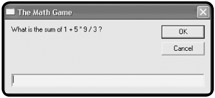
Figure 3.1: The game begins by asking the player to solve a mathematical equation.
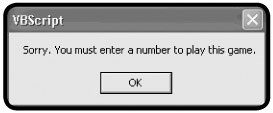
Figure 3.2: An error occurs if the player fails to enter a number.
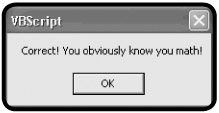
Figure 3.3: The player is praised if he or she correctly solves the equation.
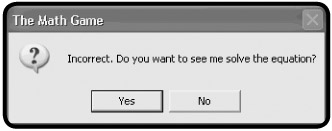
Figure 3.4: If the player provides an incorrect answer, the game offers to demonstrate how the equation is solved.
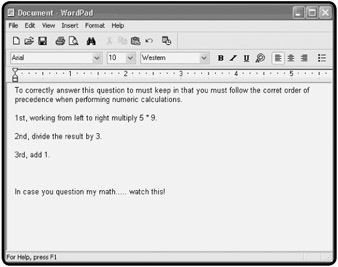
Figure 3.5: Using WordPad, the game types out detailed instructions for solving the problem.
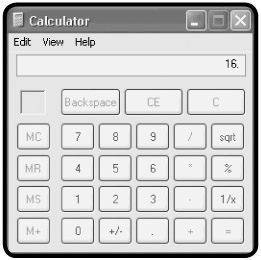
Figure 3.6: The game then starts the Calculator application and solves the equation again, just for fun.
As you go through the steps involved in creating this game, you will learn how to use a number of WScript and WshShell object methods, and you will get a brief introduction to VBScript's support for conditional programming logic.
VBScript Statements
Like any programming language, VBScript is comprised of programming statements. As you go through the chapters in this book, you'll be introduced to the statements that make up the VBScript's scripting language, learning a few different statements in every chapter, until, by the end of the book, you've seen and worked with most of them.
Table 3.1 lists the statements that make up the VBScript scripting language.
|
Statement |
Description |
|---|---|
|
Call |
Executes a procedure |
|
Class |
Defines a class name |
|
Const |
Defines a constant |
|
Dim |
Defines a variable |
|
Do...Loop |
Repeatedly executes a collection of one or more statements as long as a condition remains True or until the condition becomes True |
|
Erase |
Reinitializes the elements stored in array |
|
Execute |
Executes a specified statement |
|
ExecuteGlobal |
Executes a specified statement in a script's global namespace |
|
Exit |
Ends a loop, subroutine or function |
|
For Each...Next |
Processes all the elements stored in an array or collection |
|
For...Next |
Repeats a collection of one or more statements a specified number of times |
|
Function |
Defines a function and its associated arguments |
|
If...Then...Else |
Executes one or more statements depending on the value of a tested condition |
|
On Error |
Enables error handling |
|
Option Explicit |
Forces explicit variable declaration |
|
Private |
Defines a private variable |
|
Property Get |
Defines a property name and its arguments and then returns its value |
|
Property Let |
Defines a property procedure's name and its arguments |
|
Property Set |
Defines a property procedure's name and its arguments |
|
Public |
Defines a public variable |
|
Randomize |
Initializes VBScript's random-number generator |
|
ReDim |
Defines or redefines the dimension of an array |
|
Rem |
A comment statement |
|
Select Case |
Defines a group of tests, of which only one will execute if a matching condition is found |
|
Set |
Sets up a variable reference to an object |
|
Sub |
Defines a subroutine and its arguments |
|
While...Wend |
Executes one or more statements as long as the a specified condition is True |
|
With |
Associates one or more statements that are to be executed for a specified object |
VBScript Syntax Rules
In order to properly apply the programming statements that make up VBScript programming language, you must have an understanding of the syntax rules that govern these statements. Each VBScript statment has its own particular syntax. The following is a list of rules that you should keep in mind as you write your VBScripts:
- By default, all VBScript statements must fit on one line.
- As you have already seen in earlier chapters, you can spread a single statement out over multiple lines by ending each line with the _ (continuation) character.
- More than one VBScript statement can be placed on a single line by ending each statement with the : (colon) character.
- By default, VBScript is not case-sensitive, meaning VBScript will regard different case spelling of words used by variables, constants, procedures, and subroutines as the same.
- You can enforce case-sensitivity by adding the Option Explicit statement to the beginning of your VBScripts. You'll learn more about this statement later in this chapter.
- By default, an error will halt the execution of any VBScript.
- You can prevent error from terminating a VBScript's execution by adding the On Error Resume Next statement to your VBScripts. You'll learn more about working with this statement in Chapter 8, "Handling Script Errors."
- Extra blank spaces are ignored within scripts and can be used to improve the scripts' format and presentation.
Every VBScript statement has its own specific syntax that must be followed exactly. Failure to properly follow a statement's syntax will result in an error. Let's look at an example. The following statement tries to use the VBScript's MsgBox() function to display a text message:
MsgBox "Thanks for playing!
Unfortunately, the statement's syntax requirements have not been followed. The MsgBox() function requires that all text messages be enclosed within a pair of quotation marks. If you look closely, you will see that the closing quotation mark is omitted. Figure 3.7 shows the error produced by this statement at runtime.
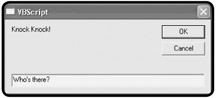
Figure 3.7: The error message caused by unmatched quotation mark in a MsgBox() statement
Reserved Characters
Like any programming language, VBScript has a collection of reserved words. Reserved words are words that you cannot use within your scripts because VBScript also assigns a special meaning to them. Some of these words are reserved because they are part of the language itself, and others are reserved for future use. Table 3.2 lists VBScript's reserved words. The important thing to remember when it comes to VBScript reserved words is that you can only use them as intended (that is, you cannot use them as variables, constants, or procedure names).
|
And |
EndIf |
LSet |
RSet |
|
As |
Enum |
Me |
Select |
|
Boolean |
Eqv |
Mod |
Set |
|
ByRef |
Event |
New |
Shared |
|
Byte |
Exit |
Next |
Single |
|
ByVal |
False |
Not |
Static |
|
Call |
For |
Nothing |
Stop |
|
Case |
Function |
Null |
Sub |
|
Class |
Get |
On |
Then |
|
Const |
GoTo |
Option |
To |
|
Currency |
If |
Optional |
True |
|
Debug |
Imp |
Or |
Type |
|
Dim |
Implements |
ParamArray |
TypeOf |
|
Do |
In |
Preserve |
Until |
|
Double |
Integer |
Private |
Variant |
|
Each |
Is |
Public |
Wend |
|
Else |
Let |
RaiseEvent |
While |
|
ElseIf |
Like |
ReDim |
With |
|
Empty |
Long |
Rem |
Xor |
|
End |
Loop |
Resume |
Adding Comments
One of the easiest VBScript statements to understand is the comment statement. The comment statement gives you the ability to add to your VBScripts' descriptive text that documents why you wrote the script the way you did. Documenting your scripts with comments makes them easier to support and helps others who may come after you to pick up where you left off. Comments do not have any affect on the execution of your scripts and you should use them liberally.
Comments can be added to scripts using the VBScript Rem (short for remark) statement, as follows:
Rem Use the VBScript MsgBox() function to display a message
MsgBox ""Thanks for playing! "
Comments can also be create using the ' character.
' Use the VBScript MsgBox() function to display a message
MsgBox "Thanks for playing!"
The ' character is my preferred style. I find it less visually intrusive and just as effective.
Also, you can add a comment to the end of any statement.
MsgBox "Thank you for playing" 'Display a thank you message
| HINT |
One sign of an experienced programmer is the amount of and usefulness of comments added to his or her scripts. Consider adding comments that describe the function of variables, constants, and arrays; also use them to explain complicated pieces of coding. |
Comments can also be used to create a script template, which will provide additional structure to your VBScripts. For example, consider the following template:
'*************************************************************************
'Script Name: ScriptName.vbs
'Author: Author Name
'Created: MM/DD/YY
'Description: Xxxxxxxxxxxxxxxxxxxxxxxxx.
'*************************************************************************

'Initialization Section
Option Explicit
On Error Resume Next
Dim…
Const…
Set…

'Main Processing Section


'Procedure Section

'This function ……………..
Function Xxxxx(Zzzz)
 Xxxxxxxxxx
End Function
This template begins with a documentation section that provides a place to record the script's name, its author, its creation date, and a brief description.
Other information that you might wish to add here includes
- Instructions for running the script
- Documentation for any arguments the script expects to receive at execution time
- Documentation of the recent updates to the script, including when, by whom, and why
- Copyright information
- Contact or support information
The rest of the template is divided into three sections.
- Initialization Section. Contains statements that globally affect the scripts, including Option Explicit and On Error, as well as the declaration of any variables, constants, arrays, and objects used by the script.
- Main Processing Section. This section contains the statements that control the main processing logic of the script. The statements in this section access the resources defined in the Initialization section as necessary and call on the procedures and functions located in the Procedure section.
- Procedure Section. This section contains all of the script's procedures. Procedures are groups of statements that can be called and executed as a unit. You'll learn about how to work with procedures in Chapter 7, "Using Procedures to Organize Scripts."
Mastering the VBScript Object Model
In Chapter 2, "Overview of the Windows Script Host," you learned about the WSH core object model and its properties and methods. You also learned how to instantiate WSH objects in order to access and manipulate their properties and methods. VBScript also provides two collections of objects that you can use in your scripts. Table 3.3 provides an overview of VBScript's core objects.
|
Object Name |
Description |
|---|---|
|
Class |
Provides scripts with access to class events |
|
Dictionary |
Stores data key and item pairs |
|
Err |
Provides scripts with access to information about run-time errors |
|
FileSystemObject |
Provides scripts with access to the file system |
|
Match |
Provides scripts with access to the read-only properties of a regular expression match |
|
Matches Collection |
A collection of regular expression Match objects |
|
RegExp |
Supports regular expressions |
|
SubMatches Collection |
Provides scripts with access to read-only values of regular expression submatch strings |
Working with VBScript Run Time Objects
In addition to its core object model, VBScript's FileSystemObject object also provides a number of run-time objects. As Table 3.4 shows, your scripts can use these objects and their properties and methods to interface with the Windows file system.
|
Object Name |
Description |
|---|---|
|
Dictionary |
Stores data key, item pairs. Properties: Count, Item, Key. Methods: Add, Exists, Items, Keys, Remove, RemoveAll. |
|
Drive |
Provides script with access to disk properties. Properties: AvailableSpace, DriveLetter, DriveType, FileSystem, FreeSpace, IsReady, Path, RootFolder, SerialNumber, ShareName, TotalSize, VolumeName. Methods: This object does not support any methods. |
|
Drives Collection |
Provides script with access to information regarding a drive's location. Properties: Count, Item. Methods: This object does not support any methods. |
|
File |
Provides script with access to file properties. Properties: Attributes, DateCreated, DateLastAccessed, DateLastModified, Drive, Name, ParentFolder, Path, ShortName, ShortPath, Size, Type. Methods: Copy, Delete, Move, OpenAsTextStream. |
|
Files Collection |
Provides scripts with access to files stored in a specified folder. Properties: Count, Item. Methods: This object does not support any methods. |
|
FileSystemObject |
Provides scripts with access to the file system. Properties: Drives. Methods: BuildPath, CopyFile, CopyFolder, CreateFolder, CreateTextFile, DeleteFile, DeleteFolder, DriveExists, FileExists, FolderExists, GetAbsolutePathName, GetBaseName, GetDrive, GetDriveName, GetExtensionName, GetFile, GetFileName, GetFolder, GetParentFolderName, GetSpecialFolder, GetTempName, MoveFile, MoveFolder, OpenTextFile. |
|
Folder |
Provides scripts with access to folder properties. Properties: Attributes, DateCreated, DateLastAccessed, DateLastModified, Drive, Files, IsRootFolder, Name, ParentFolder, Path, ShortName, ShortPath, Size, SubFolders, Type. Methods: Copy, Delete, Move, OpenAsTextStream. |
|
Folders Collection |
Provides scripts with access to folders located within another folder. Properties: Count, Item. Methods: Add. |
The WSH core object model provides access to a number of Windows resources. Absent from this model is a file system object. Therefore, to access system files from your VBScripts, you'll need to learn how to work with VBScript's FileSystemObject object. With this object, your scripts will be able to
- Check for the existence of files and folders before attempting to work with them
- Create and delete file and folders
- Open and read files
- Write or append to files
- Close files
- Copy and move files and folders
Properties
Like WSH objects, the VBScript run-time objects support a large number of properties. Table 3.5 provides a complete list of VBScript run-time properties.
|
Property Name |
Description |
|---|---|
|
AtEndOfLine |
Returns a value of either true or false based on whether the file pointer has reached the TextStream file's end-of-line marker |
|
AtEndOfStream |
Returns a value of either true or false based on whether the end of a TextStream file has been reached |
|
Attributes |
Modifies or retrieves file and folder attributes |
|
AvailableSpace |
Retrieves the amount of free space available on the specified drive |
|
Column |
Retrieves the current column position in a TextStream file |
|
CompareMode |
Sets or returns the comparison mode used to compare a Dictionary object's string keys |
|
Count |
Returns a value representing the number of the items in a collection or Dictionary object |
|
DateCreated |
Retrieves a file or folder's creation date and time |
|
DateLastAccessed |
Retrieves the date and time that a file or folder was last accessed |
|
DateLastModified |
Retrieves the date and time that a file or folder was last modified |
|
Drive |
Retrieves the drive letter where a file or folder is stored |
|
DriveLetter |
Retrieves the specified drive's drive letter |
|
Drives |
Establishes a Drives collection representing all the drives found on the computer |
|
DriveType |
Returns a value identifying a drive's type |
|
Files |
Establishes a Files collection to represent all of the File objects located within a specified folder |
|
FileSystem |
Retrieves the name of the file system used on the specified drive |
|
FreeSpace |
Retrieves the amount of free space available on the specified drive |
|
IsReady |
Returns a value of either true or false based on the availability of the specified drive |
|
IsRootFolder |
Returns a value of either true or false based on whether the specified folder is the root folder |
|
Item |
Retrieves or sets an item based on the specified Dictionary object key |
|
Key |
Sets a Dictionary object key |
|
Line |
Retrieves the current line number in the TextStream file |
|
Name |
Gets or modifies a file or folder's name |
|
ParentFolder |
Returns a reference to the specified file or folder's parent folder object |
|
Path |
Retrieves the path associated with the specified file, folder, or drive |
|
RootFolder |
Retrieves the Folder object associated with the root folder on the specified drive |
|
SerialNumber |
Retrieves the specified disk volume's serial number |
|
ShareName |
Retrieves the specified network drive's share name |
|
ShortName |
Retrieves the specified file or folder's 8.3-character short name |
|
ShortPath |
Retrieves a file or folder's short path name associated with a file or folder's 8.3-character name |
|
Size |
Returns the number of bytes that make up a file or folder |
|
SubFolders |
Establishes a Folders collection made up of the folders located within a specified folder |
|
TotalSize |
Retrieves a value representing the total number of bytes available on a drive |
|
Type |
Retrieves information about the specified file or folder's type |
|
VolumeName |
Gets or modifies a drive's volume name |
Methods
VBScript run-time objects also support a larger number of methods that you will find essential when working with the Windows file system. These methods are outlined in Table 3.6.
|
Method Name |
Description |
|---|---|
|
Add (Dictionary) |
Adds a key and item pair to a Dictionary object |
|
Add (Folders) |
Adds a Folder to a collection |
|
BuildPath |
Appends a name to the path |
|
Close |
Closes an open TextStream file |
|
Copy |
Copies a file or folder |
|
CopyFile |
Copies one or more files |
|
CopyFolder |
Recursively copies a folder |
|
CreateFolder |
Creates a new folder |
|
CreateTextFile |
Creates a file and a TextStream object so that it can be read from and written to |
|
Delete |
Deletes a file or folder |
|
DeleteFile |
Deletes a file |
|
DeleteFolder |
Deletes a folder's contents |
|
DriveExists |
Returns a value of true or false based on whether a drive exists |
|
Exists |
Returns a value of true or false based on whether a key exists in a Dictionary object |
|
FileExists |
Returns a value of true or false based on whether the specified file can be found |
|
FolderExists |
Returns a value of true or false based on whether the specified folder can be found |
|
GetAbsolutePathName |
Retrieves a complete pathname |
|
GetBaseName |
Retrieves a filename without its file extension |
|
GetDrive |
Returns the Drive object associated with the drive in the specified path |
|
GetDriveName |
Returns the name of a drive |
|
GetExtensionName |
Returns a file's extension |
|
GetFile |
Returns a File object |
|
GetFileName |
Returns the last filename or folder of the specified path |
|
GetFileVersion |
Returns a file's version number |
|
GetFolder |
Returns the Folder object associated with the folder in the specified path |
|
GetParentFolderName |
Returns the name of the parent folder |
|
GetSpecialFolder |
Returns a special folder's name |
|
GetTempName |
Returns the name of a temporary file or folder |
|
Items |
Returns an array where items in a Dictionary object are stored |
|
Keys |
Returns an array containing the keys in a Dictionary object |
|
Move |
Moves a file or folder |
|
MoveFile |
Moves one or more files |
|
MoveFolder |
Moves one or more folders |
|
OpenAsTextStream |
Opens a file and retrieves a TextStream object in order to provide a reference to the file |
|
OpenTextFile |
Opens a file and retrieves a TextStream object in order to provide a reference to the file |
|
Read |
Returns a string containing a specified number of characters from a TextStream file |
|
ReadAll |
Reads the entire TextStream file and its contents |
|
ReadLine |
Reads an entire line from the TextStream file |
|
Remove |
Deletes a Dictionary object's key, item pair |
|
RemoveAll |
Deletes all Dictionary object's key, item pairs |
|
Skip |
Skips a specified number of character positions when processing a TextStream file |
|
SkipLine |
Skips an entire line when processing a TextStream file |
|
Write |
Places a specified string in the TextStream file |
|
WriteBlankLines |
Writes a specified number of newline characters to the TextStream file |
|
WriteLine |
Writes the specified string to the TextStream file |
Using VBScript Run Time Objects in Your Scripts
Now seems like a good time to look at an example of how to incorporate the VBScript FileSystemObject into your scripts and use its properties and methods to work with the Windows file system. Take a look at the following script:
'*************************************************************************
'Script Name: FreeSpace.vbs
'Author: Jerry Ford
'Created: 11/22/02
'Description: This script demonstrates how to use VBScript run-time
'objects and their properties and methods.
'*************************************************************************

'Initialization Section

Option Explicit

Dim FsoObject, DiskDrive, AvailSpace

'Instantiate the VBScript FileSystemObject
Set FsoObject = WScript.CreateObject("Scripting.FileSystemObject")

'Use the FileSystem Object object's GetDrive method to set up a reference
'to the computer's C: drive
Set DiskDrive = FsoObject.GetDrive(FsoObject.GetDriveName("c:"))


'Main Processing Section

'Use the FileSystemObject FreeSpace property to determine the amount of
'free space (in MB) on the C: drive
AvailSpace = (DiskDrive.FreeSpace / 1024) / 1024

'Use the VBScript FormatNumber Function to format the results as a whole
number
AvailSpace = FormatNumber(AvailSpace, 0)

'Display the amount of free space on the C: drive
WScript.Echo "You need at least 100 MB of free space to play this game. "& _
 vbCrLf & "Total amount of free space is currently: "& AvailSpace & "MB"
The script begins by instantiating the FileSystemObject, like this:
Set FsoObject = WScript.CreateObject("Scripting.FileSystemObject")
The script then uses this instance of the FileSystemObject to execute its GetDrive() method and set up a reference to the computer's C: drive.
Set DiskDrive = FsoObject.GetDrive(FsoObject.GetDriveName("c:"))
The next statement uses the FileSystemObject object's FreeSpace property to retrieve the amount of free space on the C: drive.
AvailSpace = (DiskDrive.FreeSpace / 1024) / 1024
This statement divides this value by 1024, and then again by 1024, to present the amount of free space in MB.
The next statement formats this value further by eliminating any numbers to the left of the decimal point. Finally, the last statement displays the final result, as shown Figure 3.8.
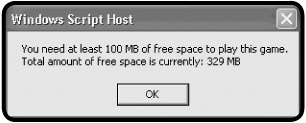
Figure 3.8: Using the FileSystem Object to access information about disk drives
For more information on how to use the VBScript FileSystemObject, see Chapter 5, in which I'll show you how to create and write to Windows files in order to produce reports and log files, and Chapter 8, in which I'll cover the steps involved in opening and reading from Windows files.
Examining Built In VBScript Functions
One of the real advantages of working with VBScript is having access to its large number of built-in functions. In the previous example, you saw how to use the FormatNumber() function. There are too many built-in VBScript functions for me to list them all here. For a complete list, refer to Appendix B, "Built-In VBScript Functions."
Demo The Square Root Calculator
By using functions, you can really streamline your scripts. VBScript' s built-in functions provide built-in code that you don't have to write. The best way that I can think to illustrate this is by showing you two examples. In the first example, I've written a small VBScript that prompts the user to type in a number so that the script can calculate its square root. The second script is a rewrite of the first script, using the VBScript Sqr() function in place of the original programming logic.
Here's the first example.
'*************************************************************************
'Script Name: SquareRoot-1.vbs
'Author: Jerry Ford
'Created: 11/22/02
'Description: This script demonstrates how to solve square root
'calculations using a mathematic solution devised by Sir Issac Neuton
'*************************************************************************

'Initialization Section

Option Explicit

Dim UserInput, Counter, X

UserInput = InputBox ("Type a number", "Square Root Calculator")

X = 1
For Counter = 1 To 15
 X = X - ((X^2 - UserInput) / (2 * X))
Next

MsgBox "The square root of "& UserInput & "is "& X
As you can see, the first part of the script displays a popup dialog to collect the number, and the last part displays the script's final results. It is in the middle where the real work results.
X = 1
For Counter = 1 To 15
 X = X - ((X^2 - UserInput) / (2 * X))
Next
I won't go into the mathematical logic behind these statements. Unless you're a math major, it's a bit of a challenge to understand. This solution is based on Sir Issac Newton's solution for solving square root equations. Granted, it only took four lines of code to reproduce the formula, but would you like to have tried to write these four statements from scratch? I don't think so.
Demo A New and Improved Square Root Calculator
Now let's look at a rewrite of the square root calculator script in which I use VBScript's built-in Str() function to perform square root calculations.
'*************************************************************************
'Script Name: SquareRoot-2.vbs
'Author: Jerry Ford
'Created: 11/22/02
'Description: This script demonstrates how to solve square root
'calculations using VBScript's Built-in Sqr() function
'*************************************************************************

'Initialization Section

Option Explicit

Dim UserInput

UserInput = InputBox ("Type a number", "Square Root Calculator")

MsgBox "The square root of "& UserInput & "is "& Sqr(UserInput)
As you can see, this time you don't have to be a mathematician in order to write the script. All you have to know is the correct way to use the Sqr() function, which is simply to pass it a number—in the case of this script, that number is represented by a variable named UserInput. These two examples show clearly the advantage of using VBScript's built-in functions. These functions can save you a lot of time and effort and perhaps a few headaches.
Figures 3.9 and 3.10 demonstrate the operation of either version of these two scripts.
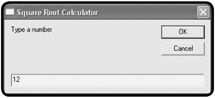
Figure 3.9: First the script prompts the user to supply a number.
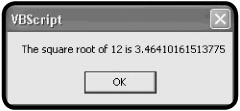
Figure 3.10: The script then determines the number's square root.
Displaying Script Output
You've seen many examples already of how to display output messages in VBScripts. Output display is a critical tool in any programmer's tool bag. As a VBScript programmer working with the WSH, you have four different options for displaying script output. Two of these options are provided by the WSH in the form of object methods.
- Echo(). Displays text messages in the Windows Console when processed by the CScript execution hosts, and in popup dialogs when processed by the WScript execution hosts.
- Popup(). Displays text messages in the popup dialogs, giving you control over the icons and buttons that are displayed, and, optionally, returning a value representing the button that is pressed.
In addition to these two WSH options, VBScript gives you two functions of its own.
- InputBox(). Displays a text entry field in a popup dialog in order to collect user input.
- MsgBox(). Displays text messages in the popup dialogs, giving you control over the icons and buttons that are displayed, and, optionally, returning a value representing the button that is pressed.
The WScript s Echo() Method
The WScript object's Echo() method can display text output in the Windows Command Console or in a popup dialog, depending on the execution hosts that processes it. Table 3.7 outlines the Echo() method's behavior based on the execution host that processes it. Unlike other WSH output methods or VBScript functions, the Echo() method cannot collect user input.
|
WSH Execution Hosts |
Output |
|---|---|
|
WScript.exe |
Displays text messages in graphical popup dialogs |
|
CScript.exe |
Displays text messages in the Windows Command Console |
The syntax for the WScript Echo() method is as follows:
WScript.Echo [Arg1] [,Arg2] ...
The Echo() method can display any number of arguments.
WScript.Echo "This message appears differently depending on the "& _
 "execution host that processed ran it."
The WshShell Object s Popup() Method
The WshShell object's Popup() method displays messages in popup dialogs. It allows you to customize its appearance by selecting the buttons and the icon to be displayed. It also allows you to determine which button the user clicks on.
The WshShell object's Popup() method can be used in either of two ways. The syntax of the first option is as follows:
Response = WScript.Popup(StrText,[TimeToWait],[TitleBarMsg],[DialogSettings])
The syntax of the second option is as follows:
WScript.Popup StrText,[TimeToWait],[TitleBarMsg],[DialogSettings]
Response is a variable that will store a number representing the button that was clicked by the user. StrText represents the message text to be displayed. TimeToWait is a value that determines how long, in seconds, the popup dialog will be displayed; if omitted, the default is forever. TitleBarMsg is an optional message that will be displayed in the popup dialog's titlebar. Finally, DailogSettings is an option numeric value that specifies the buttons and the icon that are to appear on the popup dialog. If omitted, the popup dialog will display the OK button without an icon.
In order to determine what numeric value to specify as the DialogSettings value, you'll need to reference Tables 3.8 and 3.9. Table 3.8 lists the different collections of buttons that can be displayed on popup dialogs created by the Popup() method, and Table 3.9 displays the different icons that you can display using the Popup() method.
|
Value |
Button(s) |
|---|---|
|
0 |
Displays the OK button |
|
1 |
Displays the OK and Cancel buttons |
|
2 |
Displays the Abort, Retry, and Ignore buttons |
|
3 |
Displays the Yes, No, and Cancel buttons |
|
4 |
Displays the Yes and No buttons |
|
5 |
Displays the Retry and Cancel buttons |
|
Value |
Icon |
|---|---|
|
16 |
Displays the Stop icon |
|
32 |
Displays the Question icon |
|
48 |
Displays the Exclamation mark icon |
|
64 |
Displays the Information icon |
For example, to display a popup dialog that displays the OK button without any icon, you would specify a value of 0. As this is the default option for the Popup() method, you do not have to specify this value at all. To display a popup dialog with the Yes, No, and Cancel button and no icon, you'd specify a value of 3 for DialogSettings. To display a popup dialog with OK and Cancel buttons and the Information icon, you'd specify a value of 65 (that is, the collective sum of 1 and 64).
If you use the first form of the Popup() method (in order to be able to determine which button the user clicked), you'll need to examine the value of Response, like this:
Response = WshShl.Popup("This is a text message", ," Test Script", 5)
If Response = 4 Then
 WshShl.Popup "You clicked on Retry"
End If
Table 3.10 lists the possible range of values that may be returned by the Popup() method.
|
Value |
Results |
|---|---|
|
1 |
OK button |
|
2 |
Cancel button |
|
3 |
Abort button |
|
4 |
Retry button |
|
5 |
Ignore button |
|
6 |
Yes button |
|
7 |
No button |
The VBScript InputBox() Function
VBScript provides two built-in functions that you can use to display text messages and interact with users. The InputBox() function displays your text message in a popup dialog that also includes an entry field. You have already see the InputBox() function in action in both the Knock Knock game and the Rock, Paper, and Scissors game.
The syntax for this function is as follows:
Response = InputBox(StrText[, TitleBarMsg][, default][, xpos][, ypos]
[, helpfile, context])
Response is a variable that will store a number representing the input typed by the user. StrText is the message that you want to display. TitlebarMsg is an optional message that will be displayed in the popup dialog's titlebar. Default is an optional default answer that you can display in the popup dialog. Xpos and ypos are optional arguments that specify, in twips, the horizontal and vertical location of the popup dialog on the screen. Helpfile and context are also optional. They specify the location of an optional context-sensitive help file.
Definition
Twip stands for Twentieth of a Point and represents a value of 1/1440th of an inch.
The following statement provides another example of how to use the VBScript InputBox() function:
PlayerName = InputBox("Please type your name")
MsgBox ("You typed: " & PlayerName)
The VBScript MsgBox() Function
The VBScript MsgBox() function displays a popup dialog that is very similar to the popup dialog produced by the WSH Popup() method. It gives you the ability to customize the appearance of the dialog by selecting the buttons and the icon to be displayed. You can also use it to determine which button the user clicked on.
Th syntax for the MsgBox() function is as follows:
MsgBox(TextMsg[, buttons][, TitleBarMsg][, helpfile, context])
TextMsg is the message to be displayed in the dialog. Buttons is a representation of the buttons and icon to appear in the popup dialog. TitleBarMsg is an optional message that will be displayed in the popup dialog's titlebar, and helpfile and context are optional; when used, they specify the location of an optional context-sensitive help file.
Table 3.11 defines the different collections of buttons that can appear on popup dialogs displayed using the MsgBox() function.
|
Constant |
Value |
Description |
|---|---|---|
|
vbOKOnly |
0 |
Displays the OK button |
|
vbOKCancel |
1 |
Displays the OK and Cancel buttons |
|
vbAbortRetryIgnore |
2 |
Displays the Abort, Retry, and Ignore buttons |
|
vbYesNoCancel |
3 |
Displays the Yes, No, and Cancel buttons |
|
vbYesNo |
4 |
Displays the Yes and No buttons |
|
vbRetryCancel |
5 |
Displays the Retry and Cancel buttons |
Table 3.12 defines the list of icons that you can add to the MsgBox() popup dialog.
|
Constant |
Value |
Description |
|---|---|---|
|
vbCritical |
16 |
Displays the Critical icon |
|
vbQuestion |
32 |
Displays the Question icon |
|
vbExclamation |
48 |
Displays the Exclamation Mark icon |
|
vbInformation |
64 |
Displays the Information icon |
You can use the MsgBox() function in your scripts like this:
MsgBox() "Thanks for playing!"
You can also use the MsgBox() like this:
UserSelected = MsgBox(Would you like to play a game?)
The advantage to this last option is that you can interrogate the button that the user clicks on and use it to drive the execution flow of your script like this:
UserSelected = MsgBox("Would you like to play a game?", 4, "Text Script")
If UserSelected = 6 Then
 MsgBox "OK, The rules of this game are as follows:!"
End If
Alternatively, you could rewrite the above statements as follows:
UserSelected = MsgBox("Would you like to play a game?", 4, "Text Script")
If UserSelected = vbYes Then
 MsgBox() "OK, let's play!"
End If
Table 3.13 defines the list of return values associated with the various MsgBox() buttons.
|
Constant |
Value |
Description |
|---|---|---|
|
vbOK |
1 |
User clicked on OK |
|
vbCancel |
2 |
User clicked on Cancel |
|
vbAbort |
3 |
User clicked on Abort |
|
vbRetry |
4 |
User clicked on Retry |
|
vbIgnore |
5 |
User clicked on Ignore |
|
vbYes |
6 |
User clicked on Yes |
|
vbNo |
7 |
User clicked on No |
Back to the Math Game
The Math Game is played by displaying a math equation and asking the player to provide the solution. If the player provides the correct answer, the game ends; but if the player gets the answer wrong, then the script offers to show the player how to arrive at the correct answer. This is achieved in a slide slow or movie-like fashion, in which the script first starts WordPad, then the Calculator application, and uses the applications to solve the equation while the player sits back and watches. When the script is done with its presentation, it ends by closing both the WordPad and the Calculator applications.
A Quick Overview of the WshShell SendKeys() Method
Before I jump completely into the design of the Math Game, I need to give you one more piece of information. The Math Game's ability to interact with the WordPad and Calculator applications depends on the use of the WshShell object's SendKeys() method. This method is used to send keystrokes to the currently active Windows application.
| TRAP |
Because it sends keystrokes to the currently active Windows application, it is very important that, when the script is running, the player does not open any new windows (applications). If he or she does, the script will begin sending keystrokes to whatever applications the player opened, causing any of a number of unpredictable problems. |
IN THE REAL WORLD
Because opening another window while the SendKeys() method is executing will divert the keystrokes to the new window, you will want to find another way of integrating your scripts with other applications whenever possible. Many applications, such as Microsoft Excel and Microsoft Word, provide their own built-in core object model. WSH script can interact directly with these applications by first instantiating references to the application's objects and then accessing their methods and properties. The only trick here is that you need to know the objects that make up the applications object model, as well as their associated methods and properties. You can often get this information from the application vendor's Web site or from searching the Internet. Of course, if the application that you want to work with does not expose an object model for your scripts to work with, you can always try using the SendKeys() method.
The syntax of the SendKeys() method is as follows:
SendKeys(string)
Strings is a value representing the keystrokes that are to be sent to the target application. You can send more keystrokes by simply typing them out, like this:
SendKeys "I am "
SendKeys 38
SendKeys "years old."
However, in many cases you'll want to send other types of keystrokes. For example, to send an Enter key keystroke you'll need to send the following:
SendKeys "~"
Table 3.14 provides a list of SendKeys() keystrokes that you're likely to want to use.
|
Key |
Corresponding SendKeys Codes |
|---|---|
|
BACKSPACE |
{BACKSPACE}, {BS}, or {BKSP} |
|
BREAK |
{BREAK} |
|
CAPS LOCK |
{CAPSLOCK} |
|
DEL or DELETE |
{DELETE} or {DEL} |
|
DOWN ARROW |
{DOWN} |
|
END |
{END} |
|
ENTER |
{ENTER}or ~ |
|
ESC |
{ESC} |
|
HELP |
{HELP} |
|
HOME |
{HOME} |
|
INS or INSERT |
{INSERT} or {INS} |
|
LEFT ARROW |
{LEFT} |
|
NUM LOCK |
{NUMLOCK} |
|
PAGE DOWN |
{PGDN} |
|
PAGE UP |
{PGUP} |
|
PRINT SCREEN |
{PRTSC} |
|
RIGHT ARROW |
{RIGHT} |
|
SCROLL LOCK |
{SCROLLLOCK} |
|
TAB |
{TAB} |
|
UP ARROW |
{UP} |
|
F1 |
{F1} |
|
F2 |
{F2} |
|
F3 |
{F3} |
|
F4 |
{F4} |
|
F5 |
{F5} |
|
F6 |
{F6} |
|
F7 |
{F7} |
|
F8 |
{F8} |
|
F9 |
{F9} |
|
F10 |
{F10} |
|
F11 |
{F11} |
|
F12 |
{F12} |
|
F13 |
{F13} |
|
F14 |
{F14} |
|
F15 |
{F15} |
|
F16 |
{F16} |
In addition to the keystrokes outlined in Table 3.14, Table 3.15 lists three additional keystroke combinations that can be used to send keystrokes that require a special key to be pressed in conjunction with another key. For example, if you were working with an application that could be closed by holding down the ALT key and pressing the F4 key, you could perform this operation as follows:
SendKeys "%{F4}"
|
Key |
Corresponding SendKeys Codes |
|---|---|
|
Shift |
+ |
|
ALT |
^ |
|
CTRL |
% |
Designing the Game
Okay, let's starting building the Math Game. This game will be assembled in five steps. The first three steps will create the logic that interacts with the user and plays the game. The last two steps will perform the game's application demonstrations. These steps are as follows:
- Add the standard documentation template and define any variables, constants, or objects used by the script.
- Present the player with the equation, and then test the player's response to determine whether he or she provided an answer and if that answer was numeric.
- Test to see whether the player provided the correct answer. If not, then offer to show the user how to arrive at the correct answer.
- Add the statements required to start and control the WordPad application.
- Add the statements required to start and control the Calculator application.
Beginning the Math Game
Let's begin by adding the script template that I introduced earlier in this chapter. This includes initializing variables and constants and setting up object declaration statements.
'*************************************************************************
'Script Name: Mathgame.vbs
'Author: Jerry Ford
'Created: 02/28/02
'Description: This script prompts the user to solve a mathematical
'expression and demonstrates how to solve it in the event that the user
'cannot
'*************************************************************************


'Initialization Section

Option Explicit

Dim WshShl, QuestionOne, ProveIt

'Define the titlebar message to be displayed in the script's popup dialog
Const cTitlebarMsg = "The Math Game"

'Instantiate an instance of the WshShell object
Set WshShl = WScript.CreateObject("WScript.Shell")
Collect the Player's Answer and Test for Errors
Next display the equation and store the player's answer in a variable called QuestionOne, like this:
'Present the player with the equation
QuestionOne = InputBox("What is the sum of 1 + 5 * 9 / 3 ?", cTitlebarMsg)
Now verify that the player actually typed in an answer instead of just clicking on OK or Cancel; if the player has not typed in an answer, display an error message and end the game.
'See if the player provided an answer
If Len(QuestionOne) = 0 Then
 MsgBox "Sorry. You must enter a number to play this game."
 WScript.Quit
End If
Another good test to perform is to make sure that the player is, in fact, typing in a number as opposed to a letter or other special character.
'Make sure that the player typed a number
If IsNumeric(QuestionOne) <> True Then
 MsgBox "Sorry. You must enter a number to play this game."
 WScript.Quit
End If
Check for the Correct Answer
Okay, now add a test to see if the player provided the correct answer. If the answer provided is correct, then compliment the player's math skills. Otherwise, offer to teach the player how to solve the equation.
'Check to see if the player provided the correct answer
If QuestionOne = 16 Then
 MsgBox "Correct! You obviously know your math!"
Else
 ProveIt = MsgBox("Incorrect. Do you want to see me solve the "& _
 "equation?", 36, cTitlebarMsg)

 If ProveIt = 6 Then 'Player wants to see the solution

 .
 .
 .
 End If

End If
As you can see, I left space in the previous statements. This space marks the spot where the rest of the script's statements will be written as you continue to develop the script.
Interacting with WordPad
In order for the script to be able to work with the WordPad application, WordPad must first be started. This can be done using the WshShell object's Run() method.
WshShl.Run "WordPad"
It may take a moment or two for the application to finish starting, so pause the script's execution for two seconds and wait using the WScript object's Sleep() method, like this:
WScript.Sleep 2000
Next add a series of statements that use the SendKeys() method to write text to WordPad. In order to slow things down a bit and make the process run more like a slide show, add the Sleep() method after each write operation. Finally, pause for a couple seconds, and then close WordPad.
WshShl.SendKeys "To correctly answer this question to must keep in "& _
 "that you must follow the correct order of precedence when performing "& _
 "numeric calculations."
WScript.Sleep 2000
WshShl.SendKeys "~~"
WshShl.SendKeys "1st, working from left to right multiply 5 * 9."
WScript.Sleep 2000
WshShl.SendKeys "~~"
WshShl.SendKeys "2nd, divide the result by 3."
WScript.Sleep 2000
WshShl.SendKeys "~~"
WshShl.SendKeys "3rd, add 1."
WScript.Sleep 2000
WshShl.SendKeys "~~"
WshShl.SendKeys "The final answer is 16."
WScript.Sleep 2000
WshShl.SendKeys "~~"
WshShl.SendKeys "~~"
WshShl.SendKeys "In case you question my math..... watch this!"
WScript.Sleep 2000
WshShl.SendKeys "%{F4}"
WshShl.SendKeys "%{N}"
Take notice of the last two statements. The first statement closed WordPad by sending the F4 keystroke. As a new document was just opened, WordPad displays a dialog asking you if you want to save it. The last statement above responds by sending the CTRL-N keystrokes indicating a "no" response.
Interacting with the Calculator
The final piece of the game opens the Windows Calculator application and resolves the equation, just in case the player has any doubts as to the answer you presented using WordPad. The statements required to write this portion of the script are as follows:
'Start the Calculator application
WshShl.Run "Calc"

'Use the Calculator application to solve the equation
WScript.Sleep 2000
WshShl.SendKeys 5 & "{*}"
WScript.Sleep 2000
WshShl.SendKeys 9
WScript.Sleep 2000
WshShl.SendKeys "~"
WScript.Sleep 2000
WshShl.SendKeys "{/}" & 3
WScript.Sleep 2000
WshShl.SendKeys "~"
WScript.Sleep 2000
WshShl.SendKeys "{+}" & 1
WScript.Sleep 2000
WshShl.SendKeys "~"
WScript.Sleep 2000
WshShl.SendKeys "%{F4}"
As you can see, the same techniques have been used here to work with the Windows Calculator as were used to control WordPad.
The Final Result
Well, that's it. Let's assemble all of the pieces of the script and see what it looks like.
'*************************************************************************
'Script Name: Mathgame.vbs
'Author: Jerry Ford
'Created: 02/28/02
'Description: This script prompts the user to solve a mathematical
'expression and demonstrates how to solve it in the event that the user
'cannot
'*************************************************************************

'Initialization Section

Option Explicit

Dim WshShl, QuestionOne, Proveit

'Define the titlebar message to be displayed in the script's popup dialog
Const cTitlebarMsg = "The Math Game"

'Instantiate an instance of the WshShell object
Set WshShl = WScript.CreateObject("WScript.Shell")

'Present the player with the equation
QuestionOne = InputBox("What is the sum of 1 + 5 * 9 / 3 ?", cTitlebarMsg)

'See if the player provided an answer
If Len(QuestionOne) = 0 Then
 MsgBox "Sorry. You must enter a number to play this game."
 WScript.Quit
End If

'Make sure that the player typed a number
If IsNumeric(QuestionOne) <> True Then
 MsgBox "Sorry. You must enter a number to play this game."
 WScript.Quit
End If

'Check to see if the player provided the correct answer
If QuestionOne = 16 Then
 MsgBox "Correct! You obviously know your math!"
Else
 ProveIt = MsgBox("Incorrect. Do you want to see me solve the "& _
 "equation?", 36, cTitlebarMsg)

 If ProveIt = 6 Then 'Player wants to see the solution

 'Start the WordPad application
 WshShl.Run "WordPad"

 'Pause script execution to give Windows enough time to load WordPad
 WScript.Sleep 2000

 'Use WordPad to show the player how solve the equation
 WshShl.SendKeys "To correctly answer this question to must keep in "& _
 "that you must follow the correct order of precedence when performing
" & _
 "numeric calculations."
 WScript.Sleep 2000
 WshShl.SendKeys "~~"
 WshShl.SendKeys "1st, working from left to right multiply 5 * 9."
 WScript.Sleep 2000
 WshShl.SendKeys "~~"
 WshShl.SendKeys "2nd, divide the result by 3."
 WScript.Sleep 2000
 WshShl.SendKeys "~~"
 WshShl.SendKeys "3rd, add 1."
 WScript.Sleep 2000
 WshShl.SendKeys "~~"
 WshShl.SendKeys "The final answer is 16."
 WScript.Sleep 2000
 WshShl.SendKeys "~~"
 WshShl.SendKeys "~~"
 WshShl.SendKeys "In case you question my math..... watch this!"
 WScript.Sleep 2000
 WshShl.SendKeys "%{F4}"
 WshShl.SendKeys "%{N}"

 'Start the Calculator application
 WshShl.Run "Calc"
 'Use the Calculator application to solve the equation
 WScript.Sleep 2000
 WshShl.SendKeys 5 & "{*}"
 WScript.Sleep 2000
 WshShl.SendKeys 9
 WScript.Sleep 2000
 WshShl.SendKeys "~"
 WScript.Sleep 2000
 WshShl.SendKeys "{/}" & 3
 WScript.Sleep 2000
 WshShl.SendKeys "~"
 WScript.Sleep 2000
 WshShl.SendKeys "{+}" & 1
 WScript.Sleep 2000
 WshShl.SendKeys "~"
 WScript.Sleep 2000
 WshShl.SendKeys "%{F4}"
 End If
End If
I suggest that you run this script and test it to make sure that it works as expected. For example, try typing in a letter instead of a number for the answer. Then try typing nothing at all and just click on OK or Cancel. Finally, try both a correct and then an incorrect answer and see what happens. This is a fairly lengthy script, so the odds of typing it in correctly the first time are slim. If you get errors when you run the script, read them carefully and see if the error message tells you what's wrong, and then go fix it. Otherwise, you may need to double-check your typing again.
| TRICK |
As your scripts grow more complex, you're going to run into more and more errors while developing them. I recommend that you learn to develop your scripts in a modular fashion, writing one section at a time and then testing it before moving on to the next section. In Chapter 8, "Handling Script Errors," I'll demonstrate how to do this. |
Summary
In this chapter you learned about the core and run-time VBScript objects and their associated properties and methods and were shown how to use them within your VBScripts. You also learned about VBScript syntax, reserved words, and special characters. In addition, the power and convenience of VBScript functions were explained and demonstrated. Finally, you learned about four different ways to display script output.
Challenges
- Change the Math Game to use a different equation, and modify the logic required to adapt the statements that work with the WordPad and Calculator applications.
- Try using the SendKeys() method to work with other Windows applications, such as Notepad.
- Spend some time reviewing VBScript built-in math functions, and see if you can create a new calculator similar to the Square Root calculator.
- Modify the VBScript template presented earlier in this chapter and adapt it to suit your personal preferences, and then use it as you begin developing new VBScripts.
Part I - Introducing the WSH and VBScript
Part II - Learning VBScript & WSH Scripting
- VBScript Basics
- Constants, Variables, and Arrays
- Conditional Logic
- Processing Collections of Data
- Using Procedures to Organize Scripts
Part III - Advanced Topics
- Handling Script Errors
- Using the Windows Registry to Configure Script Settings
- Combining Different Scripting Languages
Part IV - Appendices

EAN: 2147483647
Pages: 137
- Structures, Processes and Relational Mechanisms for IT Governance
- Measuring and Managing E-Business Initiatives Through the Balanced Scorecard
- A View on Knowledge Management: Utilizing a Balanced Scorecard Methodology for Analyzing Knowledge Metrics
- Measuring ROI in E-Commerce Applications: Analysis to Action
- Governance Structures for IT in the Health Care Industry
