Overview of the Windows Script Host
Overview
Because VBScripts cannot execute without an execution host of some type, the WSH is at the heart of any VBScript that you run from the Windows desktop or command line. The WSH not only provides an environment in which VBScripts can execute, but it also provides scripts with direct access to Windows resources such as the Windows desktop, Start Menu, registry, event logs, and network resources. In order to effectively create and execute VBScripts in this environment it is essential to have a good understanding of the WSH core object model. This includes knowing about the methods and properties associated with WSH objects, as well as how to configure the WSH to best suit your needs. In this chapter you will learn
- About the objects that make up the WSH core object model
- How to use WSH object methods within your VBScripts
- How to use WSH object properties within your VBScripts
- How to configure the execution of the WScript and CScript execution hosts
Project Preview The Rock, Paper, and Scissors Game
In this chapter you will learn how to create a computer version of the Rock, Paper, and Scissors game that you used to play as a child. The game will begin by displaying its rules and then it will ask the player to choose between one of the three possible choices. Once the player makes his or her selection, the game will randomly make its own selection and display the results. Figures 2.1 through 2.3 demonstrate the flow of the game.
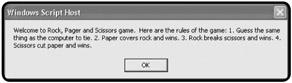
Figure 2.1: The script begins by displaying the rules of the game.
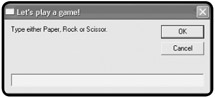
Figure 2.2: The player then types in his or her selection.
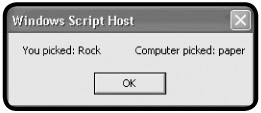
Figure 2.3: Then the script randomly picks a selection and displays the results of the game.
Through the development of this game you'll get a chance to practice incorporating WSH objects and their methods into VBScripts. You'll also learn how to perform a little simple conditional logic, as well as take a peek at using a number of built-in VBScript functions.
A Detailed Examination of WSH Components
Think of a computer, its operating system, and its hardware and software as being a collection of objects such as files, disk drives, printers and so on. To automate tasks on Windows operating systems, VBScript needs a way of interacting with these objects. This is provided by the WSH's core object model.
An understanding of the WSH core object model is essential to your success as a VBScript programmer. Not only will it provide you with the technical insights you'll need to development scripts that will run on Windows operating systems, but, by introducing you to working with objects, it will also prepare you to work with other object models. For example, many Windows applications, including Microsoft Office applications, expose their own object models, allowing VBScript to programmatically manipulate them. In addition, other VBScript execution hosts, such as Internet Explorer, provide VBScript with access to other object models. The WSH core object model is quite complex and may at first seem rather daunting. As a result, you may not leave this chapter feeling 100 percent confident that you fully understand it. But don't worry—you'll continue to develop your understanding of this complex topic as you go through the rest of this book.
Definition
An object model is a representation of a number of related objects that provide a script or program with the ability to view and interact with each of the objects (files, disks, printers, and so on) represented in the object model.
The Core Object Model
The WSH core object model provides programmatic access to Windows resources. There are 14 objects in the WSH core object model, as depicted in Figure 2.4. Each of these objects provides access to a particular category of Windows resources.
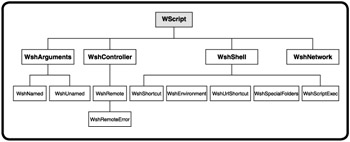
Figure 2.4: The WSH core object model consists of 14 objects, all of which have properties and methods that expose various parts of the Windows operating system.
At the top, or root, of the WSH core object model is the WScript object. It is from this object that all other objects are instantiated. The WScript object is automatically established during the startup of the execution host and can therefore be referenced without first being instantiated within your scripts. For example, let's create a short one-line script called Greeting.vbs.
WScript.Echo "This is an example of the use of WScript object's Echo() method"
To test this script, open your script editor and type in this statement. Now save the script, then run it by double-clicking it. The popup dialog, shown in Figure 2.5, should appear. As this script demonstrates, you can automatically access any of the properties and methods belonging to the WScript object directly from within your scripts.
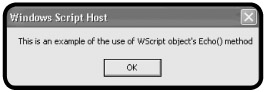
Figure 2.5: A popup dialog created using the WScript object's Echo() method
The WScript object provides access to a number of very useful methods that you'll see used throughout this book. These methods include
- CreateObject(). Establishes an instance of the specified object.
- DisconnectObject(). Prevents a script from accessing a previously instantiated object.
- Echo(). Displays a text message in the Windows Console or as a popup dialog depending on which execution hosts runs the script.
- Quit(). Terminates a script's execution.
- Sleep(). Pauses the execution of a script for a specified number of seconds.
Definition
Instantiation is a term that describes the process of creating a reference to an object. In order to work with an object you must first create, or instantiate, a reference to it within your scripts.
The WScript object is referred to as a public or exposed object. The WSH core object model has three other public objects. These are the WshController, WshShell, and WshNetwork objects. Each of these three objects must be instantiated within your scripts using the WScript object's CreateObject() method. All of the other objects in the WSH core object model can only be instantiated by using properties or methods associated with the WScript, WshController, WshShell, and WshNetwork objects.
Table 2.1 lists the rest of the objects in the WSH core object model, as well as the object properties or methods required to instantiate them.
|
Object |
Method of Instantiation |
|---|---|
|
WshArguments |
WScript.Arguments |
|
WshNamed |
WScript.Arguments.Named |
|
WshUnnamed |
WScript.Arguments.Unnamed |
|
WshRemote |
WshController.CreateScript() |
|
WshRemoteError |
WshRemote.Error |
|
WshShortcut |
WshShell.CreateShortcut() |
|
WshUrlShortcut |
WshShell.CreateShortcut() |
|
WshEnvironment |
WshShell.Environment |
|
WshSpecialFolders |
WshShell.SpecialFolders |
|
WshScriptExec |
WshShell.Exec() |
WSH Objects and Their Properties and Methods
Each object in the WSH core object model provides access to, or exposes, a particular subset of Windows functionality. Table 2.2 lists all 14 of the WSH core objects, provides a high-level description of these objects, and lists all of the properties and methods associated with each object.
|
Object |
Description |
|---|---|
|
WScript |
This is the WSH root object. It provides access to a number of useful properties and methods. It also provides access to the rest of the objects in the WSH core object model. Properties: Arguments, FullName, Interactive, Name, Path, ScriptFullName, ScriptName, StdErr, StdIn, StdOut, and Version. Methods: ConnectObject(), CreateObject(), DisconnectObject(), Echo(), GetObject(), Quit(), and Sleep(). |
|
WshArguments |
This object allows you to access command-line arguments passed to the script at execution time. Properties: Count, Item, and Length, Named and Unnamed. Methods: Count() and ShowUsage(). |
|
WshNamed |
This object provides access to a set of named command-line arguments. Properties: Item and Length. Methods: Count() and Exists(). |
|
WshUnnamed |
This object provides access to a set of unnamed command-line arguments. Properties: Item and Length. Methods: Count(). |
|
WshController |
This object provides the ability to create a remote script process. Properties: This object does not support any properties. Methods: CreateScript. |
|
WshRemote |
This object provides the ability to administrator remote computer systems using scripts over a network. Properties: Status and Error. Methods: Execute() and Terminate(). |
|
WshRemoteError |
This object provides access to information on errors produced by remote scripts. Properties: Description, Line, Character, SourceText, Source and Number. Methods: This object does not support any methods. |
|
WshNetwork |
This object provides access to a number of different network resources such as network printers and drives. Properties: ComputerName, UserDomain, and UserName. Methods: AddWindowsPrinterConnection(), AddPrinterConnection(), EnumNetworkDrives(), EnumPrinterConnection(), MapNetworkDrive(), RemoveNetworkDrive(), RemovePrinterConnection(), and SetDefaultPrinter(). |
|
WshShell |
This object provides access to the Windows registry, event log, environmental variables, shortcuts, and applications. Properties: CurrentDirectory, Environment and SpecialFolders. Methods: AppActivate(), CreateShortcut(), ExpandEnv ironmentStrings(), LogEvent(), Popup(), RegDelete(), RegRead(), RegWrite(), Run(), SendKeys(), and Exec(). |
|
WshShortcut |
This object provides scripts with methods and properties for creating and manipulating Windows shortcuts. Properties: Arguments, Description, FullName, Hotkey, IconLocation, TargetPath, WindowStyle, and WorkingDirectory. Methods: Save(). |
|
WshUrlShortcut |
This object provides scripts with methods and properties for creating and manipulating URL shortcuts. Properties: FullName and TargetPath. Methods: Save(). |
|
WshEnvironment |
This object provides access to Windows environmental variables. Properties: Item, and Length. Methods: Remove() and Count(). |
|
WshSpecialFolders |
This object provides access to special Windows folders that allow scripts to configure the Start Menu, desktop, Quick Launch Toolbar, and other special Windows folders. Properties: Item. Methods: Count(). |
|
WshScriptExec |
This object provides access to error information from scripts run using the Exec method. Properties: Status, StdOut, StdIn and StdErr. Methods: Terminate(). |
The number of properties and methods supported by objects in the WSH core object model is too extensive to include them all in this table; I will cover them separately a little later in this chapter.
Examining Object Properties
By accessing object properties, your scripts can gather all kinds of information when they execute. For example, using the properties associated with the WshNetwork object, your scripts can collect information about the Windows domain that the person who ran the script has logged in to, as well as the computer's name and the user's name. This information could then be used, for example, to prevent the script from executing on certain domains or computers.
There are over three dozen properties associated with various WSH objects. In many cases, properties may be associated with more than one object. Refer to Table 2.2 to see which properties are associated with which objects.
A complete review of WSH object properties is provided in Table 2.3.
|
Property |
Description |
|---|---|
|
Arguments |
Sets a pointer reference to the WshArguments collection. |
|
AtEndOfLine |
Returns either true or false depending on whether the end-of-line maker has been reached in the stream. |
|
AtEndOfStream |
Returns either true or false depending on whether the end of the input stream has been reached. |
|
Character |
Identifies the specific character in a line of code where an error occurs. |
|
Column |
Returns the current column position in the input stream. |
|
ComputerName |
Retrieves a computer's name. |
|
CurrentDirectory |
Sets or retrieves a script current working directory. |
|
Description |
Retrieves the description for a specified shortcut. |
|
Environment |
Sets a pointer reference to the WshEnvironment. |
|
Error |
Provides the ability to expose a WshRemoteError object. |
|
ExitCode |
Returns the exist code from a script started using Exec(). |
|
FullName |
Retrieves a shortcut or executable program's path. |
|
HotKey |
Retrieves the hotkey associated with the specified shortcut. |
|
IconLocation |
Retrieves an icon's location. |
|
Interactive |
Provides the ability to programmatically set script mode. |
|
Item |
Retrieves the specified item from a collection or provides access to items stored in the WshNamed object. |
|
Length |
Retrieves a count of enumerated items. |
|
Line |
Returns the line number for the current line in the input stream or identifies the line number within a script on which an error occurred. |
|
Name |
Returns a string representing the name of the WScript object. |
|
Number |
Provides access to an error number. |
|
Path |
Returns the location of the folder where the CScript or WScript execution hosts reside. |
|
ProcessID |
Retrieves the process ID (PID) for a process started using the WshScriptExec object. |
|
ScriptFullName |
Returns an executing script's path. |
|
ScriptName |
Returns the name of the executing script. |
|
Source |
Retrieves the identity of the object that caused a script error. |
|
SourceText |
Retrieves the source code that created the error. |
|
SpecialFolders |
Provides access to the Windows Start menu and desktop folders. |
|
Status |
Provides status information about a remotely executing script or a script starting with Exec(). |
|
StdErr |
Enables a script to write to the error output stream or provides access to read-only error output from an Exec object. |
|
StdIn |
Enables read access to the input stream or provides access to the write-only input stream for the Exec object. |
|
StdOut |
Enables write access to the output stream or provides access to the write-only output stream of the Exec object. |
|
TargetPath |
Retrieves a shortcut's path to its associated object. |
|
UserDomain |
Retrieves the domain name. |
|
UserName |
Retrieves the currently logged-on user's name. |
|
Version |
Retrieves the WSH version number. |
|
WindowStyle |
Retrieves a shortcut's window style. |
|
WorkingDirectory |
Returns the working directory associated with the specified shortcut. |
Working with Object Properties
Now let's take a look at an example of a VBScript that demonstrates how to instantiate an instance of the WshNetwork object and access its properties. The script is called NetInfo.vbs and is as follows:
Set WshNtwk = WScript.CreateObject("WScript.Network")

PropertyInfo = "User Domain" & vbTab & "= "& WshNtwk.UserDomain &
vbCrLf & _
 "Computer Name" & vbTab & "= "& WshNtwk.ComputerName & vbCrLf & _
 "User Name" & vbTab & "= "& WshNtwk.UserName & vbCrLf

MsgBox PropertyInfo, vbOkOnly , "WshNtwk Properties Example"
As you can see, it is not a very big script. It begins by using a Set statement to create an instance of the WshNetwork object, which is associated with a variable name of WshNtwk. Once you have established an instance of the WshNetwork object in this manner, you'll be able to reference the object's properties and methods using its variable name assignment.
Definition
The Set statement is used to create a reference to a specified object. Using this reference, you'll be able to refer to the object and its properties and methods over and over again throughout your script.
The next statement is so long, that to improve the script's readability, I decided to break it into three lines and end each of the first two lines with the & and _ characters. The & character is a concatenation character and is used to append two strings together. The _ character is a continuation character and is used to indicate that a statement is continued on the next line. This statement displayed the values of the following WshShell properties:
- WshNetwork.UserDomain. The name of the domain into which the person running the script is logged in.
- WshNetwork.ComputerName. The name of the computer on which the script is being executed.
- WshNetwork.UserName. The username of the person who ran the script.
In order to improve the presentation of the message, I formatted it using the VBScript vbTab and vbCrLf constants. The vbTab constant was used to line up the output at the point of the equals sign. The vbCrLf constant was used to execute a line feed and carriage return at the end of each line of output.
Definition
A constant is a VBScript construct that contains information that does not change during the execution of a script. VBScript provides a collection of built-in constants, such as the vbTab and vbCrLf constants, that you can incorporate into your scripts to control the formatting of your script output.
The last thing that the script does is display the message using the following statement:
MsgBox PropertyInfo, vbOkOnly , "WshNetwork Properties Example"
MsgBox() is a built-in VBScript function that displays a text message in a popup dialog. PropertyInfo is a variable that I used to store the output message. VbOkOnly is a VBScript constant that tells the MsgBox() function to only display the OK button in the popup dialog. The last part of the previous statement is a message that will be displayed in the popup dialog's titlebar. If you save and run this script yourself, you should see a popup dialog similar to the one shown in Figure 2.6.
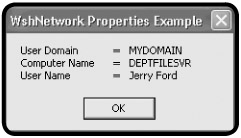
Figure 2.6: A popup dialog displaying properties associated with the WshNetwork object
Examining Object Methods
The WSH also provides a large collection of object methods. By using these methods in your VBScripts, you'll be able to manipulate the Windows resources associated with objects.
| TRAP |
You won't be able to do anything with your VBScripts that you don't have the appropriate set of security permissions and rights to do on a particular computer. For example, if you don't have the ability to manually create a new user account on your computer, then you won't be able to run a VBScript designed to perform this operation, either. However, if you have administrative privileges on the computer, your scripts should be able to run unhindered. |
For example, using the WshShell object's RegRead(), RegWrite(), and RegDelete() methods, you can create scripts that can access and manipulate the contents of the Windows registry. Using these methods, you can create scripts that can configure just about any Windows resource.
| TRAP |
The Windows registry is a repository used by the operating system to store information about every aspect of the computer's hardware and software. Making an incorrect configuration change to the registry can have disastrous affects on the operation of the computer and may potentially prevent it from being able to start. I strongly recommend that, unless you're very sure of what you're doing, you never attempt to modify the registry, either manually or by using a script. |
A complete review of WSH object methods is provided in Table 2.4.
|
Method |
Description |
|---|---|
|
AddPrinterConnection() |
Creates printer mappings |
|
AddWindowsPrinterConnection() |
Creates a new printer connection |
|
AppActivate() |
Activates the targeted application Window |
|
Close() |
Terminates an open data stream |
|
ConnectObject() |
Establishes a connection to an object |
|
Count |
Retrieves the number of switches found in the WshNamed and WshUnnamed objects |
|
CreateObject() |
Creates a new instance of an object |
|
CreateScript() |
Instantiates a WshRemote object representing a script that is running remotely |
|
CreateShortcut() |
Creates a Windows shortcut |
|
DisconnectObject() |
Terminates a connection with an object |
|
Echo() |
Displays a text message |
|
EnumNetworkDrives() |
Enables access to network drives |
|
EnumPrinterConnections() |
Enables access to network printers |
|
Exec() |
Executes an application in a child command shell and provides access to the environment variables |
|
Execute() |
Initiates the execution of a remote script object |
|
Exists() |
Determines a specified key exists within the WshNamed object |
|
ExpandEnvironmentStrings() |
Retrieves a string representing the contents of the Process environmental variable |
|
GetObject() |
Retrieves an Automation object |
|
GetResource() |
Retrieves a resource's value as specified by the tag |
|
LogEvent() |
Writes a message in the Windows event log |
|
MapNetworkDrive() |
Creates a network drive mapping |
|
Popup() |
Displays a text message in a popup dialog |
|
Quit() |
Terminates, or ends, a script |
|
Read() |
Retrieves a string of characters from the input stream |
|
ReadAll() |
Retrieves the s string that is made up of the characters in the input stream |
|
ReadLine() |
Retrieves a string containing an entire line of data from the input stream |
|
RegDelete() |
Deletes a registry key or value |
|
RegRead() |
Retrieves a registry key or value |
|
RegWrite() |
Creates a registry key or value |
|
Remove() |
Deletes the specified environmental variable |
|
RemoveNetworkDrive() |
Deletes the connection to the specified network drive |
|
RemovePrinterConnection() |
Deletes the connection to the specified network printer |
|
Run() |
Starts a new process |
|
Save() |
Saves a shortcut |
|
SendKeys() |
Emulates keystrokes and sends typed data to a specified window |
|
SetDefaultPrinter() |
Establishes a default Windows printer |
|
ShowUsage() |
Retrieves information regarding the way that a script is supposed to be executed |
|
Skip() |
Skips x number of characters when reading from the input stream |
|
SkipLine() |
Skips an entire line when reading from the input stream |
|
Sleep() |
Pauses script execution for x number of seconds |
|
Terminate() |
Stops a process started by Exec() |
|
Write() |
Places a string in the output stream |
|
WriteBlankLines() |
Places a blank in the output stream |
|
WriteLine() |
Places a string in the output stream |
Working with Object Methods
To really understand how object methods work you need to work with some examples. Let's take a look at two examples. In the first example, you'll see how to work with the WshShell object's Run() method in order to create a graphical front end to the Windows NET SEND command. In the second example, you'll learn how to use the WshShell object's LogEvent() method to write messages directly to a Windows XP, .NET, 2000, or NT computer's application event log.
The WshShell object provides access to a number of Windows resources, including
- The Windows application log
- The Windows registry
- Any Windows command-line command
Let's look at an example of how to use the WshShell object's Run() method. I've named this VBScript NetMessenger.vbs. NetMessenger.vbs provides a friendly graphical front end to the Windows NET SEND command-line command. The NET SEND command can be used to send text messages over a network to other currently logged-on users by specifying either the user's username or the computer name that the user is using. To use this command from the Windows command line, you might type something like
NET SEND jford Jerry, please stop by my office and see me when you have a
moment
NET SEND is the command being used. Jford is the username of the person to receive the message, and the rest of the statement is the message text that is to be sent.
Using the NET SEND command is not very complicated. Click on Start, Run, and then type CMD and click OK. This opens the Windows Console. Now type the NET SEND command and press the Enter key. That's it. Within moments, your message should appear on the recipient's screen. Unfortunately, many people are intimidated by the very thought of using the Windows Command Prompt. So let's write a VBScript, shown below, that makes using this command easy.
Set WshShl = WScript.CreateObject("WScript.Shell")

Recipient = InputBox("Type the username or computer name "& _
 "that the message is to be sent: ")

MsgText = InputBox("Type your message: ")

WshShl.Run "Net Send "& Recipient & " " & MsgText
The first line of this script instantiates the WshShell object and associates with it a variable called WshShl. The next two lines display a popup dialog asking the user to type a user name or computer name. The information typed in by the user is stored in a variable called Recipient. The next line allows the user to type in a text message and stores it in a variable called MsgText. The last line of this script executes the WshShell object's Run() method, passing it the NET SEND command, the name of the recipient, and the message to be sent.
Open your script editor and type in the script as just shown, then save it as Messenger.vbs. Run it and you'll see a popup dialog, like the one in Figure 2.7, asking for the user name or computer name of the recipient.
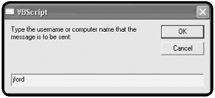
Figure 2.7: Type the username or computer name to which you want to send a message.
Type the required information and click OK. The popup dialog shown in Figure 2.8 will appear. Type the message you wish to send and then click OK.
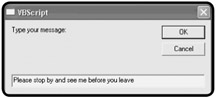
Figure 2.8: Type the message that you wish to send.
Within a few moments your message will appear on the recipient's screen, as shown in Figure 2.9.
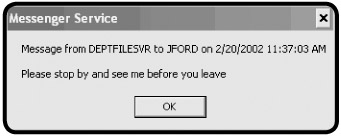
Figure 2.9: The recipient of the message will see your message, as well as your computer's name and the date and time of the message.
In the second example, you'll learn how to use the WshShell object's LogEvent() method to write a message to the Windows event log. The Windows event log is accessed differently, depending on which version of Windows you use. For example, on Windows 2000 and Windows XP, you can click Start and then right-click My Computer and select Manage to open the Computer Management console where the Event Viewer utility or snap-in resides. To view the application event log, expand the Event Viewer node and select Application, as shown in Figure 2.10. Then double-click on an event entry in the event log to examine it.
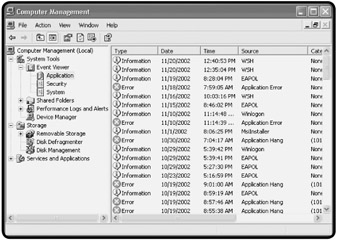
Figure 2.10: Examining the contents of the application event log
| TRAP |
Only the Windows .NET, XP, 2000, and NT operating systems support event logs. So don't try running this script on other Windows operating systems, such as Windows 98 or Me. |
The scripting logic to write a message to the Windows application event log is very simple.
Set WshShl = WScript.CreateObject("WScript.Shell")

WshShl.LogEvent 0, "EventLogger.vbs - Beginning script execution."
The first line of this script establishes an instance of the WshShell object. The second line uses the WshShell object's LogEvent() method to write a message to the event log.
| TRICK |
One really good use of the WshShell object's LogEvent() method is to log the execution of scripts run using the Windows Event Scheduler service. This way, you can review the application event log each day and make sure that your scripts are executing when you expect them to. |
Using your script editor, create a new script called EventLogger.vbs that contains the previous statements. Run the script and then check the application event log; you should find the message added by the script. Double-click it; you should see the Event Properties dialog for the event, as shown in Figure 2.11.
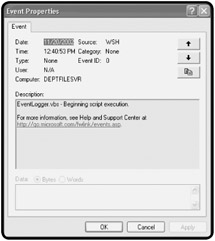
Figure 2.11: Viewing the event that the EventLogger.vbs script added to the Windows application event log
Configuring WSH Execution Hosts
So far you've used the CScript and WScript execution host default settings for each script that you've created and run. If you wish, you can modify these default settings to better suit your personal preferences. The WSH provides separate configuration settings for the WScript and CScript execution hosts. Because the WScript execution hosts can process scripts run from either the Windows GUI or the Windows command line, there are two different ways to configure them. The WSH also allows you to override execution host settings on-the-fly by passing configuration arguments to the execution host when starting a script's execution. Finally, the WScript execution host allows you to set execution host settings unique to a particular script using a .wsh file.
Each of these execution host configuration options is examined in detail in the sections that follow.
Configuring WScript and CScript Command Line Execution
You can use either the WScript or CScript execution hosts to run any VBScript. Generally speaking, you'll use the WScript to run scripts that need to use popup dialogs, and the CScript execution host to run scripts silently in the background.
Even though they have their own separate configuration settings, both the WScript and CScript execution hosts are configured in the same way, using the exact same set of options. The syntax used to configure these two execution hosts is as follows:
wscript [//options]
cscript [//options]
Begin by opening a Windows Console. Then, from the Windows Command Prompt, type the name of the execution host that you wish to configure followed by one or more options, each of which is preceded by the // characters.
| TRAP |
Any changes that you made to the default execution host will only affect your scripts—if you share a computer with somebody else, his or her WSH execution host settings will not be not affected. If you want WSH settings to be standardized for all users of the computer, you'll want to make sure that each user sets them accordingly. |
Table 2.5 lists the configuration options supported by the WScript and CScript execution hosts.
|
Configuration Option |
Purpose |
|---|---|
|
//? |
Displays the command syntax for the CScript and WScript execution hosts |
|
//b |
Runs a script in batch mode, where all errors and message output is suppressed |
|
//d |
Turns on script debugging |
|
//e:jscript | e:vbscript |
Sets the script engine that is to be used to run the script |
|
//h:wscript | h:script |
Sets the execution host that is to be used to run the script |
|
//i |
Runs the script interactively, displaying all errors and message output |
|
//job:id |
Identifies a specific job within a Windows script file to be run |
|
//logo |
Displays the CScript or WScript logo at the start of script execution |
|
//nologo |
Suppresses the display of the CScript or WScript logo at the start of script execution |
|
//s |
Saves the currently specified options and sets them as the default settings |
|
//t:nn |
Establishes a timeout value that limits how long a script can execute. By default, these are not execution time limits imposed on script execution. |
|
//x |
Turns off script debugging |
Now let's look at some examples of how to modify the configuration of the execution hosts. By default, the WSH sets the WScript execution host up as the default execution host. However, you can change this by typing the following command and pressing the Enter key:
cscript //H:cscript //s
The //H:cscript option makes the CScript execution the default and the //s option makes the change permanent. If you left the //s option off the command, the change would have only been in effect for your current working session. Like-wise, to change the default command-line execution host back to Wscript, type the following command and press the Enter key:
wscript //H:wscript //s
Now let's try an example that sets more than one configuration option.
wscript //H:wscript //nologo //t:60 //s
In this example, the WScript execution host is set up as the default. In addition, the //nologo option will prevent the display of the WScript logo during script execution. The //t:60 option will prevent any script from executing for more than 60 seconds. Finally, the //s option saves all specified settings.
| TRICK |
Even the best programmers can make mistakes. Sometimes these mistakes cause scripts to behave in unexpected ways, such as getting stuck in a loop that executes forever. By setting the //T:nn option for both the WScript and CScript execution hosts, you can set up a sort of safety net that will prevent any script that you run from executing for more than a minute. |
Configuring WScript Desktop Execution
The WScript execution host's desktop configuration settings are different from its command-line configuring settings. First of all, there are only two configuration settings. The first specifies an optional time limit for script execution, and the second specifies whether or not the WScript log is displayed when scripts are run from the Windows Console.
The steps involved in configuring the WScript execution host from the Windows desktop are as follows:
- Click Start, Run. The Run dialog will appear.
- Type WScript and then click OK. The Windows Script Host Settings dialog will appear, as shown in Figure 5.12.
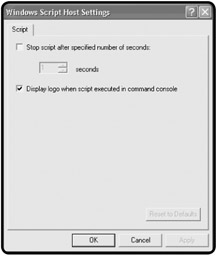
Figure 2.12: Modifying the WScript execution host's desktop configuration. - As you can see, by default, the WScript execution host does not have an execution time setting. To configure one, select the Stop script after specified number of seconds option and then specify a time limit (in seconds).
- By default, the WScript execution host will display its logo when scripts are executed from the Windows Console. To prevent this behavior, clear the Display logo when scripts are executed in the command console option.
- Click OK.
Overriding Command Line Host Execution Settings
So far, you've learned how to configure the default execution of the WScript and CScript execution hosts from the Windows command-line and desktop. Now let's see how to override the default command-line settings without permanently changing them, in order to temporarily alter them for the execution of a specific script.
The syntax for temporarily overriding WScript and CScript execution is as follows:
wscript scriptname [//options] [arguments]
cscript scriptname [//options] [arguments]
First, open the Windows Console, and then type the name of the execution host you wish to use to run the script. Next, type the name and path of the script to be executed; then type as many configuration settings as you want, preceding each with a pair of // characters. Finally, if the script that you're executing expects any input to be passed to it at execution time, specify the required arguments and then press the Enter key.
Now let's look at a few examples of how to override host script execution settings. First, let's assume that ou're working with a script called Test Script.vbs and that you want to prevent it, using the WScript execution hosts, from executing for more than 30 seconds. Open the Windows Command Console and type the following command to run the script using the WScript execution hosts:
Definition
In the context of this discussion, an argument is a piece of data passed to a script for processing. For example, if you wrote a VBScript to create new user accounts, your script might expect you to pass it one or more usernames to process.
wscript "Test Script.vbs" //T:30
Likewise, to execute the same script using the CScript execution host for a maximum of 30 seconds, type the following command, and then press the Enter key:
cscript "Test Script.vbs" //T:30
| TRAP |
Windows operating systems support very large file names. They also allow you to include blank spaces as part of a filename, in order to make those names more descriptive. If you choose to include blank spaces as part of your VBScript filenames, then you'll need to enclose the filenames inside a pair of quotation marks, as shown in the two previous examples, so that the script's filename will be correctly interpreted. |
Now let's look at a slightly more complicated example, in which multiple configuration settings are overridden.
wscript "Test Script.vbs" //T:30 //nologo
In this example, the script is prevented from executing for more than 30 seconds using the WScript execution hosts. In addition, the WScript execution host's logo is suppressed, in order to prevent it from being displayed at the beginning of the script's execution.
Customizing WScript Settings for Individual Desktop Scripts
The WSH also provides a way, using the WScript execution host, to permanently override configuration settings for specific scripts run from the Windows desktop. This is done by creating a text file with the same name as the script and giving the file a .wsh extension. Then, within the .wsh file, you can specify specific WSH configuration settings. For example, to set up a .wsh file for a script named Test Script.vbs, you would create a file called Test Script.wsh and save it in the same folder in which the Test Script.vbs script resides. You could then run the script by double-clicking the .wsh file or by double-clicking the script itself. If you doubleclick the .wsh file, the WSH will automatically find the script that is associated with it, and, after processing the configuration settings stored in the .wsh file, run the script. Conversely, whenever you double-click a script, the WSH first looks to see if it has an associated .wsh file before running it; if it does not, then the WSH will process it using the execution host's default configuration settings.
The following statements show the contents of a typical .wsh file:
[ScriptFile]
Path=C:Test Script.vbs
[Options]
Timeout=30
DisplayLogo=0
The first line contains the section label called [ScriptFile]. The next statement provides the name and path of the script associated with this .wsh file. Next comes an [Options] section label. The last two lines contain configuration settings specific to the execution of this script. Timeout=30 specifies that this script will not be allowed to process for more than 30 seconds, and DisplayLogo=0 specifies that the WScript logo is to be suppressed. An alternative setting for this option would be DisplayLogo=1, which would enable the display of the WScript logo.
There are two ways to create a .wsh file. One way is to use a text editor, such as the Windows Notepad application, to manually create the file. The other option is to let Windows create the .wsh file for you using the following procedure:
- Locate the folder in which the VBScript is stored.
- Right-click the script and select Properties from the menu that appears.
- The script's Properties dialog will appear, as shown in Figure 2.13.
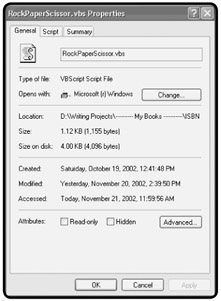
Figure 2.13: Examining the properties on the General property sheet of the scripts Properties dialog - Click on the Script property sheet, as shown in Figure 2.14.
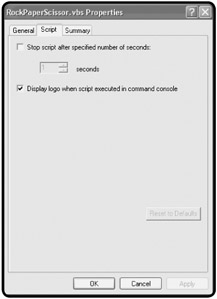
Figure 2.14: Creating a .wsh file via a script's Properties dialog - Specify a script execution time limit as required.
- Enable or disable the display of the WScript logo as desired.
- Click OK.
A new .wsh file is then created for you and stored in the same folder as the script.
Back to the Rock, Paper, and Scissors Game
Okay. Now it's time to go back to where this chapter started—talking about the Rock, Paper, and Scissors game. In this project, you will create a scripted version of this classic game. This version will be a bit limited, given that you've not had the chance yet to learn everything you'll need to create a more sophisticated version. However, you know enough to build the game's foundation and get a working model going. Later, in Chapter 5, you'll get the chance to return and spice things up a bit.
Designing the Game
The basic design of this game is quite simple. First, display the rules of the game, then ask the player to type either rock, paper, or scissors. Next, have the script randomly pick a choice of its own and display the results.
This project will be completed in six steps.
- Define the resources used by this script.
- Display the game's instructions.
- Provide a way for the user to select a choice.
- Devise a way for the script to generate a random number.
- Assign the computer's choice based on the script's randomly selected number.
- Display the final results of the game.
Defining the Resources Used by the Script
Begin by opening your editor and saving a blank file with a name of RockPaperScissors.vbs. Next add the first few lines of the script as follows:
'Formally declare each variable used by the script before trying to use them
Dim WshShl, Answer, CardImage

'Create an instance of the WScript object in order to later use the Popup
method
Set WshShl = WScript.CreateObject("WScript.Shell")
The first line begins with a ' character. This character identifies a VBScript comment. Comments can be used to document the contents of scripts. Comments have no affect on the execution of a script. The next line begins with the VBScript keyword Dim. This statement defines three variables that will be used by the script. A variable is simply a portion of the computer memory where your scripts can store and retrieve data. I'll provide more information about variables and how they work in Chapter 4, "Constants, Variables, and Arrays." The third statement is another comment, and the fourth statement uses the WScript object's CreateObject() method to set up an instance of the WshShell object. This statement allows the script to access WshShell properties and methods.
Displaying the Rules of the Game
Next, let's take advantage of the WshShell object that you just defined by using its Popup() method to display a message in a graphical popup dialog.
'Display the rules of the game
WshShl.Popup "Welcome to Rock, Pager and Scissors game. Here are the "& _
 "rules of the game: 1. Guess the same thing as the computer "& _
 "to tie. 2. Paper covers rock and wins. 3. Rock breaks "& _
 "scissors and wins. 4. Scissors cut paper and wins."
What you have here is really just two lines of code, though it looks like five. The first line is a comment. However, the second line was so big that I chose to break it down into multiple pieces for easy display. To do so, I broke the message that I wanted to display into multiple segments of similar lengths, placing each segment within a pair of quotation marks. Then, to tie the different segments into one logical statement, I added the VBScript & character to the end of each line, followed by the _ character.
Collecting the Player's Selection
When the player clicks OK, the popup dialog displaying the game's rules disappears and is replaced with a new popup dialog that is generated by the following code:
'Prompt the user to select a choice
Answer = InputBox("Type either Paper, Rock or Scissors.", "Let's play a
game!")
The first statement is a comment and can be ignored. The second statement uses the VBScript InputBox() function to display a popup dialog into which the user can type either rock, paper, or scissors. The value typed by the user is then assigned to a variable called Answer.
Setting Up the Script's Random Selection
Now that the player has selected his or her choice, it's the script's turn to make a random selection on behalf of the computer. This can be done in two statements, as shown by the following statements:
'Time for the computer to randomly pick a choice
Randomize
GetRandomNumber = Int((3 * Rnd()) + 1)
The first line is a comment and can be ignored. The second line executes the Randomize statement, which ensures that the computer will generate a random number. If you left this line out and ran the script several times, you'd notice that after making an initial random choice, the script will always make the exact same choice time and time again. The Randomize statement prevents this behavior by ensuring that a random number is generated each time the script executes.
The next statement generates a random number between 1 and 3. I'll break down the activity that occurs in this statement. First, the Rnd() function generates a random number between 0 and 1. Next, the Int() function, which returns the integer portion of a number, executes, multiplying 3 times the randomly generated number and then adding 1 to it. The final result is a randomly generated number with a value between 1 and 3.
Assigning a Choice to the Script's Selection
Next, you'll need to assign a choice to each of the three possible numeric values randomly generated by the script.
'Assign a value to the randomly selected number
If GetRandomNumber = 3 then CardImage = "rock"
If GetRandomNumber = 2 then CardImage = "scissors"
If GetRandomNumber = 1 then CardImage = "paper"
If the number 1 is generated, then a value of rock is assigned as the computer's selection. If the number 2 is generated, then a value of scissors is assigned as the computer's selection. Finally, if the number 3 is generated, then a value of paper is assigned as the computer's selection.
Displaying the Results of the Game
Once the script has come up with the computer's selection, it's time to display the results of the game so that user can see who won.
'Display the game's results so that the user can see if he or she won
WshShl.Popup "You picked: "& Answer & Space(12) & "Computer picked: "& _
 CardImage
The WshShell object's Popup() method is used to display the results of the game. Using the & concatenation character, I pieced together the various parts of the message. These parts included text phrases enclosed within quotation marks; the Answer variable; the CardImage variable, which represents the user's and computers' choices; the Space() method, which added 12 blank spaces to the text messages; and the _ character, which allowed me to spread the message out over two separate lines.
The Final Result
Now let's put all the pieces of the script together and then save and run the scripts.
'Formally declare each variable used by the script before trying to use them
Dim WshShl, Answer, CardImage

'Create an instance of the WScript object in order to later use the Popup
method
Set WshShl = WScript.CreateObject("WScript.Shell")

'Display the rules of the game
WshShl.Popup "Welcome to Rock, Pager and Scissors game. Here are the "& _
 "rules of the game: 1. Guess the same thing as the computer "& _
 "to tie. 2. Paper covers rock and wins. 3. Rock breaks "& _
 "scissors and wins. 4. Scissors cut paper and wins."

'Prompt the user to select a choice
Answer = InputBox("Type either Paper, Rock or Scissors.", "Let's play a game!")

'Time for the computer to randomly pick a choice
Randomize
GetRandomNumber = Int((3 * Rnd()) + 1)

'Assign a value to the randomly selected number
If GetRandomNumber = 3 then CardImage = "rock"
If GetRandomNumber = 2 then CardImage = "scissors"
If GetRandomNumber = 1 then CardImage = "paper"
'Display the game's results so that the user can see if he or she won
WshShl.Popup "You picked: "& Answer & Space(12) & "Computer picked: "& _
 CardImage
Summary
In this chapter you learned a lot about the WSH core object model. This included a review of its 14 objects and their methods and properties. You also saw a number of example scripts that demonstrated the use of various objects and their methods and properties. This information and the examples that you covered here have given you the foundation required to complete the rest of this book, not to mention the games that you will learn. In addition, in this chapter you learned how to configure both the WScript and CScript execution hosts in order to best suit your personal requirements and preferences.
Challenges
- See if you can expand RockPaperScissors.vbs by adding logic that compares the player's selection to the scripts random selection in order to determine the winner.
- Try adding logic to RockPaperScissors.vbs to see if you can get it to record its start time and completion time in the Windows event log. This way, you can monitor the event log and track the execution of the script.
- See if you can modify NetMessenger.vbs to execute different Windows commands. For example, try writing a script that uses the NET START and NET STOP to stop and start a Windows service.
Part I - Introducing the WSH and VBScript
Part II - Learning VBScript & WSH Scripting
- VBScript Basics
- Constants, Variables, and Arrays
- Conditional Logic
- Processing Collections of Data
- Using Procedures to Organize Scripts
Part III - Advanced Topics
- Handling Script Errors
- Using the Windows Registry to Configure Script Settings
- Combining Different Scripting Languages
Part IV - Appendices

EAN: 2147483647
Pages: 137
